
1. Introduction
The eppfun AK3040 is a high-performance USB Bluetooth 5.2 audio transmitter designed to provide wireless audio connectivity for various devices. It supports advanced audio codecs including aptX-Adaptive, aptX HD, aptX Low Latency (LL), aptX, and SBC, ensuring high-quality and low-latency audio transmission. This device is compatible with PlayStation 4 (PS4), PlayStation 5 (PS5), personal computers (PC), Mac systems, and Nintendo Switch consoles.
2. Package Contents
- eppfun AK3040 USB Bluetooth Audio Transmitter
- USB Type-C to Type-A Adapter (short cable)
- User Manual (this document)
3. Setup Guide
3.1. Connecting to a PC/Mac
- Insert the eppfun AK3040 transmitter into an available USB port on your PC or Mac. If your device only has USB-C ports, use the provided USB Type-C to Type-A adapter.
- The system will automatically recognize the device as a USB audio output. No additional drivers are typically required for Windows 10/11 or macOS.
- The transmitter will automatically enter pairing mode upon initial connection. The LED indicator on the transmitter will flash.
- Activate Bluetooth pairing mode on your wireless headphones or speaker.
- Once paired, the LED indicator on the AK3040 will change to a solid color, indicating the active audio codec (refer to the operating instructions for LED color meanings).
- Select the "eppfun AK3040" as your audio output device in your computer's sound settings.

Image: The eppfun AK3040 USB Bluetooth transmitter connected to a desktop PC, illustrating its plug-and-play functionality and compatibility with various operating systems.
3.2. Connecting to PlayStation 4 (PS4) / PlayStation 5 (PS5)
- Insert the eppfun AK3040 transmitter into an available USB port on your PS4 or PS5 console.
- The transmitter will enter pairing mode (flashing LED).
- Put your Bluetooth headphones or speaker into pairing mode.
- Once paired, the LED indicator will become solid.
- Navigate to your console's audio output settings and select the "eppfun AK3040" as the audio output device.

Image: The eppfun AK3040 connected to a PS5, demonstrating its use for wireless audio during gaming with aptX-Adaptive HD Low Latency support.
3.3. Connecting to Nintendo Switch
- When using the Nintendo Switch in docked mode, insert the eppfun AK3040 into an available USB port on the dock.
- When using the Nintendo Switch in handheld mode, connect the AK3040 to the console's USB-C port using the provided USB Type-C to Type-A adapter.
- The transmitter will enter pairing mode (flashing LED).
- Put your Bluetooth headphones or speaker into pairing mode.
- Once paired, the LED indicator will become solid.
- Ensure the audio output on your Nintendo Switch is set to USB audio.

Image: The eppfun AK3040 connected to a Nintendo Switch, showing its versatility for both docked and portable gaming with various aptX codecs.
4. Operating Instructions
4.1. Pairing New Devices
To pair a new Bluetooth audio device, ensure the AK3040 is connected to your host device (PC, console). The transmitter will automatically enter pairing mode if no previously paired device is found or connected. If a device is already connected, disconnect it or move out of range to force the AK3040 into pairing mode. Then, put your new Bluetooth audio device into pairing mode.
4.2. Reconnection
The AK3040 will automatically attempt to reconnect to the last paired device when powered on or when the device comes back into range. If reconnection fails, manually initiate pairing mode on your audio device.
4.3. LED Indicator Status
The LED on the AK3040 indicates its status and the active audio codec:
- Flashing Blue: Pairing mode.
- Solid Blue: Connected with aptX-Adaptive or aptX HD codec.
- Solid Green: Connected with aptX Low Latency (LL) codec.
- Solid White: Connected with aptX codec.
- Solid Red: Connected with SBC codec.
5. Maintenance
To ensure the longevity and optimal performance of your eppfun AK3040 transmitter, follow these guidelines:
- Keep the device dry and away from moisture.
- Avoid extreme temperatures.
- Clean the device with a soft, dry cloth. Do not use harsh chemicals or abrasive cleaners.
- Store the device in a safe place when not in use to prevent physical damage.
6. Troubleshooting
6.1. No Sound or Poor Sound Quality
- Check Connection: Ensure the AK3040 is securely plugged into the USB port and the LED indicator is solid (not flashing).
- Verify Pairing: Confirm your Bluetooth audio device is successfully paired with the AK3040. Re-pair if necessary.
- Audio Output Selection: On your PC/Mac or console, ensure the "eppfun AK3040" is selected as the primary audio output device.
- Codec Compatibility: While the AK3040 supports multiple codecs, your receiving Bluetooth device must also support them for optimal quality. Check the LED color to see which codec is active.
- Interference: Bluetooth signals can be affected by Wi-Fi (2.4GHz) or other wireless devices. Try to minimize interference by moving the transmitter or other devices.
- Volume Levels: Check volume levels on both your host device and your Bluetooth audio device.
6.2. Connection Drops Frequently
- Distance: Ensure your Bluetooth audio device is within the effective range of the transmitter (typically up to 10 meters/33 feet, line of sight).
- Obstacles: Walls, furniture, and even your body can obstruct the Bluetooth signal. Try to maintain a clear line of sight.
- Re-pairing: Sometimes, re-pairing the devices can establish a more stable connection.
- Automatic Disconnect on Silence: The AK3040 may disconnect after a period of silence (e.g., 2 seconds) and reconnect when audio resumes. This can cause a brief delay at the start of audio playback. This is a design characteristic.
6.3. Device Not Recognized by PC/Console
- Try Different USB Port: Connect the AK3040 to another USB port on your device.
- Re-insert: Unplug and re-plug the transmitter.
- Restart Host Device: Restart your PC, Mac, or console.
- USB 3.0 Ports: Some USB 3.0 ports may cause interference with 2.4GHz wireless devices. If possible, use a USB 2.0 port.
6.4. PS5 Connects with SBC Codec Only
Some users have reported that the PS5 may default to the SBC codec with certain transmitters. Ensure your headphones support higher-quality codecs like aptX-Adaptive or aptX HD. The AK3040 will attempt to connect with the highest available codec supported by both devices. If the issue persists, it may be a limitation of the PS5's USB audio handling with certain Bluetooth profiles.
7. Specifications
| Brand | eppfun |
| Model | AK3040 |
| Wireless Communication Standard | Bluetooth 5.2 |
| Supported Audio Codecs | aptX-Adaptive, aptX HD, aptX Low Latency (LL), aptX, SBC |
| Hardware Interface | USB, Bluetooth |
| Compatible Devices | Keyboards, Smartphones, Tablets, Mice, PS4, PS5, PC, Mac, Nintendo Switch (Audio only) |
| Required Bluetooth Support | Yes (for connecting to audio devices) |
| UPC / GTIN | 653871799544 |
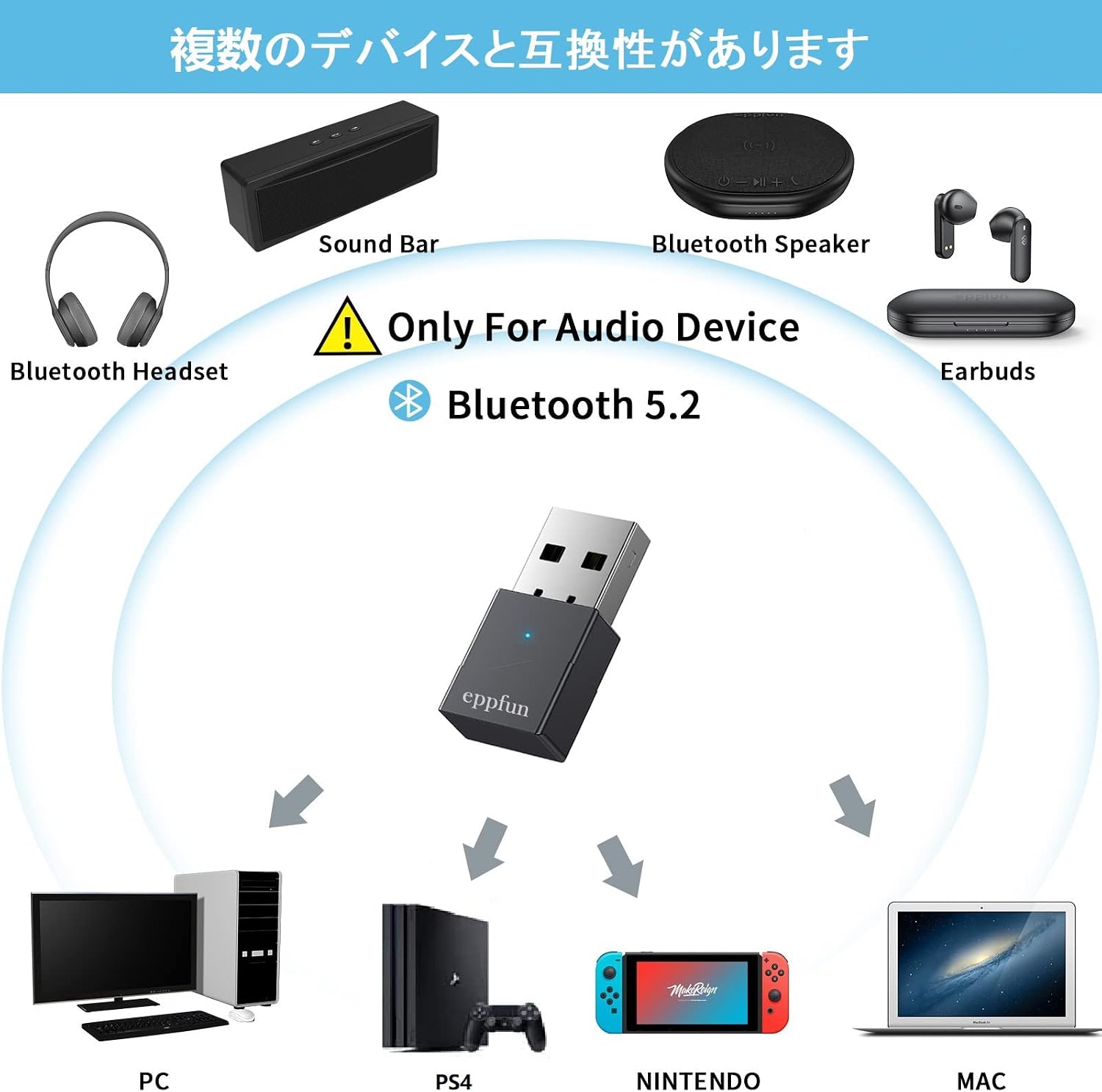
Image: An illustration of the eppfun AK3040's broad compatibility with Bluetooth audio devices (headsets, soundbars, speakers, earbuds) and host systems (PC, PS4, Nintendo Switch, Mac).
8. Warranty and Support
The eppfun AK3040 USB Bluetooth Audio Transmitter comes with a 1-year manufacturer's warranty from the date of purchase. Additionally, purchases made through Amazon are typically covered by a 30-day return and exchange policy. Please retain your proof of purchase for warranty claims.
For technical support, warranty claims, or further assistance, please contact eppfun customer service through their official website or the retailer where the product was purchased.


