
OTTOCAST U2-AIR US
OTTOCAST U2-AIR Wireless CarPlay Adapter User Manual
Brand: OTTOCAST | Model: U2-AIR US
1. Introduction
The OTTOCAST U2-AIR Wireless Apple CarPlay Adapter is designed to convert your car's existing wired CarPlay system into a wireless one. This device offers a fast and seamless connection, typically starting within 7 seconds, allowing you to enjoy Apple CarPlay features without the need for physical cables. It supports various control methods including voice, steering wheel, touchscreen, and knob operations, enhancing your driving experience with convenience and safety.

Image: The compact OTTOCAST U2-AIR Wireless CarPlay Adapter, shown with its included USB-A to C and USB-C to C cables.
2. What's in the Box
- OTTOCAST U2-AIR Wireless CarPlay Adapter (WIFI MODULE)
- USB Type-A to Type-C Data Cable
- USB Type-C to Type-C Data Cable
3. Setup Guide
Follow these steps to set up your OTTOCAST U2-AIR Wireless CarPlay Adapter:
- Turn on WLAN & Bluetooth: Ensure Bluetooth, Wi-Fi, hotspot, and vehicle CarPlay function are enabled on your iPhone.
- Connect USB Dongle: Connect the U2-Air adapter to your car's USB port. A blue light will illuminate, and a Bluetooth signal will appear on your car's screen.
- Pair CarPlay via Bluetooth: On your iPhone, search for and pair with the Bluetooth device named "AUTO-xxxx". Allow all connection notifications to complete the pairing process.

Image: Prepare your iPhone by enabling necessary wireless functions.

Image: The U2-AIR adapter connected to the car's USB port, showing a blue indicator light.

Image: Visual representation of the three setup steps: iPhone preparation, USB connection, and Bluetooth pairing.
Automatic Connection
After the initial setup, the U2-Air will automatically connect to your iPhone when the car engine starts, typically within 7-18 seconds. This provides a seamless wireless CarPlay experience.

Image: The U2-AIR adapter automatically connecting to an iPhone for wireless CarPlay.
4. Operating Instructions
Wireless CarPlay Functionality
The OTTOCAST U2-AIR enables wireless Apple CarPlay, allowing you to access navigation, music, hands-free calls, and other CarPlay features directly on your car's display without a wired connection.

Image: A car's infotainment screen displaying the wireless CarPlay interface with navigation, music, and hands-free call options.
Control Methods
The adapter supports various control methods for a familiar user experience:
- Voice Control: Use Siri to assist with driving tasks such as playing music, navigating, and reading text messages.
- Steering Wheel Control: Utilize your car's existing steering wheel buttons for media playback and call management.
- Touch Screen Control: Interact directly with the CarPlay interface on your car's touchscreen display.
- Knob Operation: For vehicles equipped with OEM knob controls, these can be used to navigate the CarPlay system.

Image: Demonstrates the various control methods supported by the adapter, including voice, steering wheel, touchscreen, and knob controls.
Day-Night Mode Synchronization
The U2-AIR can synchronize with your car's headlights to automatically switch between day and night modes on the CarPlay display, enhancing visual comfort during different lighting conditions.
5. Compatibility
The OTTOCAST U2-AIR Wireless CarPlay Adapter is compatible with the following:
- Vehicles: Cars with factory-wired CarPlay.
- Model Years: 2016-2022.
- Operating System: iOS 10 and above.
- Supported Brands (Examples): Mercedes, Volvo, Jeep, Kia, Lincoln, Ford, Chevrolet, Land Rover, Lexus.
- Note: Some models, such as the Mazda CX-4, may only support operation using the remote control. BMW models are not compatible.
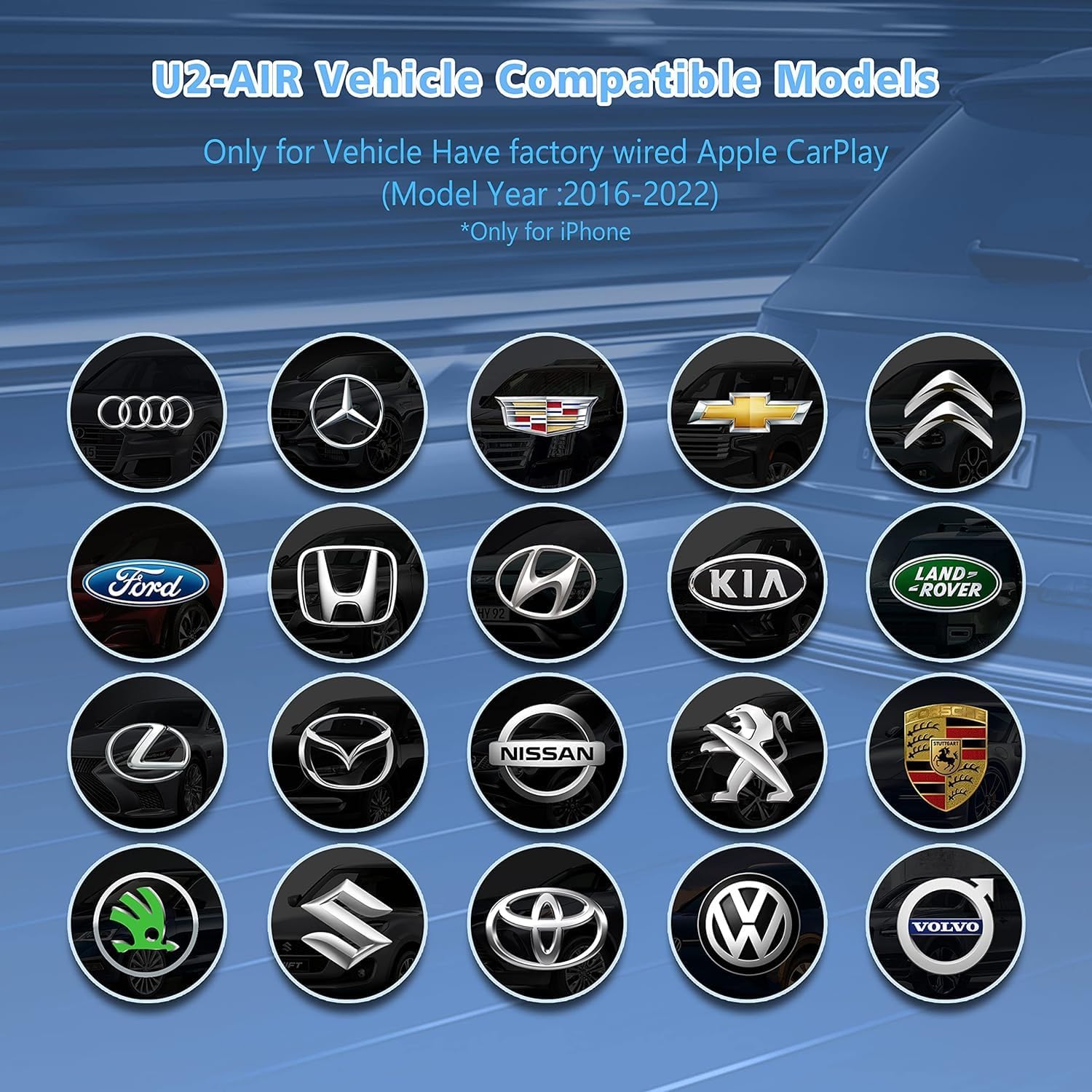
Image: A visual guide to compatible car brands for the U2-AIR adapter.
6. Specifications
| Feature | Detail |
|---|---|
| Product Dimensions | 2.2 x 0.6 x 2.2 inches |
| Item Weight | 4.6 ounces |
| ASIN | B09Q65SX47 |
| Item model number | U2-AIR US |
| OS | ios 10 |
| Wireless communication technologies | Bluetooth, Wi-Fi |
| Connectivity technologies | Wi-Fi, USB |
| Special features | Built In Microphone, Fast Charging |
| Other display features | Wireless |
| Human Interface Input | Touchscreen |
| Color | Black |
| Manufacturer | OTTOCAST |
| Country of Origin | China |
| Date First Available | January 11, 2022 |
| Brand | OTTOCAST |
| Connectivity Technology | Wi-Fi, USB |
| Controller Type | Voice Control |
| Compatible Devices | Cars with wired CarPlay (model years 2016-2022) and iOS 10 or later |
| Total HDMI Ports | 1 |
| Connector Type | USB Type A, C |
| Audio Output Mode | Not Mono |
| Surround Sound Channel Configuration | Surround Sound (unspecified configuration) |
7. Troubleshooting
If you encounter issues with your OTTOCAST U2-AIR adapter, consider the following:
- Connection Issues: Ensure your iPhone's Bluetooth and Wi-Fi are enabled and that the adapter is properly plugged into the car's USB port. Re-pair the device if necessary.
- Audio Delay: The high-end configuration minimizes audio lag, but if you experience significant delays, ensure your car's system and iPhone are updated.
- Automatic Connection Failure: If the device does not automatically reconnect, try unplugging and re-plugging the adapter, or restarting your iPhone.
- Online Update: The device supports online updates to improve performance and compatibility. Refer to the official OTTOCAST resources for instructions on how to perform an online update.
Video: Official guide on how to perform an online update for the OTTOCAST U2-AIR adapter.
Video: Official guide detailing installation, updating, and uploading logs for the OTTOCAST U2-AIR adapter.
For further assistance, please contact OTTOCAST professional technical support.
8. Maintenance
The OTTOCAST U2-AIR adapter requires minimal maintenance. Keep the device clean and free from dust. Avoid exposing it to extreme temperatures or moisture. Ensure the USB ports in your vehicle are clean and free of debris to maintain a stable connection.
9. Warranty and Support
OTTOCAST products are supported by a one-year after-sales warranty. The product is 100% returnable for a refund. For any technical issues or support, OTTOCAST provides an online email and video technical support team. Please feel free to contact them if you encounter any problems.
User Guide (PDF): Download User Guide
User Manual (PDF): Download User Manual
OTTOCAST App Download: Scan the QR code below or visit the link to download the OttoPilot app for more experiences.
http://otto-cast.com/app/QRCode/download.html

Image: QR code for downloading the OttoPilot app.
Related documentsU2-AIR US


Ask a question about this manual
Ask about setup, troubleshooting, compatibility, parts, safety, or missing instructions. Manuals+ will review the question and use this page’s manual context to help answer it.