
1. Introduction
Welcome to your new Huawei AX3 AX3000 Dual Band Wi-Fi Router. This manual provides detailed instructions for setting up, operating, and maintaining your device to ensure optimal performance and connectivity. Please read this guide thoroughly before using the product.
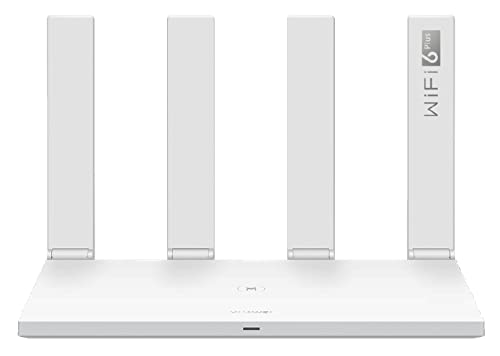
Front view of the Huawei AX3 AX3000 Wi-Fi Router with four antennas.
2. Product Overview
2.1 Key Features
- High-Speed Wi-Fi Performance: Achieves theoretical speeds up to 3000 Mbps (574 Mbps on 2.4 GHz and 2402 Mbps on 5 GHz) using 1024-QAM and 160 MHz frequency bandwidth for smooth streaming and gaming.
- Multiple Device Connectivity: Supports up to 128 devices across dual bands. OFDMA multi-user technology allows simultaneous data transmission to multiple devices (max. 4 on 2.4 GHz, max. 16 on 5 GHz).
- Enhanced Signal Penetration: Dynamic Narrow Bandwidth technology, based on Chipset Synergy, enables Wi-Fi 6-enabled phones to send stronger signals back to the router, improving signal penetration through walls and floors.
- 160 MHz Bandwidth: When connected to 160 MHz compatible devices, internet speed can increase by 60% or more.
- Reduced Power Consumption: Negotiates wake-up times among connected devices to minimize power usage during standby.
- Security Protocol: Supports WPS for secure connections.
2.2 What's in the Box
- 1x Huawei AX3 Wi-Fi Router
- 1x Power Adapter
- 1x Warranty Card
- 1x Network Cable
- 1x Quick Start Guide and Safety Information

Rear view of the Huawei AX3 AX3000 Wi-Fi Router showing power, WAN, LAN, and reset ports.
3. Setup Guide
3.1 Package Contents Verification
Before proceeding, ensure all components listed in the "What's in the Box" section are present and undamaged.
3.2 Physical Connection
- Connect the provided power adapter to the router's power port and then to a power outlet.
- Connect your internet service provider's modem or optical network terminal (ONT) to the WAN port on the router using an Ethernet cable.
- For initial setup or wired connections, connect a computer to one of the LAN ports on the router using an Ethernet cable.
3.3 Initial Configuration
- Open a web browser on your connected computer or device.
- Enter the router's default IP address (commonly 192.168.3.1 or 192.168.1.1) into the address bar and press Enter.
- Follow the on-screen instructions to set up your Wi-Fi network name (SSID) and a strong, unique password. It is also recommended to set a secure password for the router's administration interface.
- Once configured, your devices can connect to the new Wi-Fi network using the SSID and password you created.

Diagram illustrating the connection of the Huawei AX3 AX3000 Wi-Fi Router to a modem and client devices.
4. Operating Instructions
4.1 Connecting Devices
- Wi-Fi Connection: On your wireless device (smartphone, tablet, laptop), search for available Wi-Fi networks. Select your network's SSID and enter the password you configured during setup.
- Ethernet Connection: For wired devices, connect an Ethernet cable from the device to any of the available LAN ports on the router.
4.2 Dual-Band Functionality
The Huawei AX3 AX3000 router operates on both 2.4 GHz and 5 GHz frequencies. It intelligently directs devices to the optimal band for the best balance of speed and range. The 2.4 GHz band offers wider coverage, while the 5 GHz band provides faster speeds over shorter distances.
4.3 WPS Functionality
To connect a WPS-compatible device without entering the Wi-Fi password, press the WPS button on the router (located on the rear panel), then activate the WPS function on your device within two minutes.
5. Maintenance
5.1 Firmware Updates
Regularly check for and install firmware updates through the router's web administration interface. Firmware updates provide security enhancements, bug fixes, and performance improvements.
5.2 Restarting the Router
If you experience intermittent connectivity issues or slow performance, a simple restart can often resolve the problem. Unplug the power adapter from the router, wait for 10 seconds, and then plug it back in. Allow a few minutes for the router to fully boot up.
5.3 Cleaning
Clean the exterior of the router with a soft, dry cloth. Avoid using liquid cleaners, aerosols, or abrasive materials, as these can damage the device.
6. Troubleshooting
6.1 No Internet Connection
- Verify that your internet service provider's modem is powered on and functioning correctly.
- Check all Ethernet cable connections, especially between the modem and the router's WAN port.
- Restart both your modem and the Huawei AX3 router.
6.2 Weak Wi-Fi Signal or Limited Range
- Position the router in a central location within your home or office, away from physical obstructions like thick walls, large metal objects, and other electronic devices that may cause interference (e.g., microwaves, cordless phones).
- Ensure the router's antennas are oriented vertically for optimal signal dispersion.
- Note that 5 GHz Wi-Fi signals provide higher speeds but have a shorter range and are more susceptible to obstacles compared to 2.4 GHz signals.
6.3 Slow Speeds
- Confirm that your connected devices support Wi-Fi 6 (802.11ax) to fully utilize the router's capabilities.
- Check for any background applications or devices consuming significant bandwidth.
- Perform an internet speed test to verify if the issue is with your internet service provider.
6.4 Cannot Access Router Settings
- Ensure your device is connected to the router's Wi-Fi network or via an Ethernet cable.
- Double-check the IP address entered in the browser (e.g., 192.168.3.1).
- If you have forgotten the router's administration password, a factory reset may be necessary. Locate the Reset button on the rear of the router, press and hold it for approximately 5-10 seconds until the indicator light changes, then release. This will restore the router to its factory default settings, requiring re-configuration.
7. Specifications
| Feature | Specification |
|---|---|
| Brand | Huawei |
| Model Number | WS7100 |
| Series | Wi-Fi 6 Plus |
| Connectivity Type | Wi-Fi |
| Wireless Type | 2.4 GHz Radio Frequency, 5 GHz Radio Frequency, 802.11ax |
| Frequency Band Class | Dual-Band |
| Number of Ethernet Ports | 4 |
| Operating System | RouterOS |
| Special Feature | Remote Access, WPS |
| Product Dimensions | 14.4 x 22.5 x 16.5 cm |
| Item Weight | 387 g |
8. Warranty and Support
8.1 Warranty Information
This Huawei AX3 AX3000 Wi-Fi Router typically includes a 1-year warranty from the date of purchase. Please refer to the warranty card included in your product packaging for specific terms, conditions, and regional variations.
8.2 Customer Support
For technical assistance, troubleshooting, or further inquiries, please visit the official Huawei support website or contact their customer service department. Contact details can usually be found on the Huawei official website or in the documentation provided with your product.


