
Introduction
Welcome to the user manual for your Glorious Model O Minus Wireless RGB Gaming Mouse. This guide provides essential information for setting up, operating, maintaining, and troubleshooting your device to ensure optimal performance and longevity. The Glorious Model O Minus is an incredibly lightweight, ergonomic gaming mouse featuring a high-performance BAMF sensor, customizable RGB lighting, and reliable wireless connectivity.
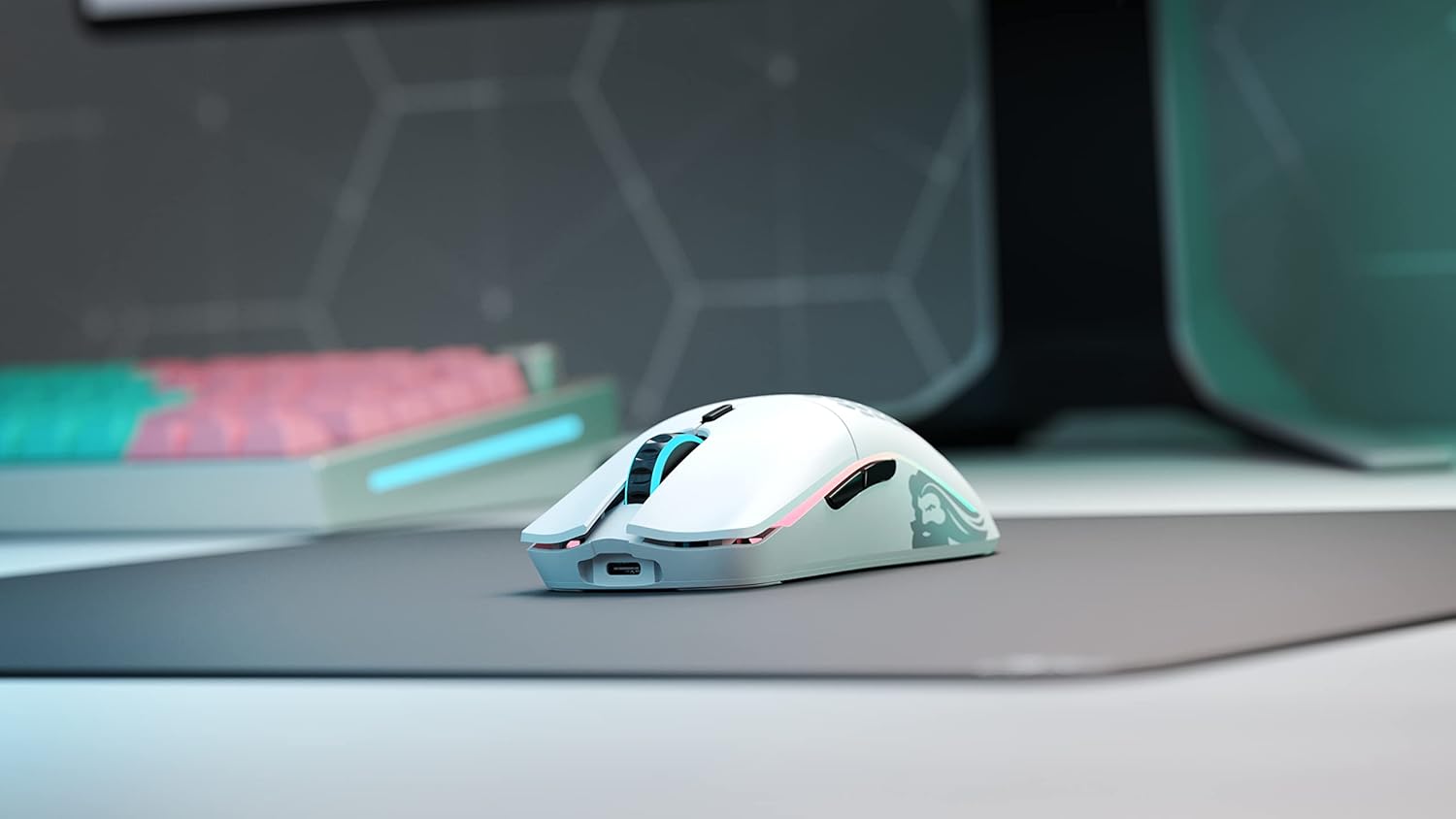
Image: The Glorious Model O Minus Wireless RGB Gaming Mouse in white, positioned on a dark grey mousepad, showcasing its sleek design and RGB lighting.
Setup
1. Unboxing and Initial Charge
Carefully remove the mouse and all accessories from the packaging. Before first use, it is recommended to fully charge the mouse. Connect the included USB-C cable to the front port of the mouse and the other end to a powered USB port on your computer or a USB wall adapter.
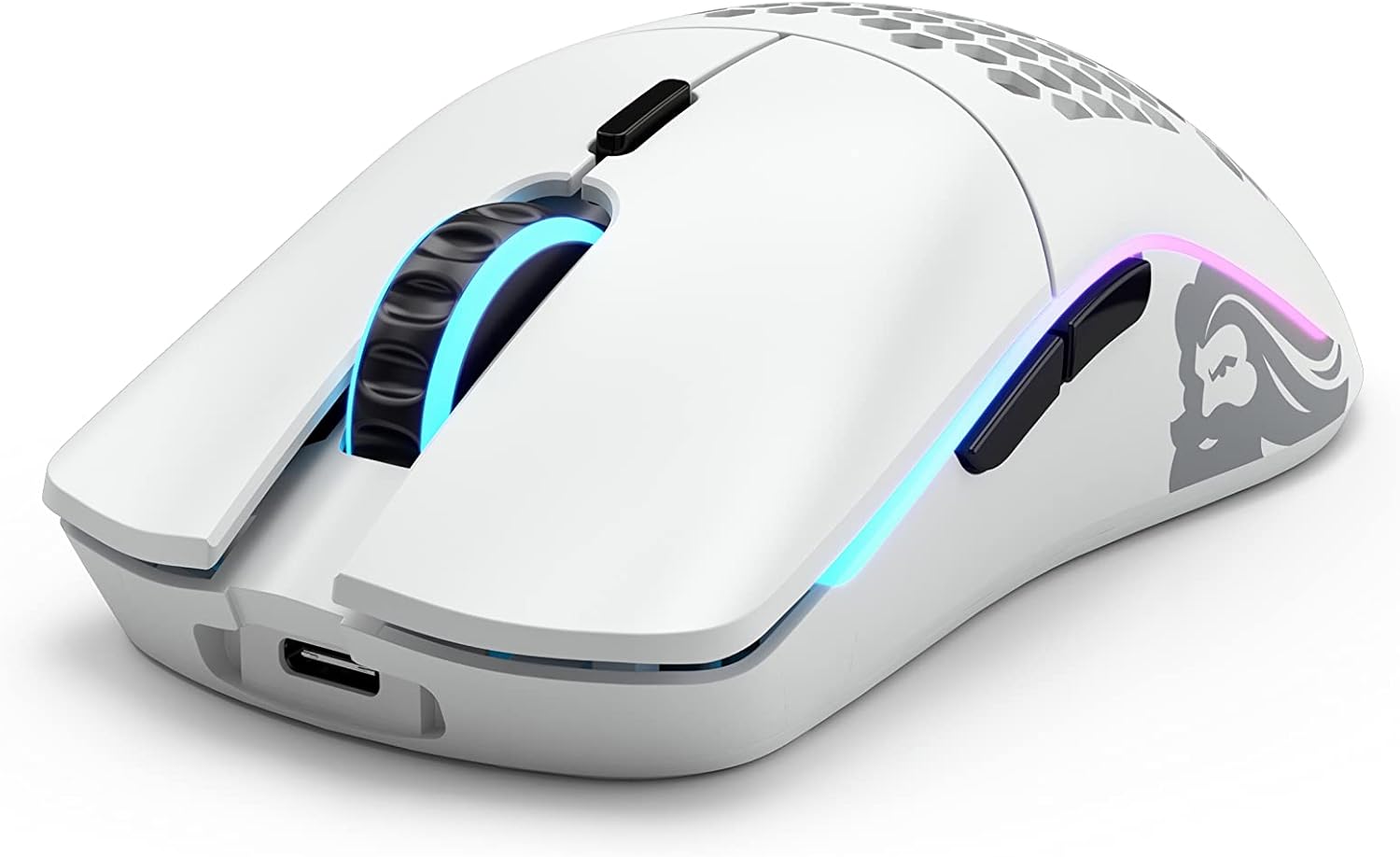
Image: A front-angle view of the Glorious Model O Minus Wireless RGB Gaming Mouse, highlighting the USB-C charging port located at the front.
2. Wireless Connection
The Model O Minus Wireless mouse connects via a 2.4GHz wireless dongle for optimal gaming performance. Locate the USB wireless dongle, typically stored in a compartment on the underside of the mouse. Plug the dongle into an available USB port on your computer. The mouse should automatically connect. If not, ensure the power switch on the bottom of the mouse is set to 'ON' or '2.4G'.
3. Software Installation (Glorious Core)
For full customization of DPI settings, button assignments, and RGB lighting effects, download and install the Glorious Core software from the official Glorious PC Gaming Race website (www.gloriousgaming.com/pages/glorious-core). Follow the on-screen instructions to complete the installation.
Operating Instructions
Basic Functions
- Left Click: Primary action.
- Right Click: Secondary action/context menu.
- Scroll Wheel: Scroll up/down, middle click.
- Side Buttons: Typically assigned as Forward/Backward in web browsers. Customizable via Glorious Core.
- DPI Button: Located behind the scroll wheel, cycles through preset DPI stages.
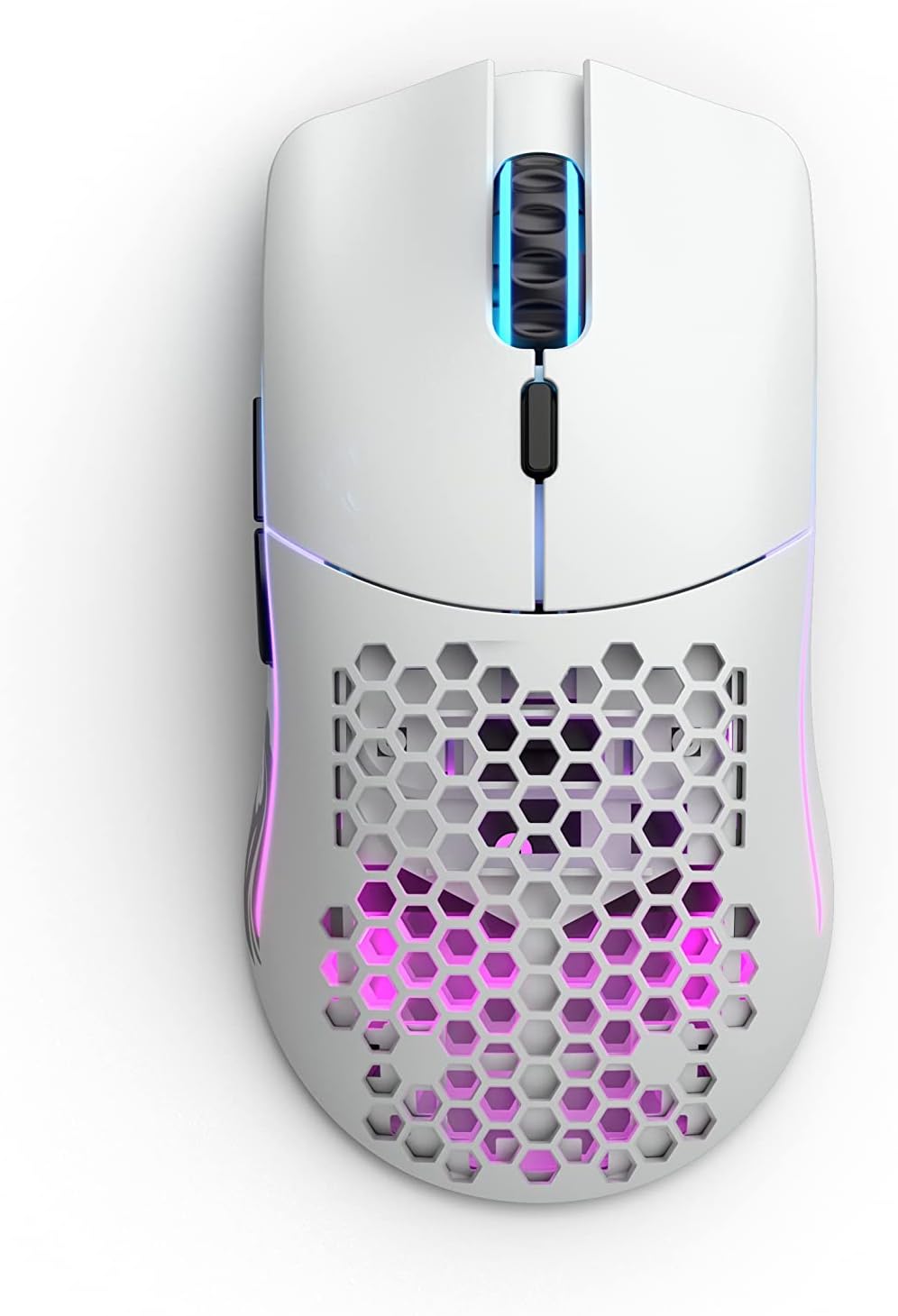
Image: A top-down view of the Glorious Model O Minus Wireless RGB Gaming Mouse, showing the left and right click buttons, scroll wheel, and DPI button.
DPI Adjustment
Press the DPI button to cycle through the pre-configured DPI settings. The default settings can be customized using the Glorious Core software, allowing you to set specific DPI values and the number of stages.
RGB Lighting Customization
The Model O Minus Wireless features vibrant RGB lighting. Use the Glorious Core software to select from various lighting effects, colors, brightness levels, and speeds. You can also turn off the RGB lighting to conserve battery life.
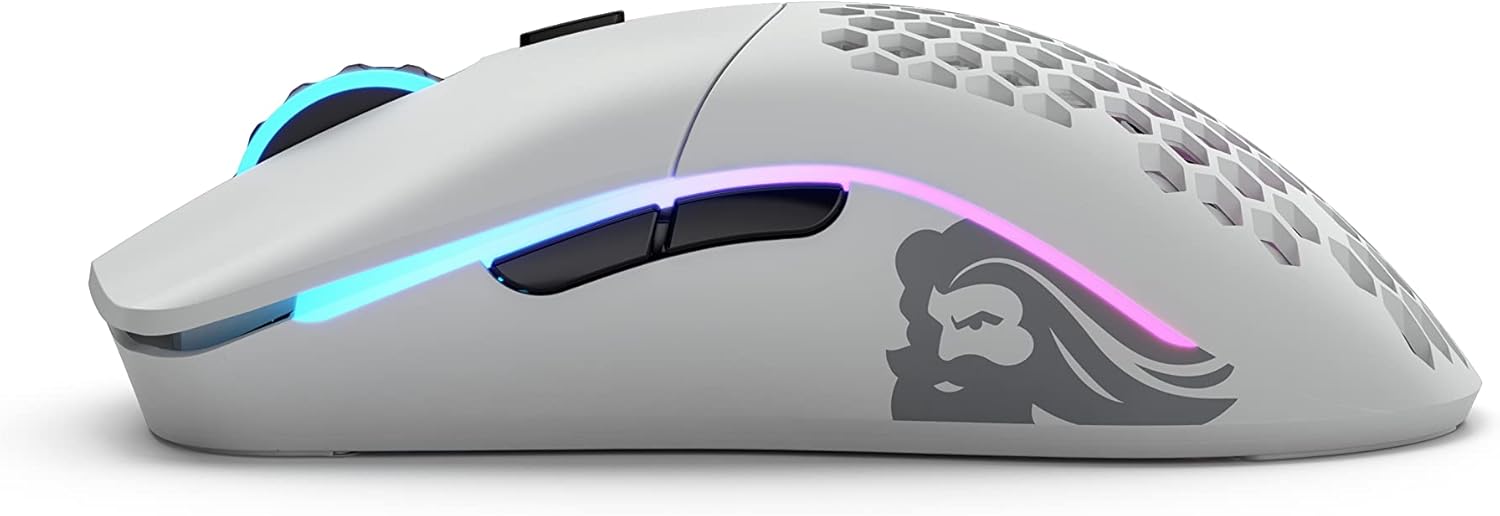
Image: A left-side view of the Glorious Model O Minus Wireless RGB Gaming Mouse, showcasing the illuminated RGB strips along the sides and the Glorious logo.
Battery Management
The mouse has an average battery life of up to 71 hours with RGB lighting off. Battery status can be monitored via the Glorious Core software. When the battery is low, the RGB lighting may flash or change color to indicate charging is needed. Connect the USB-C cable to charge the mouse; it can be used in wired mode while charging.
Maintenance
Cleaning the Mouse
To maintain optimal performance, regularly clean your mouse. Use a soft, dry, lint-free cloth to wipe down the surface. For stubborn dirt, a slightly damp cloth can be used, but ensure no moisture enters the mouse's internal components. Avoid harsh chemicals or abrasive materials. Use compressed air to clear dust from the sensor and button crevices.
Battery Care
To prolong battery life, avoid fully discharging the mouse frequently. Charge it when the low battery indicator appears. Store the mouse in a cool, dry place when not in use for extended periods.
Software Updates
Periodically check for firmware and software updates via the Glorious Core application. Updates can improve performance, add new features, and fix bugs.
Troubleshooting
- Mouse not responding:
- Ensure the mouse is charged.
- Verify the power switch on the bottom of the mouse is in the 'ON' or '2.4G' position.
- Check if the wireless dongle is securely plugged into a working USB port. Try a different USB port.
- If using in wired mode, ensure the USB-C cable is properly connected to both the mouse and the computer.
- Restart your computer.
- DPI/Tracking issues:
- Clean the mouse sensor with compressed air.
- Ensure your mousepad surface is clean and free of debris.
- Adjust DPI settings via the DPI button or Glorious Core software.
- Update mouse firmware via Glorious Core.
- RGB lighting not working:
- Check RGB settings in Glorious Core to ensure lighting is enabled and configured.
- Ensure the mouse has sufficient battery charge.
- Restart Glorious Core software and your computer.
- Battery not charging:
- Try a different USB-C cable and a different USB port or wall adapter.
- Ensure the cable is fully inserted into the mouse's USB-C port.
Specifications
| Feature | Detail |
|---|---|
| Model Number | GLO-MS-OMW-MW |
| Sensor | Glorious BAMF Optical Sensor |
| DPI Range | Up to 19000 DPI |
| Weight | 65 grams |
| Dimensions (L x W x H) | 11.99 x 6.3 x 0.25 cm |
| Connectivity | 2.4GHz Wireless (via USB dongle) |
| Battery Type | 1 Lithium Ion Battery (included) |
| Average Battery Life | Up to 71 hours (RGB off) |
| Operating Systems | Windows, macOS, Linux |
| Color | Matte White |
| Buttons | 6 programmable buttons |
| Switches | Glorious Switches (rated for 80 million clicks) |
Warranty and Support
Your Glorious Model O Minus Wireless RGB Gaming Mouse is covered by a standard manufacturer's warranty. Please refer to the warranty card included in your product packaging for specific terms and conditions, including warranty duration and coverage details.
For technical support, troubleshooting assistance, or warranty claims, please visit the official Glorious PC Gaming Race support website at www.gloriousgaming.com/pages/support. You can find FAQs, driver downloads, and contact information for customer service there.


