
1. Introduction
This manual provides comprehensive instructions for the installation, configuration, operation, and maintenance of the Hanwha XNP-6321H 2MP Outdoor Network PTZ Dome Camera. Please read this manual thoroughly before using the product to ensure correct and safe operation.
The Hanwha XNP-6321H is a high-performance 2-megapixel network PTZ (Pan/Tilt/Zoom) dome camera designed for outdoor surveillance applications. It features a 32x optical zoom lens (4.44~142.6mm), Wide Dynamic Range (WDR) for clear images in challenging lighting, and robust construction with an IP66 rating for environmental protection.
2. Safety Information
Always adhere to the following safety guidelines to prevent injury or damage to the product:
- Power Source: Use only the specified AC/DC power adapter. Incorrect voltage can damage the device and pose a fire hazard.
- Installation: Installation should be performed by qualified personnel in accordance with all local electrical codes and regulations. Ensure the mounting surface can support the camera's weight.
- Water and Moisture: This camera is IP66 rated for outdoor use, but avoid submerging it in water or exposing it to high-pressure water jets.
- Cleaning: Disconnect power before cleaning. Use a soft, dry cloth. Avoid harsh chemicals or abrasive cleaners.
- Operating Temperature: Operate the camera within its specified temperature range.
3. Package Contents
Verify that all items are present in the package:
- Hanwha XNP-6321H PTZ Dome Camera
- Mounting Template
- Mounting Screws and Anchors
- Quick Start Guide
- RJ45 Connector Cover (if applicable)
4. Setup and Installation
4.1 Physical Installation
The XNP-6321H is designed for ceiling mount installation. Ensure the mounting location provides a clear field of view and is structurally sound.
- Prepare the Mounting Surface: Use the provided mounting template to mark drilling points on the ceiling.
- Drill Holes: Drill pilot holes according to the template. Insert wall anchors if necessary.
- Secure the Mounting Bracket: Attach the camera's mounting bracket to the surface using the supplied screws.
- Connect Wiring: Route the network (RJ45) and power cables through the designated openings in the bracket.
- Attach the Camera: Secure the camera body to the mounting bracket. Ensure it is firmly locked in place.
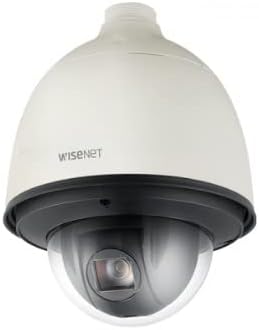
Figure 1: Front view of the Hanwha XNP-6321H PTZ Dome Camera. This image shows the camera's dome housing and the lens assembly within, indicating its robust design for outdoor surveillance.

Figure 2: Side view of the Hanwha XNP-6321H PTZ Dome Camera. This angle highlights the camera's profile and the connection point at the top for mounting and cable routing.
4.2 Network and Power Connection
The camera supports both wired (RJ45) and wireless (Wi-Fi) connectivity, and requires an AC/DC power source.
- Network Connection (RJ45): Connect a standard Ethernet cable to the RJ45 port on the camera. Ensure a secure connection. If using Power over Ethernet (PoE), a separate power adapter may not be needed.
- Power Connection: Connect the appropriate AC/DC power adapter to the camera's power input. Verify the power indicator light illuminates.
- Wireless Setup (Optional): For Wi-Fi connectivity, refer to the 'Operating' section for initial network configuration via the web interface.

Figure 3: Example of an RJ45 Ethernet cable. This cable is used to establish a wired network connection for the camera, enabling data transmission and potentially Power over Ethernet (PoE).
5. Operating Instructions
5.1 Initial Configuration
After physical installation and power-up, access the camera's web interface for initial setup.
- Discover the Camera: Use the manufacturer's network discovery tool or your network router to find the camera's IP address.
- Access Web Interface: Open a web browser and enter the camera's IP address.
- Login: Enter the default username and password (refer to the Quick Start Guide for defaults). Change these immediately for security.
- Network Settings: Configure network settings (e.g., static IP, DHCP, Wi-Fi credentials if applicable).
- Date and Time: Set the correct date and time, preferably using NTP (Network Time Protocol).
5.2 PTZ Control and Video Monitoring
The XNP-6321H offers Pan, Tilt, and Zoom functionalities for dynamic surveillance.
- PTZ Control: Use the PTZ controls within the web interface or compatible VMS (Video Management Software) to adjust the camera's view.
- Optical Zoom: Utilize the 32x optical zoom to focus on distant objects without loss of image quality.
- Wide Dynamic Range (WDR): Enable WDR in settings to improve image clarity in scenes with both very bright and very dark areas.
- Video Resolution: The camera supports 2MP (1080p) video capture resolution. Adjust stream settings for optimal balance between quality and bandwidth.
- Night Vision: The camera features day/night low light technology for continuous monitoring in varying light conditions.
5.3 Recording and Playback
Configure recording settings and access recorded footage.
- Recording Options: Set up continuous recording, motion-triggered recording, or scheduled recording via the camera's web interface or VMS.
- Storage: Recordings can be stored on a network video recorder (NVR), a local SD card (if supported by model), or network-attached storage (NAS).
- Playback: Access recorded footage through the web interface, VMS, or dedicated mobile applications.
6. Maintenance
6.1 Cleaning
Regular cleaning helps maintain optimal image quality and extends the camera's lifespan.
- Lens: Gently wipe the lens with a soft, lint-free cloth. For stubborn dirt, use a lens cleaning solution specifically designed for optical surfaces.
- Housing: Clean the camera housing with a soft, damp cloth. Avoid using abrasive materials or strong chemical cleaners.
6.2 Firmware Updates
Periodically check the manufacturer's website for firmware updates. Firmware updates can provide new features, performance improvements, and security enhancements.
- Download: Download the latest firmware file from the official Hanwha website.
- Update: Follow the instructions provided with the firmware update package, typically performed via the camera's web interface. Do not power off the camera during the update process.
7. Troubleshooting
Refer to the following table for common issues and their solutions.
| Problem | Possible Cause | Solution |
|---|---|---|
| No image/video feed | No power; Network cable disconnected; Incorrect IP address | Check power connection; Verify network cable is securely connected; Confirm IP address and network settings. |
| Poor image quality | Dirty lens; Incorrect focus; Low bandwidth; Lighting issues | Clean the lens; Adjust focus via web interface; Check network bandwidth; Enable WDR or adjust exposure settings. |
| PTZ controls unresponsive | Network latency; Firmware issue; Mechanical obstruction | Check network connection; Restart camera; Update firmware; Inspect for physical obstructions. |
| Cannot access web interface | Incorrect IP address; Network connectivity issue; Firewall blocking access | Verify IP address; Ping the camera's IP; Check firewall settings on your computer/network. |
8. Specifications
Key technical specifications for the Hanwha XNP-6321H camera:
- Model: XNP-6321H
- Video Capture Resolution: 2MP (1080p)
- Lens: 4.44~142.6mm (Optical 32x Zoom)
- Connectivity Technology: Wireless (Wi-Fi), Wired (RJ45)
- Power Source: AC/DC
- Form Factor: Dome
- Indoor/Outdoor Usage: Outdoor
- International Protection Rating: IP66
- Special Features: Night Vision, PTZ Technology, Wide Dynamic Range (WDR)
- Video Capture Format: MJPEG, MP4
- Mounting Type: Ceiling Mount
9. Warranty and Support
For warranty information and technical support, please refer to the official Hanwha website or contact your authorized dealer. Keep your purchase receipt as proof of purchase for warranty claims.


