
EVGA 12G-P5-4877-KL
EVGA GeForce RTX 3080 FTW3 Ultra Gaming Graphics Card User Manual
Model: 12G-P5-4877-KL
1. Product Overview
The EVGA GeForce RTX 3080 FTW3 Ultra Gaming graphics card is engineered for high-performance computing and gaming. It features advanced NVIDIA Ampere architecture, offering significant improvements in graphics processing and efficiency.
Key Features:
- Digital Max Resolution: 7680 x 4320 pixels, supporting high-fidelity visual experiences.
- Real Boost Clock: 1800 MHz, providing enhanced clock speeds for demanding applications.
- Memory Detail: 12288 MB GDDR6X, ensuring ample memory for complex textures and high-resolution gaming.
- Real-Time RAY TRACING: Delivers cutting-edge, hyper-realistic graphics in supported games.
- iCX3 Technology: Features triple fans and 9 iCX3 thermal sensors for superior cooling performance and reduced acoustic noise.
- All-Metal Backplate: Provides structural rigidity and aids in heat dissipation.
- Adjustable ARGB LED: Customizable lighting to match your system's aesthetic.
- PCI Express® Gen 4: High-speed interface for optimal data transfer.
- Microsoft DirectX® 12 Ultimate: Supports the latest graphics APIs for advanced rendering.
- NVIDIA DLSS: AI-powered rendering that boosts frame rates with uncompromised image quality.
- NVIDIA® GeForce Experience™: Optimizes game settings and provides driver updates.
- NVIDIA G-SYNC™: Delivers smooth, tear-free gameplay at refresh rates up to 360 Hz.
- NVIDIA GPU Boost™: Dynamically maximizes clock speeds based on workload and temperature.
- VR Ready: Optimized for virtual reality experiences.
- Display Support: Supports 4K 120Hz HDR, 8K 60Hz HDR, and Variable Refresh Rate as specified in HDMI 2.1.
2. Setup and Installation
Proper installation of your EVGA GeForce RTX 3080 FTW3 Ultra Gaming graphics card is crucial for optimal performance and system stability. Always ensure your system is powered off and unplugged before beginning installation.
Installation Steps:
- Prepare Your System: Power down your computer and unplug all cables. Open your PC case.
- Locate PCIe Slot: Identify an available PCI Express x16 slot on your motherboard.
- Remove Slot Covers: Remove the necessary expansion slot covers from your PC case.
- Insert Graphics Card: Carefully align the graphics card with the PCIe slot and press down firmly until it is securely seated. Ensure the retention clip locks into place.
- Secure Card: Use screws to secure the graphics card to the PC case.
- Connect Power: Connect three 8-pin PCIe power connectors from your power supply to the corresponding ports on the graphics card. Ensure all connections are firm.
- Close Case: Close your PC case, reconnect all cables, and power on your system.
- Install Drivers: Once your operating system loads, install the latest NVIDIA drivers from the official NVIDIA website or via NVIDIA GeForce Experience.

Image: General diagram illustrating the steps for graphics card installation into a PC case.
3. Operating Instructions
After successful installation, your EVGA GeForce RTX 3080 FTW3 Ultra Gaming graphics card is ready for operation. To maximize its potential, follow these guidelines:
Driver and Software Management:
- NVIDIA GeForce Experience: Install NVIDIA GeForce Experience to automatically optimize game settings, record gameplay, and keep your drivers up-to-date.
- EVGA Precision X1: Download and install EVGA Precision X1 software for advanced monitoring, fan control, and customizable ARGB LED lighting effects. This software allows fine-tuning of performance parameters.
Usage Recommendations:
- Gaming: For optimal gaming performance, ensure your display is connected to one of the graphics card's output ports (DisplayPort or HDMI). Adjust in-game settings to balance visual quality and frame rate according to your preference.
- Content Creation: Leverage the GPU's power for tasks such as video editing, 3D rendering, and graphic design. Ensure your software is configured to utilize the NVIDIA GPU for accelerated processing.
- Multi-Monitor Setup: The card supports multiple displays. Connect additional monitors to the available DisplayPort or HDMI outputs. Configure display settings within your operating system.
4. Maintenance
Regular maintenance helps prolong the lifespan and maintain the performance of your graphics card.
Cleaning:
- Dust Removal: Periodically clean dust from the fans and heatsink using compressed air. Ensure the system is powered off and unplugged before cleaning. Hold the fan blades gently to prevent them from spinning too fast during cleaning.
- Case Airflow: Ensure your PC case has adequate airflow to prevent heat buildup. Clean case fans and filters regularly.
Software Maintenance:
- Driver Updates: Regularly update your graphics drivers through NVIDIA GeForce Experience or the NVIDIA website. Driver updates often include performance optimizations and bug fixes.
- Firmware Updates: Check the EVGA website for any available firmware updates for your specific graphics card model.
5. Troubleshooting
If you encounter issues with your graphics card, refer to the following common troubleshooting steps:
Common Issues and Solutions:
- No Display/Black Screen:
- Ensure the monitor cable is securely connected to the graphics card and the monitor.
- Verify that the graphics card is fully seated in the PCIe slot.
- Check that all three 8-pin PCIe power connectors are securely attached to the graphics card.
- Test with a different display cable or monitor if possible.
- System Instability/Crashes:
- Ensure your power supply unit (PSU) meets the minimum wattage requirements for your system, including the graphics card.
- Update your graphics drivers to the latest version.
- Monitor GPU temperatures using EVGA Precision X1 or similar software. Excessive heat can cause instability.
- Check for any conflicting software or background applications.
- Poor Performance/Low Frame Rates:
- Verify that the latest graphics drivers are installed.
- Check in-game settings; reduce demanding options like ray tracing or resolution if necessary.
- Ensure your CPU and RAM are not bottlenecking the GPU.
- Monitor GPU utilization and temperatures to ensure the card is operating as expected.
- ARGB LED Not Working:
- Ensure EVGA Precision X1 software is installed and running.
- Check the ARGB settings within EVGA Precision X1.
6. Specifications
Detailed technical specifications for the EVGA GeForce RTX 3080 FTW3 Ultra Gaming graphics card.
| Specification | Value |
|---|---|
| Max Screen Resolution | 7680x4320 Pixels |
| Memory Speed | 19000 MHz |
| Graphics Coprocessor | NVIDIA GeForce RTX 3080 |
| Chipset Brand | NVIDIA |
| Card Description | NVIDIA GeForce RTX 3080 |
| Graphics Card Ram Size | 12 GB |
| Brand | EVGA |
| Series | RTX 3080 12GB FTW3 |
| Item model number | 12G-P5-4877-KL |
| Item Weight | 4.66 pounds |
| Product Dimensions | 11.81 x 2.75 x 5.38 inches |
| Item Dimensions LxWxH | 11.81 x 2.75 x 5.38 inches |
| Manufacturer | EVGA |
| ASIN | B09Q3DH7V3 |
| Date First Available | January 11, 2022 |
| Video Output Interface | HDMI |
| Graphics Processor Manufacturer | NVIDIA |
7. Warranty and Support
Your EVGA GeForce RTX 3080 FTW3 Ultra Gaming graphics card comes with comprehensive support and warranty coverage.
- Warranty: This product includes a 3-year warranty from EVGA. Please retain your proof of purchase for warranty claims.
- Technical Support: For technical assistance, driver downloads, or software inquiries, please visit the official EVGA website or contact EVGA's technical support team.
- Online Resources: Additional resources, FAQs, and community forums can be found on the EVGA support pages.
8. Product Visuals

Image: The EVGA GeForce RTX 3080 FTW3 Ultra Gaming graphics card displayed alongside its retail packaging.

Image: Front view of the graphics card, showcasing its triple-fan design with the ARGB LEDs turned off.

Image: Front view of the graphics card, highlighting the customizable ARGB LED lighting in operation.

Image: Side profile of the graphics card, showing the heatsink and power connectors with LEDs off.

Image: Side profile of the graphics card, illustrating the illuminated ARGB LED strip.
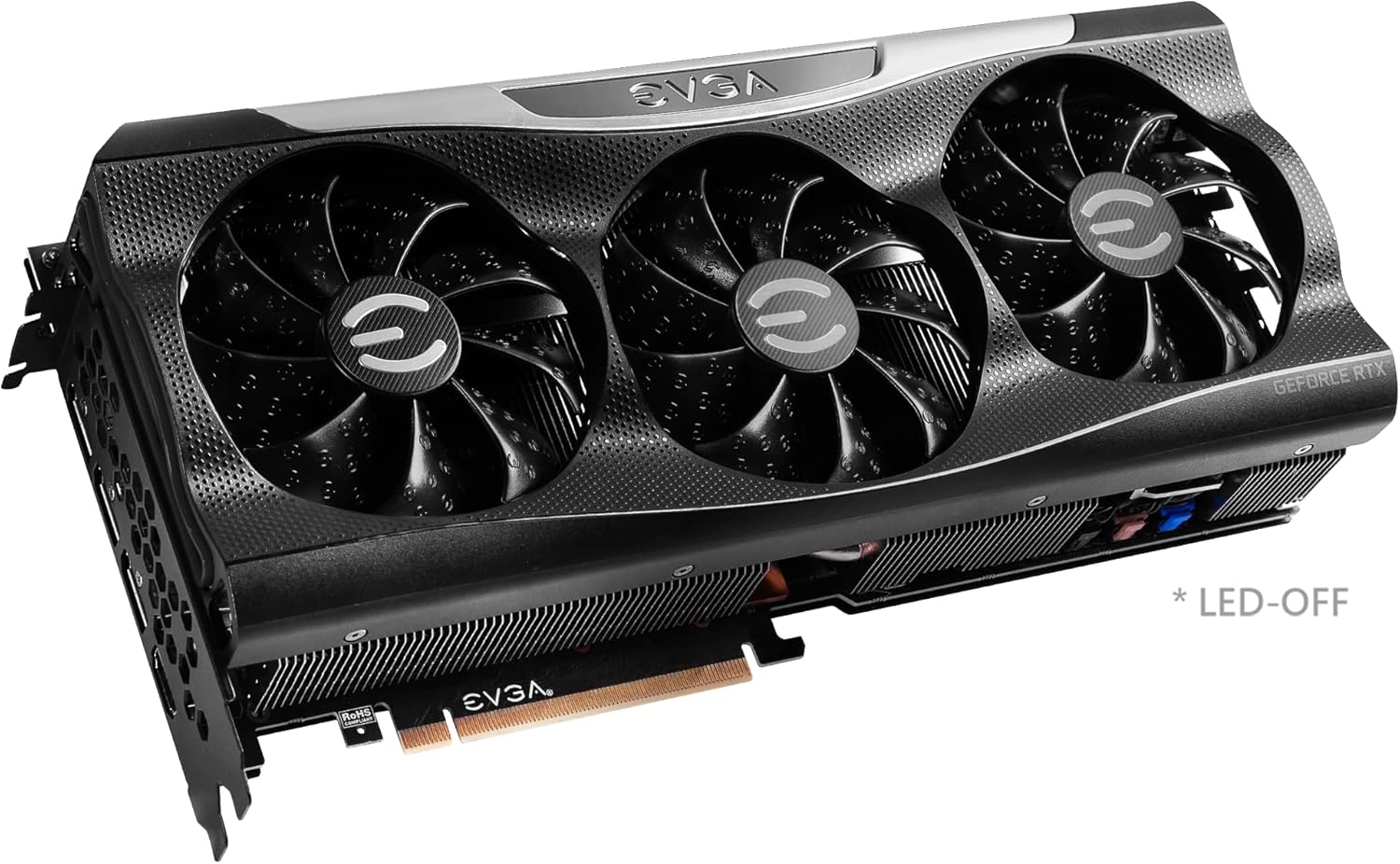
Image: Close-up of the graphics card's output ports, including DisplayPort and HDMI connectors.

Image: Rear view of the graphics card, showing the metal backplate and illuminated EVGA logo.

Image: Branding for the EVGA GeForce RTX 3080 12GB FTW3 and XC3 Series.

Image: Visual representation of the 2nd Gen RT Cores, 3rd Gen Tensor Cores, and New Streaming Multiprocessors (SM) technology.

Image: A chart comparing the 12GB memory of the RTX 3080 to the 10GB memory of a previous model.

Image: Diagram detailing the iCX3 Interactive Cooling system, showing thermal contact surface, triple fans, and smart cut-outs for improved airflow.

Image: A comprehensive list of features and detailed specifications for the graphics card.
9. Official Product Videos
Video: An unboxing and installation guide for the EVGA GeForce RTX 3080 FTW3 Ultra 12GB graphics card, provided by Systematic Hardware.
Related documents12G-P5-4877-KL


Ask a question about this manual
Ask about setup, troubleshooting, compatibility, parts, safety, or missing instructions. Manuals+ will review the question and use this page’s manual context to help answer it.