
EKSA EM100
EKSA EM100 Gaming Mouse User Manual
Model: EM100
1. Introduction
The EKSA EM100 Gaming Mouse is a high-performance wired ergonomic gaming mouse designed for PC gamers. It features 7 programmable buttons, customizable Chroma RGB lighting, and an adjustable optical sensor with up to 8000 DPI. This manual provides detailed instructions for setting up, operating, and maintaining your EM100 Gaming Mouse to ensure optimal performance and longevity.
2. Package Contents
Please verify that all items are present in the package:
- 1 x EKSA EM100 Gaming Mouse
- 1 x User Manual
- 1 x Gift Box (packaging)
- 1 x 1.5m/59in Cable (integrated)

Figure 2.1: Contents of the EKSA EM100 Gaming Mouse package, including the mouse, user manual, and gift box.
3. Product Features
- 7 Programmable Buttons: Customize functions for Left, Right, Scroll, DPI, Forward, Backward, and RGB Light buttons.
- Adjustable DPI: 6-level DPI settings (800/1600/2400/3200/4800/8000) for precise control.
- Chroma RGB Backlighting: 6 backlight modes with 16 million customizable colors, including "Breathing and Streamer" effects.
- Ergonomic Design: Shaped for comfort during extended use, with non-slip sides to reduce hand sweat and improve grip.
- Durable Cable: 5-inch flexible braided cable designed to minimize drag and interference.
- Wide Compatibility: Supports Windows 2000/XP/Vista/7/8/10/11 for programmable features and macOS for normal use. Compatible with Laptops, PCs, and MacBooks.

Figure 3.1: Overview of key features including 7 functional buttons, RGB lighting, ergonomic design, 8000 DPI, and parachute cord.
4. Setup
- Unpack the Mouse: Carefully remove the EKSA EM100 Gaming Mouse and its accessories from the packaging.
- Connect to Computer: Insert the USB plug of the mouse cable into an available USB port on your computer (PC, Laptop, or MacBook).

Figure 4.1: The USB plug and braided cable of the EKSA EM100 Gaming Mouse.
- Driver Installation (Windows): For programmable features and advanced customization on Windows operating systems, it is recommended to download and install the official EKSA EM100 driver. Refer to the official EKSA website for the latest driver software. For macOS, the mouse functions normally without additional drivers, but programmable features are not available.

Figure 4.2: Example of the programmable software interface for the EKSA EM100 Gaming Mouse.
- Placement: Place the mouse on a flat, clean surface, preferably a mouse pad, for optimal tracking performance.
5. Operating Instructions
5.1 Button Functions
The EKSA EM100 Gaming Mouse features 7 buttons, each with a default function. These can be customized via the driver software on Windows.
- Left Button: Primary click function.
- Right Button: Secondary click function (context menu).
- Scroll Button (Middle Click): Activates middle click, often used for opening links in new tabs or auto-scrolling.
- DPI Button: Cycles through DPI settings.
- Forward Button: Navigates forward in web browsers or file explorers.
- Backward Button: Navigates backward in web browsers or file explorers.
- Lights Button: Cycles through RGB lighting modes or turns lights off.

Figure 5.1: Diagram illustrating the location and default function of each button on the EKSA EM100 Gaming Mouse.
5.2 Adjusting DPI Settings
The mouse offers 6 adjustable DPI levels, allowing you to change cursor sensitivity on the fly. Press the DPI Button located behind the scroll wheel to cycle through the following settings:
- 800 DPI (Green)
- 1600 DPI (Purple)
- 2400 DPI (Blue)
- 3200 DPI (Red)
- 4800 DPI (Cyan)
- 8000 DPI (Yellow)
Each DPI level is indicated by a specific color on the mouse's lighting, providing visual feedback for your current setting.
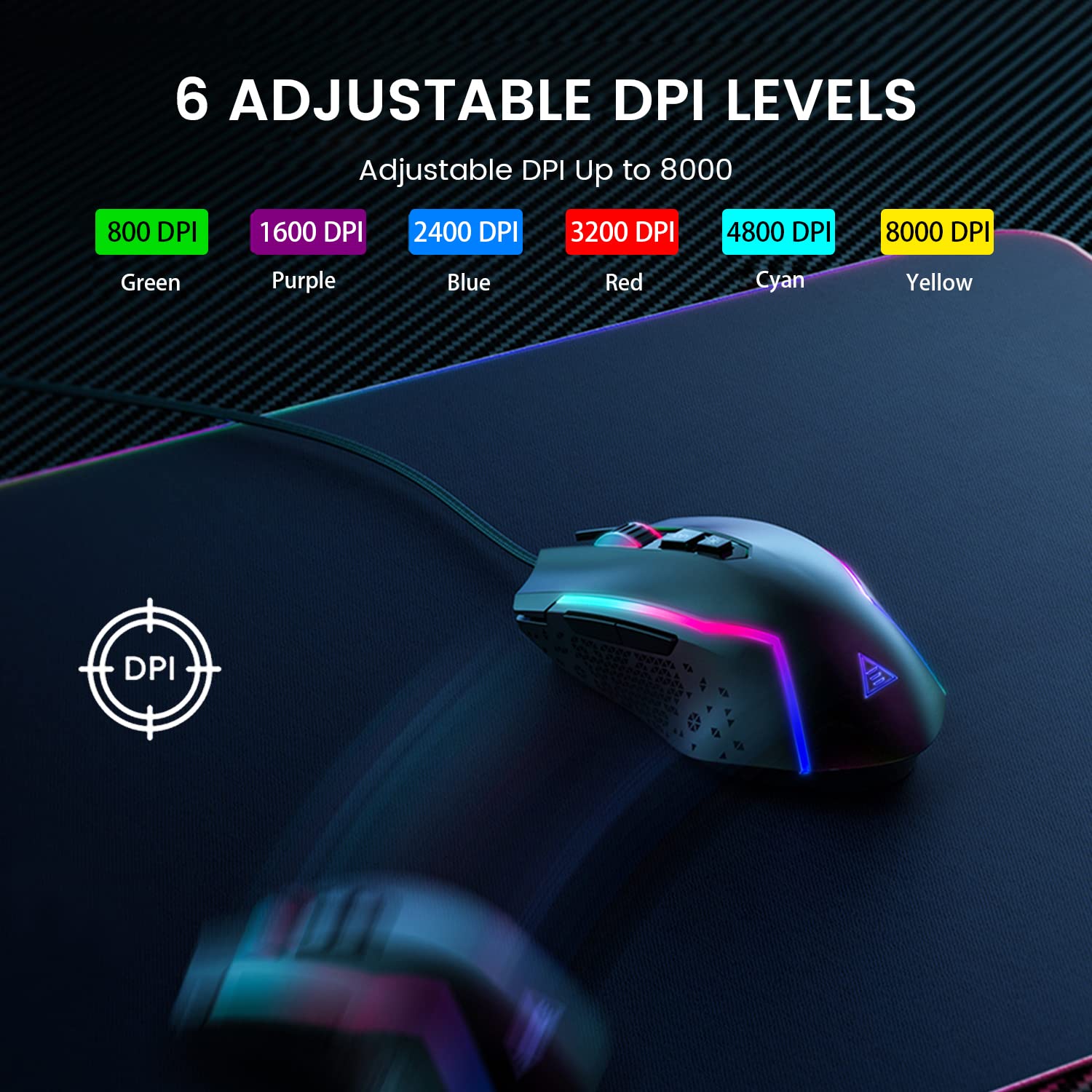
Figure 5.2: Visual representation of the 6 adjustable DPI levels and their corresponding indicator colors.
5.3 Customizing RGB Backlighting
The EKSA EM100 features dynamic Chroma RGB backlighting with 6 distinct modes and 16 million color options. Press the Lights Button (located near the DPI button) to cycle through the available lighting effects, including "Breathing" and "Streamer" modes, or to turn the lights off.

Figure 5.3: The EKSA EM100 Gaming Mouse showcasing its vibrant RGB backlight effects.
6. Maintenance
Proper maintenance ensures the longevity and optimal performance of your EKSA EM100 Gaming Mouse.
- Cleaning: Use a soft, dry cloth to wipe the surface of the mouse. For stubborn dirt, slightly dampen the cloth with water or a mild cleaning solution. Avoid using harsh chemicals or abrasive materials.
- Sensor Care: Keep the optical sensor on the underside of the mouse clean and free from dust or debris. Use a cotton swab or compressed air if necessary.
- Cable Management: Avoid sharp bends or excessive pulling on the braided cable to prevent internal damage.
- Storage: When not in use for extended periods, store the mouse in a clean, dry environment away from direct sunlight and extreme temperatures.
7. Troubleshooting
| Problem | Possible Cause | Solution |
|---|---|---|
| Mouse not responding. | Loose USB connection, faulty USB port, driver issue. |
|
| Cursor movement is erratic or jumpy. | Dirty optical sensor, unsuitable surface, software interference. |
|
| RGB lights are not working or stuck. | Software glitch, light mode setting. |
|
| Programmable buttons not working (Windows). | Driver not installed or corrupted, incorrect software settings. |
|
8. Specifications
| Feature | Detail |
|---|---|
| Brand | EKSA |
| Model | EM100 |
| Connectivity | Wired (USB) |
| Sensor Type | Optical |
| DPI Levels | 800 / 1600 / 2400 / 3200 / 4800 / 8000 |
| Programmable Buttons | 7 |
| Backlighting | Chroma RGB (6 modes, 16 million colors) |
| Cable Length | 1.5 meters (59 inches) |
| Cable Type | Braided |
| Hand Orientation | Ambidextrous |
| Product Dimensions (L x W x H) | 11.5 x 5.5 x 17.5 cm |
| Item Weight | 150 g |
| Compatible Operating Systems | Windows 2000/XP/Vista/7/8/10/11, macOS (normal use) |
| Hardware Platform | PC/Mac/Linux/Unix |
| Country of Origin | China |
9. Warranty and Support
EKSA products are designed for reliability and performance. For warranty information, technical support, or to download the latest drivers and software for your EM100 Gaming Mouse, please visit the official EKSA website:
Please retain your proof of purchase for any warranty claims. For specific regional support or inquiries, refer to the contact information provided on the EKSA website.
Related documentsEM100


Ask a question about this manual
Ask about setup, troubleshooting, compatibility, parts, safety, or missing instructions. Manuals+ will review the question and use this page’s manual context to help answer it.