
Introduction
This manual provides detailed instructions for the FANTECH Helios XD3 V2 Symmetrical Wireless RGB Gaming Mouse. It covers product features, setup, operation, maintenance, and troubleshooting to ensure optimal performance and user experience.
The FANTECH Helios XD3 V2 is a professional-grade gaming mouse featuring a PixArt 3370 optical sensor, 19,000 DPI, Kailh switches, and 6 programmable buttons. It supports dual-mode connectivity (wired and 2.4G wireless) and offers customizable RGB lighting.
Package Contents
Verify that all items listed below are present in your package.
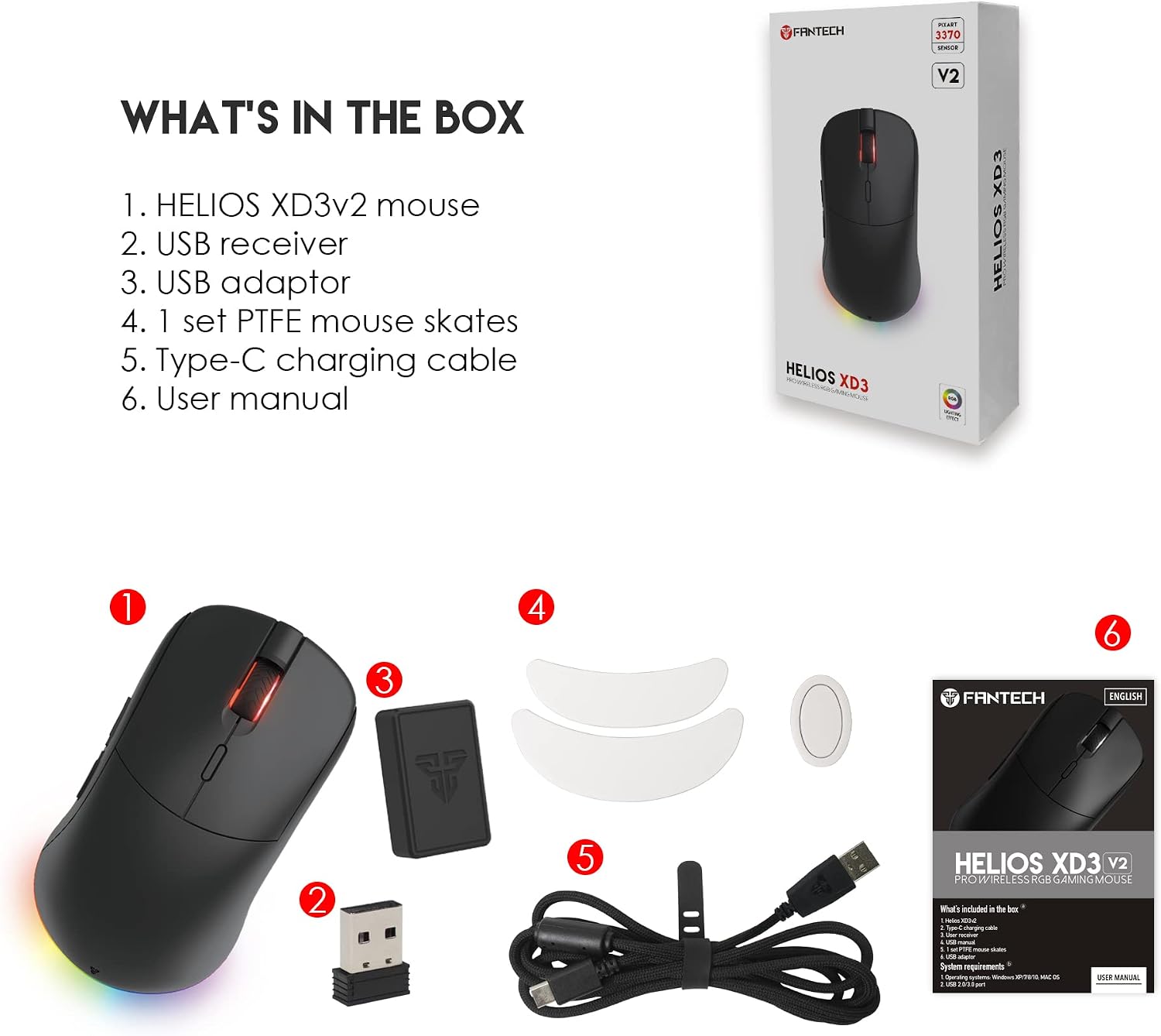
Image: Contents of the FANTECH Helios XD3 V2 package. The image displays the Helios XD3 V2 mouse, a USB receiver, a USB adaptor, a set of PTFE mouse skates, a Type-C charging cable, and the user manual. Each item is numbered for easy identification.
- HELIOS XD3 V2 Mouse
- USB Receiver
- USB Adaptor
- 1 Set PTFE Mouse Skates
- Type-C Charging Cable
- User Manual
Setup
Connecting the Mouse
The FANTECH Helios XD3 V2 mouse offers dual-mode connectivity: 2.4G wireless and wired.

Image: The FANTECH Helios XD3 V2 mouse demonstrating its dual connectivity modes. The top part shows the mouse operating wirelessly, while the bottom part shows it connected via a USB-C cable.
- Wireless Mode:
- Insert the USB receiver into an available USB port on your computer.
- Turn on the mouse using the switch located on the bottom.
- The mouse should automatically connect. If not, ensure the receiver is properly inserted and the mouse is powered on.
- For extended range or to reduce interference, use the provided USB adaptor to position the receiver closer to the mouse.
- Wired Mode:
- Connect the Type-C charging cable to the front port of the mouse.
- Connect the other end of the cable to a USB port on your computer.
- The mouse will function as a wired mouse and charge simultaneously.
Charging the Mouse
The FANTECH Helios XD3 V2 has a built-in 730mAH battery, providing up to 70 hours of battery life.
- Connect the Type-C charging cable to the mouse and a USB power source (e.g., computer USB port, USB wall adapter).
- The RGB lighting or an indicator light on the mouse may change to indicate charging status.
- A full charge can take several hours. Disconnect the cable once fully charged to preserve battery longevity.
Software Installation
To unlock the full customization potential of your FANTECH Helios XD3 V2 mouse, including button programming, DPI settings, and RGB effects, download the official software.
- Visit the official Fantechworld website to download the latest software for the XD3 V2.
- Follow the on-screen instructions to install the software.
- Note: The software is not compatible with Mac operating systems.
Operating Instructions
Button Functions and Programming
The FANTECH Helios XD3 V2 features 6 programmable buttons.

Image: A close-up view of the FANTECH Helios XD3 V2 mouse highlighting its 6 programmable buttons. The image also mentions "6D Macro Function Performance" and "Kailh 80 Million Clicks Switches Made for Durability".
- Default Buttons: Left Click, Right Click, Scroll Wheel Click, DPI Cycle Button, Forward Side Button, Backward Side Button.
- Programming: Use the Fantech software to reconfigure these buttons, assign complex macro functions, and save up to 3 profiles. The software also supports left-click button script and delay editing.
- The Kailh switches are rated for 80 million clicks, ensuring durability.
DPI Adjustment
The PixArt 3370 optical sensor allows for on-the-fly DPI adjustment from 400 to 19,000 DPI.

Image: An overview of the FANTECH Helios XD3 V2 mouse showcasing its key features including 16.8 million RGB colors, 6 macro buttons, 80 million click switches, on-board memory, dual connection, and the PixArt 3370 19,000 DPI sensor.
- Press the dedicated DPI cycle button (usually located behind the scroll wheel) to switch between preset DPI levels.
- Customize DPI stages and values using the Fantech software to match your preferences.
- The mouse supports up to 400 IPS (Inches Per Second) and 50g acceleration.
RGB Lighting Control
The Helios XD3 V2 features 16.8 million RGB color illumination across 2 zones with 7 customizable dynamic lighting effects.

Image: The FANTECH Helios XD3 V2 mouse displaying its RGB lighting effects. The image also details the PixArt 3370 sensor and mentions "7 Spectrum Mode" for customizable RGB colors.
- Use the Fantech software to select from various lighting effects, adjust brightness, speed, and color.
- You can also turn off the RGB lighting through the software to conserve battery life.
Maintenance
Cleaning
- To clean the mouse, use a soft, dry cloth.
- For stubborn dirt, slightly dampen the cloth with water or a mild electronic cleaner. Avoid excessive moisture.
- Do not use harsh chemicals or abrasive materials, as these can damage the mouse's surface.
- Regularly clean the optical sensor area on the bottom of the mouse to ensure accurate tracking.
Replacing Mouse Skates
The package includes an extra set of PTFE mouse skates for replacement.
- Over time, mouse skates can wear down, affecting glide performance.
- Carefully peel off the old mouse skates using a thin, non-abrasive tool.
- Ensure the surface is clean and dry before applying the new PTFE skates.
- Align the new skates precisely with the recesses on the bottom of the mouse and press firmly to secure them.
Troubleshooting
- Mouse not responding:
- Ensure the mouse is powered on.
- For wireless mode, check if the USB receiver is securely plugged into a working USB port. Try a different USB port.
- For wired mode, ensure the Type-C cable is securely connected to both the mouse and the computer.
- Check the battery level and charge the mouse if necessary.
- Intermittent connection or lag (Wireless Mode):
- Ensure the USB receiver is not obstructed and is within close proximity to the mouse (within 10 meters).
- Use the provided USB adaptor to bring the receiver closer to the mouse.
- Avoid placing the receiver near other wireless devices or sources of electromagnetic interference.
- Buttons not working or double-clicking:
- Check the Fantech software for any custom button assignments that might be causing unexpected behavior. Reset to default if needed.
- Ensure the mouse firmware and software are up to date.
- If a specific button consistently malfunctions, it may indicate a hardware issue.
- RGB lighting not working or stuck:
- Ensure the Fantech software is running and the RGB settings are configured as desired.
- If you wish to turn off RGB, this must be done via the software.
- Charging issues:
- Ensure the Type-C charging cable is fully inserted into both the mouse and the power source.
- Try a different USB port or charging cable.
- Inspect the charging port on the mouse for any visible damage or debris.
Specifications
| Feature | Detail |
|---|---|
| Model Number | XD3-V2 |
| Sensor | PixArt 3370 Gaming Optical Sensor |
| DPI Range | 400 - 19,000 (Adjustable) |
| Polling Rate | 1000Hz |
| Acceleration | Up to 400 IPS / 50g |
| Switches | Kailh (80 Million Clicks Lifetime) |
| Buttons | 6 Programmable Buttons |
| Connectivity | 2.4G Wireless, USB Wired (Type-C) |
| Battery Capacity | 730mAH |
| Battery Life | Up to 70 hours |
| RGB Lighting | 16.8 Million Colors, 7 Spectrum Modes (2 zones) |
| Dimensions | 120 x 58 x 38 mm (4.7 x 2.3 x 1.5 inches) |
| Weight | 83g (2.93 oz) |
| Cable Length | 1.8m / 5.9ft Type-C Paracord |
| Hand Orientation | Right-hand (Symmetrical design suitable for Palm Grip and Claw Grip) |
| Compatible OS | Windows 7, Windows XP, Linux (Software not compatible with Mac) |
Warranty Information
All Fantech products, including the Helios XD3 V2 Gaming Mouse, are backed by a 1-year warranty from the date of purchase. This warranty covers manufacturing defects and ensures the product functions as intended under normal use.
Please retain your proof of purchase for warranty claims. The warranty does not cover damage caused by misuse, accidents, unauthorized modifications, or normal wear and tear.
Support
For further assistance, technical support, or to download the latest software and drivers for your FANTECH Helios XD3 V2 Gaming Mouse, please visit the official Fantech website:
You may also refer to the contact information provided on the Fantechworld website for customer service inquiries.


