1. Introduction
Thank you for choosing the JieruiDeng Compact Wireless Keyboard and Mouse Combo. This product is designed to provide a comfortable and efficient typing and navigation experience with its retro aesthetic and wireless convenience. This manual will guide you through the setup, operation, and maintenance of your new device.
2. Important Safety Information
- Keep the device away from water and other liquids to prevent electric shock or damage.
- Do not disassemble or attempt to repair the device yourself. Refer all servicing to qualified personnel.
- Use only specified battery types (1x AA for mouse, 1x AAA for keyboard). Ensure correct polarity when inserting batteries.
- Dispose of used batteries according to local regulations. Do not incinerate.
- Avoid exposing the device to extreme temperatures or direct sunlight.
3. Package Contents
- 1 x JieruiDeng Compact Wireless Keyboard
- 1 x JieruiDeng Wireless Mouse
- 1 x USB Receiver (stored inside the mouse)
- 1 x USB to Type-C/Micro USB OTG adapter (for certain devices)
- 1 x User Manual
4. Product Overview
The JieruiDeng Compact Wireless Keyboard and Mouse Combo features a 79-key layout with vintage typewriter-style round keycaps. The mouse is designed for silent clicks, complementing the noise-reducing keys of the keyboard. Both devices connect wirelessly via a single USB receiver.

Figure 1: JieruiDeng Compact Wireless Keyboard and Mouse Combo
Keyboard Features:
- 79-key layout for space-saving design.
- Vintage round keycaps with glossy finish.
- 13 convenient hotkeys for multimedia and work-related activities.
- Noise-reducing keys for silent operation.
Mouse Features:
- Silent click design.
- Ergonomic shape for comfortable use.
5. Setup Guide
5.1 Installing Batteries
- Open the battery compartment on the back of the keyboard and mouse.
- Insert one AAA battery into the keyboard, ensuring correct polarity.
- Insert one AA battery into the mouse, ensuring correct polarity.
- Close the battery compartments securely.
5.2 Connecting the USB Receiver
- Locate the USB receiver, which is typically stored in a slot within the mouse's battery compartment.
- Plug the USB receiver into an available USB 2.0 port on your computer, laptop, or compatible device.
- The keyboard and mouse are plug-and-play and should connect automatically.

Figure 2: USB Receiver for simple plug and play operation
6. Operating Instructions
6.1 Basic Usage
Once the USB receiver is connected and batteries are installed, both the keyboard and mouse are ready for immediate use. No additional drivers or software are required. The wireless connection range is up to 10 meters (33 feet).
6.2 Multimedia Functions (Keyboard)
The keyboard includes 13 convenient hotkeys (FN F1-F12) that control a range of multimedia and work-related activities. To activate these functions, press and hold the 'Fn' key located on the bottom left of the keyboard, then press the corresponding F-key.
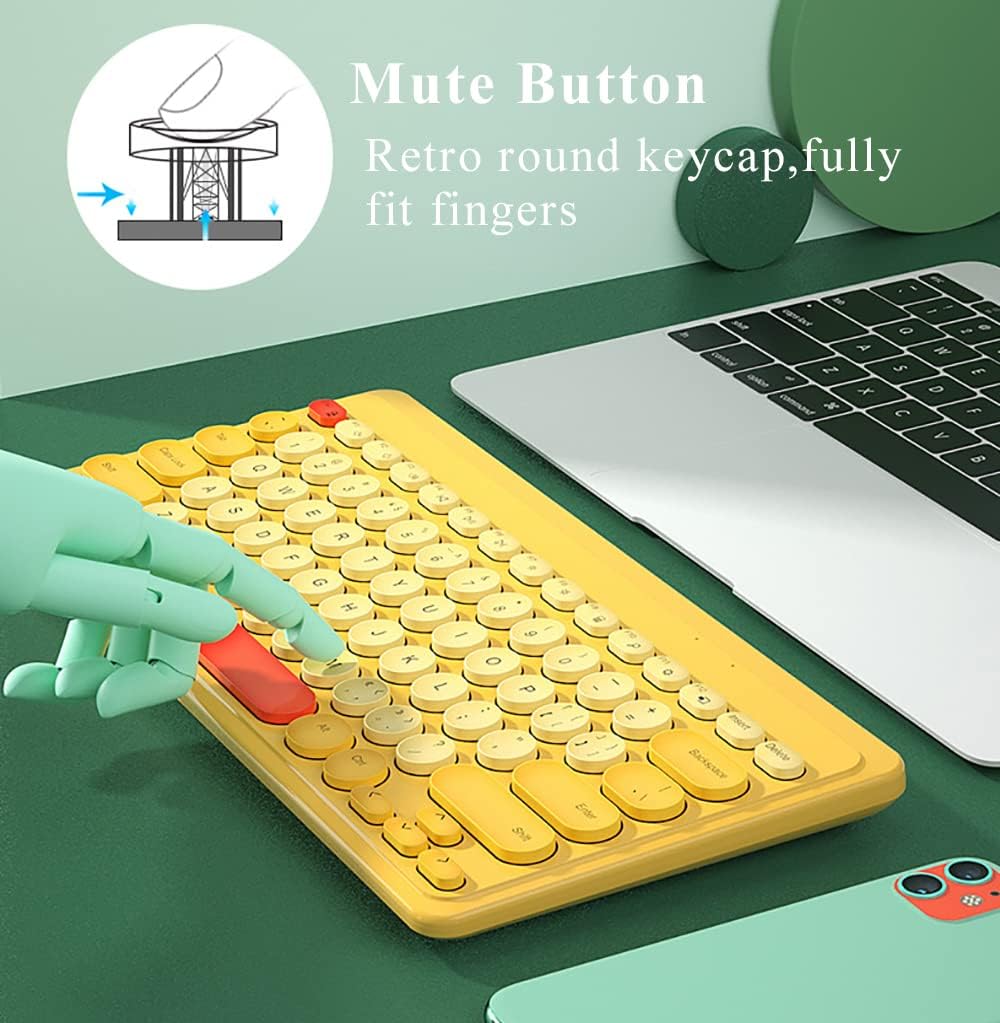
Figure 3: Close-up of keyboard keys highlighting the mute button and round keycap design

Figure 4: Hands typing on the keyboard, demonstrating comfortable typing experience
7. Pairing and Re-pairing
In most cases, the keyboard and mouse will work directly after plugging in the USB receiver. If the connection is lost or the combo does not work, follow these re-pairing instructions:
7.1 Keyboard Re-pairing
- Ensure batteries are correctly installed in the keyboard.
- Press and hold the “ESC” key and the “+” key simultaneously. The indicator light on the keyboard will start flashing, indicating it has entered pairing mode.
- Plug the USB receiver into your device's USB port. The indicator light on the keyboard will stay on for 3 seconds, confirming successful pairing.
7.2 Mouse Re-pairing
- Ensure a battery is correctly installed in the mouse and the power switch is turned ON.
- Press and hold the Left, Middle (scroll wheel), and Right mouse buttons simultaneously for 5 seconds.
- Plug the USB receiver into your device's USB port. Pairing should be completed.
8. Maintenance and Care
- To clean the keyboard and mouse, use a soft, damp cloth. Avoid harsh chemicals or abrasive cleaners.
- Do not immerse the devices in water.
- If not in use for an extended period, remove the batteries to prevent leakage.
- Store the devices in a cool, dry place.
9. Troubleshooting
| Problem | Possible Cause | Solution |
|---|---|---|
| Keyboard/Mouse not responding | Low battery; USB receiver not connected; Pairing lost. | Replace batteries; Ensure USB receiver is firmly plugged in; Follow re-pairing instructions in Section 7. |
| Intermittent connection | Too far from receiver; Interference; Low battery. | Move closer to the receiver; Avoid placing near other wireless devices; Replace batteries. |
| Mouse turns off frequently | Power-saving feature; Low battery. | Move the mouse to wake it up; Replace battery. |
| Keys feel sticky or unresponsive | Debris under keycap; Damage. | Gently clean around the keycap; If problem persists, contact customer support. |
10. Product Specifications
| Feature | Detail |
|---|---|
| Brand | JieruiDeng |
| Model | B09Q14DWQ7 |
| Color | Yellow |
| Connectivity Technology | 2.4G USB Wireless |
| Keyboard Battery | 1 x AAA (not included) |
| Mouse Battery | 1 x AA (not included) |
| Estimated Battery Life | Up to 3 months |
| Wireless Range | Up to 10m / 33ft |
| Keyboard Dimensions | Approx. 300.9mm x 146mm x 20.9mm (11.85 x 5.75 x 0.82 inches) |
| Item Weight | 1.25 pounds |
| Manufacturer | JieruiDeng Technology Co., Ltd. |

Figure 5: Keyboard Dimensions
11. Compatibility
The JieruiDeng Compact Wireless Keyboard and Mouse Combo is widely compatible with various operating systems and devices:
- Operating Systems: Windows 2000/ME/XP (x64)/Vista/7/8/10
- Compatible Devices: Desktops, Chromebooks, PCs, Laptops, Computers, MacBook, iPad, iPhone, Android Phones, Tablets, Smart TVs.
- Note: For devices without a standard USB-A port (e.g., some MacBooks, iPads, Android phones/tablets), a USB dongle/OTG converter (USB to Type-C/Micro USB OTG) is required. One such adapter is included with the product.

Figure 6: Wide Compatibility with various devices
12. Warranty and Customer Support
Every JieruiDeng product undergoes strict quality tests to ensure reliability and performance. If you encounter any questions, issues, or have suggestions regarding your product, please do not hesitate to contact our customer support team. Our JieruiDeng team is dedicated to providing you with effective solutions.
For support, please refer to the contact information provided on the product packaging or the official JieruiDeng website.