
1. Introduction
This manual provides essential information for setting up, operating, maintaining, and troubleshooting your MEDION Akoya S3003 Desktop PC. Please read this manual thoroughly before using your device to ensure proper function and safety.

Image 1.1: Front view of the MEDION Akoya S3003 Desktop PC, showcasing its compact design and front ports.
2. Safety Information
Observe the following safety guidelines to prevent damage to your device and ensure personal safety:
- Do not expose the device to extreme temperatures, humidity, or direct sunlight.
- Keep the device away from liquids and moisture.
- Ensure proper ventilation to prevent overheating. Do not block ventilation openings.
- Use only the power adapter supplied with the device.
- Do not attempt to open or repair the device yourself. Refer all servicing to qualified personnel.
- Disconnect the power cable before cleaning or if the device will not be used for an extended period.
3. Product Overview
Familiarize yourself with the components and ports of your MEDION Akoya S3003 Desktop PC.
3.1 Front Panel

Image 3.1: Angled view of the front panel, highlighting accessible ports.
- Power Button: To turn the PC on or off.
- USB Ports: For connecting USB devices such as keyboards, mice, or external storage.
- Audio Jacks: Headphone output and microphone input.
3.2 Rear Panel

Image 3.2: Rear view of the PC, showing various connectivity options.
- 4 x USB 3.2 Gen 2 Type-A: High-speed USB ports for peripherals.
- 1 x HDMI-out: For connecting to a monitor or display.
- 1 x VGA: For connecting to older monitors or displays.
- 1 x RJ45 GigaLAN: For wired network connection.
- 1 x Mikrofon-In: Microphone input.
- 1 x Audio Line-out: Audio output for speakers or headphones.
- 1 x Netzteilananschluss (Power Adapter Connection): For connecting the power supply.
3.3 Dimensions and VESA Mounting
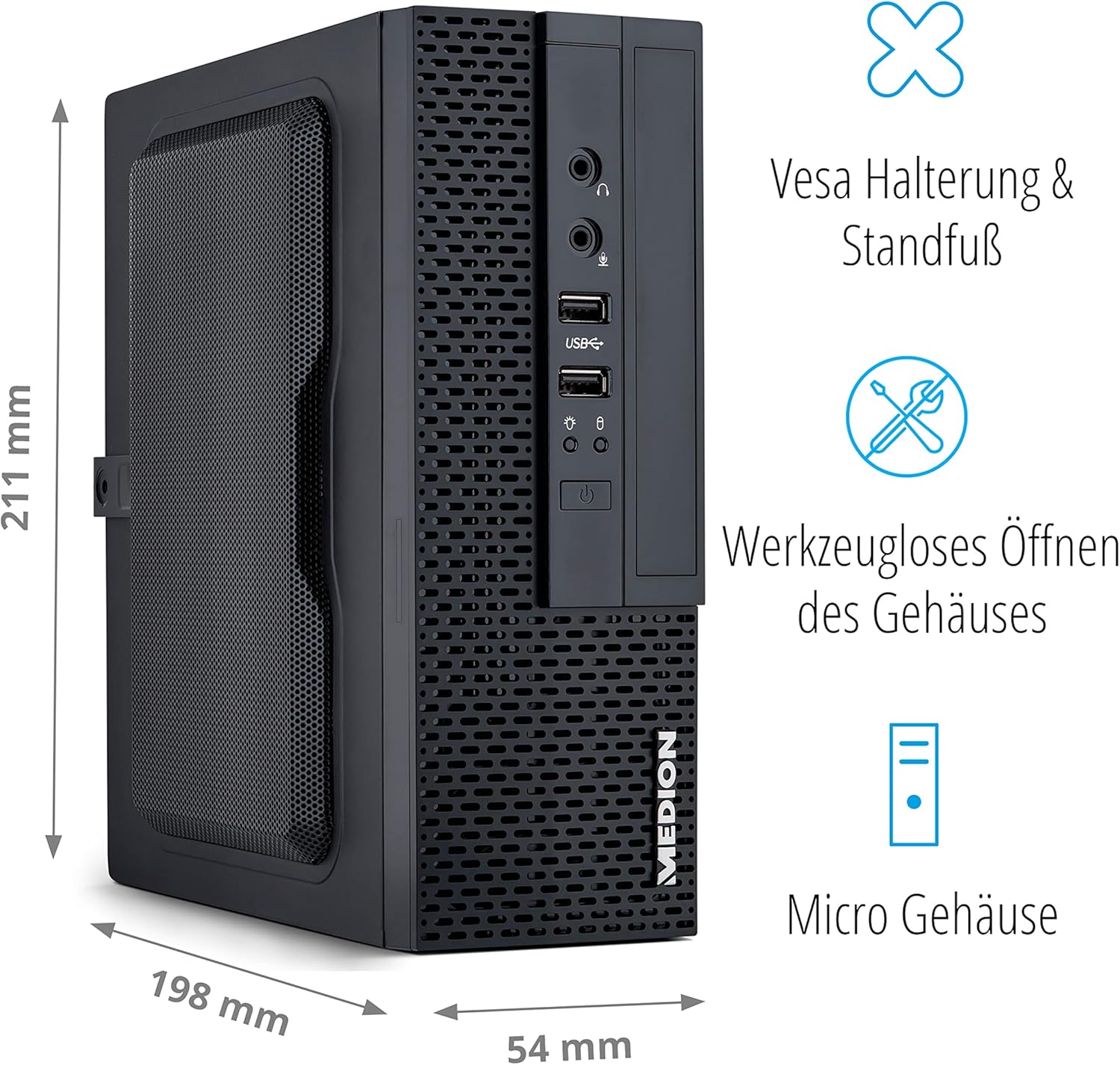
Image 3.3: Illustration showing the compact dimensions (211mm H x 198mm D x 54mm W) and VESA mounting capability of the PC.
The MEDION Akoya S3003 features a compact micro-case design, measuring approximately 211 mm in height, 198 mm in depth, and 54 mm in width. It supports VESA mounting, allowing it to be attached to the back of a compatible monitor or other VESA-compatible surfaces for space-saving installation. The case is designed for tool-less opening for easier access to internal components.

Image 3.4: A VESA mount bracket, illustrating the mounting mechanism.
4. Setup Instructions
Follow these steps to set up your MEDION Akoya S3003 Desktop PC.
- Unpack the PC: Carefully remove the PC and all accessories from the packaging.
- Connect Peripherals:
- Connect your monitor(s) to the HDMI or VGA ports on the rear panel.
- Connect your keyboard and mouse to the available USB ports (front or rear).
- If using wired internet, connect an Ethernet cable to the RJ45 GigaLAN port.
- Connect speakers or headphones to the audio line-out port if desired.
- Connect Power: Plug the power adapter into the power adapter connection on the rear panel, then plug the other end into a wall outlet.
- Power On: Press the power button on the front panel to turn on the PC.
- Initial Windows Setup: Follow the on-screen instructions to complete the Windows 10 Home setup, including language, region, network connection, and user account creation.

Image 4.1: Diagram illustrating how to connect peripherals like monitors, projectors, printers, and headsets to the MEDION Akoya S3003.
5. Operating Instructions
Your MEDION Akoya S3003 comes pre-installed with Windows 10 Home, powered by an Intel Core i5 processor and a 512 GB SSD.
5.1 Basic Operation
- Power On/Off: Press the power button to turn on. To shut down, click the Start button in Windows, then Power > Shut down.
- Restart: From the Start menu, select Power > Restart.
- Sleep Mode: From the Start menu, select Power > Sleep.

Intel Core i5 Processor

Windows 10 Home Operating System

Fast SSD Storage

System Memory (RAM)
5.2 Network Connectivity
- Wired Connection: Connect an Ethernet cable to the RJ45 port on the rear panel. Windows will automatically detect the connection.
- Wireless Connection (WLAN):
- Click the network icon in the Windows taskbar.
- Select your desired Wi-Fi network from the list.
- Enter the network security key (password) if prompted.
- Click "Connect".

Image 5.1: Graphic representing WLAN connectivity.
6. Maintenance
Regular maintenance helps ensure the longevity and optimal performance of your PC.
- Cleaning:
- Use a soft, dry cloth to clean the exterior of the PC.
- For stubborn dirt, slightly dampen the cloth with water. Avoid harsh chemicals.
- Use compressed air to gently clear dust from ventilation openings.
- Software Updates: Regularly check for and install Windows updates and driver updates to ensure system stability and security.
- Data Backup: Periodically back up important data to an external drive or cloud storage to prevent data loss.
- Antivirus Software: Keep your antivirus software (e.g., McAfee, if pre-installed) up to date to protect against malware.

Image 6.1: McAfee antivirus software logo, indicating potential pre-installed security.
7. Troubleshooting
This section addresses common issues you might encounter.
| Problem | Possible Cause | Solution |
|---|---|---|
| PC does not power on. | Power cable not connected, power outlet issue. | Ensure power cable is securely connected to both the PC and a working power outlet. Test the outlet with another device. |
| No display on monitor. | Monitor not connected, incorrect input selected, monitor power off. | Check monitor cable connections (HDMI/VGA). Ensure monitor is powered on and set to the correct input source. |
| No internet connection. | Ethernet cable loose, Wi-Fi disconnected, router issue. | For wired: Check Ethernet cable. For Wi-Fi: Reconnect to network, verify password. Restart your router/modem. |
| PC is running slow. | Too many programs running, low disk space, malware. | Close unnecessary applications. Free up disk space. Run a full system scan with antivirus software. Check for Windows updates. |
8. Specifications
Key technical specifications for the MEDION Akoya S3003 Desktop PC.
| Feature | Detail |
|---|---|
| Model Number | S30003 |
| Brand | MEDION |
| Processor | Intel Core i5 |
| Operating System | Windows 10 Home |
| Storage | 512 GB SSD |
| RAM | 8 GB |
| Approximate Case Dimensions (H x D x W) | 211 mm x 198 mm x 54 mm |
| Weight | 2.5 Kilograms |
| Color | Black |
| Connectivity | 4x USB 3.2 Gen 2 Type-A, 1x HDMI-out, 1x VGA, 1x RJ45 GigaLAN, 1x Microphone-In, 1x Audio Line-out, WLAN |
| Special Features | VESA mount support, Tool-less case opening |
9. Warranty and Support
Your MEDION Akoya S3003 Desktop PC is covered by a manufacturer's warranty. For detailed warranty terms and conditions, please refer to the documentation included with your product or visit the official MEDION website.
For technical support, driver downloads, or service inquiries, please contact MEDION customer support through their official channels.
MEDION Official Website: www.medion.com