
Perixx PERIBOARD-332
Perixx PERIBOARD-332 Wired Backlit USB Keyboard User Manual
Introduction
This manual provides detailed instructions for the setup, operation, maintenance, and troubleshooting of your Perixx PERIBOARD-332 Wired Backlit USB Keyboard. Please read this manual thoroughly before using the product to ensure optimal performance and longevity.

Image: The Perixx PERIBOARD-332 Wired Backlit USB Keyboard, showcasing its compact design.
Package Contents
Verify that all items are present in the package:
- Perixx PERIBOARD-332 Wired Backlit USB Keyboard
- Integrated USB Cable
- User Manual (this document)

Image: The Perixx PERIBOARD-332 keyboard, its integrated USB cable, the user manual, and the product packaging.
Setup Instructions
Connect the Keyboard: Locate an available USB port on your computer (PC, laptop, tablet, or smartphone with appropriate adapter). Insert the USB cable from the PERIBOARD-332 into the USB port.
Driver Installation: The keyboard is plug-and-play and typically does not require additional drivers for basic functionality on Windows, macOS, Linux, or Chrome OS. Your operating system should automatically detect and configure the device.
Placement: Place the keyboard on a stable, flat surface. The compact design is ideal for small workspaces.

Image: A user typing on the Perixx PERIBOARD-332 keyboard, demonstrating its compact size and wired connection on a desk.
Operating Instructions
General Use
The Perixx PERIBOARD-332 features a standard US English QWERTY layout with 84 keys. Its low-profile scissor keys provide a quiet and comfortable typing experience, similar to laptop keyboards. The compact design helps optimize desk space.

Image: A user typing on the Perixx PERIBOARD-332 keyboard, highlighting its compact size and ergonomic placement in a workspace.

Image: Close-up view of the sculpted, low-profile scissor keys of the Perixx PERIBOARD-332, highlighting their design.
Function Keys (Fn Hotkeys)
The keyboard includes integrated Fn hotkeys for quick access to multimedia and system functions. These functions are primarily designed for Windows operating systems. For other operating systems (macOS, Linux, Chrome OS), their functionality may vary or require specific system settings/configurations.
- Fn + F1: Fn Lock
- Fn + F2: Backlight Brightness Adjustment (Cycle through levels)
- Fn + F3: Mute
- Fn + F4: Volume Down
- Fn + F5: Volume Up
- Fn + F6: Previous Track
- Fn + F7: Play/Pause
- Fn + F8: Next Track
- Fn + F9: Pause
- Fn + F10: Scroll Lock
- Fn + F11: Insert
- Fn + F12: Print Screen

Image: Diagram illustrating the integrated Fn hotkeys on the Perixx PERIBOARD-332, showing the function of each F-key when pressed with the Fn key.
Backlight Control
The PERIBOARD-332 features white LED backlighting with adjustable brightness. To adjust the backlight brightness, press the Fn + F2 keys simultaneously. Repeatedly pressing this combination will cycle through different brightness levels (including off).
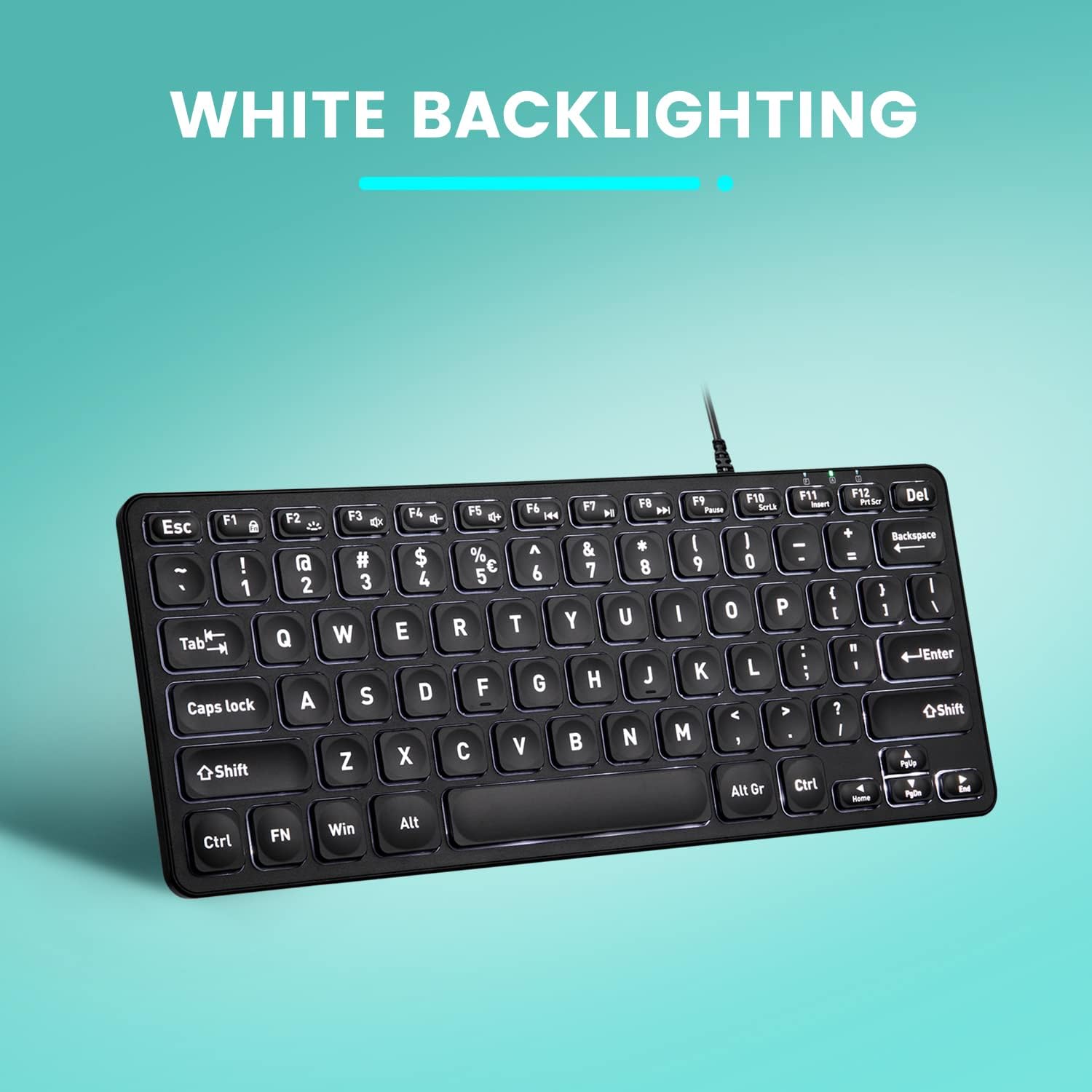
Image: Top-down view of the Perixx PERIBOARD-332 keyboard with its white LED backlighting illuminated, showcasing the clear, large font on the keys.
Maintenance
To ensure the longevity and proper functioning of your keyboard, follow these maintenance guidelines:
- Cleaning: Use a soft, lint-free cloth slightly dampened with water or a mild cleaning solution to wipe the surface of the keyboard. Avoid excessive moisture. Do not spray cleaners directly onto the keyboard.
- Dust Removal: Use compressed air to remove dust and debris from between the keys.
- Avoid Spills: Keep liquids away from the keyboard to prevent damage. The keyboard is not water-resistant.
- Storage: When not in use, store the keyboard in a clean, dry environment away from extreme temperatures.
Troubleshooting
If you encounter issues with your Perixx PERIBOARD-332, refer to the following common solutions:
Keyboard Not Responding
- Check USB Connection: Ensure the USB cable is securely plugged into both the keyboard and the computer's USB port. Try a different USB port.
- Restart Computer: Sometimes, a simple computer restart can resolve connectivity issues.
- Test on Another Device: Connect the keyboard to another computer or device to determine if the issue is with the keyboard or the original computer.
Backlight Not Working or Adjusting
- Check Brightness Setting: Press Fn + F2 repeatedly to cycle through all brightness levels, including off. Ensure it's not set to the lowest or off setting.
- Power Source: Ensure the keyboard is properly connected to a powered USB port.
Keys Not Functioning Correctly
- Clean Keys: Check for any debris or obstructions under the affected keys. Use compressed air to clear them.
- Software Conflicts: If specific keys are not working, check for any software or driver conflicts on your computer.
Multimedia Keys Not Working on macOS/Linux/Chrome OS
- Operating System Compatibility: The multimedia shortcut keys are primarily designed for Windows. On other operating systems, their functionality may vary or require specific system settings/configurations.
Specifications
| Feature | Detail |
|---|---|
| Brand | Perixx |
| Model Number | PERIBOARD-332 |
| Connectivity Technology | USB (Wired) |
| Keyboard Description | US English QWERTY |
| Special Feature | Backlit (White LED) |
| Switch Type | Scissor Switches |
| Number of Keys | 84 |
| Product Dimensions (L x W x H) | 11.22" x 4.57" x 0.83" (28.5 cm x 11.6 cm x 2.1 cm) |
| Item Weight | 0.79 lbs (12.3 Ounces / 350 grams approx.) |
| Compatible Devices | PC, Laptop, Tablet, Smartphone (with compatible USB port/adapter) |
| Operating System Compatibility | Windows 7, 8, 10, 11; macOS; Linux; Chrome OS |
| Material | Plastic |
Warranty and Support
Warranty Information
Your Perixx PERIBOARD-332 keyboard comes with a 12-month limited warranty from the date of purchase. This warranty covers manufacturing defects and workmanship under normal use. It does not cover damage caused by misuse, accidents, unauthorized modifications, or external factors.
Please retain your proof of purchase for warranty claims.
Customer Support
For technical assistance, warranty claims, or any questions regarding your Perixx product, please visit the official Perixx website or contact their customer support team. Contact information can typically be found on the Perixx website or in the product packaging.
You can also visit the Perixx Store on Amazon for more information and support resources.
Related documentsPERIBOARD-332


Ask a question about this manual
Ask about setup, troubleshooting, compatibility, parts, safety, or missing instructions. Manuals+ will review the question and use this page’s manual context to help answer it.