1. Introduction
The HQST 60 Amp MPPT Solar Charge Controller is an advanced device designed for efficient and reliable solar power management. It features Maximum Power Point Tracking (MPPT) technology to maximize energy harvest from solar panels, built-in Bluetooth for remote monitoring, and comprehensive protection functions for various battery types, including lithium batteries with low-temperature protection.
This manual provides detailed instructions for the proper installation, operation, and maintenance of your HQST solar charge controller. Please read it thoroughly before use to ensure optimal performance and safety.
2. Key Features
- Advanced MPPT Technology: Ensures fast and stable tracking of the maximum power point, with tracking efficiency up to 99% and peak conversion efficiency of 98%.
- Multi-Voltage Auto-Detection: Automatically detects 12V, 24V, 36V, or 48V DC system voltages.
- Built-in Bluetooth Module: Enables remote monitoring and parameter modification via the 'ChargePro 2.0' or 'PVChargePro' app (available for Android and iOS). Stores up to 300 days of historical data.
- Comprehensive Protection: Includes overcharging, over-discharging, overload, overheat, short circuit, and reverse protection.
- Lithium Battery Low-Temperature Protection: Automatically stops charging lithium batteries below freezing temperatures to protect battery life. This function can be manually switched on/off.
- Parallel Charge Function: Supports parallel connection of two HQST MPPT controllers (M2420N/M2440N/M4860N series) to charge the same battery bank for higher power requirements. Requires a separate parallel charge cable.
- High Heat Dissipation Efficiency: Features a die-cast aluminum heat sink and gel filling for superior PCBA cooling and extended service life.
- LCD Screen Display: Provides real-time operating data and fault indicators.
- Compatible Battery Types: Supports Flooded, AGM, Gel, and Lithium batteries, with user-definable charging parameters.
- 3-Stage Charging: Boost, Float, and Equalization stages for optimized battery charging.
3. Setup and Installation
Proper installation is crucial for the safe and efficient operation of your solar charge controller. Please follow these steps carefully.
3.1 Unboxing and Components
Upon opening the package, ensure all components are present and undamaged. The package should contain the HQST 60 Amp MPPT Solar Charge Controller and a temperature sensor.

Figure 3.1: HQST 60 Amp MPPT Solar Charge Controller with included temperature sensor and a smartphone displaying the monitoring app.

Figure 3.2: Physical dimensions of the HQST 60 Amp MPPT Solar Charge Controller (11.02" x 8.27" x 4.04").
3.2 Wiring Connections
Follow the wiring sequence below to prevent damage to the controller or battery. Always connect the battery first, then the solar panels, and finally the load.
- Connect the Battery: Connect the positive and negative battery wires to the corresponding battery terminals on the charge controller. Ensure a secure connection.
- Connect the Solar Panels: Connect the positive and negative solar panel wires to the corresponding PV input terminals on the charge controller. Ensure solar panels are covered or disconnected during wiring to prevent electrical shock.
- Connect the DC Load (Optional): If using a DC load directly from the controller, connect its positive and negative wires to the DC load output terminals.
- Connect Temperature Sensor: Plug the external temperature sensor into the designated port on the controller and attach the other end to the battery side for accurate temperature monitoring.
Video 3.2.1: Demonstrates the wiring process for the HQST MPPT Solar Charge Controller. This video shows how to connect the battery, solar panels, and load to the controller, ensuring proper polarity and secure connections for safe operation.
Video 3.2.2: Illustrates the low-temperature protection feature of the HQST 48V 60A MPPT Controller. The video demonstrates how the controller automatically stops charging when the battery temperature drops below a set threshold, protecting lithium batteries from damage.
Important: Always ensure correct polarity (+ to + and - to -) for all connections. Incorrect wiring can damage the controller and connected devices.

Figure 3.2.1: Basic wiring diagram showing connections from solar panel to controller, controller to battery, and controller to DC load.
4. Operating Instructions
4.1 LCD Display and Buttons
The LCD screen displays various operating parameters and status indicators. Use the buttons below the screen to navigate and adjust settings.
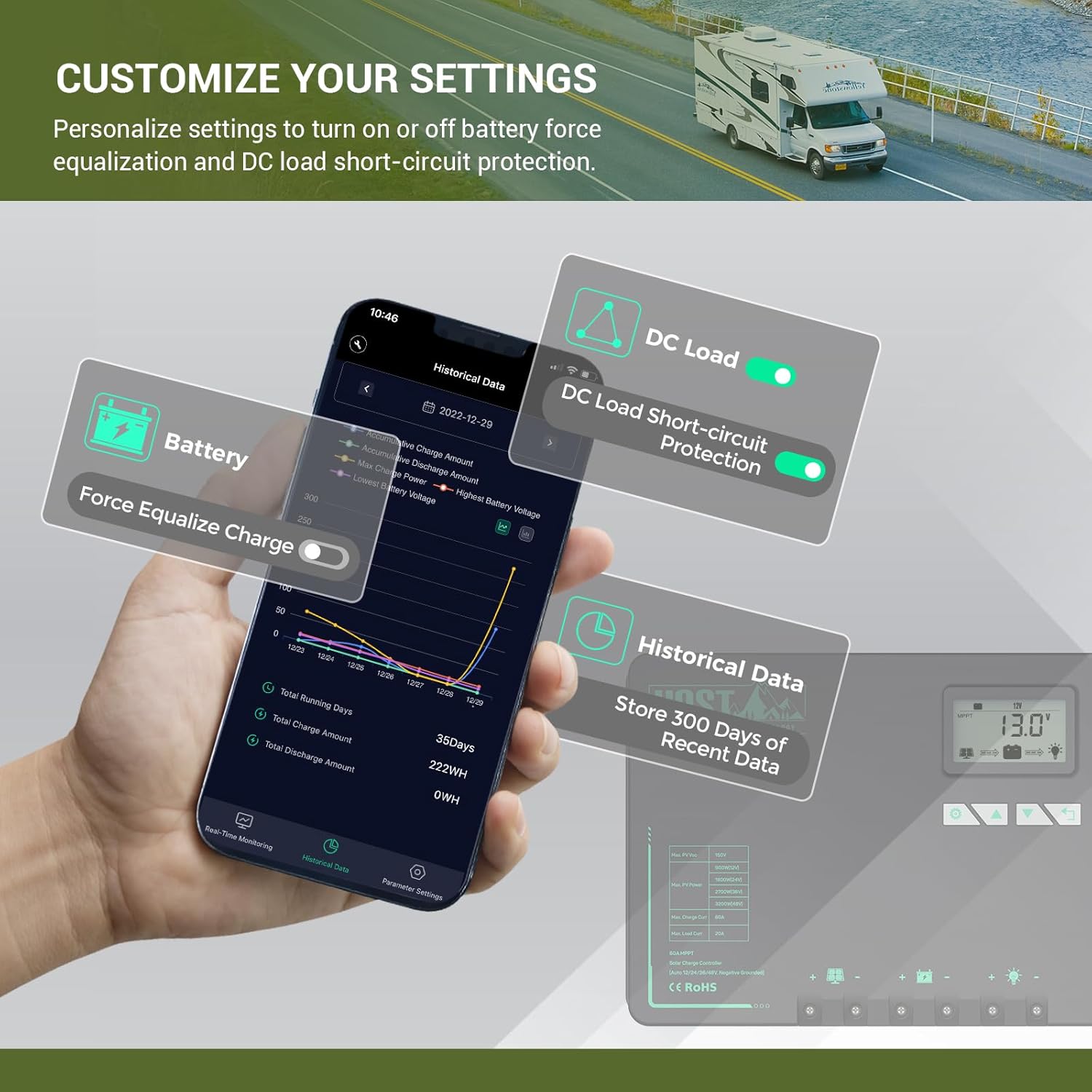
Figure 4.1: Close-up view of the LCD screen and control buttons for navigating menus and adjusting settings.

Figure 4.1.1: Illustration of the LCD screen display cycle, showing different parameters such as charging PV voltage, battery voltage, battery capacity, charging amperage, load watt-hour, load amperage, load mode, controller temperature, and error codes.
4.2 Bluetooth Monitoring (ChargePro 2.0 App)
The built-in Bluetooth module allows for convenient remote monitoring and parameter adjustment via the 'ChargePro 2.0' app. Download the app from your device's app store:
For Android, ensure location services and Bluetooth are enabled for connection. For iOS, tap the Bluetooth icon in the app and select 'PVChargePro'. The app provides real-time data, historical data (up to 300 days), and allows customization of settings.

Figure 4.2: The ChargePro 2.0 app interface showing real-time monitoring data for the solar charge controller.
Video 4.2.1: Demonstrates the functionality of the HQST MPPT Solar Charge Controller, including its Bluetooth connectivity for remote monitoring and parameter adjustment via the smartphone app. The video highlights how users can check real-time data and historical records.
4.3 Parallel Charging Setup
For higher power charging requirements, two HQST MPPT controllers of the same series (M2420N/M2440N/M4860N) can work in parallel to charge the same battery bank. A parallel charge cable (not included) is required.
- Connect both controllers to a single battery bank.
- Connect two solar panels to the respective controllers.
- Plug in the RS485 parallel charge connection cable between the two controllers.
- Press and hold the first and third buttons simultaneously on each controller until the parallel charge page appears.
- Select "Parallel Charging ON" and press the first button to save and exit.
- Repeat for the second controller.

Figure 4.3: Two HQST MPPT controllers connected in parallel to a deep cycle battery bank, increasing overall charging current.
Video 4.3.1: Step-by-step guide on how to wire two HQST MPPT controllers in parallel to charge a single battery bank. This video covers connecting the controllers to the battery, solar panels, and the RS485 parallel charge cable, along with setting the parallel charging function on the controller's display.
Video 4.3.2: Instructions on how to set parameters for the parallel charge function on HQST MPPT controllers. This video explains how to configure the main and sub-controllers to work together, emphasizing that parameter changes should only be made on the main controller.
5. Maintenance
Regular maintenance ensures the longevity and optimal performance of your HQST solar charge controller.
- Inspect Connections: Periodically check all wiring connections for tightness and corrosion. Loose connections can cause overheating and poor performance.
- Clean the Controller: Keep the controller clean and free from dust and debris. Use a dry cloth for cleaning. Ensure the heat sink fins are clear for proper heat dissipation.
- Battery Health: Monitor your battery's health and voltage regularly using the LCD display or the ChargePro 2.0 app. Ensure batteries are properly maintained according to their manufacturer's guidelines.
- Environmental Conditions: Ensure the controller is installed in a well-ventilated area, away from direct sunlight, moisture, and corrosive environments.

Figure 5.1: Internal components of the HQST controller, highlighting the gel filling for PCBA cooling and the die-cast aluminum heat sink for efficient heat dissipation.
6. Troubleshooting
This section provides solutions to common issues you might encounter with your HQST solar charge controller.
| Problem | Possible Cause | Solution |
|---|---|---|
| Controller not powering on. | No battery connected or battery voltage too low. | Ensure battery is connected and has sufficient charge. Charge battery externally if needed. |
| No charging current from solar panels. | Solar panels not connected, insufficient sunlight, or PV voltage too low/high. | Check PV connections. Ensure adequate sunlight. Verify PV voltage is within controller's operating range. |
| Error code displayed (e.g., E01). | Specific fault detected (e.g., over-voltage, short circuit). | Refer to the LCD display cycle diagram (Figure 4.1.1) for error code meanings. Address the specific fault as indicated. |
| Bluetooth app not connecting. | Bluetooth disabled on phone, app permissions, or out of range. | Enable Bluetooth and location services (Android). Ensure app has necessary permissions. Move closer to the controller. |
| Lithium battery not charging in cold weather. | Low-temperature protection activated. | This is normal behavior to protect the battery. Charging will resume when temperature rises above the threshold (e.g., 41°F/5°C). |
For issues not covered here, please contact HQST customer support.
7. Technical Specifications
| Parameter | Value |
|---|---|
| Model Number | M4860N |
| System Voltage | 12V/24V/36V/48V Auto Recognition |
| Max. PV Input Voltage | 150V |
| Max. PV Power (12V) | 800W |
| Max. PV Power (24V) | 1600W |
| Max. PV Power (36V) | 2400W |
| Max. PV Power (48V) | 3200W |
| Max. Charge Current | 60A |
| Max. Load Current | 20A |
| Dimensions (L x W x H) | 11.02 x 8.27 x 4.04 inches |
| Item Weight | 10.57 pounds |
| Display Type | LCD |
| UPC | 810081405898 |
8. Warranty and Support
HQST products are designed for reliability and performance. For warranty information and technical support, please refer to the official HQST website or contact their customer service directly.
You can also find additional resources and FAQs on the HQST Amazon Store.
For a downloadable PDF version of the user manual, please visit: HQST User Manual (PDF)


