Introduction
This manual provides essential information for the proper installation, operation, and maintenance of your Huawei Wi-Fi Router 6 AX2 (WS7001). This device is designed to provide high-speed wireless connectivity, supporting Wi-Fi 6 technology for enhanced performance and coverage.

Figure 1: Huawei Wi-Fi Router 6 AX2 (WS7001) - Main Product View
Safety Information
Please read and follow all safety instructions carefully to prevent injury or damage to the device. Keep the router away from water, fire, high humidity, and extreme temperatures. Do not attempt to disassemble or repair the device yourself. Use only the power adapter provided with the router.
Package Contents
Verify that all items are present in your product package:
- Huawei Wi-Fi Router 6 AX2 (WS7001) x 1
- Power Adapter x 1
- Ethernet Cable x 1
- User Guide & Security Information and Warranty Card x 1
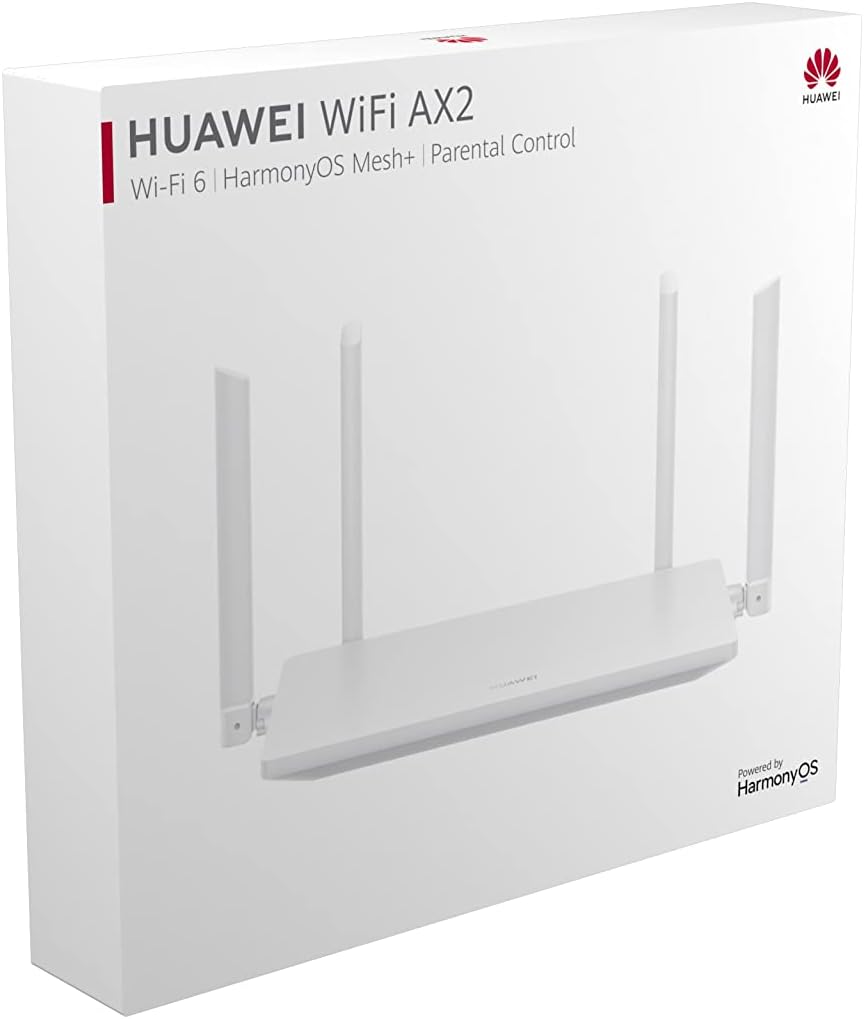
Figure 2: Product Packaging of Huawei Wi-Fi Router 6 AX2
Product Overview
Familiarize yourself with the physical components and ports of your router.
Front View

Figure 3: Front View of the Router
The front panel typically features an LED indicator that displays the router's status (e.g., power, internet connection, Wi-Fi activity).
Back View (Ports and Buttons)

Figure 4: Back View of the Router with Ports
- POWER Port: Connects to the power adapter.
- 1000M WAN/LAN Ports (1, 2, 3): These are Gigabit Ethernet ports that support auto WAN/LAN adaptation. This means any of these ports can function as either a WAN (Internet) port or a LAN (local network) port, simplifying setup.
- WPS/RESET Button: Used for Wi-Fi Protected Setup (WPS) to quickly connect devices, or to reset the router to factory default settings by pressing and holding for an extended period.
Side View

Figure 5: Side View of the Router
The sides of the router feature ventilation openings to ensure proper airflow and prevent overheating.
Setup Guide
Follow these steps to set up your Huawei Wi-Fi Router 6 AX2.
Step 1: Hardware Connection
- Connect the Power Adapter: Plug the power adapter into the router's POWER port and then into a power outlet. The router's indicator light should turn on.
- Connect to the Internet: Connect one end of the provided Ethernet cable to the WAN/LAN port (any of the three ports) on your router and the other end to your modem's LAN port or the Ethernet wall jack.
- Connect Devices (Optional): For wired connections, connect your computer or other network devices to any remaining WAN/LAN ports on the router using Ethernet cables.
Step 2: Initial Configuration
After connecting the hardware, configure your router using a web browser or the Huawei AI Life app.
- Via Web Browser: Connect your computer or mobile device to the router's default Wi-Fi network (SSID and password are usually found on a label at the bottom of the router). Open a web browser and enter the default IP address (e.g., 192.168.3.1) to access the setup wizard. Follow the on-screen instructions to set up your internet connection and Wi-Fi network name/password.
- Via Huawei AI Life App: Download the Huawei AI Life app from your device's app store. Open the app, add your router, and follow the prompts to complete the setup.
Operating Instructions
Understand how to utilize the key features of your Huawei Wi-Fi Router 6 AX2.
Wi-Fi Connectivity
The router supports Wi-Fi 6 (802.11ax) on both 2.4GHz and 5GHz bands. It automatically switches devices between these frequencies to ensure optimal connection based on signal strength and network congestion. The 5GHz band is recommended for high-speed activities like gaming and streaming, while 2.4GHz provides wider coverage.

Figure 6: Enjoying High-Speed Wi-Fi Connectivity
HarmonyOS Mesh+ Networking
Expand your Wi-Fi coverage by linking your Huawei Wi-Fi AX2 with other compatible Huawei routers. This creates a unified mesh network, allowing devices to seamlessly switch between routers as you move around your home, ensuring a consistent and strong connection.
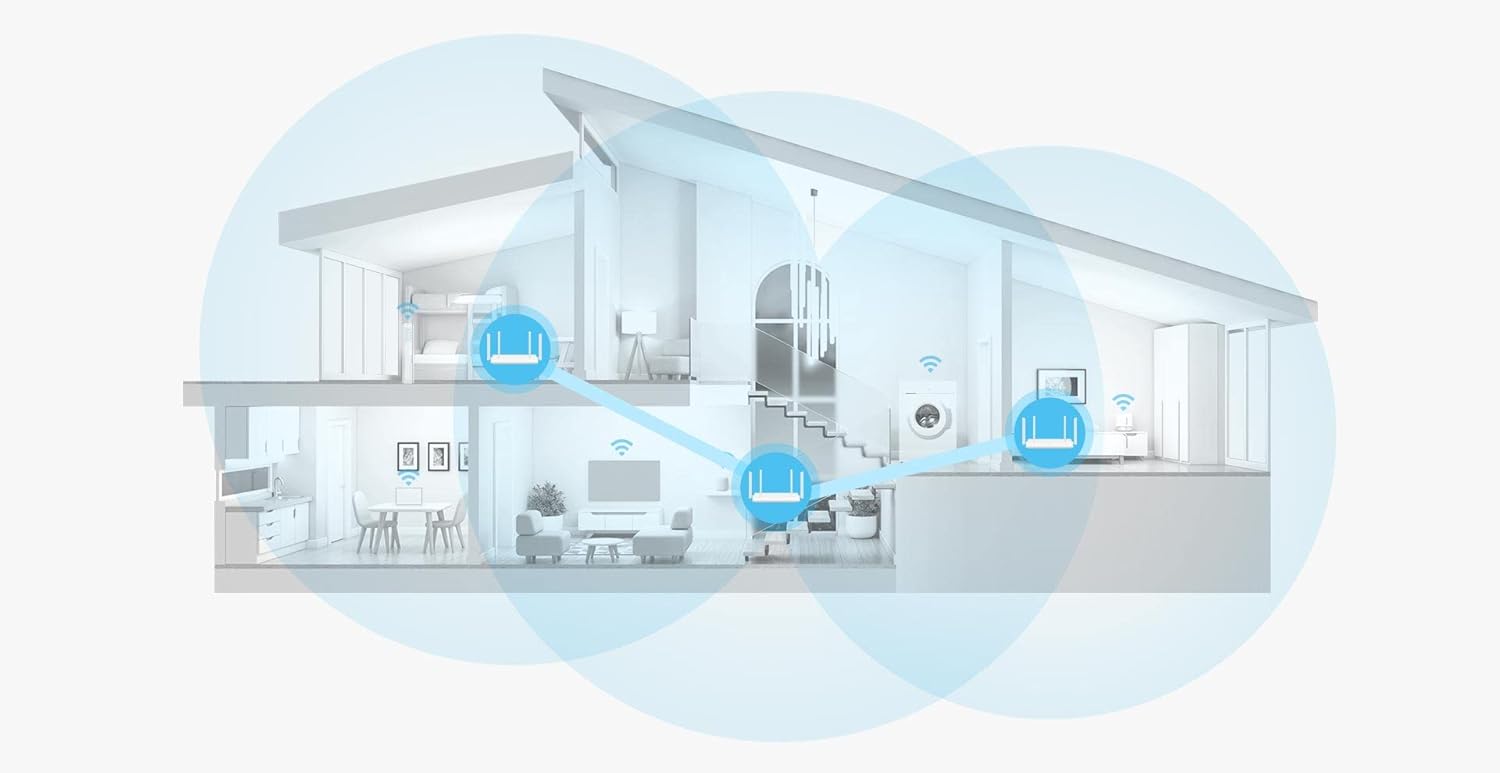
Figure 7: Illustrative Diagram of HarmonyOS Mesh+ Coverage
Parental Control
The router includes parental control features, allowing you to manage internet access times and filter content for connected devices. Refer to the router's web interface or the Huawei AI Life app for detailed configuration options.
Gigabit WAN/LAN Auto-Adaptation
The three Ethernet ports on the back of the router automatically detect whether they are connected to a WAN (Internet) source or a LAN (local device), eliminating the need to distinguish between dedicated WAN and LAN ports during setup.
Maintenance
Regular maintenance helps ensure optimal performance and longevity of your router.
Firmware Updates
Periodically check for and install firmware updates through the router's web management interface or the Huawei AI Life app. Firmware updates often include performance improvements, security patches, and new features.
Cleaning
Clean the router's exterior with a soft, dry cloth. Do not use liquid cleaners or aerosols. Ensure ventilation openings are free from dust and obstructions.
Resetting the Router
If you encounter persistent issues or wish to revert to default settings, you can perform a factory reset. With the router powered on, press and hold the WPS/RESET button for approximately 10 seconds until the indicator light changes. The router will then restart with factory default settings.
Troubleshooting
This section addresses common issues you might encounter with your router.
No Internet Connection
- Check Cables: Ensure all Ethernet cables are securely connected to the router and modem.
- Modem Status: Verify that your modem is working correctly and has an active internet connection.
- Router Indicator: Check the router's LED indicator. If it's red or off, refer to the user guide for specific error indications.
- Restart Devices: Power cycle your modem and router (unplug, wait 30 seconds, plug back in modem first, then router).
Slow Wi-Fi Speed or Weak Signal
- Router Placement: Place the router in a central location, away from obstructions and sources of interference (e.g., microwaves, cordless phones).
- Interference: Other electronic devices or neighboring Wi-Fi networks can cause interference. Try changing the Wi-Fi channel in the router settings.
- Device Distance: Ensure your devices are within an optimal range of the router. Consider using the Mesh feature for larger homes.
- Band Selection: For faster speeds, ensure your devices are connected to the 5GHz Wi-Fi band when possible.
Cannot Access Router Settings Page
- IP Address: Ensure you are entering the correct default IP address (e.g., 192.168.3.1) in your web browser.
- Connection: Verify that your device is connected to the router's Wi-Fi network or via an Ethernet cable.
- Browser Cache: Clear your browser's cache and cookies, or try a different browser.
Technical Specifications
| Feature | Detail |
|---|---|
| Model | WS7001 |
| Brand | HUAWEI |
| Wireless Standard | 802.11ax (Wi-Fi 6), 802.11ac, 802.11n, 802.11g |
| Frequency Band Class | Dual-Band (2.4GHz / 5GHz) |
| Max Wireless Transmission Rate | Up to 1500 Mbps (5GHz: 1201 Mbps) |
| Ethernet Ports | 3 x Gigabit WAN/LAN Auto-adaptation |
| Product Dimensions | 16.35 x 25.76 x 2.9 cm |
| Item Weight | 250 g |
| Special Features | LED Indicator, HarmonyOS Mesh+, Parental Control |
| Power Source | Electric power |
| Operating System | RouterOS (Internal System) |
| Compatible Devices | Notebooks, Smartphones, Cameras Wifi, Smart Lamps, Tablets |
Warranty and Support
Warranty Information
Your Huawei Wi-Fi Router 6 AX2 (WS7001) comes with a standard manufacturer's warranty. Please refer to the warranty card included in your package for specific terms, conditions, and duration of coverage. Keep your proof of purchase for warranty claims.
Customer Support
For further assistance, technical support, or to download the latest drivers and firmware, please visit the official HUAWEI support website. You can also find FAQs and community forums there for additional help.
Official HUAWEI Support Website: consumer.huawei.com/en/support/