1. Overview
The Nubwo N1 Pro Gaming Headphones are designed to provide an immersive audio experience for gaming and multimedia. Featuring a comfortable on-ear design, a noise-reduction microphone, and versatile connectivity, these headphones are suitable for extended use.

Image 1.1: Nubwo N1 Pro Gaming Headphones with their 3.5mm audio jack, microphone jack, and USB connector for LED lighting.
2. Package Contents
Please verify that all items are present in the package:
- Nubwo N1 Pro Gaming Headphones
- Ear Cushions (pre-installed)
- Headband (pre-installed)
- User Manual (this document)
3. Setup Instructions
3.1 Connecting the Headphones
- Audio Connection: Locate the 3.5mm audio jack (green connector) on your headphones. Plug this into the audio output port (usually green) on your computer, gaming console controller, or other audio device.
- Microphone Connection: Locate the 3.5mm microphone jack (orange connector) on your headphones. Plug this into the microphone input port (usually pink) on your computer or device.
- USB Power for LED Lighting: Plug the USB connector into an available USB port on your computer or gaming console to power the headphone's LED lighting feature. The headphones will function for audio and microphone without the USB connection, but the lights will not illuminate.
3.2 System Configuration (Windows Example)
After connecting, you may need to configure your operating system's sound settings:
- Right-click the speaker icon in your taskbar and select 'Sound Settings' or 'Playback devices'.
- Under 'Output', select 'Speakers (Realtek High Definition Audio)' or similar entry corresponding to your 3.5mm jack.
- Under 'Input', select 'Microphone (Realtek High Definition Audio)' or similar entry.
- Adjust volume levels as needed.
4. Operating Instructions
4.1 Volume Control
The headphones feature an integrated volume knob for convenient audio adjustment.
- Increase Volume: Rotate the volume knob upwards.
- Decrease Volume: Rotate the volume knob downwards.
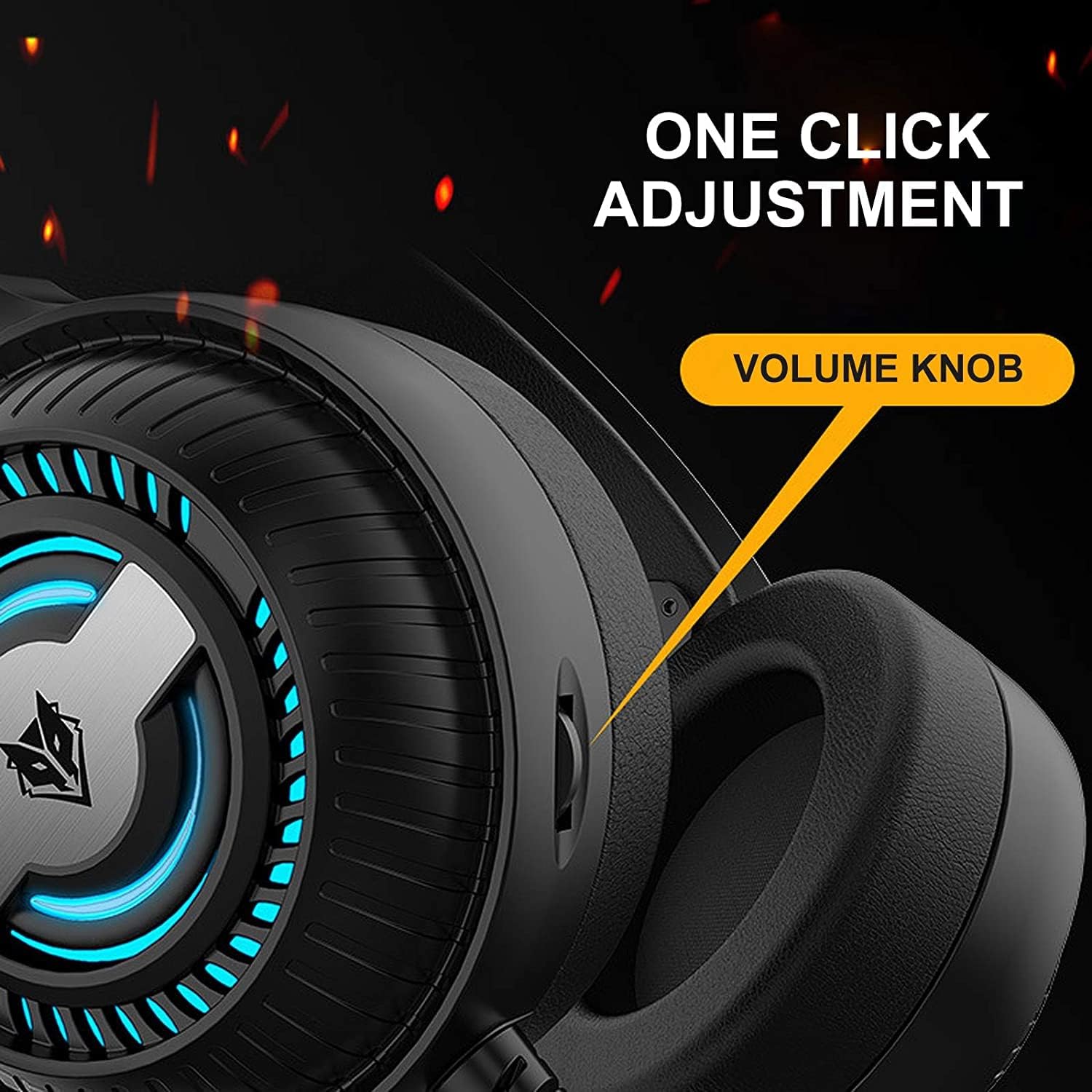
Image 4.1: The volume knob located on the left ear cup for quick audio adjustments.
4.2 Microphone Usage
The flexible microphone is equipped with noise reduction technology for clear communication.
- Positioning: Adjust the flexible microphone boom to a comfortable position near your mouth for optimal voice pickup.
- Noise Reduction: The integrated sponge on the microphone helps to reduce ambient noise, ensuring your voice is transmitted clearly.

Image 4.2: The flexible microphone with noise reduction capabilities, shown in various positions.
4.3 LED Lighting
The headphones feature a breathing lamp effect with 7 different colors, powered via the USB connection.
- The LED lights will automatically cycle through 7 colors when the USB connector is plugged into a powered USB port.
- There is no manual control for changing or turning off the LED colors; they operate in a continuous breathing cycle.

Image 4.3: The ear cup illuminated with the 7-color breathing lamp effect.
5. Maintenance
5.1 Cleaning
- Use a soft, dry cloth to wipe the exterior surfaces of the headphones.
- For ear cushions, gently wipe with a slightly damp cloth and allow to air dry completely before use.
- Do not use harsh chemicals, solvents, or abrasive cleaners.
5.2 Storage
- Store the headphones in a cool, dry place away from direct sunlight and extreme temperatures.
- Avoid placing heavy objects on the headphones.
5.3 Cable Care
- Avoid sharp bends or excessive pulling on the cables to prevent damage.
- Always grasp the plug, not the cable, when disconnecting.
6. Troubleshooting
6.1 No Sound from Headphones
- Ensure the 3.5mm audio jack is fully inserted into the correct audio output port.
- Check the volume knob on the headphones and your device's system volume.
- Verify that the headphones are selected as the default playback device in your sound settings.
- Test the headphones with another device to rule out a device-specific issue.
6.2 Microphone Not Working
- Ensure the 3.5mm microphone jack is fully inserted into the correct microphone input port.
- Verify that the microphone is selected as the default recording device in your sound settings.
- Check microphone privacy settings in your operating system.
- Test the microphone with another device or application.
6.3 LED Lights Not Illuminating
- Ensure the USB connector is securely plugged into a powered USB port.
- Try a different USB port.
7. Specifications
Key technical specifications for the Nubwo N1 Pro Gaming Headphones:
| Feature | Specification |
|---|---|
| Model Name | N1 Pro |
| Brand Name | Generic (Nubwo) |
| Connectivity Technology | Wired (3.5mm Audio, 3.5mm Mic, USB for LED) |
| Headphones Form Factor | On Ear |
| Headphones Ear Placement | On Ear |
| Headphones Jack | 3.5 mm Jack |
| Sensitivity | 96 dB |
| Noise Control | None (Microphone features noise reduction) |
| Color | Black |
| Included Components | Ear Cushions, Headband |
| Package Dimensions | 25.2 x 19.9 x 12.6 cm |
| Weight | 450 g |
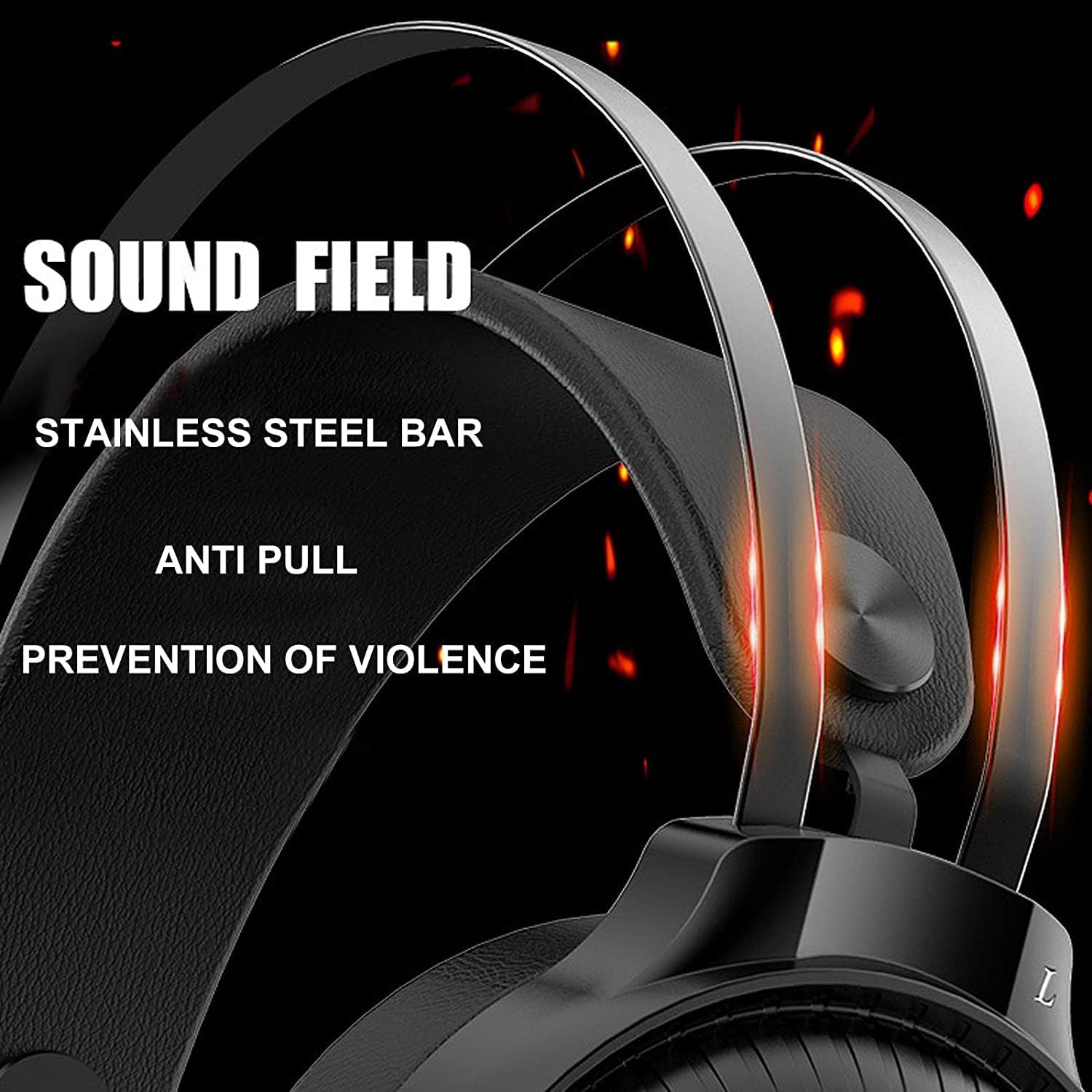
Image 7.1: Illustration of the 50mm horn for sound field and the durable stainless steel bar construction.
8. Warranty and Support
For information regarding warranty coverage and technical support, please refer to the retailer or the official Nubwo website where the product was purchased. Keep your proof of purchase for warranty claims.
If you encounter issues not covered in this manual, please contact customer support for assistance.


