
1. Introduction
This manual provides detailed instructions for the setup, operation, maintenance, and troubleshooting of your Tera 9100 Desktop Barcode Scanner. Please read this manual thoroughly before using the device to ensure optimal performance and longevity.

The Tera 9100 Omnidirectional Barcode Scanner, designed for efficient and hands-free scanning.
The Tera 9100 is a high-performance desktop barcode scanner designed for various applications including POS systems, supermarkets, libraries, and retail stores. It features 360° omnidirectional scanning, hands-free operation, and compatibility with a wide range of 1D and 2D barcodes, including QR codes.
2. Setup
The Tera 9100 barcode scanner is designed for easy plug-and-play installation. No special drivers or software are required for most operating systems.
2.1 Package Contents
- Tera 9100 Desktop Barcode Scanner x1
- USB Cable (6 feet / 1.8 meters) x1
- User Manual x1

Image showing the Tera 9100 scanner, USB cable, and user manual included in the package.
2.2 Connecting the Scanner
- Locate an available USB port on your computer (PC or Laptop).
- Connect the USB cable from the scanner to the USB port on your computer.
- The scanner will automatically power on and be recognized by your operating system. A successful connection is usually indicated by a beep and/or a light on the scanner.

The scanner connects to a laptop via its 6ft (1.8m) USB cable, ready for immediate use.
The scanner is compatible with various operating systems, including Windows, macOS, iOS, Android, and Linux.
3. Operating Instructions
The Tera 9100 offers flexible scanning capabilities to suit different operational needs.
3.1 Hands-Free Operation and Adjustable Head
The scanner is designed for hands-free use, allowing you to place items directly in front of the scanning window. Its anti-slip base ensures stability on any surface.

The scanner features an anti-slip base for stable desktop placement.
The scanning head can be adjusted by 15 degrees to optimize the scanning angle for various items and counter heights.

The scanner head can be tilted up to 15 degrees to find the optimal scanning angle.
3.2 Scanning Modes
The Tera 9100 supports two primary scanning modes:
- Continuous Scan Mode: The scanner continuously emits a scanning light, ideal for high-volume environments where items are passed quickly over the scanner.
- Sensor-activated Mode: The scanner activates its light only when a barcode is detected in its scanning field, conserving energy and reducing light emission when not in use.

Illustration of continuous scan mode for fast scanning and sensor-activated mode for energy saving.
3.3 Barcode Compatibility
The scanner can accurately read both digital and printed 1D, 2D, and QR codes from various surfaces, including labels, paper, plastic cards, and mobile phone or computer displays.
Supported 1D Codes: Codabar, Code 11, Code 93, MSI, Code 128, UCC/EAN-128, Code 39, EAN-8, EAN-13, UPC-A, ISBN, Industrial 2 of 5, Interleaved 2 of 5, Standard 2 of 5, Matrix 2 of 5, ITF-14.
Supported 2D Codes: QR, PDF417, Data Matrix, Aztec, MaxiCode.

The scanner supports a wide range of 1D and 2D barcodes, including Aztec, Code 128, UPC-A, PDF417, QR, Data Matrix, and Codabar.
The 360° omnidirectional scanning capability ensures reliable reading even with reflective, blurry, cracked, distorted, or obscured barcodes.

The 360° omnidirectional scanning feature allows for easy adaptation to various barcode conditions, including reflective, blurry, cracked, distorted, and obscured codes.
3.4 Customizable Scan Modes
The Tera 9100 allows for customization of scanned data output, such as adding prefixes or suffixes, or dropping leading/trailing characters.
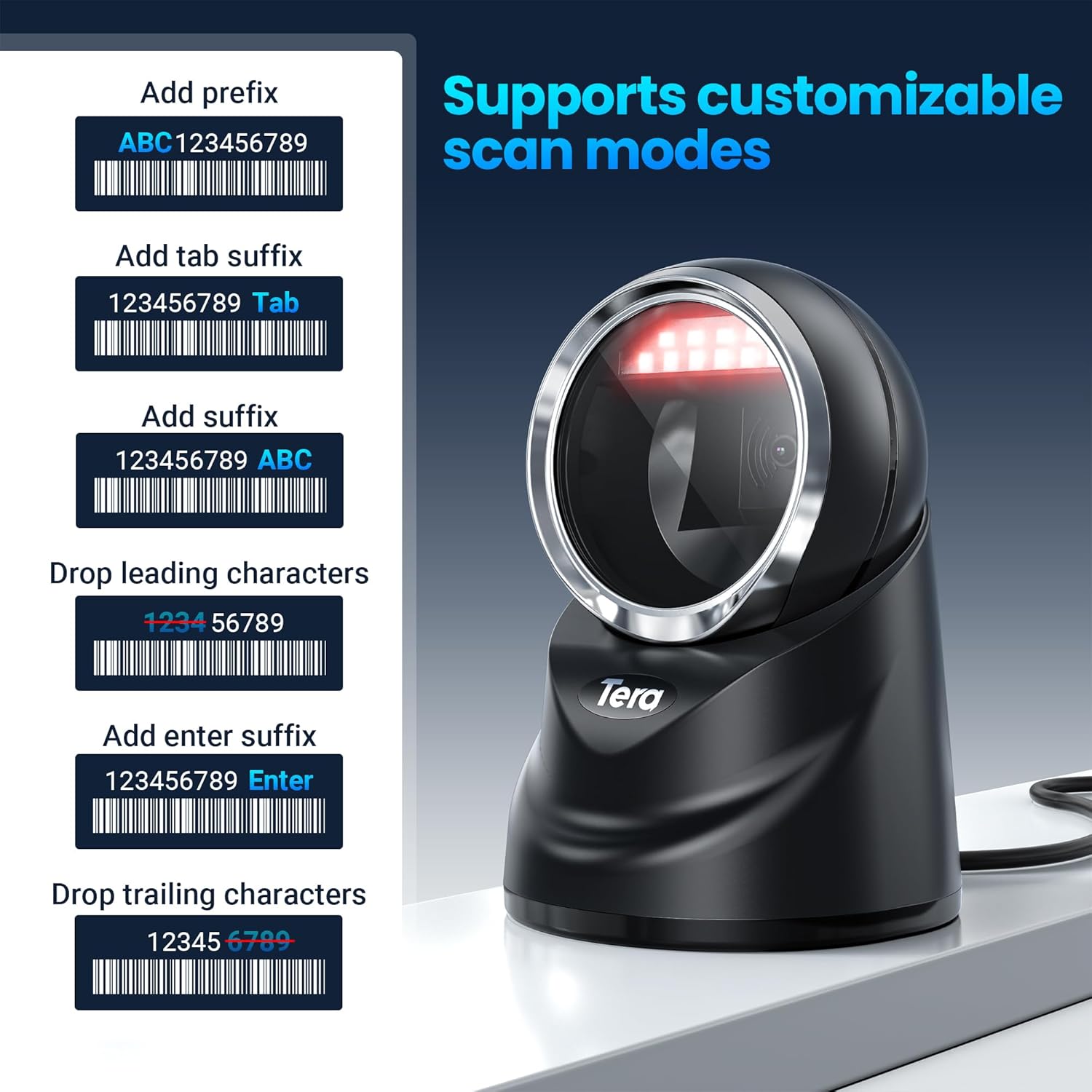
Examples of customizable scan modes: adding prefixes (e.g., ABC0123456789), adding tab or enter suffixes (e.g., 123456789 Tab, 123456789 Enter), and dropping leading or trailing characters (e.g., removing '1234' from '123456789' or '6789' from '123456789').
For specific programming instructions to enable these features, please refer to the detailed programming guide available on the Tera support website or contact customer service.
4. Maintenance
Proper maintenance ensures the longevity and optimal performance of your scanner.
4.1 Cleaning
- Use a soft, clean, damp cloth to wipe the exterior of the scanner.
- For the scanning window, use a lint-free cloth and a mild, non-abrasive cleaner (e.g., glass cleaner) to avoid scratching the surface.
- Do not use harsh chemicals, solvents, or abrasive materials, as these can damage the scanner's casing or optical components.
4.2 Storage
When not in use, store the scanner in a cool, dry place away from direct sunlight and extreme temperatures. The maximum storage temperature is 150°F (65.5°C).
5. Troubleshooting
If you encounter issues with your Tera 9100 scanner, refer to the following common problems and solutions:
| Problem | Possible Cause | Solution |
|---|---|---|
| Scanner does not power on. | USB cable not properly connected or faulty USB port. | Ensure the USB cable is securely connected to both the scanner and the computer. Try a different USB port or computer. |
| Scanner does not read barcodes. | Incorrect scanning mode, dirty scanning window, or unsupported barcode type. | Check if the scanner is in the correct mode (Continuous or Sensor-activated). Clean the scanning window. Verify the barcode type is supported by the scanner. Ensure proper distance and angle. |
| Scanned data is incorrect or incomplete. | Barcode damage, incorrect data formatting settings. | Try scanning a different, undamaged barcode. Review the customizable scan mode settings (prefix/suffix, character dropping) in the programming guide. |
| Scanner beeps but no data is transmitted. | Software or application issue on the host computer. | Ensure the cursor is in a text field where data can be input. Test with a simple text editor (e.g., Notepad) to confirm basic functionality. |
If the problem persists after trying these solutions, please contact Tera customer support for further assistance.
6. Specifications
| Feature | Detail |
|---|---|
| Model Number | 9100 |
| Product Dimensions | 29.72 x 11.4 x 19.05 cm |
| Item Weight | 500 g |
| Connectivity Technology | USB Cable |
| Power Source | Corded Electric |
| Operating Voltage | 5 Volts |
| Scan Rate | 100 cm/s |
| Real Angle of View | 360 Degrees |
| Maximum Storage Temperature | 150 Degrees Fahrenheit (65.5°C) |
| Compatible Devices | Laptop, Desktop, Tablet, Smartphone |
| Country of Origin | China |
7. Warranty and Support
7.1 Warranty Information
The Tera 9100 Desktop Barcode Scanner comes with a 1-year warranty from the date of purchase. This warranty covers manufacturing defects and malfunctions under normal use. It does not cover damage caused by misuse, accidents, unauthorized modifications, or improper maintenance.
7.2 Customer Support
For technical support, warranty claims, or any questions regarding your Tera 9100 scanner, please contact Tera customer service. You can find contact information on the official Tera website or through your purchase platform.

Tera customer support is available to assist with any product inquiries or issues.


