
1. Introduction
Thank you for choosing the JRHC HC-201D Wireless Barcode Scanner. This device offers versatile 3-in-1 connectivity (2.4G Wireless, Bluetooth, and USB Wired) and is designed for efficient and accurate scanning of both 1D and 2D barcodes. This manual provides detailed instructions to help you set up, operate, and maintain your scanner.

Image: Overview of the JRHC HC-201D scanner highlighting its 3-in-1 connectivity options.
2. Package Contents
Please check the package for the following items:
- JRHC HC-201D Barcode Scanner
- 2.4G USB Receiver
- USB Charging/Data Cable
- User Manual (this document)

Image: The JRHC HC-201D barcode scanner and its accompanying 2.4G USB receiver.
3. Setup and Connection
3.1 Charging the Scanner
Before first use, fully charge the scanner. Connect the scanner to a USB power source (computer USB port or USB wall adapter) using the provided USB cable. The LED indicator will show a steady purple light during charging and turn off when fully charged.
- Battery Capacity: 1200mAh
- Charging Time: Approximately 3.5 hours
- Working Hours: Up to 8 hours of continuous scanning
- Standby Time: Up to 720 hours

Image: Battery specifications and usage duration.
3.2 Connection Modes
The scanner supports three connection methods:

Image: Visual representation of the three available connection modes.
3.2.1 USB Wired Mode
- Connect the scanner directly to your computer's USB port using the provided USB cable.
- The scanner will be recognized as a keyboard device. No driver installation is typically required.
- The scanner is ready for use.
3.2.2 2.4G Wireless Mode
- Plug the 2.4G USB receiver into an available USB port on your computer.
- Turn on the scanner. It will automatically attempt to connect to the receiver.
- Once connected, the LED indicator on the scanner will show a steady green light.
- Transmission Distance: Up to 30m (98ft) in barrier-free environments, up to 15m (50ft) with obstacles.
3.2.3 Bluetooth Mode
- Turn on the scanner.
- Scan the 'Bluetooth Pairing' barcode (usually found in a separate quick start guide or on the device itself if applicable, otherwise assume it enters pairing mode automatically).
- On your device (smartphone, tablet, PC), enable Bluetooth and search for available devices.
- Select 'Barcode Scanner HID' or a similar name from the list of devices.
- Once paired, the LED indicator on the scanner will show a steady blue light.
- Transmission Distance: Up to 50m (164ft) in barrier-free environments, up to 20m (66ft) with obstacles.

Image: Comparison of transmission distances for 2.4G wireless and Bluetooth modes.
4. Operating Instructions
4.1 Basic Scanning
Point the scanner's window at the barcode you wish to scan and press the trigger button. A successful scan will typically be indicated by a beep and/or vibration, and the data will appear on your connected device.

Image: The scanner's auto-induction scanning capability.
4.2 Supported Barcode Symbologies
The scanner supports a wide range of 1D and 2D barcode types, including damaged, distorted, reflective, and colorful barcodes.
- 1D Decode Capability: Codabar, Code 11, Code93, MSI, Code 128, UCC/EAN-128, Code 39, EAN-8, EAN-13, UPC-A, ISBN, Industrial 25, Interleaved 25, Standard 25, 2/5 Matrix.
- 2D Decode Capability: QR Code, PDF417, Data Matrix, Aztec code, Maxi Code.

Image: Examples of various barcode types supported by the scanner.
4.3 Upload Modes
The scanner offers two data upload modes:
- Instant Upload Mode: Scanned data is immediately transmitted to the connected device.
- Storage Mode: Scanned data is stored in the scanner's internal memory and can be uploaded later. This is useful when out of range of the connected device.

Image: Visual representation of the two data upload modes.
4.4 Configuration Options
The scanner can be configured using special setting barcodes (refer to the separate configuration guide if provided, or scan specific barcodes in this manual if available). Common configurations include:
- Add Prefix/Suffix: Add custom characters before or after scanned data.
- Hide/Delete Characters: Remove specific characters from the scanned data.
- Add Keyboard Keys: Insert special keys like TAB or CR&LF (Carriage Return & Line Feed) after each scan.
- Sound and Vibration Settings: Enable or disable the beep and vibration alerts.

Image: Examples of powerful edit functions for barcode data.

Image: Scanner settings for sound and vibration.
4.5 LED Indicator Reference
The LED light on the scanner provides status information:
- Steady Blue: Bluetooth mode active and connected.
- Steady Green: 2.4G wireless mode active and connected.
- Steady Purple: Charging in progress.
- Flashing Blue/Green: Searching for connection in Bluetooth/2.4G mode.
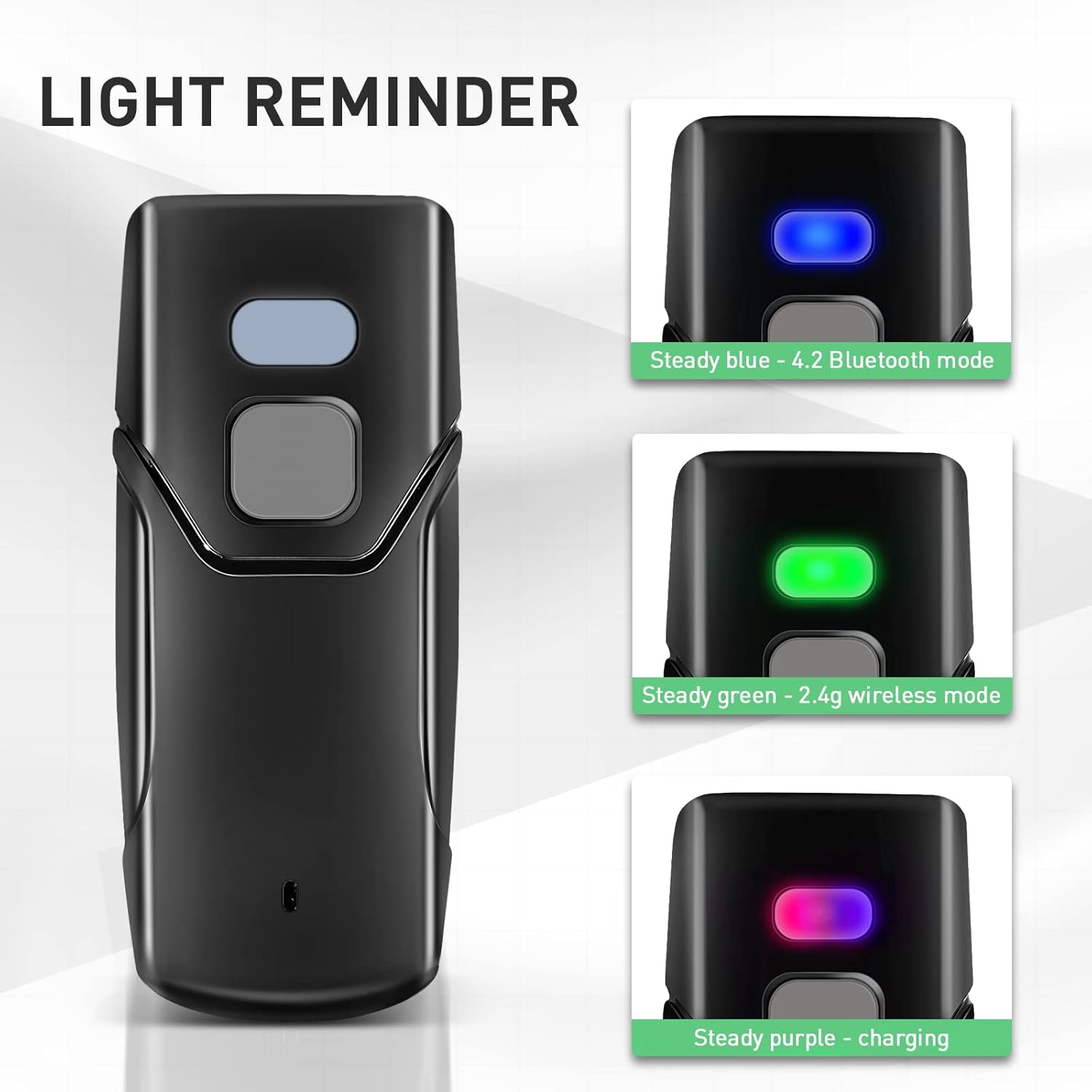
Image: LED indicator light meanings.

Image: Vibration alert feature.
5. Maintenance
5.1 Cleaning
To maintain optimal performance, keep the scanner's scanning window clean. Use a soft, dry, lint-free cloth to gently wipe the surface. Avoid using abrasive cleaners or solvents.
5.2 Battery Care
To prolong battery life:
- Avoid fully discharging the battery frequently.
- Charge the scanner regularly, even if not in active use, to prevent deep discharge.
- Store the scanner in a cool, dry place when not in use for extended periods.
6. Troubleshooting
| Problem | Possible Cause | Solution |
|---|---|---|
| Scanner not connecting via Bluetooth/2.4G | Out of range, low battery, not in pairing mode, incorrect mode selected. | Ensure scanner is charged. Verify correct connection mode (Bluetooth/2.4G) is active. Re-initiate pairing process. Move closer to the host device. |
| Scanner not reading barcodes | Barcode damaged/unreadable, scanner window dirty, incorrect symbology enabled. | Clean the scanning window. Ensure the barcode is clear. Check if the barcode type is supported and enabled in settings. |
| Scanned data appears incorrectly | Incorrect keyboard layout, unwanted prefix/suffix. | Ensure your computer's keyboard layout matches the scanner's settings. Adjust prefix/suffix settings if necessary. |
| Scanner beeps continuously | Low battery, error state. | Charge the scanner. If problem persists, perform a factory reset (refer to configuration guide). |
7. Specifications
- Model Number: HC-201D
- Product Dimensions: 1.07 x 1.53 x 3.57 inches
- Item Weight: 8.4 ounces
- Connectivity Technology: 2.4G wireless, Bluetooth, USB Cable
- Battery: 1 Lithium Polymer battery (1200mAh, included)
- Power Source: Battery Powered
- Compatible Devices: Desktop, Laptop, Smartphone, Tablet (Windows XP/7/8/10, Mac OS, Linux, Windows Mobile, iOS, Android)
- Manufacturer: JRHC

Image: The compact and portable design of the scanner.
8. Warranty and Support
For warranty information and technical support, please refer to the documentation provided with your purchase or contact JRHC customer service through their official website or the retailer where the product was purchased. Please have your model number (HC-201D) and purchase details ready when contacting support.
