
1. Introduction
Thank you for choosing the InFocus P120 INL412 Multimedia Projector. This manual provides essential information for the safe and efficient operation of your projector. Please read it thoroughly before using the device and retain it for future reference. The InFocus P120 INL412 is designed for versatile multimedia presentations, offering clear and vibrant images for various applications.
2. Safety Information
To ensure safe operation and prevent damage to the projector, please observe the following safety precautions:
- Do not block the ventilation openings. Ensure adequate space around the projector for proper airflow to prevent overheating.
- Avoid looking directly into the projector lens when the lamp is on, as the bright light can cause eye damage.
- Do not place the projector on an unstable cart, stand, or table. The projector may fall, causing serious injury to a child or adult, and serious damage to the unit.
- Disconnect the power cord from the wall outlet if the projector will not be used for an extended period.
- Refer all servicing to qualified service personnel. Do not attempt to open or repair the projector yourself.
- Keep the projector away from water or moisture. Do not expose it to rain or immerse it in liquid.
- Use only the power cord supplied with the projector or an authorized replacement.
3. Package Contents
Verify that all items listed below are included in your projector package:
- InFocus P120 INL412 Multimedia Projector
- Power Cord
- Remote Control with Batteries
- VGA Cable
- User Manual (this document)
- Quick Start Guide
4. Product Overview
Familiarize yourself with the main components of your InFocus P120 INL412 projector.
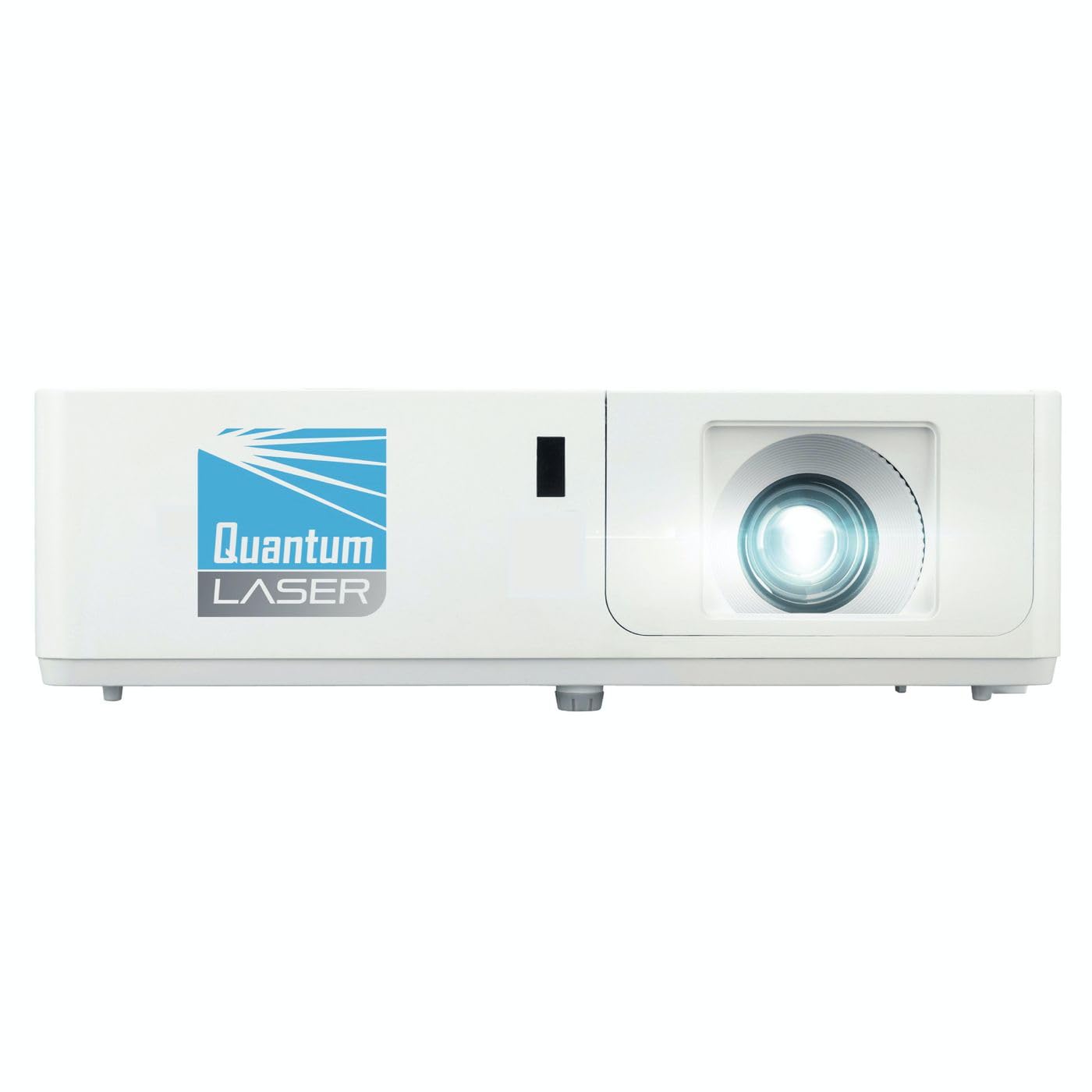
Image 1: Front view of the InFocus P120 INL412 Multimedia Projector, showing the lens and ventilation grilles.
4.1 Front Panel
- Projection Lens: Emits the image onto the screen.
- Focus Ring: Adjusts the clarity of the projected image.
- Zoom Ring: Adjusts the size of the projected image.
- IR Receiver: Receives signals from the remote control.
4.2 Top Panel
- Control Panel: Buttons for power, menu navigation, source selection, and keystone correction.
- Indicator Lights: Display the projector's status (e.g., power, lamp, temperature).
4.3 Rear Panel (Connectivity)
- HDMI Input: Connects to HDMI-enabled devices (laptops, Blu-ray players).
- VGA Input: Connects to computers with VGA output.
- USB Port: For service or connecting USB devices (if supported by model).
- Audio In/Out: For connecting external audio sources or speakers.
- Power Inlet: Connects the power cord.
5. Setup
Follow these steps for the initial setup of your projector:
- Placement: Place the projector on a stable, flat surface or mount it securely. Ensure the projector is positioned at an appropriate distance from the screen to achieve the desired image size.
- Power Connection: Connect the power cord to the projector's power inlet and then to a grounded electrical outlet.
- Connect Source Device: Connect your source device (e.g., laptop, DVD player) to the projector using an appropriate cable (HDMI, VGA, etc.). Ensure the cable is securely connected to both the source and the projector.
- Power On: Press the power button on the projector's control panel or the remote control to turn on the projector. The power indicator light will illuminate.
- Adjust Focus and Zoom: Once an image is projected, rotate the focus ring on the lens until the image is sharp and clear. Use the zoom ring to adjust the image size to fit your screen.
- Keystone Correction: If the image appears trapezoidal, use the keystone correction function (either via buttons on the projector/remote or through the on-screen menu) to square the image.
6. Operating Instructions
6.1 Power On/Off
- To Power On: Press the power button once. The projector will go through a warm-up sequence.
- To Power Off: Press the power button twice. The first press will prompt a shutdown confirmation; the second press will initiate shutdown. Allow the projector to cool down completely before unplugging.
6.2 Source Selection
Press the 'Source' button on the projector or remote control to cycle through available input sources (HDMI, VGA, etc.) until your desired source is displayed.
6.3 Menu Navigation
Press the 'Menu' button to access the on-screen display (OSD) menu. Use the arrow buttons to navigate through options and 'Enter' or 'OK' to select. Use the 'Exit' or 'Menu' button to close the OSD.
- Image Settings: Adjust brightness, contrast, color, aspect ratio, and picture mode.
- Display Settings: Configure keystone, projection mode (front/rear, desktop/ceiling), and resolution.
- Audio Settings: Control volume and audio output options.
- System Settings: Manage language, timer, power-saving modes, and factory reset.
7. Maintenance
Regular maintenance ensures optimal performance and extends the lifespan of your projector.
- Lens Cleaning: Gently wipe the projector lens with a soft, lint-free cloth specifically designed for optical surfaces. Do not use abrasive cleaners or excessive force.
- Cabinet Cleaning: Use a soft, dry cloth to clean the projector's exterior. For stubborn marks, dampen the cloth slightly with water. Avoid using harsh chemicals.
- Air Filter Cleaning/Replacement: Check the air filter periodically. If your model has a removable filter, clean it with a soft brush or vacuum cleaner. Replace the filter as recommended in the on-screen menu or when visibly dirty to maintain proper ventilation.
- Lamp Replacement: The projector lamp has a finite lifespan. When the lamp life indicator appears, or the image brightness significantly decreases, replace the lamp according to the instructions provided in the full service manual or by a qualified technician. Always allow the projector to cool down completely before attempting lamp replacement.
8. Troubleshooting
Refer to the table below for common issues and their solutions:
| Problem | Possible Cause | Solution |
|---|---|---|
| No image displayed | Power cord disconnected, incorrect input source, source device off. | Check power connections. Select correct input source. Ensure source device is powered on. |
| Image is blurry | Lens out of focus, incorrect projection distance. | Adjust the focus ring on the lens. Reposition the projector closer or further from the screen. |
| Image is trapezoidal | Projector not perpendicular to the screen. | Use keystone correction (manual or automatic) to square the image. |
| Projector overheats and shuts down | Blocked ventilation, dirty air filter. | Ensure clear space around vents. Clean or replace the air filter. |
| Remote control not working | Dead batteries, obstruction between remote and projector, incorrect angle. | Replace batteries. Ensure clear line of sight to IR receiver. Point remote directly at the projector. |
9. Specifications
Key technical specifications for the InFocus P120 INL412 Multimedia Projector:
| Feature | Specification |
|---|---|
| Model Number | P120 INL412 (Item model number: 7296144) |
| Display Type | DLP |
| Native Resolution | 1280 x 800 |
| Maximum Display Resolution | 1280 x 800 |
| Connectivity Technology | USB (and other standard inputs like HDMI, VGA) |
| Product Dimensions | 5.25 x 0.31 x 1.66 inches |
| Item Weight | 6.6 pounds |
| Manufacturer | In Focus |
10. Warranty and Support
The InFocus P120 INL412 Multimedia Projector comes with a standard manufacturer's warranty. Please refer to the warranty card included in your package for specific terms and conditions, including warranty duration and coverage details. For technical support, service, or further inquiries, please visit the official InFocus support website or contact their customer service department.
For the most up-to-date support information, please visit: www.infocus.com/support


