
1. Introduction
Welcome to your new Smart Tech 40FN10T2 Full HD LED TV. This manual provides essential information for the safe and efficient setup, operation, and maintenance of your television. Please read this manual thoroughly before using your TV and retain it for future reference.
2. Important Safety Instructions
To ensure safe operation and prevent damage, observe the following safety precautions:
- Power Source: Connect the TV only to an AC power outlet of the specified voltage.
- Ventilation: Ensure adequate ventilation around the TV. Do not block ventilation openings.
- Water and Moisture: Do not expose the TV to rain, moisture, or place objects filled with liquids on or near the TV.
- Cleaning: Unplug the TV before cleaning. Use a soft, dry cloth. Do not use liquid cleaners or aerosol cleaners.
- Servicing: Do not attempt to service the TV yourself. Refer all servicing to qualified service personnel.
- Placement: Place the TV on a stable, level surface or mount it securely to a wall.
3. Package Contents
Verify that all items are present in the package:
- Smart Tech 40FN10T2 Full HD LED TV
- Remote Control
- AAA Batteries (2x)
- TV Stand (2 pieces)
- Screws for TV Stand
- User Manual
4. Product Overview
4.1 Front View
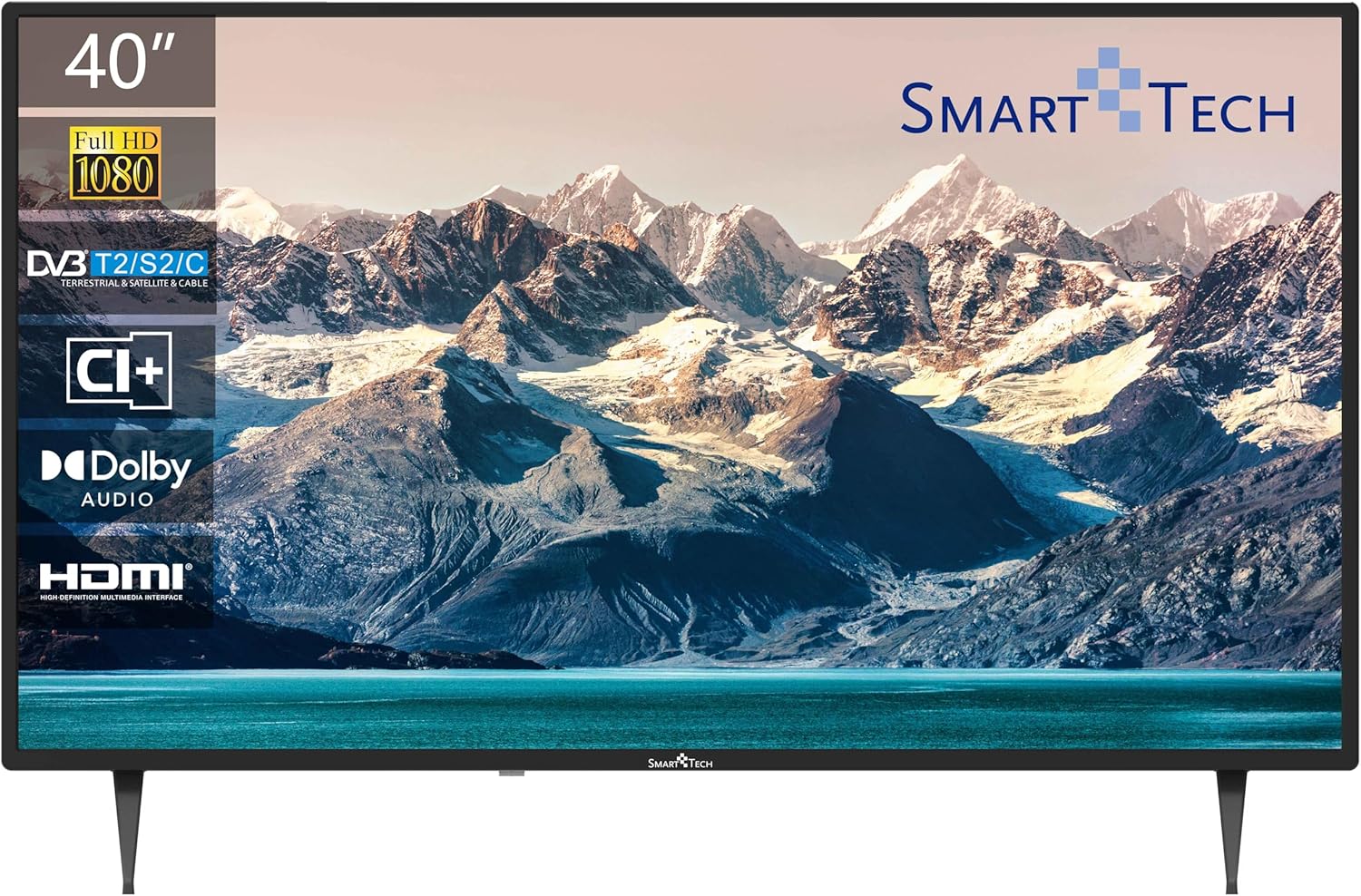
The front of the television features the 40-inch Full HD LED display with a frameless design, providing an immersive viewing experience. The Smart Tech logo is located at the bottom center.
4.2 Back Panel Connections

The back panel provides various input and output ports for connecting external devices:
- USB 1 & USB 2: For connecting USB storage devices for media playback.
- DVB-T/T2: Antenna input for terrestrial digital television.
- DVB-S/S2: Satellite input for satellite digital television.
- HDMI 1, HDMI 2, HDMI 3: High-Definition Multimedia Interface inputs for connecting devices like Blu-ray players, game consoles, or set-top boxes.
- AV IN: Analog video and audio input for older devices.
- COAXIAL: Digital audio output.
- CI+: Common Interface Plus slot for conditional access modules.
4.3 Dimensions

The television measures approximately 905mm (width) x 515mm (height without stand) x 275mm (depth with stand). The VESA mounting pattern is 200mm x 200mm.
4.4 Remote Control
The remote control allows you to access all TV functions. Key buttons include Power, Channel Up/Down, Volume Up/Down, Input Source, Menu, Navigation, and Number buttons.
5. Setup
5.1 Attaching the Stand
- Carefully place the TV face-down on a soft, clean surface to prevent screen damage.
- Align the stand pieces with the corresponding slots on the bottom of the TV.
- Secure the stand pieces using the provided screws. Ensure they are tightened firmly.
5.2 Wall Mounting (Optional)
This TV supports VESA standard wall mounts with a 200mm x 200mm pattern. Wall mount brackets are sold separately. Follow the instructions provided with your wall mount for proper installation.
5.3 Connecting Your TV
- Antenna/Cable: Connect an antenna or cable TV signal to the DVB-T/T2 input.
- Satellite: Connect a satellite dish cable to the DVB-S/S2 input.
- HDMI Devices: Connect devices like a Blu-ray player, game console, or set-top box to any of the HDMI ports.
- USB Devices: Insert a USB flash drive or external hard drive into a USB port for media playback.
- Power: Plug the power cord into the TV and then into a wall outlet.
5.4 First-Time Power On
- Press the Power button on the remote control or the TV.
- Follow the on-screen prompts to select your preferred language and country.
- Initiate the automatic channel scan to find available terrestrial, cable, or satellite channels.
6. Operating Your TV
6.1 Power On/Off
Press the POWER button on the remote control to turn the TV on or off.
6.2 Channel Selection
Use the CH+/CH- buttons to change channels sequentially, or enter the channel number directly using the number buttons.
6.3 Volume Control
Adjust the volume using the VOL+/VOL- buttons. Press the MUTE button to temporarily silence the audio.
6.4 Input Source Selection
Press the SOURCE button on the remote to cycle through available input sources (HDMI 1, HDMI 2, HDMI 3, AV, DVB-T/T2, DVB-S/S2).
6.5 Menu Navigation
Press the MENU button to access the main menu. Use the arrow buttons to navigate and OK to confirm selections. Press EXIT to leave the menu.
6.6 Triple Tuner Functionality
Your TV is equipped with a triple tuner supporting DVB-T/T2 (terrestrial), DVB-C (cable), and DVB-S/S2 (satellite) signals. You can select the desired tuner mode during the initial setup or via the TV's menu settings.
6.7 USB Media Playback
Insert a USB storage device into one of the USB ports. The TV will typically detect the device and prompt you to open the media browser. You can then navigate and play supported video, audio, or image files.
7. Maintenance
7.1 Care and Cleaning
- Screen: Gently wipe the screen with a soft, lint-free cloth. For stubborn marks, lightly dampen the cloth with water or a specialized screen cleaner (ensure it's TV-safe). Do not spray liquid directly onto the screen.
- Casing: Wipe the TV casing with a soft, dry cloth. Avoid using abrasive cleaners or solvents.
- Dust: Regularly dust the ventilation openings to prevent overheating.
8. Troubleshooting
Refer to the table below for common issues and their solutions:
| Problem | Possible Solution |
|---|---|
| No power | Check if the power cord is securely plugged into the TV and the wall outlet. Ensure the outlet has power. |
| No picture, but sound is present | Verify the correct input source is selected. Check cable connections to external devices. |
| No sound, but picture is present | Check the volume level and ensure the TV is not muted. Verify audio cable connections for external devices. |
| Remote control not working | Replace the batteries. Ensure there are no obstructions between the remote and the TV's IR sensor. |
| Poor picture quality | Check antenna or cable connections. Adjust picture settings in the TV menu. If using an external device, check its output resolution. |
9. Technical Specifications
Detailed specifications for the Smart Tech 40FN10T2 Full HD LED TV:
| Feature | Specification |
|---|---|
| Model Number | 40FN10T2 |
| Screen Size | 40 Inches (101 cm) |
| Display Technology | LED |
| Resolution | 1080p (Full HD, 1920 x 1080 pixels) |
| Refresh Rate | 120 hertz (60 Hz native) |
| Tuner Type | DVB-T/T2/C/S/S2 (Triple Tuner) |
| Audio Technology | Dolby Audio |
| Connectivity | 3x HDMI, 2x USB 2.0, CI+, AV In, Coaxial Out |
| Special Features | Frameless Design |
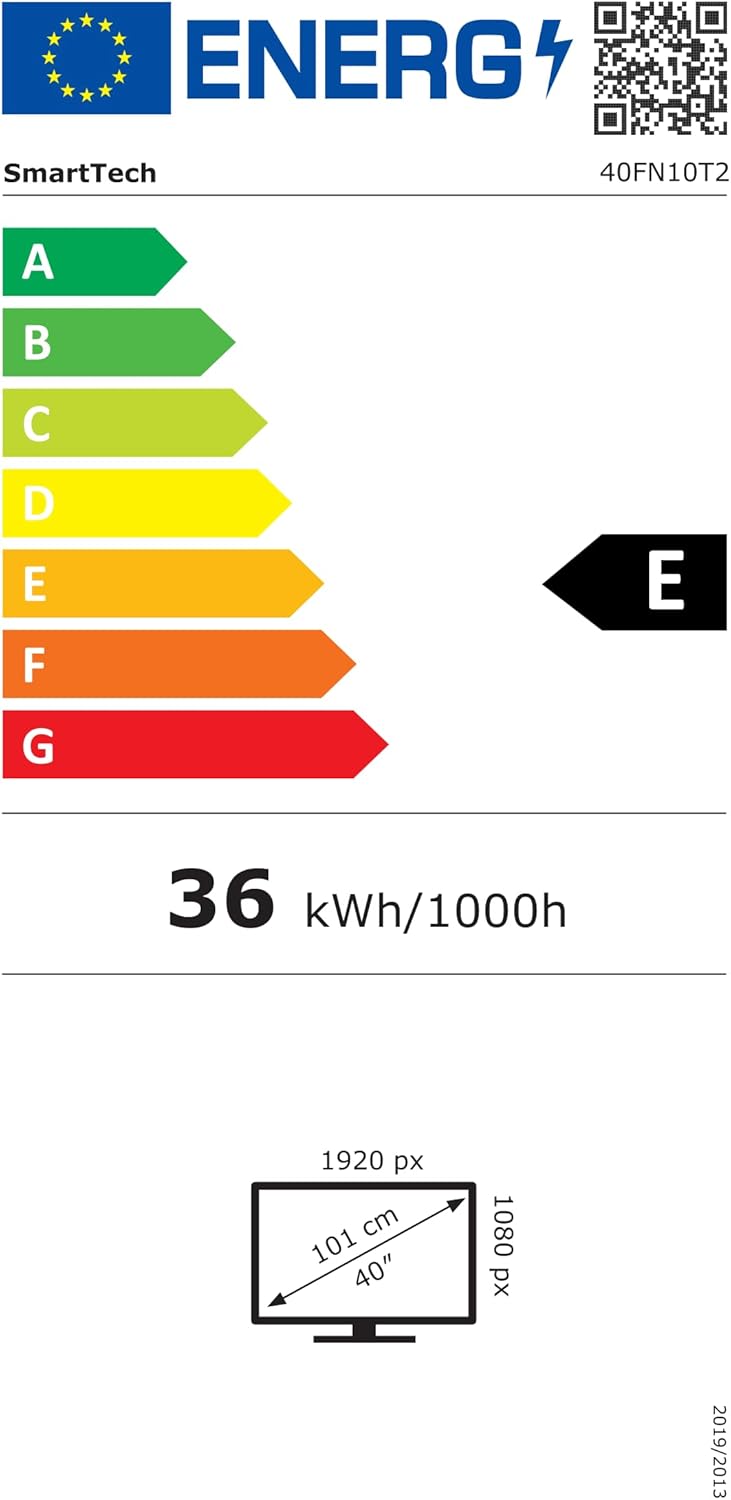
| Power Consumption (SDR) | 36 kWh/1000h |
| Energy Efficiency Class (SDR) | E |
| Dimensions (WxHxD) | 90.5 x 51.5 x 27.5 cm (with stand) |
| VESA Wall Mount | 200 x 200 mm |
| Included Components | Remote Control, 2x AAA Batteries |
For detailed energy information, please refer to the official EPREL database: https://eprel.ec.europa.eu/qr/964704
10. Warranty and Support
Your Smart Tech 40FN10T2 TV comes with a standard manufacturer's warranty. Please refer to the warranty card included in your package for specific terms and conditions. For technical support, service inquiries, or to obtain replacement parts, please contact your retailer or the Smart Tech customer service department.


