
Introduction
This manual provides detailed instructions for the MOFII Wireless Keyboard and Mouse Combo. This full-size retro-style keyboard with a number pad and a matching wireless mouse offers a reliable 2.4GHz wireless connection, designed for comfortable and efficient use across various operating systems and devices.

Image: The MOFII Wireless Keyboard and Mouse Combo, showcasing the full-size keyboard with round, colorful keys and the ergonomic mouse, along with the USB receiver.
Package Contents
Verify that all items are present in the package:
- MOFII Full-Size Wireless Keyboard
- MOFII Wireless Mouse
- USB Receiver (stored inside the mouse battery compartment)
- User Manual (this document)
Setup Instructions
Follow these steps to set up your MOFII Wireless Keyboard and Mouse Combo:
- Install Batteries:
- Locate the battery compartments on the underside of both the keyboard and the mouse.
- Insert one AA battery into the keyboard and one AA battery into the mouse, ensuring correct polarity (+/-).
- Retrieve USB Receiver:
- The USB receiver is cleverly stored inside the battery compartment of the wireless mouse. Carefully remove it.
- Connect to Device:
- Plug the USB receiver into an available USB port on your computer (PC, desktop, laptop, Mac, or Raspberry Pi).
- Automatic Connection:
- The keyboard and mouse should automatically connect to your device. No additional drivers are typically required.

Image: Illustration of the plug-and-play setup, showing the USB receiver plugged into a laptop, establishing a 2.4GHz wireless connection with the keyboard and mouse up to 35 feet away.

Image: Diagram illustrating the 2.4G wireless technology, providing a stable connection between the keyboard, mouse, and computer up to 10 meters (33 feet).
Operating Instructions
This section details the usage of your MOFII Wireless Keyboard and Mouse Combo.
Keyboard Usage
- Ergonomic Design: The keyboard features a folding holder and anti-slide pads on its underside. Adjust the folding holder to achieve an optimum slope, which helps prevent wrist strain during extended typing sessions.
- Multimedia Hotkeys: The keyboard includes 13 multimedia hotkeys for quick access to various functions. These typically include controls for internet browsing, email, media playback (play/pause, previous/next track), and volume adjustments. Refer to the key labels for specific functions (e.g., F1-F12 with Fn key combinations).

Image: Close-up view of the MOFII keyboard's underside, highlighting the foldable stands and silicone non-slip pads designed for ergonomic comfort.

Image: An overhead view of the MOFII keyboard, illustrating the location and function of the 13 hotkeys (F1-F12) for enhanced productivity and entertainment.

Image: A user's hands typing on the MOFII wireless keyboard, with the mouse positioned nearby, demonstrating typical usage in an office setting.
Mouse Usage
- The wireless mouse features a contoured shape designed for comfortable use over extended periods.
- Standard left-click, right-click, and scroll wheel functions are available.
Compatibility
The MOFII Wireless Keyboard and Mouse Combo is compatible with a wide range of operating systems and devices:
- Windows 2000, XP, Vista, Win 7, Win 8, Win 10
- Raspberry Pi 3/4
- PC, Desktop Computer, Laptop, Mac

Image: Visual representation of the wide compatibility of the MOFII keyboard and mouse combo, showing icons for Windows XP/Vista, Windows 7/8, Windows 10, Computer/PC, and Laptop.
Maintenance
Proper maintenance ensures the longevity and optimal performance of your MOFII Wireless Keyboard and Mouse Combo.
Cleaning
- Detachable Keycaps: The keyboard features removable keycaps, which facilitate deep cleaning. Gently pull the keycaps upwards to remove them. Use a soft brush (a cleaning brush is typically included) to remove dust and debris from underneath the keycaps and from the keyboard base.
- For the mouse and external surfaces of the keyboard, use a soft, dry, lint-free cloth. For stubborn dirt, a slightly damp cloth can be used, but ensure no moisture enters the device.
- Avoid using harsh chemicals, abrasive cleaners, or solvents.

Image: A close-up view of the MOFII keyboard, demonstrating the detachable keycaps and a cleaning brush, indicating ease of maintenance and dust removal.
Battery Management
- Auto-Sleep Feature: To conserve battery life, both the keyboard and mouse will enter an auto-sleep mode after 8-10 minutes of inactivity. To wake them, simply press any key on the keyboard or move/click the mouse.
- Battery Replacement: When performance degrades (e.g., lag, disconnections), replace the AA batteries in both the keyboard and mouse. Battery life may vary based on usage and computing conditions, but typically lasts up to 18 months for both devices.

Image: A dimly lit desk scene showing the MOFII keyboard and mouse, with an overlay indicating the "Intelligent Auto-Sleep" feature that conserves battery life when not in use.
Troubleshooting
If you encounter issues with your MOFII Wireless Keyboard and Mouse Combo, refer to the following common solutions:
| Problem | Possible Cause | Solution |
|---|---|---|
| Keyboard/Mouse not responding | Low or dead batteries | Replace batteries in both the keyboard and mouse. |
| Intermittent connection or lag | USB receiver not properly connected or interference | Ensure the USB receiver is firmly plugged into a working USB port. Try a different USB port. Move the receiver closer to the keyboard/mouse if possible. Avoid placing the receiver near other wireless devices or large metal objects. |
| Mouse cursor erratic or not moving smoothly | Dirty optical sensor or unsuitable surface | Clean the optical sensor on the underside of the mouse with a soft cloth. Use the mouse on a clean, non-reflective, opaque surface or a mouse pad. |
| Keyboard keys not registering or sticking | Debris under keycaps | Remove keycaps and clean thoroughly with the provided brush or compressed air. |
| Device does not wake from auto-sleep | Battery issue or deep sleep | Press any key on the keyboard or move/click the mouse. If it still doesn't wake, replace the batteries. |
Specifications
Detailed technical specifications for the MOFII Wireless Keyboard and Mouse Combo:
| Feature | Detail |
|---|---|
| Brand | MOFII |
| Model | Green Colorful-B |
| Connectivity Technology | 2.4GHz Radio Frequency (Wireless) |
| Wireless Range | Up to 10 meters (33 feet) |
| Keyboard Dimensions (L x W x H) | 17.5 x 5.35 x 1.38 inches |
| Item Weight | 1.45 pounds |
| Keyboard Special Features | Ergonomic, Round Keycaps, Folding Holder, Anti-slide Pads, 13 Multimedia Hotkeys, Detachable Keycaps |
| Mouse Special Features | Contoured Shape |
| Power Source (Keyboard) | 1 x AA Battery |
| Power Source (Mouse) | 1 x AA Battery |
| Auto-Sleep Feature | Yes (after 8-10 minutes of inactivity) |
| Compatible Devices | Laptop, Personal Computer, Mac, Raspberry Pi (Windows 2000/XP/Vista/7/8/10) |
| Date First Available | October 6, 2022 |
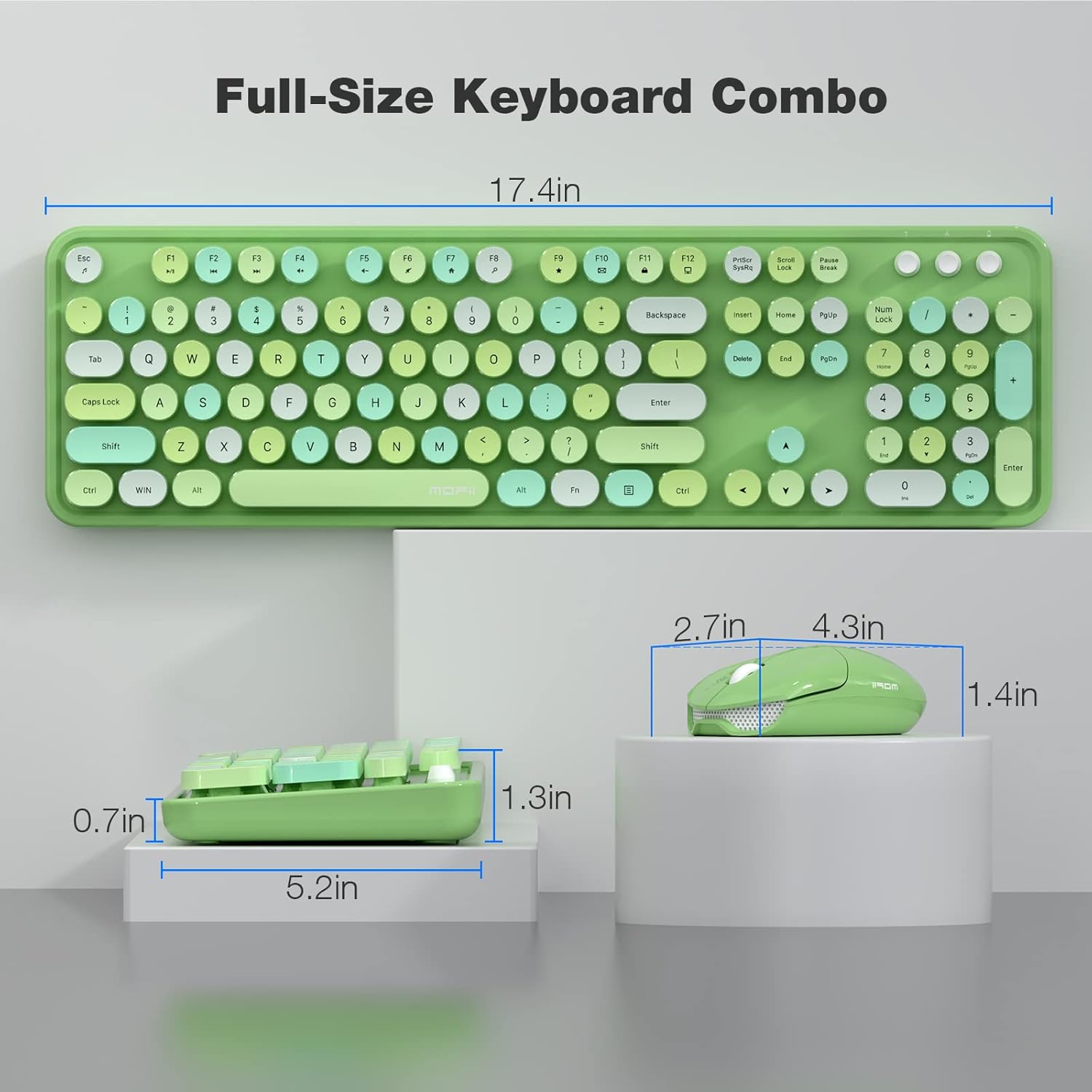
Image: A diagram illustrating the precise dimensions of both the MOFII full-size wireless keyboard and the wireless mouse.
Warranty and Support
MOFII is committed to providing high-quality products and customer satisfaction.
- Money-Back Guarantee: Enjoy a 60-day money-back guarantee from the date of purchase.
- Warranty: This product comes with a 12-month worry-free warranty, covering manufacturing defects and malfunctions under normal use.
- For support, warranty claims, or further inquiries, please contact MOFII customer service through the retailer where the product was purchased or visit the official MOFII store page on Amazon: MOFII Store.