
1. Introduction
Thank you for purchasing the Miuscall-C SS1021US Soundbar. This manual provides detailed instructions for setting up, operating, and maintaining your soundbar to ensure an optimal audio experience. Please read this manual thoroughly before use and retain it for future reference.
2. Product Overview
2.1 Package Contents
- Miuscall-C SS1021US Soundbar Unit
- Remote Control
- Power Adapter
- HDMI (ARC) Cable
- Optical Digital Cable
- AUX Cable
- User Manual
2.2 Soundbar Features
The Miuscall-C SS1021US Soundbar features a slim and compact design, measuring approximately 410mm (width) x 60mm (height) x 55mm (depth). It incorporates two speaker units and one subwoofer port to deliver a powerful bass reflex effect, enhancing your television and PC audio experience.

Image: The Miuscall-C SS1021US Soundbar shown with its included remote control, highlighting its sleek design.

Image: An internal diagram illustrating the soundbar's two speaker units and bass tube, designed for high-quality sound.
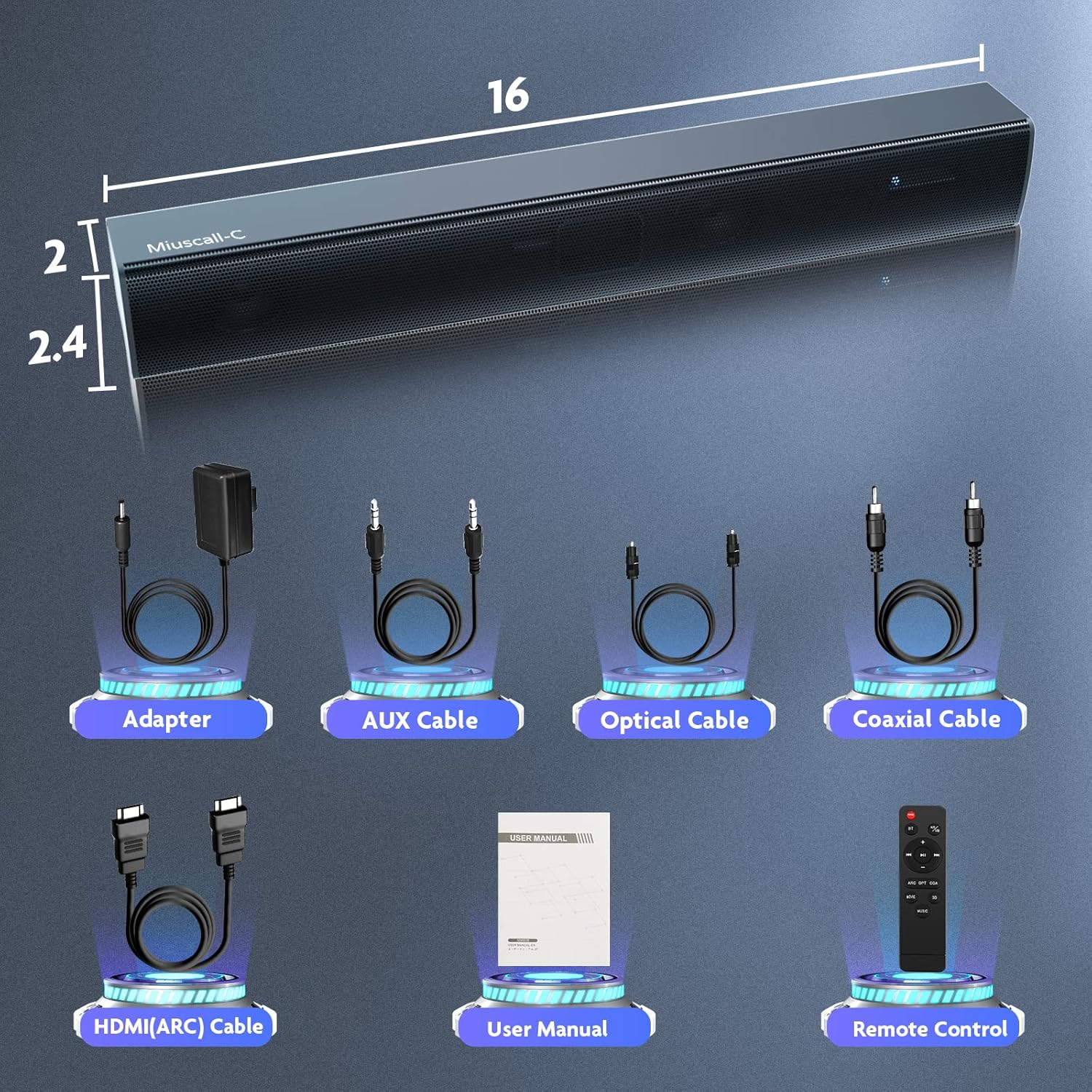
Image: A visual representation of the soundbar's dimensions and all accessories included in the package, such as cables and power adapter.
3. Setup
3.1 Placement
Place the soundbar on a stable, flat surface in front of your television or PC monitor. Ensure there are no obstructions in front of the speakers for optimal sound projection. The soundbar can also be wall-mounted using appropriate hardware (not included).
3.2 Connecting to Power
- Connect the power adapter to the DC IN port on the back of the soundbar.
- Plug the power adapter into a wall outlet.
3.3 Audio Connections
The soundbar supports multiple audio input options. Choose the connection method that best suits your device.
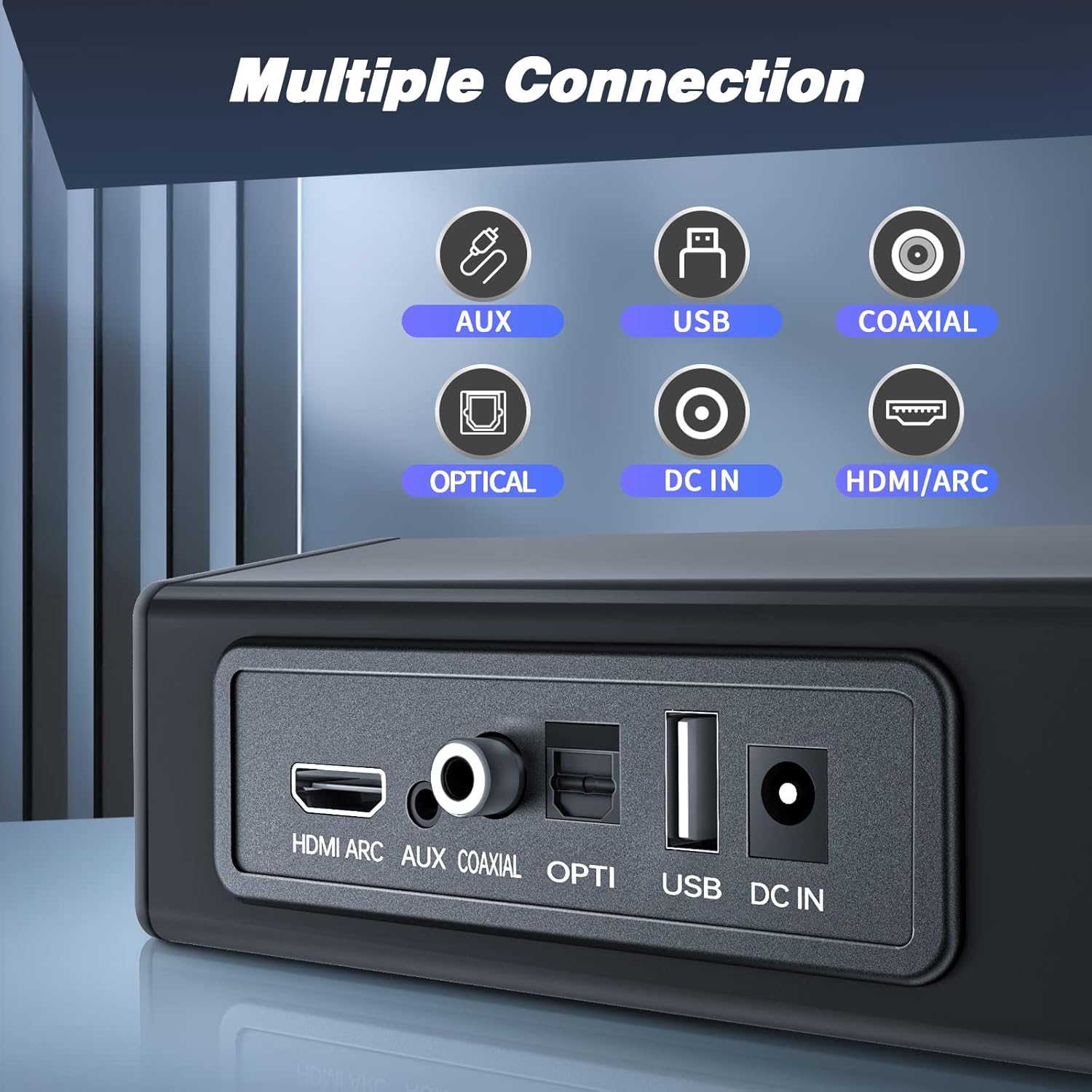
Image: A close-up view of the soundbar's rear panel, showing the HDMI ARC, AUX, Coaxial, Optical, USB, and DC IN ports.
3.3.1 HDMI ARC Connection (Recommended for TVs)
For ARC-compatible televisions, this connection allows for synchronized power on/off and volume control using a single HDMI cable.
- Connect one end of the supplied HDMI (ARC) cable to the HDMI ARC port on the soundbar.
- Connect the other end to the HDMI ARC port on your television.
- Ensure your TV's audio output settings are configured to use the HDMI ARC port.

Image: The Miuscall-C Soundbar positioned below a television, illustrating a typical home entertainment setup.
3.3.2 Optical Connection
- Connect one end of the optical digital cable to the OPTICAL port on the soundbar.
- Connect the other end to the optical digital output port on your TV or other audio source.
3.3.3 AUX Connection
- Connect one end of the AUX cable to the AUX port on the soundbar.
- Connect the other end to the 3.5mm audio output jack on your device (e.g., PC, smartphone).
3.3.4 Coaxial Connection
- Connect one end of a coaxial cable (not always included) to the COAXIAL port on the soundbar.
- Connect the other end to the coaxial digital output port on your TV or other audio source.
3.3.5 USB Connection
The USB port is primarily for playing audio files directly from a USB storage device.
- Insert a USB flash drive containing audio files into the USB port on the soundbar.
4. Operating Instructions
4.1 Power On/Off
Press the POWER button on the remote control or the soundbar to turn the unit on or off. If connected via HDMI ARC, the soundbar may power on/off automatically with your TV.
4.2 Input Selection
Press the INPUT button on the remote control or the soundbar to cycle through available input sources: HDMI ARC, OPTICAL, AUX, COAXIAL, USB, and Bluetooth.
4.3 Volume Control
Use the VOL+ and VOL- buttons on the remote control or the soundbar to adjust the volume. Press the MUTE button to temporarily silence the audio.
4.4 Bluetooth Pairing

Image: An illustration depicting a smartphone wirelessly connected to the Miuscall-C Soundbar via Bluetooth 5.0.
- Select Bluetooth input mode on the soundbar. The indicator light will flash.
- Enable Bluetooth on your mobile device (e.g., smartphone, tablet, PC).
- Search for "Miuscall-C SS1021US" in the list of available devices and select it to pair.
- Once paired, the indicator light will stop flashing, and you can play audio from your device through the soundbar.
4.5 Sound Modes
The soundbar features DSP technology with three optimized sound modes for different content types.

Image: A graphic illustrating the three distinct sound modes (Movie, Music, 3D) available on the Miuscall-C Soundbar, powered by DSP technology.
- Movie Mode: Enhances dialogue clarity and dynamic range for films.
- Music Mode: Optimizes audio for a balanced and rich musical experience.
- 3D Mode: Creates an immersive, spatial audio effect.
Press the corresponding button on the remote control (e.g., MOVIE, MUSIC, 3D) to switch between these modes.
5. Maintenance
5.1 Cleaning
- Always disconnect the power adapter before cleaning.
- Use a soft, dry cloth to wipe the surface of the soundbar.
- Do not use liquid cleaners, abrasive cleaners, or solvents, as they may damage the finish.
5.2 Storage
If storing the soundbar for an extended period, disconnect it from power and store it in a cool, dry place away from direct sunlight and extreme temperatures.
6. Troubleshooting
If you encounter issues with your soundbar, refer to the following common problems and solutions:
- No Power:
Ensure the power adapter is securely connected to both the soundbar and a working power outlet. - No Sound:
Check that the soundbar is powered on and not muted. Verify the correct input source is selected. Ensure all audio cables are securely connected. Adjust the volume on both the soundbar and your connected device (TV, PC). For HDMI ARC, confirm your TV's audio output is set to ARC. - Poor Sound Quality:
Check cable connections for looseness or damage. Try a different audio source or cable. Ensure the soundbar is not placed in an enclosed space that might muffle sound. - Remote Control Not Working:
Ensure there are no obstructions between the remote and the soundbar. Replace the remote control batteries if necessary. - Bluetooth Pairing Issues:
Ensure the soundbar is in Bluetooth pairing mode. Turn off and on Bluetooth on your device. Try unpairing and re-pairing the device. Move your device closer to the soundbar.
If the problem persists after trying these solutions, please contact customer support.
7. Specifications
| Feature | Specification |
|---|---|
| Brand | Miuscall-C |
| Model Number | SS1021US |
| Speaker Type | Soundbar |
| Connectivity Technology | AUX, USB, Bluetooth, Optical, Coaxial, HDMI ARC |
| Recommended Use | Television, PC |
| Control Method | Remote |
| Speaker Maximum Output Power | 50 Watts |
| Product Dimensions (L x W x H) | 5 cm x 41 cm x 5 cm |
| Power Source | Power Cord |
| Batteries Required | No (for soundbar unit) |
| Mounting Type | Wall Mount (hardware not included) |
8. Warranty and Support
The Miuscall-C SS1021US Soundbar comes with a standard manufacturer's warranty. For specific warranty terms and conditions, please refer to the warranty card included in your package or contact Miuscall-C customer support.
For technical assistance, troubleshooting, or any product-related inquiries, please contact our customer support team through the contact information provided on the product packaging or our official website.