1. Product Overview
The AIYIMA DAC-A5pro is an upgraded Digital-to-Analog Converter (DAC) and headphone amplifier designed to enhance your audio experience. It features multiple input options including Optical, Coaxial, and USB, allowing connection to various digital audio sources. Equipped with high-quality components like the CM6642, ESS9018K2M, OPA2134, NE5532, and TPA6120 chips, it supports high-resolution audio up to 24Bit/192kHz. This device is suitable for desktop audio setups, providing both line-out for external amplifiers/speakers and a dedicated headphone output.
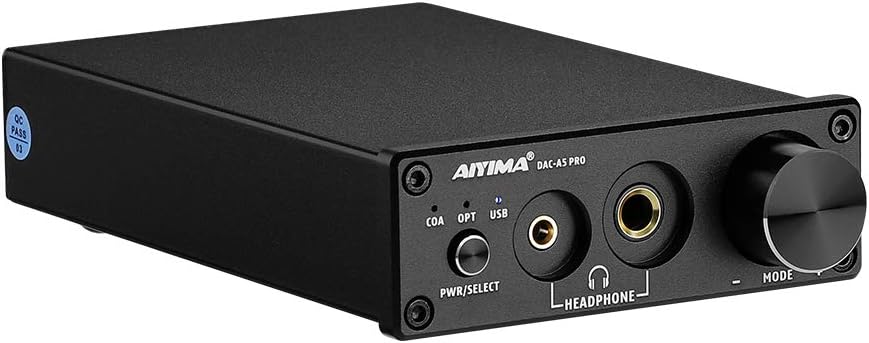
Image: Front view of the AIYIMA DAC-A5pro, showcasing its compact black chassis, front panel controls, and headphone outputs.
2. Package Contents
Please check the package for the following items:
- AIYIMA DAC-A5pro Decoder x 1
- User Manual x 1
- PC-USB Cable x 1
- DC 12V Power Cable x 1

Image: Contents of the AIYIMA DAC-A5pro package, including the DAC unit, user manual, USB cable, and power adapter.
3. Controls and Interfaces
3.1 Front Panel

Image: Detailed view of the DAC-A5pro front panel, highlighting the power/select button, input indicators (COA, OPT, USB), 3.5mm and 6.35mm headphone outputs, and the volume/mode knob.
- PWR/SELECT Button: Long press to power on/off the device. Short press to cycle through input modes (Coaxial, Optical, USB).
- Input Indicators (COA, OPT, USB): LEDs illuminate to show the currently selected input source.
- 3.5mm Headphone Output: For connecting headphones with a 3.5mm jack.
- 6.35mm Headphone Output: For connecting headphones with a 6.35mm (1/4 inch) jack.
- MODE Knob: Rotate to adjust volume. Click to mute/unmute audio output.
3.2 Rear Panel

Image: Detailed view of the DAC-A5pro rear panel, showing the PC-USB, Optical, Coaxial audio inputs, RCA L/R audio outputs, and DC 12V power input.
- PC-USB Input: Connects to a computer via USB cable for digital audio transmission.
- OPTICAL Input: Connects to devices with an optical (Toslink) digital audio output.
- COAXIAL Input: Connects to devices with a coaxial digital audio output.
- RCA L/R Audio Output: Connects to an external amplifier or powered speakers using RCA cables.
- DC 12V Power Input: Connects to the provided 12V DC power adapter.
4. Setup Instructions
Follow these steps to set up your AIYIMA DAC-A5pro:
- Connect Audio Source: Choose your desired digital audio input (PC-USB, Optical, or Coaxial) and connect it to the corresponding input port on the rear panel of the DAC-A5pro. For PC-USB, use the provided USB cable to connect to your computer.
- Connect Audio Output:
- For External Amplifier/Powered Speakers: Connect RCA cables from the RCA L/R Audio Output on the rear panel of the DAC-A5pro to the audio input of your amplifier or powered speakers.
- For Headphones: Plug your headphones into either the 3.5mm or 6.35mm headphone output jack on the front panel. Note that connecting headphones will automatically mute the RCA line-out.
- Connect Power: Connect the provided DC 12V power adapter to the DC 12V Power Input on the rear panel, then plug the adapter into a power outlet.
- Power On: Long press the PWR/SELECT button on the front panel to turn on the DAC-A5pro.
- Select Input: Short press the PWR/SELECT button to cycle through the input modes (COA, OPT, USB) until the LED for your connected source illuminates.
- Computer Setup (for PC-USB input): Your computer should automatically recognize the DAC-A5pro as an audio device. If not, you may need to select it as the default playback device in your operating system's sound settings.
- TV Setup (for Optical/Coaxial input): If connecting to a TV, ensure the TV's audio output is set to Optical or Coaxial output in its system settings. Adjust the TV's internal volume to 0 if you experience no sound or distorted sound, as some TVs may not output audio if their internal speakers are active.

Image: The DAC-A5pro connected to a laptop via USB and to an external amplifier, demonstrating a typical setup for audio playback through speakers.

Image: A visual guide on how to configure TV settings for optical or coaxial audio output to ensure proper sound transmission to the DAC-A5pro.
Setup Demonstration Video
Video: A demonstration showing the AIYIMA DAC-A5pro connected to an AIYIMA A07 amplifier and speakers, illustrating the connection process and audio playback. The video also shows switching between PC-USB input and the priority of headphone output.
5. Operating Instructions
- Power On/Off: Long press the PWR/SELECT button to turn the unit on or off.
- Input Selection: Short press the PWR/SELECT button to switch between the available digital inputs: Coaxial (COA), Optical (OPT), and USB. The corresponding LED indicator will light up to show the active input.
- Volume Control: Rotate the MODE knob clockwise to increase volume and counter-clockwise to decrease volume.
- Mute Function: Click the MODE knob to mute or unmute the audio output.
- Headphone Output Priority: When headphones are plugged into either the 3.5mm or 6.35mm jack, the RCA line-out will automatically be muted. Unplugging the headphones will restore audio to the RCA outputs.
6. Maintenance
- Keep the device in a dry, well-ventilated area, away from direct sunlight, heat sources, and moisture.
- Clean the exterior of the unit with a soft, dry cloth. Do not use liquid cleaners or abrasive materials.
- Avoid blocking ventilation openings to prevent overheating.
- Do not attempt to disassemble or repair the unit yourself. Refer to qualified service personnel for any repairs.
7. Troubleshooting
- No Sound Output:
- Ensure the DAC-A5pro is powered on and the correct input source is selected (COA, OPT, or USB indicator lit).
- Check all cable connections (input source, RCA to amplifier/speakers, power).
- Verify that the volume is not muted (click the MODE knob) and is turned up sufficiently.
- If using headphones, ensure they are fully plugged in. Remember that RCA outputs are muted when headphones are connected.
- For TV connections, confirm the TV's audio output settings are configured for optical or coaxial output and that the TV's internal volume is set to zero.
- For PC-USB, ensure the DAC-A5pro is selected as the default playback device in your computer's sound settings.
- Distorted Sound:
- Check for loose cable connections.
- Ensure the input source volume is not excessively high, causing clipping.
- Verify that the sample rate and bit depth settings on your source device match the capabilities of the DAC-A5pro (up to 24Bit/192kHz).
- Intermittent Audio:
- Inspect cables for damage.
- Ensure the power adapter is securely connected and providing stable power.
8. Specifications

Image: The DAC-A5pro with dimensions labeled, showing a length of 147mm (5.79in), width of 95mm (3.74in), and height of 30mm (1.18in).
- Brand: AIYIMA
- Model: DAC A5 PRO
- Interface Type: Coaxial, USB, Optical
- Maximum Supply Voltage: 12 Volts (DC)
- Number of Channels: 1
- Product Dimensions: 5.85"L x 3.86"W (approximately 14.86cm L x 9.80cm W)
- Item Weight: 1.58 pounds (approximately 0.72 kg)
- Material: Copper (referring to internal components or casing)
- Manufacturer: YIMA TECH
- ASIN: B09PMDN86V
- UPC: 782846056327
- Date First Available: January 12, 2022

Image: Close-up views of the internal circuitry and components of the AIYIMA DAC-A5pro, highlighting the quality of the build and chips used.
9. Warranty and Support
AIYIMA provides a 2-year worry-free after-sales service for this product. For technical support, troubleshooting assistance, or warranty claims, please contact AIYIMA customer service through your purchase platform or the official AIYIMA website. Please retain your proof of purchase for warranty validation.


