
1. Product Overview
The JRHC 2D Wired Barcode Scanner is a versatile handheld device designed for efficient and accurate scanning of various barcode types. It connects via a USB cable, offering plug-and-play functionality without the need for additional drivers or software installation.

Image: JRHC 2D Wired Barcode Scanner, showing its ergonomic design.
2. Package Contents
- JRHC 2D Wired Barcode Scanner
- Integrated USB Cable
- User Manual (this document)
3. Setup Instructions
3.1 Connecting the Scanner
- Locate an available USB port on your computer (PC, laptop, etc.).
- Plug the USB cable of the scanner into the USB port.
- The scanner will automatically install necessary drivers (Plug and Play). No additional software installation is required.
- A confirmation sound or light indicator on the scanner will signal successful connection and readiness for use.
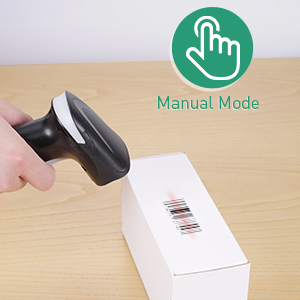
Image: The barcode scanner connected to a laptop via its USB cable, illustrating the plug-and-play setup.
3.2 System Compatibility
The scanner is compatible with various operating systems and software applications:
- Operating Systems: Windows, Mac OS, Linux.
- Software: QuickBooks, Word, Excel, Novell, and other common applications.

Image: Icons representing compatible operating systems (macOS, Linux, Windows XP) and software (POS, Excel, Word, TXT).
4. Operating Instructions
4.1 Scanning Barcodes
To scan a barcode, point the scanner's window at the barcode and press the trigger (if in Manual Trigger Mode). The scanner will emit a light beam to read the code. A successful scan is typically indicated by a beep and/or a green light.
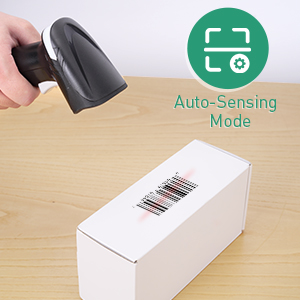
Image: The scanner reading various 1D and 2D barcodes, including QR codes, from both printed labels and screens.
4.2 Supported Barcode Types
This scanner supports a wide range of 1D and 2D barcode types, including those on printed materials and digital screens:
- 1D Codes: UPCE, UPCA, EAN8, EAN13, Code128, GS1-128, Interleaved 2 of 5, Industrial 2 of 5, Code39, Code93, Code32, Code11, Codabar, MSI, ISBN, ISSN, GS1 Databar, etc.
- 2D Codes: QR Code, Aztec Code, PDF417, Data Matrix, etc.
The scanner is designed to read damaged, fuzzy, reflective, smudged, and other low-quality barcodes effectively.
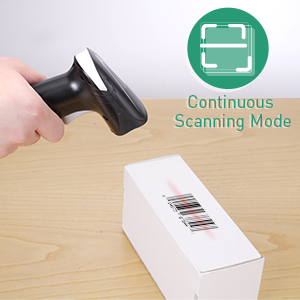
Image: Visual representation of various 1D and 2D barcode types that the scanner can decode, including QR Code, Data Matrix, PDF417, EAN, and different conditions like reflective, damaged, distortion, colorful, and fuzzy barcodes.
4.3 Scanning Modes
The scanner supports three operational modes:
- Manual Trigger Mode: Press the trigger button to initiate a scan.
- Continuous Scan Mode: The scanner continuously emits a scan beam, reading barcodes as they pass through the field of view without needing to press the trigger.
- Auto-Induction Mode: The scanner automatically detects a barcode in its field of view and initiates a scan.

Image: Depicts the three scanning modes: Manual Trigger Mode (user presses button), Continuous Scan Mode (constant scanning), and Auto-induction Mode (scanner activates when a barcode is detected).
4.4 Customizing Scan Output
The scanner allows for customization of the output data, such as adding prefixes or suffixes to scanned information. Refer to the detailed configuration guide (usually provided via QR codes in the physical manual) for specific instructions on how to enable or disable these features and modify other settings like Code ID.
4.5 Beep Settings
The scanner provides options to turn the audible beep sound on or off, which indicates a successful scan. Consult the configuration guide for instructions on adjusting this setting.
4.6 Applications
This scanner is suitable for various environments requiring efficient barcode reading:
- Supermarkets and Retail Stores
- Warehouses and Inventory Management
- Libraries and Bookstores
- Express and Logistics Services

Image: Collage showing the barcode scanner being used in different settings such as a supermarket, warehouse, bookstore, and for express delivery.
5. Maintenance
5.1 Cleaning the Scanner
- Ensure the scanner is disconnected from the computer before cleaning.
- Use a soft, dry cloth to wipe the exterior of the scanner.
- For the scanning window, use a soft, lint-free cloth lightly dampened with a mild, non-abrasive cleaner. Avoid harsh chemicals that could damage the lens.
- Do not immerse the scanner in water or any cleaning solution.
5.2 Durability and Handling
The scanner features an ergonomic design with high-quality ABS material and anti-shock silicone (IP54 rated) to withstand drops from up to 1.5 meters onto concrete. While durable, proper handling is recommended to prolong the device's lifespan.
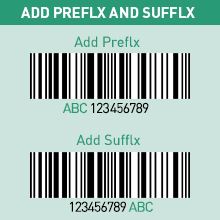
Image: The scanner shown with its anti-shock silicone casing, illustrating its durability against drops.
6. Troubleshooting
- Scanner not responding:
- Ensure the USB cable is securely connected to both the scanner and the computer.
- Try plugging the scanner into a different USB port on your computer.
- Restart your computer and reconnect the scanner.
- Cannot scan certain barcodes:
- Verify that the barcode type is supported by the scanner (refer to Section 4.2).
- Ensure the barcode is clean, clear, and not excessively damaged or smudged.
- Adjust the distance and angle of the scanner to the barcode.
- Check if the scanner is in the correct scanning mode (Manual, Continuous, Auto-Induction).
- Scanned data appears incorrectly:
- Ensure your cursor is in the correct input field on your computer before scanning.
- Check the scanner's configuration settings for any enabled prefixes or suffixes that might be altering the output.
- Verify the language settings of your computer and scanner if applicable.
- No beep sound after successful scan:
- Check the beep settings (refer to the configuration guide) to ensure the sound is enabled.
7. Specifications
| Feature | Detail |
|---|---|
| Product Dimensions | 7.38 x 3.45 x 2.7 inches |
| Item Weight | 9.1 ounces |
| Connectivity Technology | USB Cable (Wired) |
| Power Source | Corded Electric, USB Cable |
| Compatible Devices | Desktop, Laptop |
| Supported Barcodes | 1D (UPCE, UPCA, EAN8, EAN13, Code128, etc.), 2D (QR Code, Aztec Code, PDF417, Data Matrix, etc.) |
| Drop Resistance | Withstands drops from 1.5m to concrete |
| First Available Date | May 19, 2022 |
8. Warranty and Support
For warranty information or technical support, please refer to the contact details provided with your purchase documentation or visit the official JRHC website. Keep your purchase receipt as proof of purchase for any warranty claims.
