
Introduction
Thank you for choosing the Packard Bell airFrame 27" FHD Monitor. This manual provides essential information for setting up, operating, and maintaining your new monitor. Please read it thoroughly to ensure optimal performance and longevity of your device.
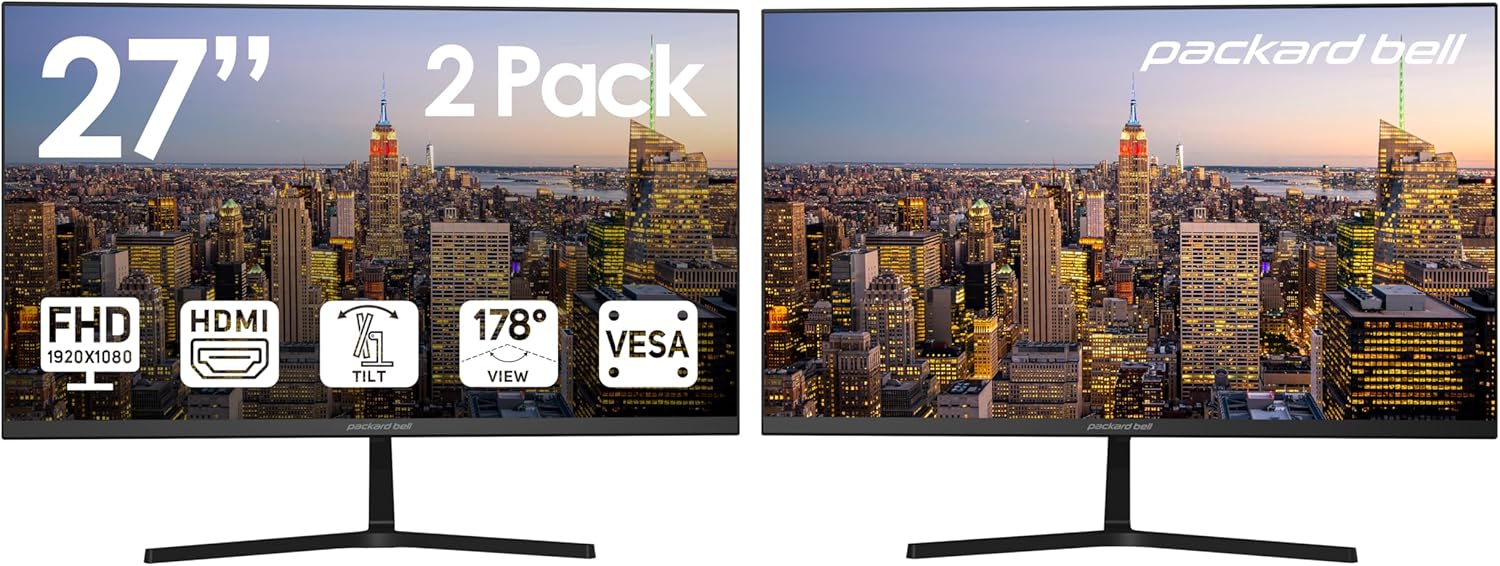
The Packard Bell airFrame 27-inch FHD Monitor offers a large display area with a minimalist design, ideal for various computing needs.
Key Features
- 27-inch Full HD Display: Experience crisp and clear visuals with 1920x1080 resolution.

Enjoy stunning visual clarity with the monitor's Full High Definition 1920x1080 resolution, perfect for multimedia and gaming.
- Ultrawide Viewing Angle: A 178° wide viewing angle ensures consistent image quality from almost any perspective.

The 178-degree wide viewing angle provides perfectly vibrant image quality across every angle, ensuring a consistent visual experience.
- Slim Bezel Design: The edge-to-edge screen with an ultra-thin bezel provides an immersive viewing experience.

The monitor's edge-to-edge screen and ultra-thin bezel offer an elegant look and maximize visual space.
- Ergonomic Tilt Adjustment: Easily adjust the screen tilt from -5° to +15° for optimal viewing comfort.

Find the perfect angle for viewing and productivity with a -5° to +15° tilt range.
- VESA Mount Compatibility: Mount your monitor on a wall or desk arm using the VESA standard for flexible placement.

The monitor is compatible with VESA mounts for easy wall or desk mounting.
- Multiple Connectivity Options: Equipped with HDMI and VGA ports for versatile connection to various devices.
- Fast Response Time: Enjoy smooth visuals with a 5ms response time, reducing motion blur in fast-paced content.
Setup Guide
1. Unpacking
Carefully remove all components from the packaging. Ensure you have the monitor, stand base, stand neck, power adapter, HDMI cable, and user manual.
2. Assembling the Stand
- Attach the stand neck to the monitor by aligning the tabs and pushing firmly until it clicks into place.
- Secure the stand base to the stand neck using the provided screw.
3. Connecting the Monitor
- Connect the HDMI cable from your computer's HDMI output to the HDMI input on the monitor. Alternatively, use a VGA cable for VGA connections.
- Connect the power adapter to the monitor's power input, then plug the adapter into a power outlet.

The back of the monitor features essential ports for connectivity, including HDMI and VGA.
Operating Instructions
1. Power On/Off
Press the power button located on the bottom right bezel of the monitor to turn it on or off.
2. Adjusting Display Settings
Use the OSD (On-Screen Display) menu buttons, typically located on the bottom right or rear of the monitor, to navigate and adjust settings such as brightness, contrast, color temperature, and input source.
3. Input Source Selection
If you have multiple devices connected, use the input source button (often labeled 'Input' or an arrow icon) to switch between HDMI and VGA inputs.
4. Tilt Adjustment
Gently hold the top and bottom edges of the monitor and tilt it forward or backward to achieve your desired viewing angle (between -5° and +15°).
Maintenance
1. Cleaning the Screen
Use a soft, lint-free cloth slightly dampened with water or a non-ammonia, non-alcohol based screen cleaner. Do not spray liquid directly onto the screen.
2. General Cleaning
Wipe the monitor casing with a soft, dry cloth. Avoid using abrasive cleaners or solvents.
3. Storage
When storing the monitor for extended periods, place it in its original packaging or a protective cover in a cool, dry place.
Troubleshooting
| Problem | Possible Cause | Solution |
|---|---|---|
| No Power | Power cable not connected; Power outlet faulty. | Ensure power cable is securely plugged into monitor and outlet. Test outlet with another device. |
| No Signal | Incorrect input source selected; Video cable loose or faulty. | Select correct input source (HDMI/VGA). Check video cable connections. Try a different cable. |
| Flickering Screen | Refresh rate mismatch; Faulty cable. | Adjust display refresh rate in computer settings. Replace video cable. |
| Poor Image Quality | Resolution mismatch; Dirty screen. | Set display resolution to 1920x1080. Clean the screen as per maintenance instructions. |
Specifications
- Model: M27200
- Screen Size: 27 Inches
- Resolution: 1920 x 1080 (Full HD)
- Aspect Ratio: 16:9
- Response Time: 5ms
- Viewing Angle: 178° (Horizontal/Vertical)
- Image Contrast Ratio: 1000:1
- Tilt Adjustment: -5° to +15°
- Connectivity: HDMI, VGA
- VESA Compatibility: Yes
- Dimensions (Product): 14.2 x 24.2 x 1.77 inches (without stand)
- Item Weight: 5 pounds
- Manufacturer: Southern Telecom
Official Product Videos
This video provides a general overview of Packard Bell Full HD Monitors, demonstrating features like thin bezels, tilt adjustment, and VESA mount compatibility. While this specific video features a 24-inch model, the demonstrated features are applicable to the 27-inch airFrame monitor.
Warranty and Support
For warranty information and technical support, please refer to the documentation included in your product packaging or visit the official Packard Bell support website. You may also contact Southern Telecom, the manufacturer, for assistance.
Manufacturer: Southern Telecom
Website: www.packardbell.com/support