1. Product Overview
The Fitcamx Front 4K and Rear 1080P Dash Cam is designed to integrate seamlessly into your vehicle, providing high-quality video recording for both front and rear views. This dash cam features an OEM-style design, ensuring it blends with your car's interior without visible wires.
Compatibility: This dash cam is compatible with Toyota Corolla and Corolla Hybrid models from 2020-2022, and Corolla Hatchback models from 2019-2022 (Gen12). It is not compatible with 2023 Corolla or Corolla Cross models.

Image: Comparison of the vehicle's original mirror housing (Before) and the Fitcamx dash cam integrated into the housing (After), highlighting its OEM-style fit.
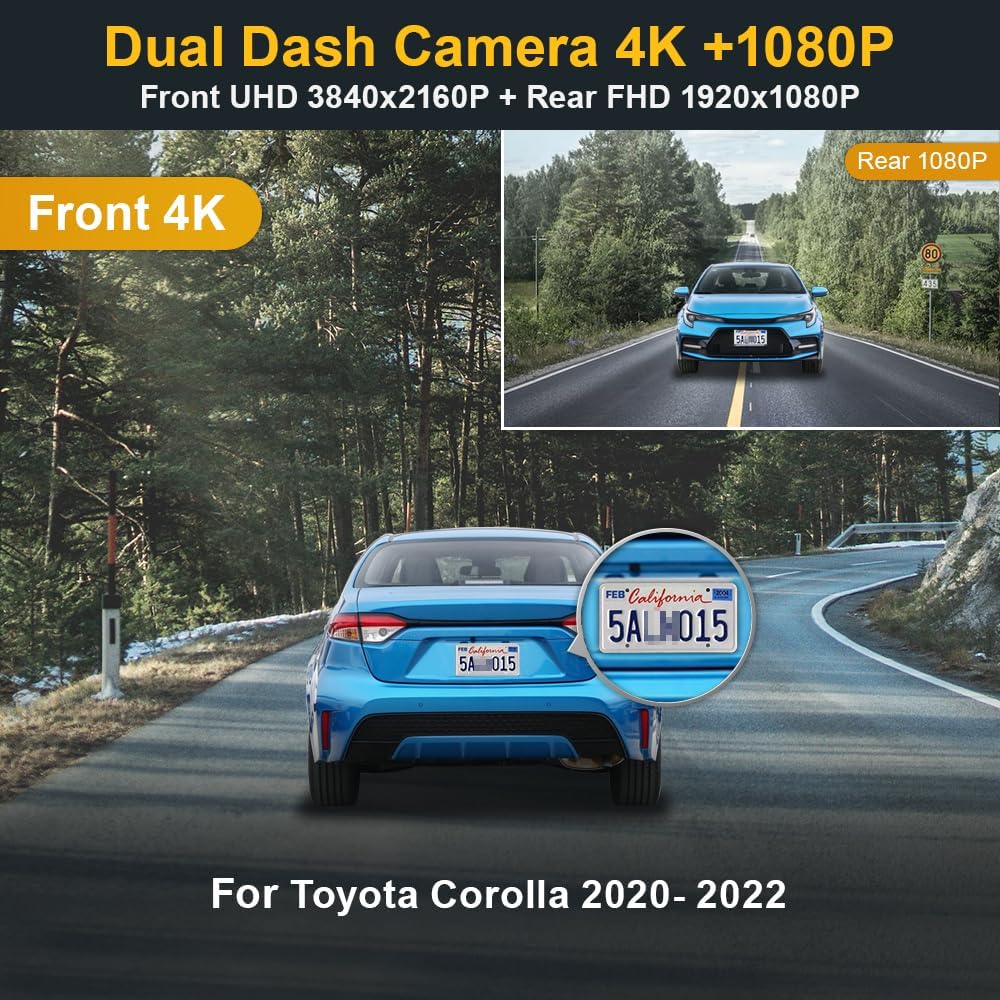
Image: Illustrates the 4K front camera view and 1080P rear camera view, showing clear detail including license plates, for a Toyota Corolla model.
2. Package Contents
Verify that all items are present in your package:
- Front Camera Unit
- Rear Camera
- Rear Camera Cable
- Y Cable (Power Adapter)
- 128GB MicroSD Card
- Card Reader
- Pry Tool
- User Manual

Image: A visual representation of all components included in the Fitcamx dash cam package.
3. Installation Guide
Follow these steps carefully for proper installation. A pry tool is included to assist with panel removal without causing damage.
3.1. Front Camera Installation
- Prepare Components: Connect the rear camera cable to the front camera unit and the Y-cable to the front camera unit.
- Remove Original Car Cover: Gently push the original car cover forward to detach it from its base. Then, carefully remove the original rear cover of the mirror housing.
- Transfer Clips: Locate the orange buckles (clips) on the original car shell. Remove these two clips and install them onto the shell of the new Fitcamx dash camera.
- Disconnect Original Power: Unplug the original A.C.C. connector from the vehicle's wiring harness.
- Connect Y-Cable: Insert the Y-cable from the dash camera into the vehicle's wiring harness, ensuring a secure connection.
- Install Dash Camera: Push the dash camera unit inward to secure it in place.
- Reattach Rear Cover: Put the rear cover of the dash cam back, ensuring all connections are tucked away neatly.
- Complete Installation: Verify that the dash cam is firmly installed and all covers are securely reattached.

Image: Visual guide detailing the 8 steps for installing the front dash camera unit.
3.2. Rear Camera Installation
The rear camera cable needs to be routed from the front camera unit to the rear of the vehicle. Use the pry tool to tuck the cable neatly along the vehicle's interior trim.
- Route Cable: Carefully route the rear camera cable along the headliner, down the A-pillar, along the door frame, and towards the rear of the vehicle. Ensure the cable is hidden and does not interfere with airbags or other vehicle functions.
- Connect Rear Camera: Once the cable reaches the rear, connect it to the rear camera.
- Mount Rear Camera: Attach the rear camera to the desired location, typically on the rear window or trunk lid, ensuring a clear view. Use the provided adhesive or screws for secure mounting.

Image: Illustration of the rear camera's adjustable angle and a wiring diagram for both front and rear cameras.
3.3. Installation Video Tutorial
For a detailed visual guide on the installation process, please refer to the official video below:
Video: Official installation tutorial for Fitcamx dual dash cameras, demonstrating the steps for connecting and mounting the front and rear units.
4. Operating Instructions
4.1. Automatic Recording
The dash cam automatically powers on and begins recording when your vehicle's engine starts. It will also power off automatically when the engine is turned off.
4.2. Loop Recording
The dash cam records video in continuous loops. When the MicroSD card is full, the oldest unlocked footage will be automatically overwritten by new recordings. You can configure the loop recording duration (1, 3, or 5 minutes) via the FITCAMX app.

Image: Explains how loop recording works, automatically managing storage space on the MicroSD card.
4.3. G-Sensor (Emergency Recording)
The built-in G-Sensor detects sudden impacts or collisions. In the event of such an incident, the dash cam will automatically lock the current video footage, preventing it from being overwritten by loop recording. This ensures critical evidence is preserved.

Image: Demonstrates the G-Sensor's function to lock video footage during a collision.
4.4. Wi-Fi Connectivity & FITCAMX App
The dash cam features built-in Wi-Fi for connecting to the FITCAMX mobile application. This allows you to view live video, download recorded clips, and adjust settings directly from your smartphone.
- Download App: Download the "FITCAMX" app from the App Store (iOS) or Google Play Store (Android).
- Connect to Wi-Fi: Turn on your dash cam. On your smartphone, go to Wi-Fi settings and connect to the dash cam's Wi-Fi network (e.g., "CAR-CAXXXX"). The default password is usually "12345678" or found in the manual.
- Open App: Launch the FITCAMX app. It should automatically detect and connect to the dash cam.
- View & Manage: You can now view real-time video, browse recorded files, download important clips to your phone, and modify camera settings.

Image: The FITCAMX mobile application displaying live camera feed and control options.


Images: A sequence of screenshots demonstrating the process of connecting to the dash cam via Wi-Fi and navigating the FITCAMX app to view and download files.
5. Maintenance
5.1. MicroSD Card Management
The dash cam includes a 128GB MicroSD card and supports up to 256GB. For optimal performance and to prevent data corruption, it is recommended to format the MicroSD card regularly (e.g., once a month) using the FITCAMX app or a computer.
5.2. Optional Parking Mode
This dash cam does not include parking mode functionality by default. To enable parking monitoring, a separate fuse box cable or On Board Diagnostics (OBD) cable is required. These cables allow the dash cam to receive continuous power when the vehicle is off.
Image: Displays optional cables for enabling parking mode, connecting to either the fuse box or OBD port.
6. Troubleshooting (FAQ)
- Q: Do I need to connect the camera's Wi-Fi every time I drive?
- A: No. The dash cam will automatically turn on and off with your car engine. You only need to connect to its Wi-Fi when you want to view live footage, download videos, or change settings via the app.
- Q: Can I view video after turning off the car or remotely?
- A: No, you can only view footage that has been downloaded to your phone in advance. The camera's Wi-Fi is for local connection only and does not support remote viewing. Videos are primarily saved on the MicroSD card.
- Q: Can I use CarPlay/Bluetooth when driving?
- A: Yes. Your phone cannot be connected to both CarPlay/Bluetooth and the dash cam's Wi-Fi simultaneously. However, the camera records automatically after the car starts, so you do not need to keep Wi-Fi connected to the camera all the time for recording purposes.
7. Specifications
| Model Name | 4K Dual Dash Cam |
| Item Model Number | Model A -4K Dual |
| Product Dimensions | 11.42 x 3.54 x 9.06 inches |
| Item Weight | 2 pounds |
| Video Capture Resolution | Front: 4K (2160P), Rear: 1080P |
| Field Of View | 170 Degrees (Front) |
| Connectivity Technology | Bluetooth, Wi-Fi |
| Special Feature | OEM Style, Loop Recording, G-Sensor |
| Mounting Type | Suction Mount (Note: OEM style integrates into mirror housing) |
| Control Method | App |
| Batteries | 1 Lithium Metal battery required (included) |
| Color | Black |
| Manufacturer | Dongguan Daozhi Electronic Technology Co., Ltd |
| Date First Available | December 30, 2021 |
8. Warranty and Support
Fitcamx is committed to providing reliable products and customer satisfaction. If you encounter any issues or have questions regarding your dash cam, please do not hesitate to contact our technical support team for prompt assistance.
For support, please refer to the contact information provided with your product packaging or visit the official Fitcamx website.