
1. Introduction
The MARKLIFE P12 is a compact and portable Bluetooth label maker designed for efficient and convenient labeling in various environments, including home, office, and retail. Utilizing advanced thermal printing technology, it eliminates the need for ink or toner, providing clear, durable, and cost-effective labels. Its seamless Bluetooth connectivity allows for easy operation via a smartphone application, offering extensive customization options for text, fonts, and graphics.

Figure 1.1: MARKLIFE P12 Portable Bluetooth Label Maker. This compact device allows for easy label creation and printing directly from your smartphone.
2. Product Features
- Portable Design: Ultra-compact and lightweight (3.4 x 2.8 x 1.3 inches), making it easy to carry and use anywhere.
- Bluetooth Connectivity: Connects wirelessly to your smartphone for convenient label design and printing.
- Thermal Printing Technology: No ink, toner, or ribbon required, reducing operational costs and environmental impact.
- Long Battery Life: Equipped with a 1200 mAh lithium battery, providing up to 5 hours of continuous printing on a full charge.
- Adjustable Print Length: Supports both continuous and gap label paper, allowing for custom label lengths with an integrated cutter. Maximum print width is 12mm.
- Versatile App (Marklife APP): Offers guest mode (no registration needed), memory function for custom templates, and extensive customization options for text size, font, alignment, bolding, and line spacing.
- Durable Labels: Labels are waterproof, oil-resistant, tear-resistant, and leave no residue upon removal. Printed text can last up to 3 years.

Figure 2.1: Key features of the MARKLIFE P12, highlighting its compact size, built-in cutter, and thermal inkless printing technology.
3. Package Contents
Please check the package contents upon unboxing to ensure all items are present:
- MARKLIFE P12 Label Maker
- USB Charging Cable
- 1 Roll of 15mm x 4.3m Label Paper
- User Manual

Figure 3.1: Standard package contents for the MARKLIFE P12 Label Maker.
4. Product Overview
Familiarize yourself with the different parts of your MARKLIFE P12 label maker:

Figure 4.1: Overview of the MARKLIFE P12 Mini Handheld Labeling Machine, illustrating its design and key functional areas.
- Power Button/Indicator Light: Turns the device on/off and indicates status.
- Label Exit Slot: Where printed labels emerge.
- Cutter Button: Used to manually cut the label paper.
- Paper Compartment: Houses the label paper roll.
- USB-C Charging Port: For charging the device.
5. Setup Guide
5.1 Charging the Device
Before first use, fully charge the label maker. Connect the provided USB charging cable to the device's USB-C port and a compatible USB power adapter (not included). The indicator light will show charging status (e.g., red for charging, green for fully charged).

Figure 5.1: Charging the MARKLIFE P12. Ensure the device is fully charged before initial use for optimal performance.
5.2 App Installation
The MARKLIFE P12 operates via a dedicated smartphone application. Search for "Marklife" in your device's app store (App Store for iOS or Google Play Store for Android) and install it. Ensure your smartphone's Bluetooth is enabled.
5.3 Loading Label Paper
- Open the paper compartment cover of the label maker.
- Insert the label paper roll into the compartment, ensuring the printing side faces upwards and the leading edge extends slightly out of the slot.
- Close the cover firmly until it clicks into place.

Figure 5.2: Loading label paper into the MARKLIFE P12. Proper paper alignment is crucial for clear prints.
6. Operating Instructions
6.1 Connecting via Bluetooth
- Turn on the MARKLIFE P12 by pressing and holding the power button until the indicator light illuminates.
- Open the Marklife APP on your smartphone.
- The app will automatically search for available devices. Select "P12" from the list to connect. The indicator light on the device will change (e.g., from blinking to solid blue) once connected.
6.2 Using the Marklife APP
The Marklife APP provides a user-friendly interface for designing and managing your labels.
- Text Editing: Enter your desired text. Customize font, size, bolding, alignment, and line spacing.
- Templates & Graphics: Access a wide range of pre-designed templates, symbols, and borders to enhance your labels.
- Memory Function: Save frequently used label designs for quick reprinting.
- Guest Mode: Create and print labels without needing to register or log in.

Figure 6.1: The Marklife APP interface, offering various customization tools for label design.

Figure 6.2: The Marklife APP provides over 600 combinations of templates, symbols, frames, and fonts for diverse label creation.
6.3 Printing Labels
Once your label design is complete in the app, tap the "Print" button. The label maker will print your design. The P12 supports two printing modes:
- Continuous Paper Printing: For labels of any custom length.
- Gap Paper Printing: For pre-cut labels with fixed lengths.
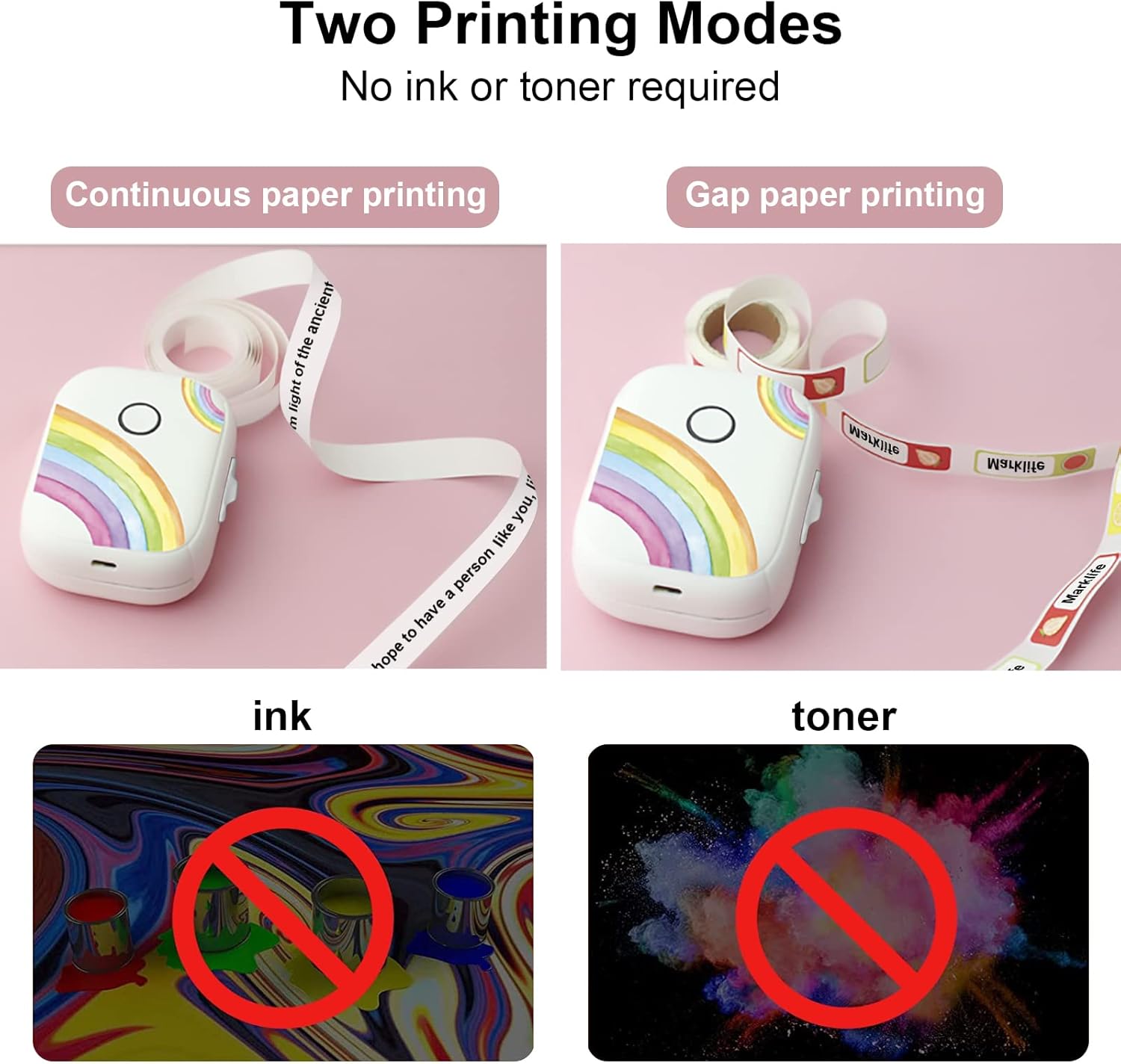
Figure 6.3: The P12 supports both continuous and gap paper printing modes, offering flexibility for various labeling needs.
6.4 Cutting Labels
After printing, use the integrated cutter to neatly separate your label from the roll. Press the cutter button firmly to achieve a clean cut.
7. Maintenance
- Cleaning: Use a soft, dry cloth to wipe the exterior of the label maker. Do not use abrasive cleaners or solvents.
- Print Head Care: If print quality degrades, gently clean the thermal print head with an alcohol swab. Ensure the device is off and cool before cleaning.
- Storage: Store the label maker in a cool, dry place away from direct sunlight and extreme temperatures.
8. Troubleshooting
| Problem | Possible Cause | Solution |
|---|---|---|
| Device won't turn on | Low battery; Device malfunction | Charge the device; Contact support if issue persists |
| Cannot connect via Bluetooth | Bluetooth off on phone; Device not discoverable; App issue | Ensure Bluetooth is on; Restart device and app; Reinstall app |
| Poor print quality / Blank labels | Incorrect paper loading; Dirty print head; Low battery | Reload paper correctly (printing side up); Clean print head; Charge device |
| Paper jam | Improper paper loading; Foreign object | Open cover, remove jammed paper carefully; Ensure paper is loaded smoothly |
| Labels not cutting properly | Cutter blade dull or obstructed | Ensure no paper scraps obstruct cutter; Contact support if blade is dull |
9. Specifications
| Feature | Detail |
|---|---|
| Model Number | P50 |
| Printing Technology | Thermal |
| Connectivity | Bluetooth |
| Max Print Width | 12 mm |
| Battery Capacity | 1200 mAh |
| Dimensions (L x W x H) | 30 x 50 x 100 mm (approx. 1.2 x 2.0 x 3.9 inches) |
| Compatible Devices | Smartphones (iOS & Android) |
| Print Speed | Up to 30 pages per minute (monochrome) |
10. Warranty and Support
For warranty information and technical support, please refer to the contact details provided on the product packaging or the official MARKLIFE website. Keep your purchase receipt as proof of purchase for any warranty claims.


