
1. Introduction
Welcome to the user manual for your new CHIQ L32G7L 32-inch Android 11 Smart TV. This guide provides essential information to help you set up, operate, maintain, and troubleshoot your television. Please read these instructions carefully before using your TV and retain them for future reference.

Image 1.1: The CHIQ L32G7L 32-inch Android 11 Smart TV, featuring HDR10, DBX-TV, Google Assistant, and a frameless design.
2. Setup
2.1 Unboxing and Physical Installation
Carefully remove the TV from its packaging. Ensure all components are present: TV unit, remote control, power cord, and stand feet. Choose a suitable location for your TV, considering viewing distance and ventilation.
2.1.1 Attaching the Stand
Place the TV face down on a soft, flat surface. Align the stand feet with the screw holes on the bottom of the TV and secure them with the provided screws.
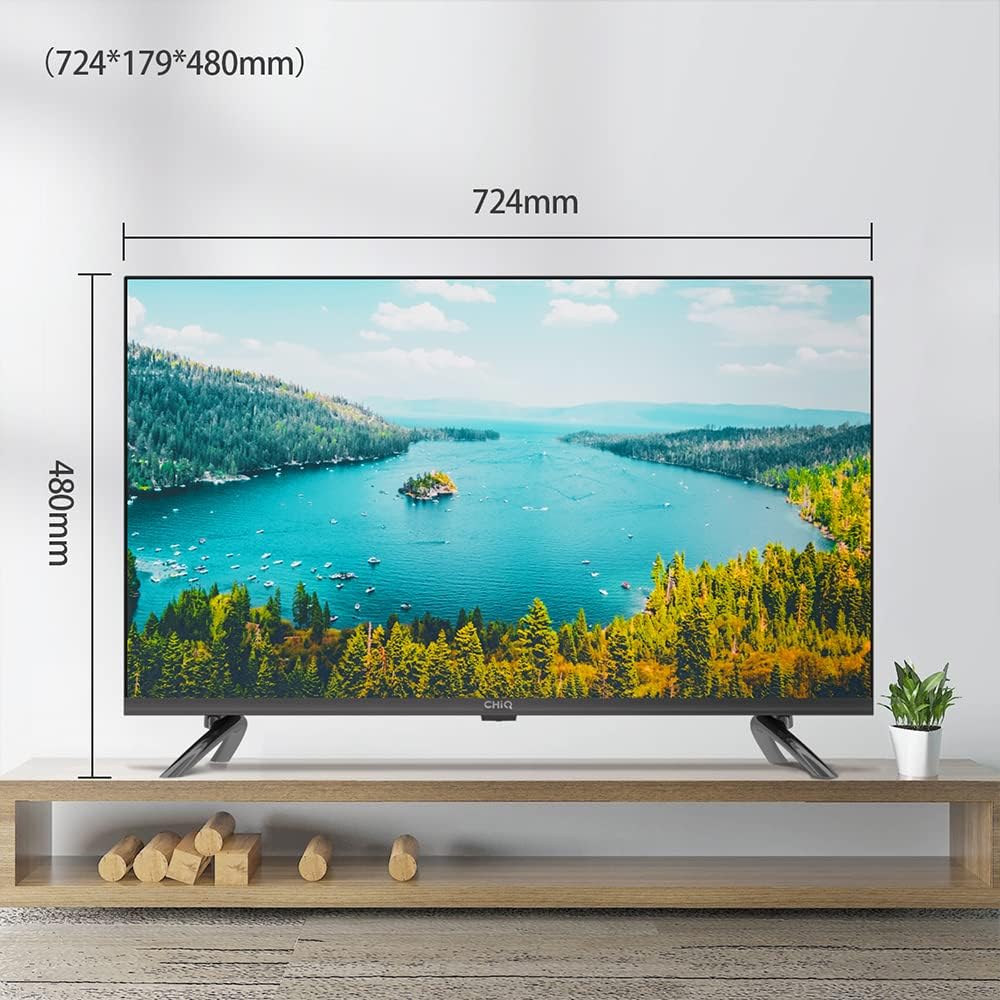
Image 2.1: Dimensions of the CHIQ L32G7L TV with the stand attached (724mm width, 480mm height, 179mm depth).
2.1.2 Wall Mounting (Optional)
If you choose to wall mount your TV, ensure you use a compatible VESA mount (not included) and follow the mount manufacturer's instructions. The TV dimensions without the stand are provided for reference.
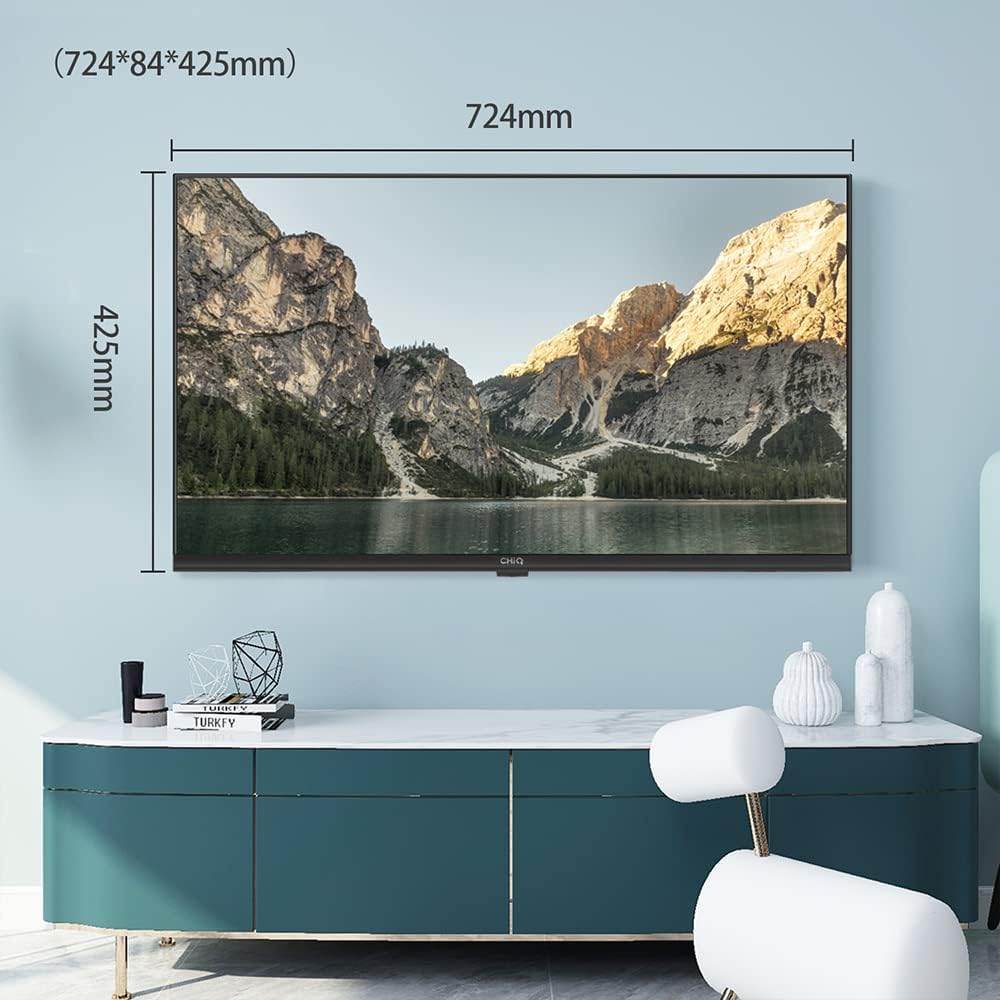
Image 2.2: Dimensions of the CHIQ L32G7L TV without the stand (724mm width, 425mm height, 84mm depth).
2.2 Initial Power On and First-Time Setup
Connect the power cord to the TV and a power outlet. Press the power button on the remote control or the TV. The TV will guide you through the initial setup process.
- Language Selection: Choose your preferred language.
- Network Connection: Connect to your Wi-Fi network. The TV supports dual-band 2.4G/5G Wi-Fi for a fast and stable connection.
- Google Account Sign-in: Sign in with your Google account to access the Google Play Store and other Android features.
- Channel Scan: Scan for available TV channels if you are using an antenna or cable connection.
3. Operating Instructions
3.1 Remote Control Overview
The remote control allows you to navigate the TV's interface, adjust settings, and access smart features. Familiarize yourself with the buttons for power, volume, channel, input selection, and dedicated app buttons.
3.2 Smart TV Features (Android 11)
Your CHIQ L32G7L TV runs on Android 11, providing access to a wide range of applications and services. The interface is designed for intuitive navigation.

Image 3.1: The Android 11 interface on the CHIQ L32G7L, showing app recommendations and navigation options.
3.2.1 Accessing Applications
Through the certified Android 11 system, you can access the Google Play Store to download over 5,000 applications, including popular streaming services like Netflix, Amazon Prime Video, and YouTube.
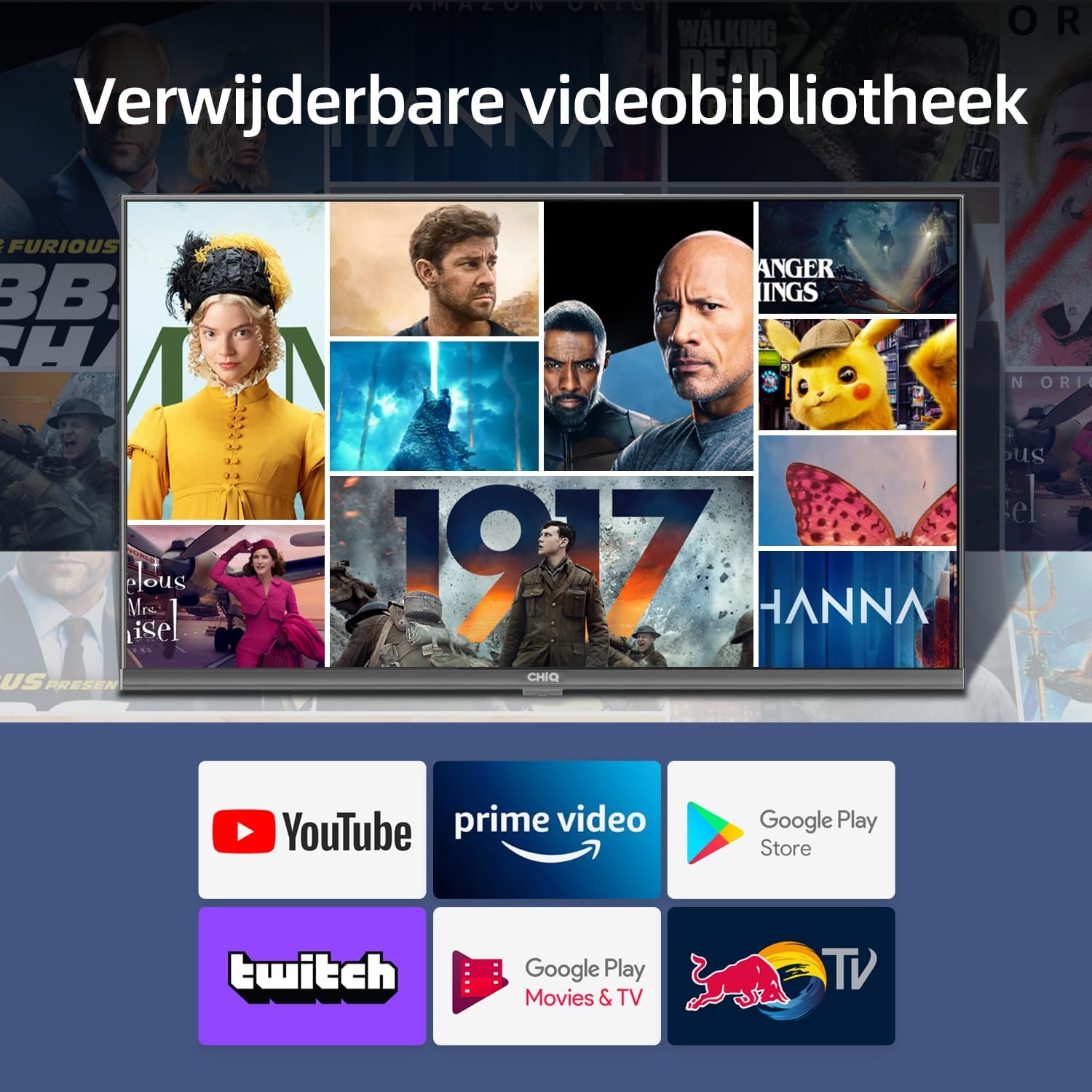
Image 3.2: A selection of popular streaming applications available on the CHIQ L32G7L Smart TV, including YouTube, Prime Video, and Google Play Store.
3.3 Connectivity
The TV offers various connectivity options for a versatile entertainment experience.
- Wi-Fi: Integrated dual-band 2.4G/5G Wi-Fi ensures a fast and stable network connection for streaming and online activities.
- Bluetooth 5.0: Connect Bluetooth devices such as mice, keyboards, speakers, or headphones for enhanced audio and control.
- HDMI: Multiple HDMI ports allow connection of external devices like gaming consoles, Blu-ray players, and set-top boxes.
- USB: A USB port is available for playing media from external storage devices.
- Ethernet: For a wired internet connection, an Ethernet port is provided.

Image 3.3: Illustration of the TV's stable and fast 2.4G/5G dual-band Wi-Fi connectivity.
3.4 Google Assistant
The integrated Google Assistant allows for voice control of your TV and connected smart home devices. Press the Google Assistant button on your remote to activate it and use voice commands to find content, get answers, and control your TV.

Image 3.4: The Google Assistant interface on the CHIQ L32G7L TV, ready to receive voice commands.
3.5 Chromecast Built-in
With Chromecast built-in, you can easily cast content from your smartphone, tablet, or computer directly to your TV screen.
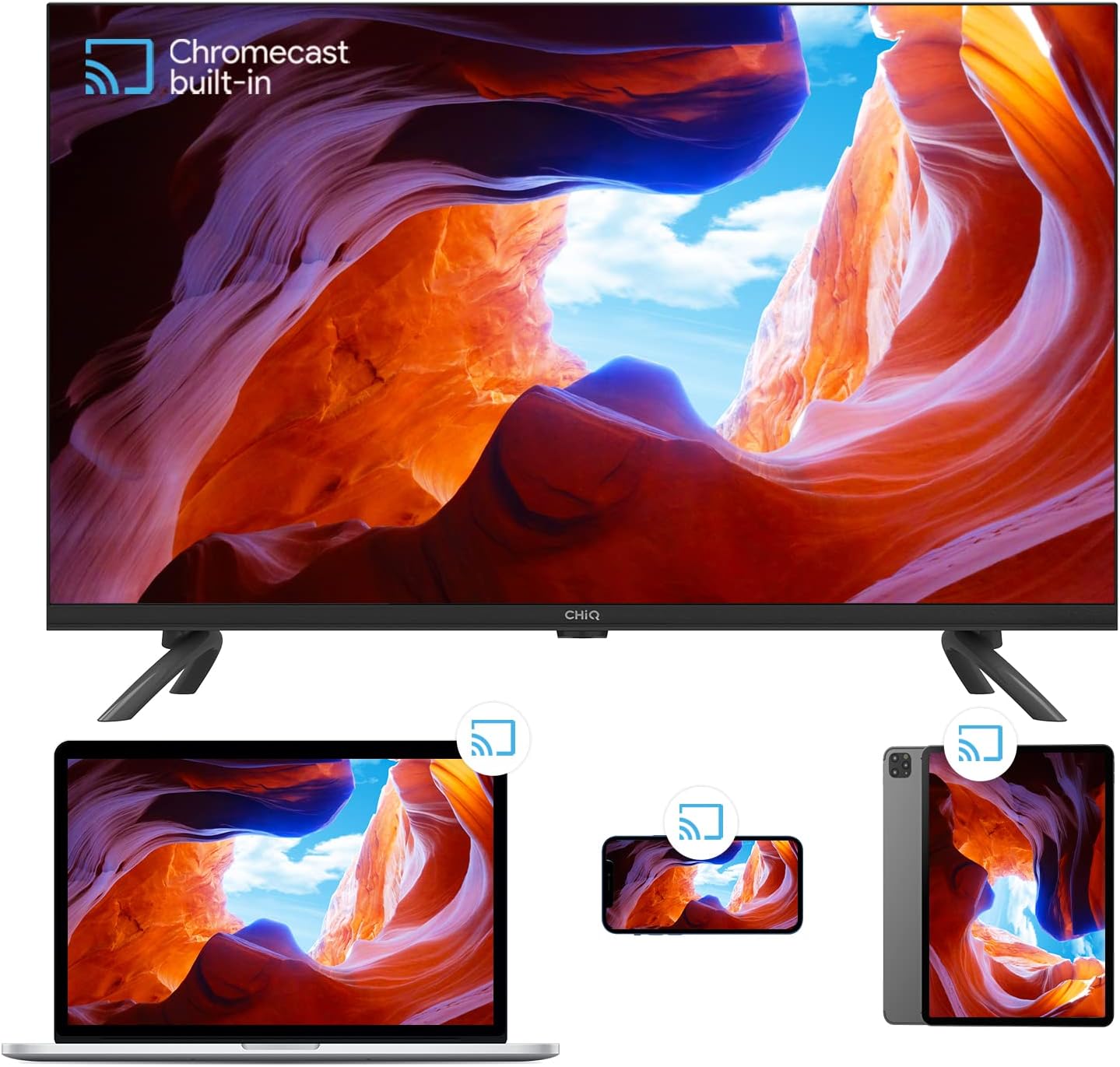
Image 3.5: The Chromecast built-in feature, allowing content mirroring from various devices to the TV.
3.6 Picture and Sound Settings
Optimize your viewing and listening experience through the TV's picture and sound settings.
- HDR10: The TV supports HDR10, providing vivid and realistic visuals with enhanced contrast and color detail. Adjust picture quality settings for optimal display.
- DBX-TV Audio: DBX-TV sound engineers utilize digital signal processing (DSP) to tune and optimize the TV's speakers, delivering superior audio quality. Explore the sound settings to customize your audio experience.
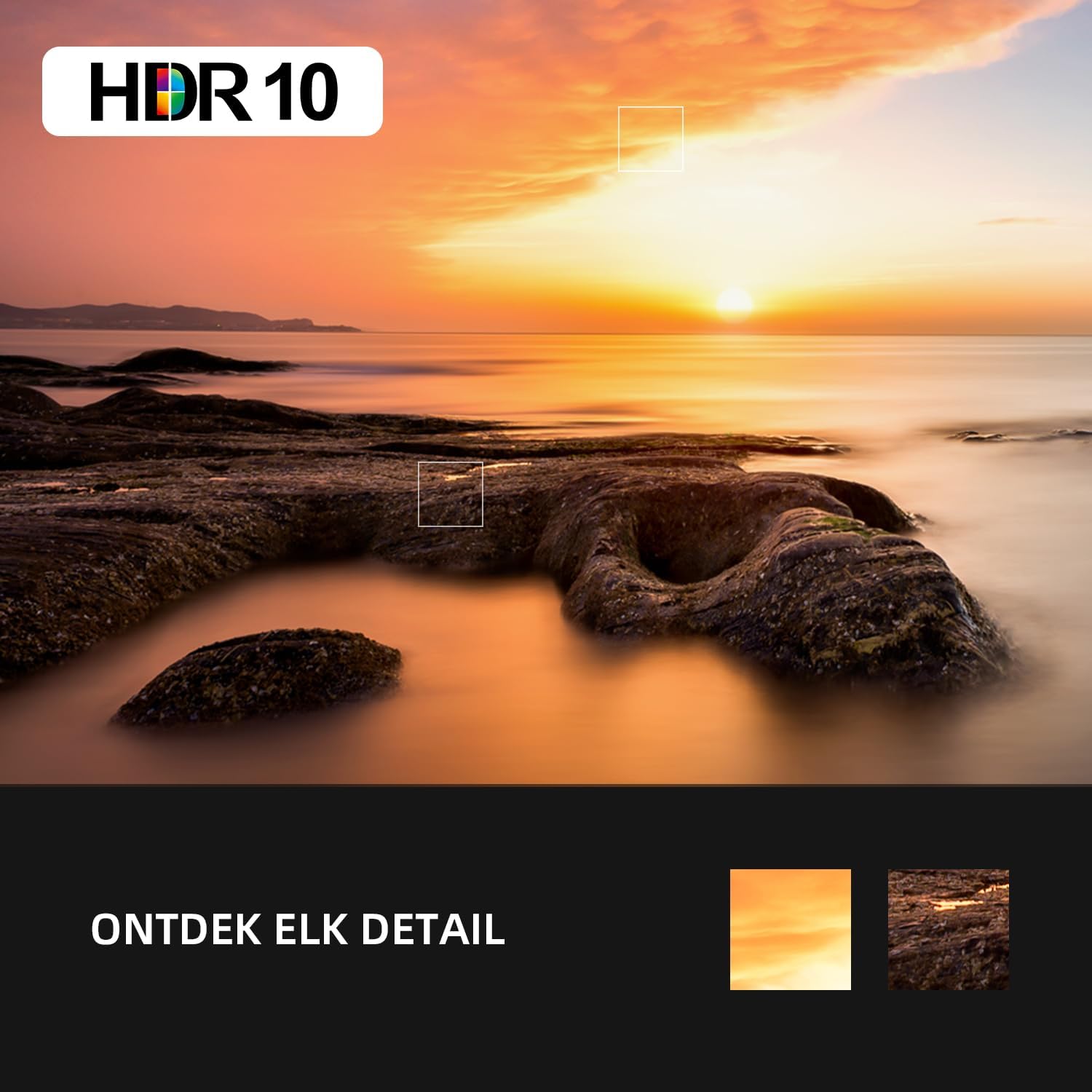
Image 3.6: An example of HDR10 picture quality, highlighting detailed visuals and vibrant colors.
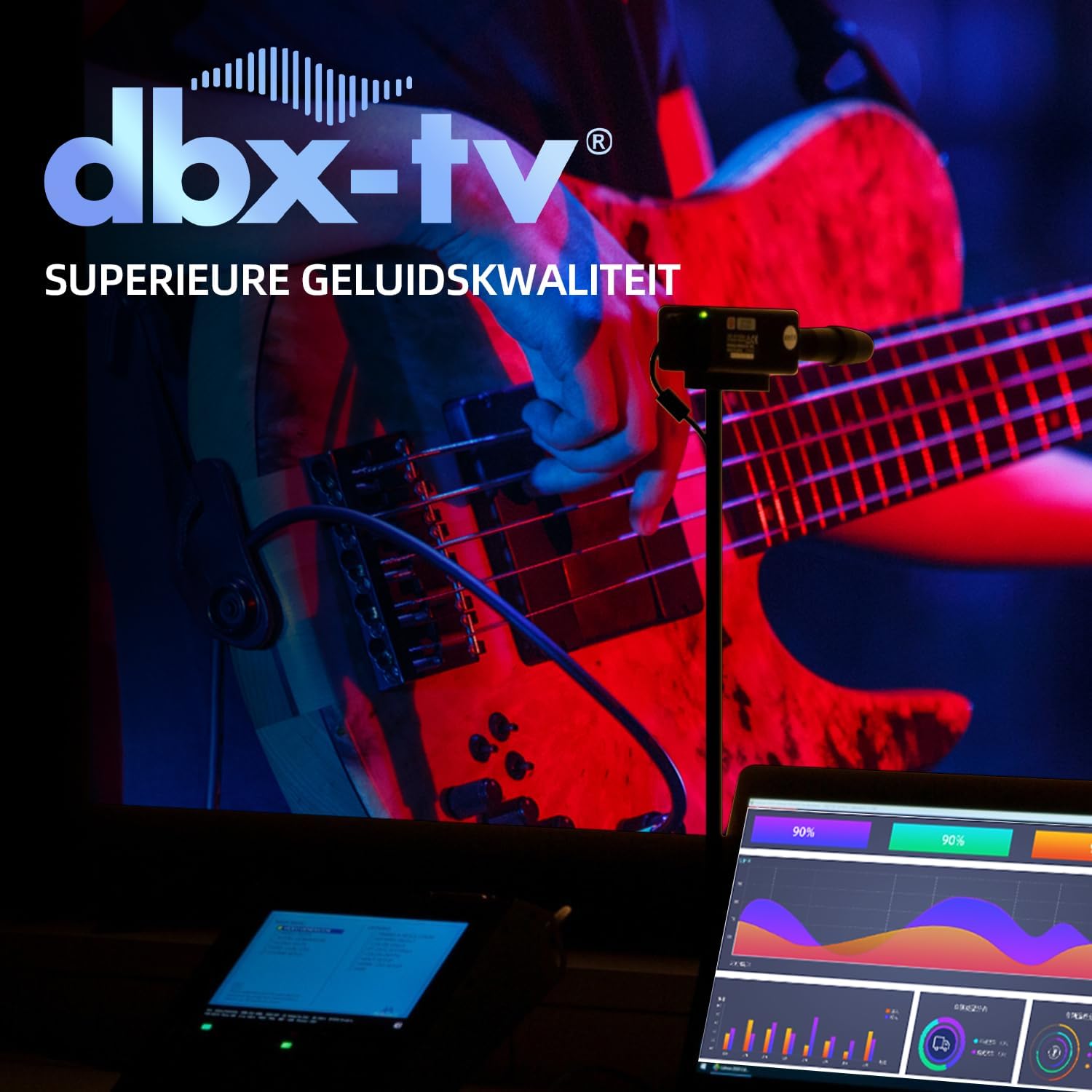
Image 3.7: Visual representation of DBX-TV audio technology, emphasizing superior sound quality.
4. Maintenance
4.1 Cleaning Your TV
To clean the screen, gently wipe it with a soft, dry, lint-free cloth. For stubborn marks, slightly dampen the cloth with water or a screen cleaner specifically designed for TVs. Do not use harsh chemicals or abrasive materials. For the TV body, use a soft, dry cloth.
4.2 Software Updates
Your TV may receive software updates periodically to improve performance and add new features. Ensure your TV is connected to the internet to receive these updates. You can usually check for updates manually in the TV's settings menu.
5. Troubleshooting
If you encounter any issues with your TV, refer to the following common problems and solutions:
| Problem | Possible Solution |
|---|---|
| No power | Check if the power cord is securely connected to the TV and the power outlet. Ensure the power outlet is functional. |
| No picture, but sound is present | Check the input source. Ensure external devices are properly connected and powered on. |
| No sound, but picture is present | Check the volume level and mute settings. Ensure external audio devices are correctly connected. |
| Remote control not working | Replace the batteries. Ensure there are no obstructions between the remote and the TV's IR sensor. |
| Cannot connect to Wi-Fi | Ensure your router is working. Re-enter the Wi-Fi password. Try restarting both the TV and the router. |
| Apps are slow or freezing | Close unused applications. Clear the cache of problematic apps in the TV settings. Restart the TV. |
6. Specifications
The following table details the technical specifications of the CHIQ L32G7L 32-inch Android 11 Smart TV:
| Feature | Specification |
|---|---|
| Brand | CHiQ |
| Model Number | L32G7L |
| Operating System | Android 11 |
| Screen Size | 32 Inches |
| Display Technology | LED |
| Resolution | 768p |
| Refresh Rate | 60 Hz |
| Special Features | Smart / Internet, HDR10, DBX-TV, Chromecast, Google Assistant |
| Connectivity | Ethernet, USB, Wi-Fi (2.4G/5G), Bluetooth 5.0, HDMI |
| Total USB Ports | 1 |
| Aspect Ratio | 16:9 |
| Product Dimensions (with stand) | 72.4 x 18 x 47.1 cm (W x D x H) |
| Included Components | Television, remote control, power cord, manual, feet |
7. Warranty and Support
7.1 Warranty Information
CHiQ products typically come with a 2-year warranty. For customers in Spain (ES), a 3-year warranty may apply. Please refer to your purchase documentation for specific warranty terms and conditions.
7.2 Customer Support
For technical assistance or inquiries, CHiQ offers an online hotline supported by professional employees on weekdays. Please visit the official CHiQ website for contact details and further support resources.
Additionally, products purchased through Amazon typically benefit from a 30-day return policy without specific reason, subject to Amazon's terms and conditions.


