
Sailstar CP-TD-FX-E-003
Sailstar LED Desk Lamp with Wireless Charger and Pen Holder (Model CP-TD-FX-E-003) User Manual
Comprehensive instructions for setup, operation, and maintenance.
1. Product Overview
The Sailstar LED Desk Lamp is a versatile lighting solution designed for various environments, including home offices, dorm rooms, and study areas. It integrates an adjustable LED light with multiple color modes and stepless dimming, a 10W wireless charging pad, and a convenient pen holder. This lamp provides eye-caring illumination with high CRI and a long lifespan, ensuring comfort during extended use.

Figure 1: Sailstar LED Desk Lamp with integrated features.
2. Package Contents
Verify that all items are present in the package:
- Sailstar LED Desk Lamp (Model CP-TD-FX-E-003)
- Power Adapter (5V/3A)
- User Manual (this document)
3. Setup
The Sailstar LED Desk Lamp requires minimal assembly. Follow these steps to set up your lamp:
- Unpack the Lamp: Carefully remove all components from the packaging.
- Position the Lamp: Place the lamp base on a stable, flat surface.
- Connect Power: Insert the power adapter cable into the charging interface located on the back of the lamp base. Plug the adapter into a standard electrical outlet.

Figure 2: Power adapter and charging interface.
- Adjust Gooseneck: The lamp features a flexible gooseneck. Adjust the lamp head to your desired angle and height for optimal illumination.

Figure 3: Flexible gooseneck for adjustable lighting.
4. Operating Instructions
4.1 Power On/Off and Color Mode Selection
The lamp is controlled by touch-sensitive buttons on the base.
- Power Button (⏻): Short press the power button to turn the lamp ON or OFF.
- Color Mode Button (↻): Short press the color mode button to cycle through the three available color modes:
- Warm Light (3000K)
- Natural Light (4000K)
- Daylight (5000K)

Figure 4: Three adjustable color modes.
4.2 Brightness Adjustment (Stepless Dimming)
To adjust the brightness:
- Long Press: Long press the power button (⏻) to continuously adjust the lamp's brightness from 5% to 100%. Release the button when the desired brightness level is reached.

Figure 5: Stepless dimming control.
4.3 Wireless Charging
The lamp features a built-in 10W wireless charger.
- Placement: Place your compatible smartphone horizontally on the designated wireless charging pad on the lamp base.
- Compatibility: The wireless charger supports compatible iPhones, Samsung, and other Qi-enabled devices.
- Important Notes:
- An overly thick phone case may interfere with wireless charging.
- Does not support Qi EPP (e.g., Google Pixel 4a 5G).

Figure 6: Wireless charging functionality.
4.4 Pen Holder and Phone Stand
The integrated pen holder can store pens, pencils, and other small office supplies. The design also allows for a phone to be placed in a stand position for viewing.

Figure 7: Integrated pen holder and phone stand.
5. Maintenance
- Cleaning: Disconnect the power before cleaning. Use a soft, dry cloth to wipe the lamp. Avoid abrasive cleaners or solvents that may damage the finish.
- Storage: If storing the lamp for an extended period, unplug it and store it in a dry, cool place.
6. Troubleshooting
| Problem | Possible Cause | Solution |
|---|---|---|
| Lamp does not turn on. |
|
|
| Wireless charging not working. |
|
|
| Light flickers or is unstable. |
|
|
7. Specifications
| Feature | Detail |
|---|---|
| Model Name | CP-TD-FX-E-003 |
| Brand | Sailstar |
| Lamp Type | Desk Lamp |
| Light Source Type | LED |
| Wattage | 8 watts |
| Brightness | 800 Lumens |
| Color Rendering Index (CRI) | 85.00 |
| Color Modes | 3 (Warm, Natural, Daylight) |
| Dimming | Stepless (5%-100%) |
| Control Method | Touch |
| Wireless Charger Output | Max 10W |
| Power Source | Corded Electric (5V/3A Adapter Included) |
| Material | Plastic, Acrylic (Shade) |
| Product Dimensions | 5.03"D x 6.29"W x 21.8"H |
| Item Weight | 1.27 Pounds |
| Average Life | 50,000 Hours |
8. Warranty and Support
Sailstar is committed to providing high-quality products and customer satisfaction.
- Warranty: This product comes with a 2-year replacement promise.
- Customer Support: For any questions, missing parts, or defective items, please contact Sailstar customer service. They offer 12-hour fast response and a 30-day money-back guarantee. Replacements are supported within 24 months after confirming issues.
- Manufacturer: Sailstar
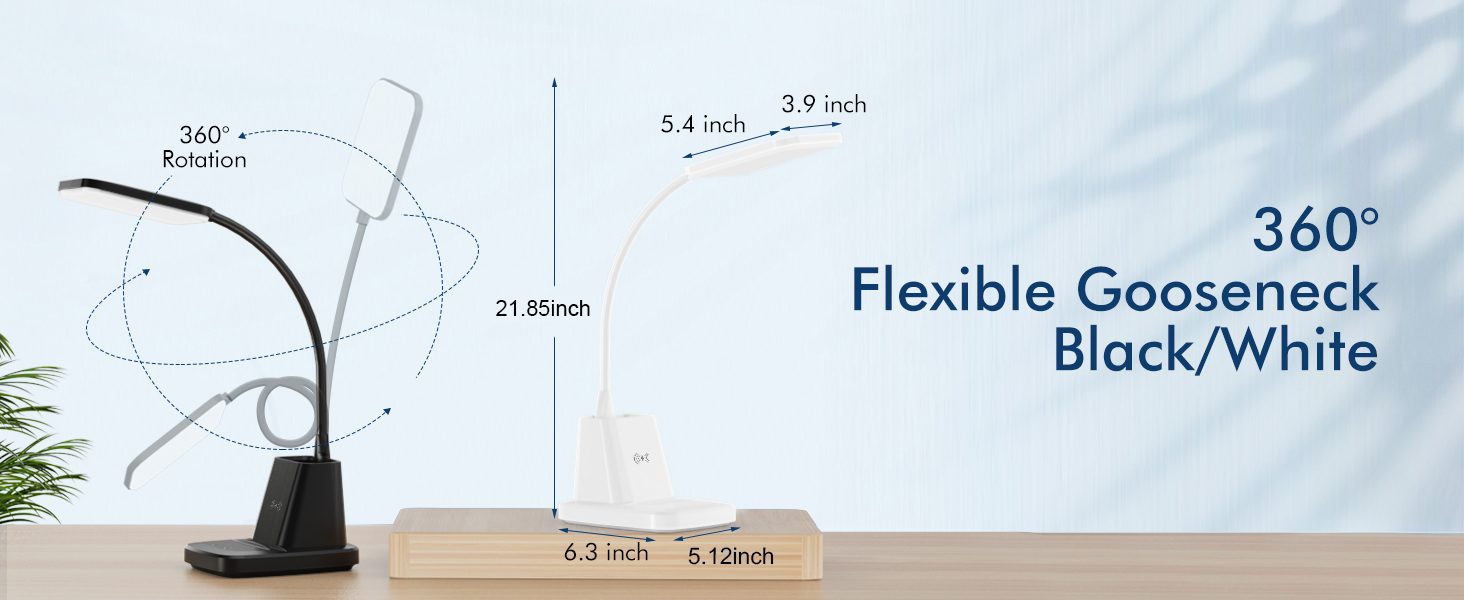
Figure 8: Sailstar 2-Year Replacement Promise.
9. Product Videos
9.1 Sailstar Desk Lamp Overview
Video 1: A brief overview of the Sailstar Desk Lamp's features, including its flexible design, brightness, and wireless charging capability. This video demonstrates the lamp's versatility and ease of use in a home setting.
Ask a question about this manual
Ask about setup, troubleshooting, compatibility, parts, safety, or missing instructions. Manuals+ will review the question and use this page’s manual context to help answer it.