
Introduction
The Enabot EBO Air is an intelligent, movable home security and pet camera designed to provide real-time monitoring, two-way communication, and interactive companionship. Equipped with advanced AI features, night vision, and automatic charging capabilities, the EBO Air allows users to stay connected with their home and loved ones, including pets and babies, from anywhere via the EBO ROLA mobile application. This manual provides detailed instructions for setting up, operating, and maintaining your EBO Air to ensure optimal performance and a seamless user experience.

Image: The EBO Air camera on its charging dock, with a smartphone screen showing a live view of a dog and cat, illustrating its monitoring capabilities.
What's in the Box
Upon unboxing your Enabot EBO Air, please verify that all the following components are included:
- EBO Air Unit
- Charging Dock
- USB Charger
- 32GB Micro SD Card (pre-installed or included separately)
- Silicone Attachment (feathers for pet interaction)
- User Manual (this document)

Image: A visual representation of the EBO Air product packaging and its contents, including the EBO Air robot, charging dock, USB charger, 32GB Micro SD card, and silicone attachments.
Setup Guide
Follow these steps to set up your EBO Air for the first time:
- Charge the EBO Air: Place the EBO Air onto its charging dock. Ensure the dock is connected to a power source using the provided USB charger. The indicator light on the EBO Air will show charging status. Allow it to fully charge before first use.
- Download the EBO ROLA App: Search for "EBO ROLA" in your mobile device's app store (iOS App Store or Google Play Store) and download the application.
- Create an Account: Open the EBO ROLA app and follow the on-screen instructions to create a new user account.
- Add Your EBO Air:
- Tap the "+" icon in the app to add a new device.
- Select "EBO Air" from the device list.
- Follow the app's instructions to connect your EBO Air to your home Wi-Fi network (supports 2.4GHz & 5GHz). You may need to scan a QR code displayed on your phone with the EBO Air's camera.
- Initial Configuration: Once connected, the app will guide you through basic settings, such as naming your EBO Air and setting up initial security preferences.

Image: The EBO ROLA app interface, highlighting the updated design and seamless interaction for controlling the EBO Air.
Operating Instructions
The EBO Air offers a range of functionalities accessible through the EBO ROLA app:
Remote Control and Live View
Open the EBO ROLA app to access the live video feed from your EBO Air. Use the on-screen joystick or directional controls to navigate the EBO Air around your home. The 1080P camera provides clear video, and the FOV 118° wide-angle lens offers a broad viewing field.
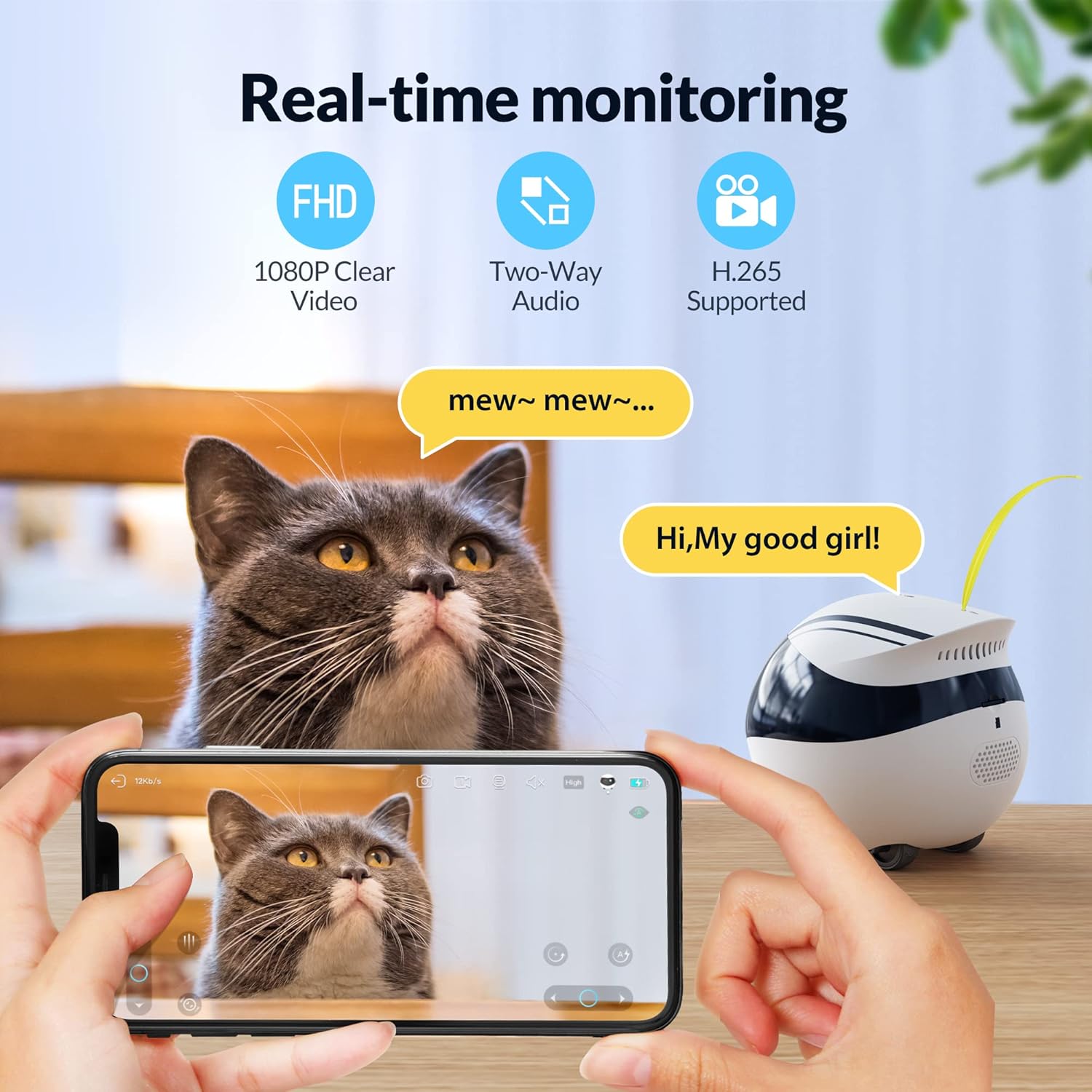
Image: A smartphone screen showing a live video feed from the EBO Air, capturing a cat, with text bubbles indicating two-way audio communication.
Two-Way Talk
Utilize the built-in microphone and speaker to communicate with family members or pets remotely. Tap the microphone icon in the app to speak, and listen through the EBO Air's speaker.
Night Vision
The EBO Air is equipped with night vision capabilities, allowing for clear monitoring even in low-light or dark conditions. This feature ensures continuous home security and pet monitoring around the clock.
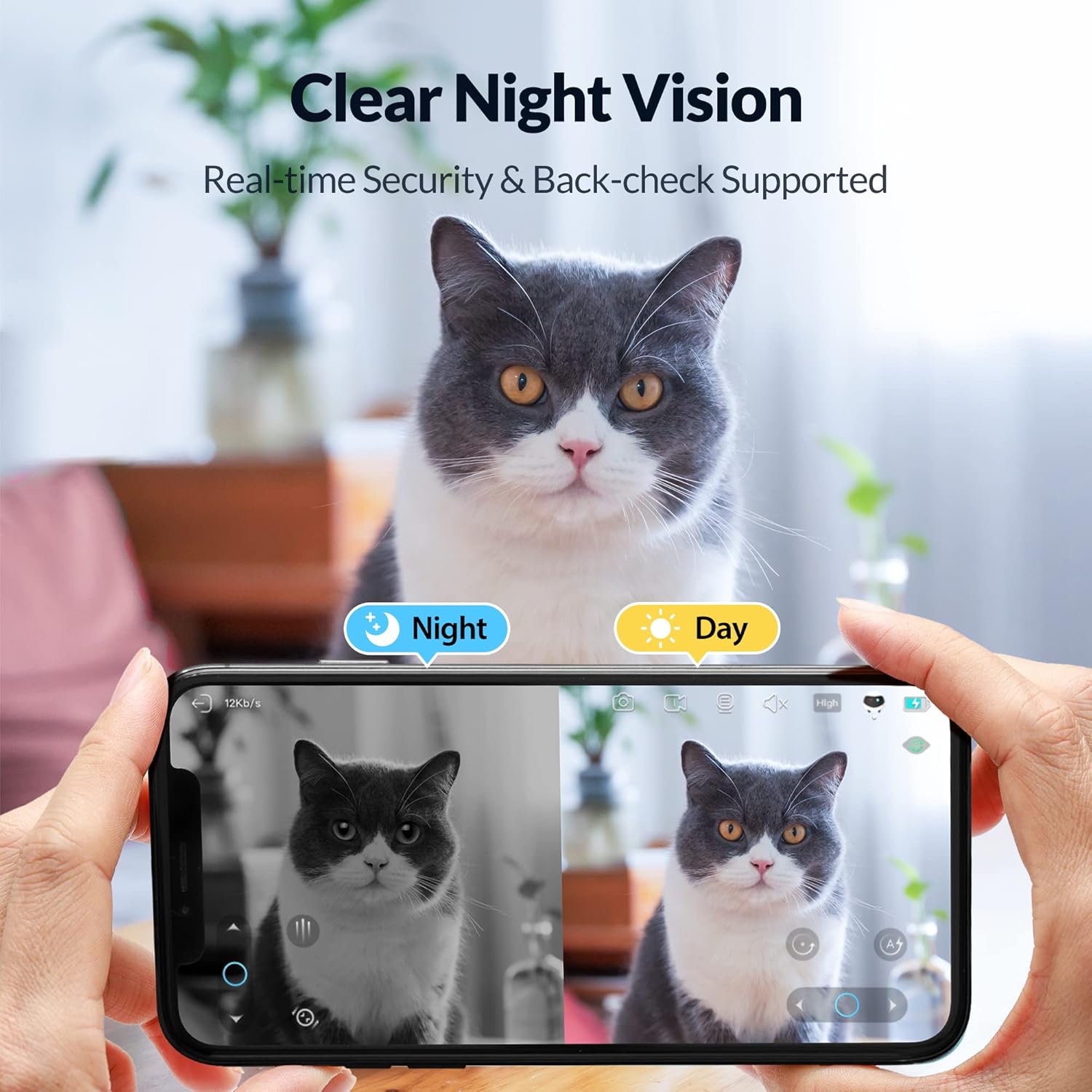
Image: A smartphone displaying a split screen, comparing the EBO Air's day vision with its clear night vision, both showing a cat.
AI Features and Motion Detection
The EBO Air can intelligently recognize human or pets and push notifications to your phone when suspicious activities or movements are detected. It supports fixed-point security and automatic cruise functions for comprehensive home monitoring.
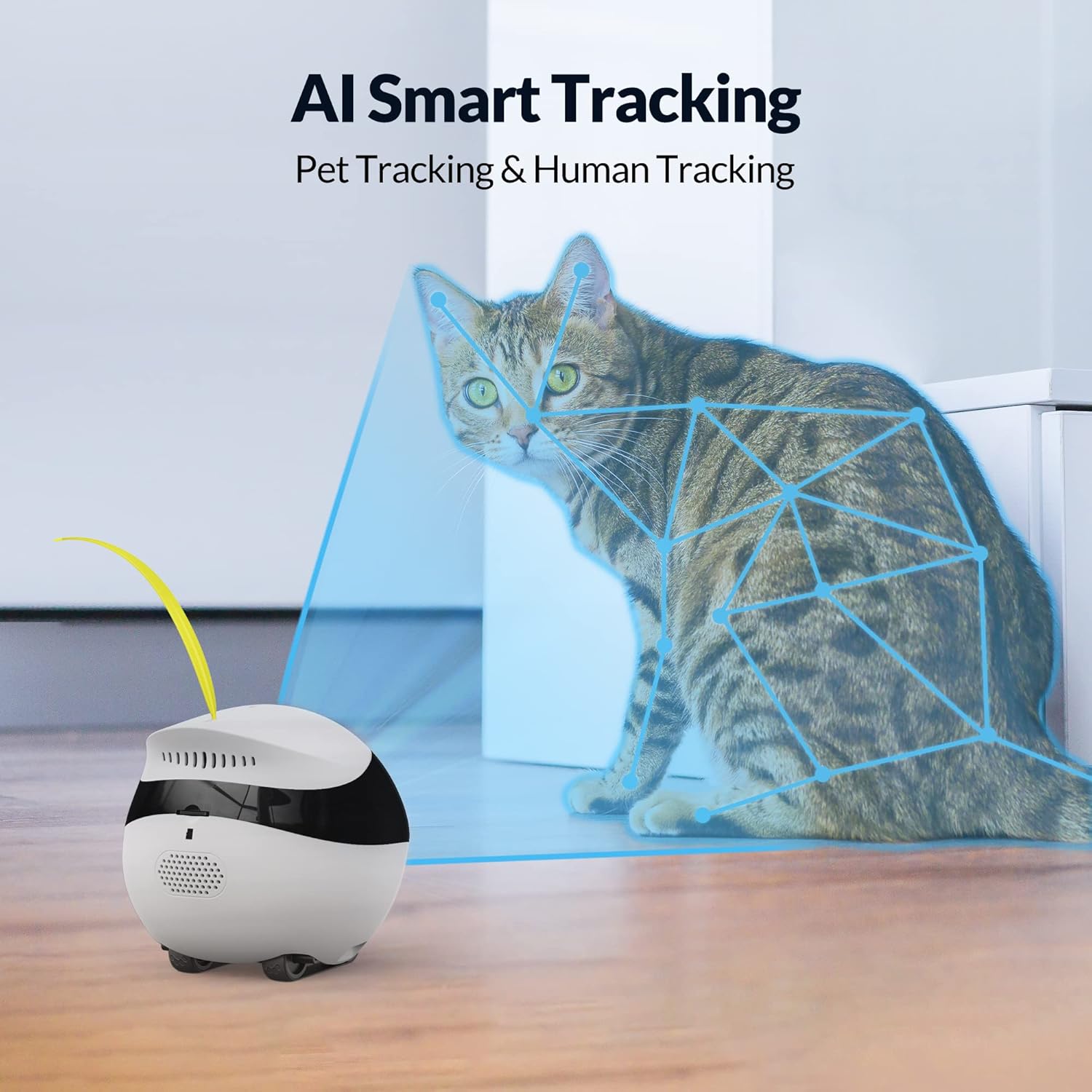
Image: The EBO Air camera positioned near a cat, with overlaid graphics illustrating its AI smart tracking capabilities for both pet and human detection.
Automatic Charging
When the battery is low, the EBO Air is designed to automatically return to its charging dock. Ensure the charging dock is powered on and placed in an accessible area for the EBO Air to find it easily.

Image: The EBO Air robot navigating back to its charging dock, demonstrating its auto-charge functionality, with a dog observing in the background.
E-Pet Function and Interaction
Activate the E-pet function in the app to allow the EBO Air to display various interactive skills, engaging your pets. The head of the EBO Air can also accommodate various DIY accessories, such as the included silicone feathers, for enhanced play.

Image: The EBO Air robot engaging with a cat, illustrating its multiple interactive skills and movement patterns designed for pet play.
Multi-User Access and Privacy
The EBO ROLA app supports multi-user access, allowing you to invite family members to view and control the EBO Air. All data is stored locally on the SD card, ensuring user privacy with no cloud charges or access to personal information by the app.
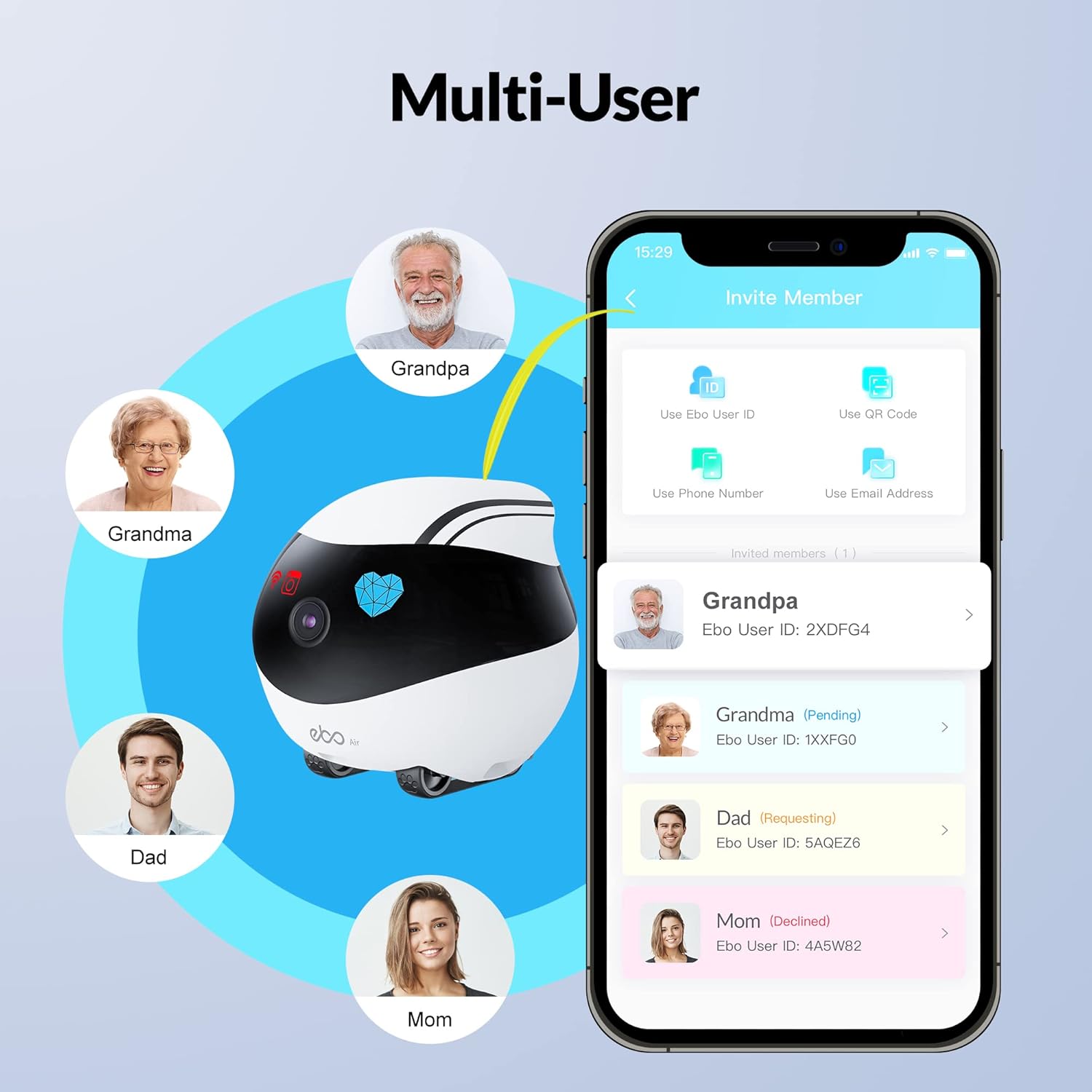
Image: A visual representation of the EBO Air connected to multiple family members' devices via the app, demonstrating its multi-user functionality.
Maintenance
To ensure the longevity and optimal performance of your EBO Air, regular maintenance is recommended:
- Cleaning: Gently wipe the exterior of the EBO Air and its charging dock with a soft, dry cloth. Avoid using harsh chemicals or abrasive materials. Ensure the camera lens is clean for clear video quality.
- Software Updates: Periodically check the EBO ROLA app for available firmware updates. Keeping your EBO Air's software up-to-date ensures access to the latest features and performance improvements.
- SD Card Management: Regularly back up important recordings from the SD card to another storage device. If the SD card becomes full, you may need to delete old files or replace the card.
- Charging Dock Placement: Ensure the charging dock remains in a clear, unobstructed area to allow the EBO Air to return for charging without difficulty.
Troubleshooting
If you encounter issues with your EBO Air, refer to the following common problems and solutions:
| Problem | Possible Cause / Solution |
|---|---|
| EBO Air does not connect to Wi-Fi. |
|
| EBO Air does not return to charging dock. |
|
| Poor video quality or blurry images. |
|
| No motion detection alerts. |
|
| EBO Air moves randomly or unexpectedly. |
|
If the problem persists, please contact Enabot customer support for further assistance.
Specifications
| Feature | Detail |
|---|---|
| Model Name | EBO Air |
| Indoor/Outdoor Usage | Indoor |
| Connectivity Technology | Wireless (Wi-Fi 2.4GHz & 5GHz) |
| Video Capture Resolution | 1080p |
| Field Of View | 118 Degrees |
| Power Source | Battery Powered |
| Controller Type | APP Control |
| Special Features | Motion Sensor, Night Vision, AI Human/Pet Recognition, Two-Way Talk, Auto-Charging |
| Included Components | SD Card |
| Item Dimensions (L x W x H) | 3.78 x 3.78 x 3.5 inches |
| Item Weight | 11.5 ounces |
| International Protection Rating | IP65 |
Warranty and Support
Enabot provides a limited warranty for the EBO Air. Please refer to the warranty card included with your product or visit the official Enabot website for detailed warranty terms and conditions.
For technical support, troubleshooting assistance, or warranty claims, please contact Enabot customer service through their official website or the contact information provided in the EBO ROLA app. When contacting support, please have your product model (EBO Air) and purchase information ready.
Manufacturer: Enabot
Date First Available: December 29, 2021