
Introduction
Thank you for choosing the S-Link SL-20 Smart Pet Feeder. This automatic feeder is designed to provide scheduled meals for your pets, ensuring they are fed consistently even when you are away. Equipped with an HD camera and Wi-Fi connectivity, it allows you to monitor your pet and manage feeding schedules remotely via the Tuya application on your smartphone.
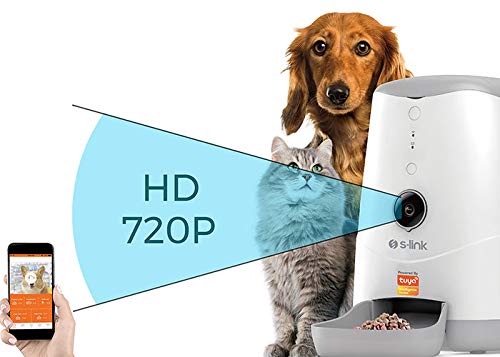
Front view of the S-Link SL-20 Smart Pet Feeder, showing the camera, indicator lights, and food tray.
Package Contents
Please check the package for the following items:
- S-Link SL-20 Smart Pet Feeder Unit
- Power Adapter (DC 5V, 2A USB Adapter)
- User Manual / Warranty Certificate
Product Overview
The S-Link SL-20 features a robust design with a 3.7-liter food hopper, suitable for dry pet food. Key components include:
- Food Hopper: Large capacity for dry food storage.
- Feeding Tray: Removable for easy cleaning.
- HD Camera: For live video monitoring of your pet.
- Control Panel: Includes indicator lights and manual feed button.
- Power Port: For connecting the DC 5V power adapter.

Close-up view of the S-Link SL-20 Smart Pet Feeder, highlighting the camera and control indicators.
Setup
- Unpack the Feeder: Remove all components from the packaging.
- Connect Power: Plug the DC 5V, 2A USB power adapter into the feeder's power port and then into a wall outlet. The feeder supports portable power banks as a backup power system.
- Install the App: Download the Tuya Smart application from the App Store (iOS) or Google Play Store (Android) on your smartphone.
- Register/Log In: Open the Tuya Smart app and register a new account or log in with an existing one.
- Add Device: In the app, tap '+' to add a new device. Select 'Small Home Appliances' > 'Pet Feeder (Wi-Fi)'. Follow the on-screen instructions to connect the feeder to your home Wi-Fi network (2.4GHz only).
- Fill Food Hopper: Open the lid of the food hopper and fill it with dry pet food. Ensure the lid is securely closed after filling. The feeder has a low food alert feature.
Operating Instructions
Scheduled Feeding
The primary function of the S-Link SL-20 is scheduled feeding. Use the Tuya Smart app to set up feeding times and portion sizes.
- Open the Tuya Smart app and select your S-Link SL-20 feeder.
- Navigate to the 'Schedule' or 'Feeding Plan' section.
- Set desired feeding times throughout the day.
- Adjust the portion size for each meal (20-400 ml per meal).
- Save your settings. The feeder will automatically dispense food at the programmed times.
Manual Feeding
You can dispense food manually at any time:
- Via App: In the Tuya Smart app, select the manual feed option to dispense a single portion immediately.
- Via Feeder Button: Press the manual feed button on the feeder's control panel to dispense a single portion.
Live Video Monitoring
The integrated 720p HD camera allows you to view your pet remotely.
- Open the Tuya Smart app and select your S-Link SL-20 feeder.
- Tap on the video feed to view live footage from the feeder's camera.
- The camera has a 120-degree viewing angle.
Maintenance
Cleaning
Regular cleaning ensures hygiene and proper functioning of the feeder.
- Food Tray: The feeding tray is removable for easy cleaning. Hand wash only with mild soap and water. Rinse thoroughly and dry completely before reattaching.
- Food Hopper: Periodically empty and wipe the inside of the food hopper with a dry or slightly damp cloth. Ensure no moisture remains before refilling with dry food.
- Main Unit: Wipe the exterior of the feeder with a soft, dry cloth. Do not immerse the main unit in water or use abrasive cleaners.
Refilling Food
When the low food alert is triggered or the hopper is visibly low, refill it with dry pet food. Ensure the lid is closed tightly to maintain food freshness.
Troubleshooting
- Feeder Not Dispensing Food:
- Check if the feeder is powered on and connected to a power source.
- Ensure the food hopper is not empty.
- Verify that the food chute is not blocked by food particles.
- Check the feeding schedule in the app for correct settings.
- Wi-Fi Connection Issues:
- Ensure your Wi-Fi network is 2.4GHz. The feeder does not support 5GHz networks.
- Check if the feeder is within range of your Wi-Fi router.
- Restart your Wi-Fi router and the feeder.
- Try re-pairing the device with the Tuya Smart app.
- Camera Not Working / No Live Feed:
- Verify the feeder has a stable Wi-Fi connection.
- Check your internet connection on your smartphone.
- Restart the Tuya Smart app.
- App Not Responding:
- Close and reopen the Tuya Smart app.
- Ensure your smartphone's operating system is up to date.
- Check for app updates in your app store.
Specifications
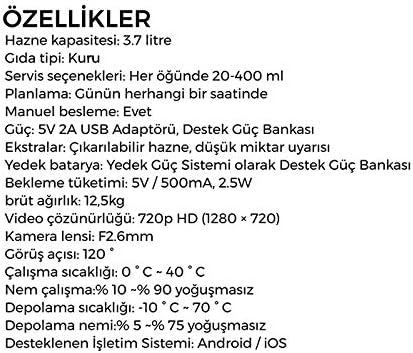
Detailed specifications of the S-Link SL-20 Smart Pet Feeder.
| Feature | Detail |
|---|---|
| Brand | S-LINK |
| Model | SL-20 |
| Color | White |
| Material | Plastic, Metal |
| Hopper Capacity | 3.7 Liters |
| Food Type | Dry Food |
| Serving Options | 20-400 ml per meal |
| Scheduling | Programmable for any time of day |
| Manual Feeding | Yes |
| Power Supply | DC 5V, 2A USB Adapter (Supports portable power banks) |
| Power Consumption | 5 Watt (Operating), 2.5 Watt (Standby) |
| Video Resolution | 720p HD (1280x720) |
| Camera Lens | F2.6mm |
| Viewing Angle | 120 Degrees |
| Connectivity | Wi-Fi (2.4GHz) |
| Supported Systems | TUYA Cloud System |
| Supported OS | Android / iOS |
| Operating Temperature | 0°C ~ 40°C |
| Operating Humidity | 10% ~ 90% (Non-condensing) |
| Storage Temperature | -10°C ~ 70°C |
| Storage Humidity | 5% ~ 75% (Non-condensing) |
| Product Dimensions (L x W x H) | 348mm x 247mm x 357mm (approx. 21.5 x 23 x 35 cm) |
| Product Weight | 1.85 kg |
| Care Instructions | Hand wash removable parts only |
Warranty and Support
Warranty Information
The S-Link SL-20 Smart Pet Feeder comes with a 24-month warranty from the date of purchase. Please retain your proof of purchase for warranty claims. The warranty covers manufacturing defects and malfunctions under normal use conditions.
Customer Support
For technical assistance, troubleshooting, or warranty inquiries, please contact S-Link customer support. Refer to the contact information provided on your warranty certificate or the official S-Link website.