
1. Introduction
This manual provides detailed instructions for the proper use and maintenance of your Soufyuane TK905 4G GPS Tracker. Please read this manual thoroughly before operating the device to ensure optimal performance and safety. The TK905 is designed for vehicle tracking and asset management, offering real-time location, historical route playback, and various alert functions.
2. Product Overview
2.1 Key Features
- 4G GSM/GPRS Network & GPS Satellites: Utilizes advanced technology for precise location tracking.
- Real-time Tracking: Monitor targets via SMS, mobile application, or web platform.
- Ultra-Long Battery Life: Equipped with a 5000mAh battery, offering 7-10 days continuous working time and up to 90 days standby time. Includes low power alarm.
- History Route Playback: Access and review up to 6 months of historical route data.
- Multiple Positioning Ways: Supports GPS, AGPS, and LBS positioning for enhanced accuracy (GPS accuracy: 5-10 meters).
- No Installation Required: Features 5 powerful built-in magnets for easy and quick attachment to any iron surface.
- Waterproof (IP67): Designed to withstand water exposure.
- Voice Monitor: Remotely listen to the surroundings of the device.
- Alert Functions: Includes Move Alert, Geo-fence Alert, and Shock Alarm.
- Multi-Device Management: Ability to manage multiple trackers from a single account on the APP/Web platform.
2.2 Package Contents
Please check the package for the following items:
- 1 x Soufyuane TK905 GPS Tracker
- 1 x USB Charging Cable
- 1 x SIM Card (pre-installed or included separately)
- 1 x User Manual
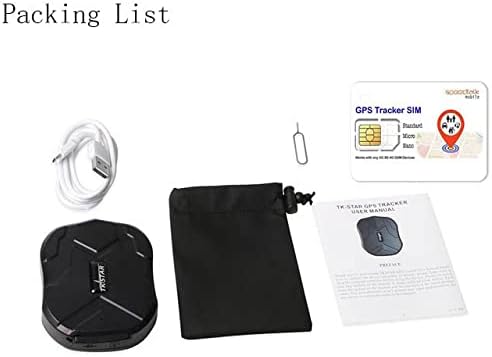
Image: Contents of the Soufyuane TK905 GPS Tracker package.
2.3 Product Diagram and Dimensions
Familiarize yourself with the device's components and dimensions:

Image: Soufyuane TK905 GPS Tracker with dimensions, ports, and magnet locations.
- Dimensions: 90 x 72 x 22mm
- Weight: 168g
- USB Port: For charging the device.
- SIM Card Slot: Insert your 4G SIM card here.
- Indicator Light: Provides status information (e.g., network, GPS signal, battery).
- Lanyard Hole: For attaching a lanyard or strap.
- Strong Magnets: 5 powerful magnets for secure attachment.
3. Setup Guide
3.1 SIM Card Installation
- Ensure the device is powered off.
- Locate the SIM card slot on the side of the tracker.
- Insert a 4G GSM/GPRS enabled SIM card into the slot. Ensure the SIM card has an active data plan and is correctly oriented.
- Close the SIM card slot cover securely to maintain waterproof integrity.
3.2 Charging the Device
- Connect the provided USB charging cable to the tracker's USB port.
- Connect the other end of the USB cable to a 5V-1A USB power adapter (not included) or a computer's USB port.
- The indicator light will show charging status. A full charge typically takes several hours.
- For optimal battery life, fully charge the device before first use.
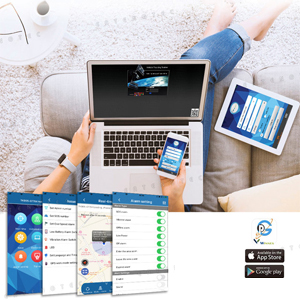
Image: Battery status and low power notification.
3.3 Powering On/Off
- Power On: Press and hold the power button (if available, otherwise device powers on automatically upon SIM insertion and charge). The indicator lights will illuminate.
- Power Off: Press and hold the power button until the indicator lights turn off.
3.4 Application/Web Platform Setup
- Download the official tracking application from your smartphone's app store (iOS/Android) or visit the designated web tracking platform.
- Register a new account using the device's IMEI number (found on the device or packaging) and follow the on-screen instructions.
- If you have multiple trackers, contact support to create a master account for managing all units simultaneously.
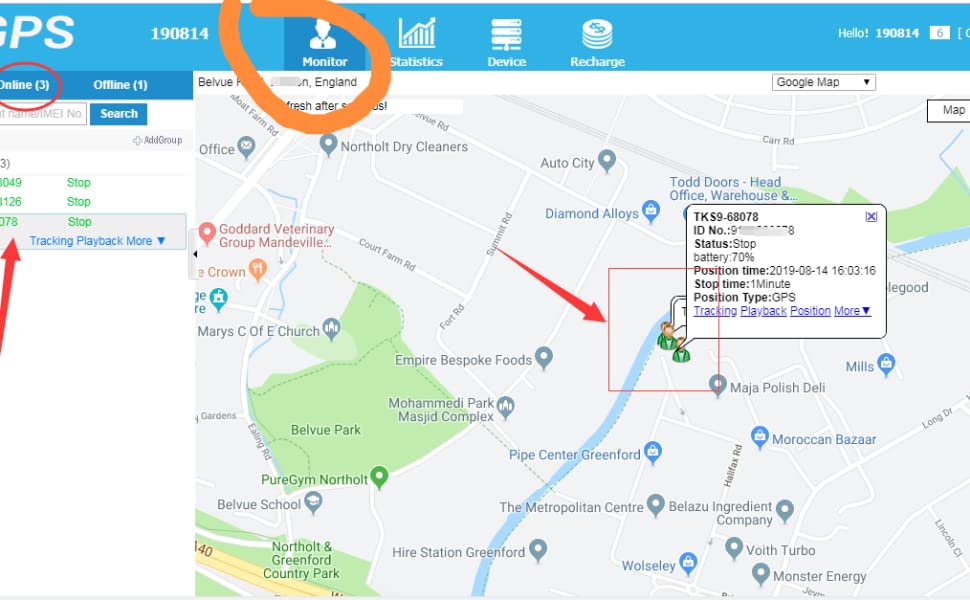
Image: Overview of the mobile application and web tracking platform.
3.5 Device Mounting
The TK905 features 5 powerful magnets for flexible and secure mounting. Attach the tracker to any iron surface on your vehicle or asset. Common mounting locations include:
- Under the car chassis
- Inside the trunk
- Under the secondary seat
- Inside the door glove box
- On the front or rear bumper (ensure secure attachment)

Image: Recommended magnetic mounting locations on a vehicle.
4. Operating Instructions
4.1 Real-time Tracking
You can track the device's location in real-time using three methods:
- SMS Command: Send the command "g123456#" to the tracker's phone number. The tracker will reply with a location link.
- Mobile Application: Open the tracking app on your smartphone. The current location of the tracker will be displayed on the map.
- Web Platform: Log in to the web tracking platform from a computer. The device's real-time location will be visible on the map interface.

Image: Real-time tracking interface on mobile, tablet, and computer.
4.2 History Track Playback
The device records and saves up to 180 days of historical route data. To access this feature:
- Open the mobile application or log in to the web platform.
- Navigate to the "History Track" or "Playback" section.
- Select the desired date range to view the recorded routes. You can analyze driving routes and times.

Image: History route playback on the tracking platform.
4.3 Voice Monitor
The voice monitor function allows you to remotely listen to the audio around the tracker:
- Send the appropriate SMS command for voice monitoring (refer to the specific SMS command list in the full user manual, if provided).
- The tracker will call back to your authorized phone number, allowing you to listen to the surroundings.
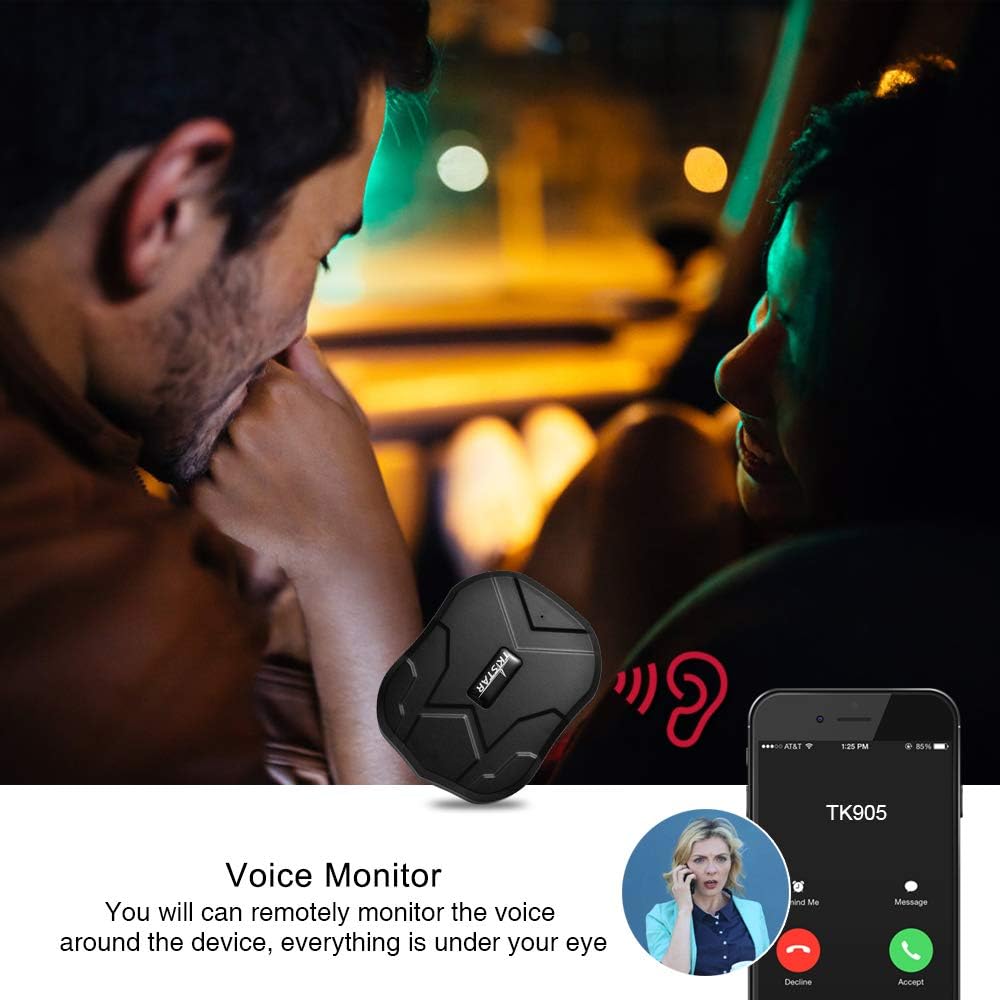
Image: Voice monitoring functionality.
4.4 Shock Alarm
The shock alarm notifies you if the tracker detects significant movement or impact:
- Activate the shock alarm setting via the mobile application or by sending an SMS command (e.g., "sensor alarm").
- After activation, ensure the tracker remains stationary for 5 minutes for the function to initialize.
- If the unit detects a shock, it will send an SMS alert to the designated administrator number.
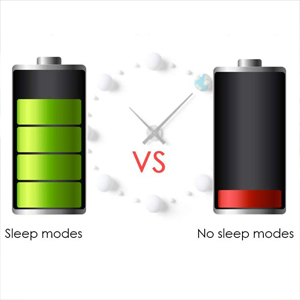
Image: Shock alarm notification.
4.5 Move Alert
Set up a move alert to be notified when the tracker moves a specified distance:
- Configure the move alert distance (e.g., 500m) through the mobile application or SMS command.
- Once the tracker moves beyond the set distance from its initial position, it will send an alert.
4.6 Geo-fence Alert
Create virtual boundaries (geo-fences) and receive alerts when the tracker enters or exits these areas:
- On the mobile application or web platform, define a specific geographical area on the map.
- When the tracker enters or leaves this defined area, an alert will be sent to your registered contact.
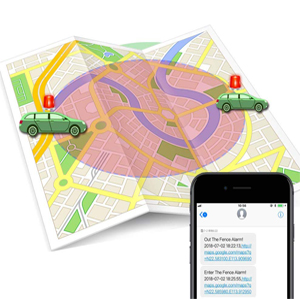
Image: Geo-fence alert functionality.
5. Maintenance
- Charging: Recharge the device when the low power alarm is triggered or regularly to ensure continuous operation. Use only the provided USB cable.
- Water Resistance: The TK905 is IP67 waterproof. Ensure the SIM card slot cover is always securely closed to maintain its water resistance. Avoid prolonged submersion or high-pressure water jets.
- Cleaning: Wipe the device with a soft, dry cloth. Do not use harsh chemicals or abrasive cleaners.
- Storage: Store the device in a cool, dry place when not in use for extended periods.
6. Troubleshooting
- Device not powering on: Ensure the device is fully charged. Check the USB cable and power adapter.
- No GPS signal: Ensure the device is in an open area with a clear view of the sky. GPS signals may be weak or unavailable indoors or in dense urban areas.
- No network connection (GSM/GPRS): Verify that the SIM card is correctly inserted and has an active 4G data plan. Check the network coverage in your area.
- Inaccurate location: This can occur in areas with poor GPS signal or when relying solely on LBS (Location Based Service) which is less precise. Move the device to an open area.
- App/Web platform not showing data: Confirm the device is powered on and has a stable network connection. Log out and log back into the application/web platform.
- Alerts not received: Check your alert settings in the app/web platform. Ensure your contact number is correctly registered.
7. Specifications
| Feature | Specification |
|---|---|
| Network | GSM / GPRS (4G) |
| GPS Sensitivity | -159dBm |
| GPS Accuracy | 5m |
| Input Voltage | 5V-1A |
| Battery | Rechargeable 3.7V 5000mAh Lithium battery |
| Standby Time | Up to 90 days |
| Working Time | 7-10 days (continuous) |
| Cold Boot | 45s |
| Warm Boot | 35s |
| Hot Boot | 1s |
| Dimensions | 90 x 72 x 22mm (3.5 x 2.8 x 0.9 inches) |
| Weight | 168g |
| Waterproof Rating | IP67 |
| Material | Zinc |
8. Warranty and Support
For any technical assistance or inquiries regarding your Soufyuane TK905 GPS Tracker, please refer to the contact information provided with your purchase or visit the official Soufyuane website. If you require an account to manage multiple trackers, please contact customer support to arrange this service.