
1. Introduction
This manual provides detailed instructions for the installation, operation, and maintenance of your Reobiux 1080P Wireless WiFi Light Bulb Security Camera. Please read this manual thoroughly before using the product to ensure correct usage and optimal performance. Keep this manual for future reference.
2. Product Overview
The Reobiux Light Bulb Security Camera integrates a 1080P HD camera into a standard E27 light bulb form factor, offering discreet surveillance. It features 2.4GHz WiFi connectivity, two-way audio, motion detection, and night vision capabilities for comprehensive home monitoring.
- 1080P Full HD Video: Captures clear, high-definition video footage.
- 2.4GHz Wireless WiFi: Connects to your home network for remote access.
- Pan & Tilt Functionality: Offers 355° horizontal rotation and 90° vertical tilt for wide area coverage.
- Two-Way Audio: Built-in microphone and speaker allow for real-time communication.
- Motion Detection & Alerts: Detects movement and sends notifications to your smartphone.
- IR Night Vision & Full Color Night Vision: Provides clear video monitoring in low-light conditions, with options for infrared or color night vision.
- Local & Cloud Storage: Supports Micro SD card storage (up to 128GB, not included) and optional cloud storage.
- Easy Installation: Screws into a standard E27 light bulb socket.

Image: Detailed view of the Reobiux Light Bulb Security Camera, highlighting its components such as the E27 light socket, enhanced WiFi module, microphone, speaker, HD lens, light sensor, 4 white LEDs, 4 array LEDs, Micro SD card slot, and reset button. Dimensions are also shown.
3. Package Contents
Please check the package contents upon opening. If any items are missing or damaged, contact customer support.
- Reobiux Light Bulb Security Camera (1)
- E27 Lamp Holder (1)
- Mounting Screws and Wall Plugs (1 set)
- User Manual (1)
4. Setup Guide
4.1. Physical Installation
- Power Off: Ensure the power to the light socket is turned off before installation to prevent electrical shock.
- Screw In Camera: Carefully screw the Reobiux Light Bulb Security Camera into a standard E27 light bulb socket. Ensure it is securely tightened.
- Power On: Restore power to the light socket. The camera will power on and initiate its self-test sequence. You should hear a prompt indicating it is ready for connection.

Image: A person's hands are shown screwing the Reobiux Light Bulb Security Camera into an E27 light socket, illustrating the easy installation process.
4.2. App Download and Account Registration
- Download App: Search for "ICSEE" in your smartphone's app store (Google Play Store for Android or Apple App Store for iOS) and download the application.
- Register Account: Open the ICSEE app and follow the on-screen instructions to register a new account. If you already have an account, log in.
4.3. Connecting the Camera to WiFi
Ensure your smartphone is connected to a 2.4GHz WiFi network. The camera does not support 5GHz WiFi.
- Add Device: In the ICSEE app, tap the "+" icon to add a new device. Select "Add Camera" or "Smart Camera".
- Select Connection Method: Choose the "WiFi Connection" or "Scan QR Code" method as prompted by the app.
- Enter WiFi Details: Input your 2.4GHz WiFi network name (SSID) and password.
- Pairing: Follow the app's instructions to complete the pairing process. This usually involves holding your phone's QR code in front of the camera lens or listening for a connection sound.
- Confirmation: Once connected, the camera will indicate successful pairing (e.g., a voice prompt or LED indicator change). You can then name your camera and begin live viewing.
5. Operating Instructions
5.1. Live View and Playback
- Access Live Feed: Open the ICSEE app and select your camera from the device list to view the live video feed.
- Playback Recorded Footage: Navigate to the playback section in the app to review videos stored on the Micro SD card or cloud storage.
5.2. Pan and Tilt Control
Use the directional controls within the ICSEE app to remotely adjust the camera's viewing angle.
- Horizontal Rotation: The camera supports 355° pan movement.
- Vertical Tilt: The camera supports 90° tilt movement.

Image: The Reobiux Light Bulb Security Camera is shown with arrows indicating its 355-degree horizontal pan and 90-degree vertical tilt capabilities, alongside a smartphone displaying the camera's control interface.
5.3. Two-Way Audio
To use the two-way audio feature:
- Speak: Tap the microphone icon in the live view interface to speak through the camera's speaker.
- Listen: The camera's built-in microphone will pick up audio from the monitored area.
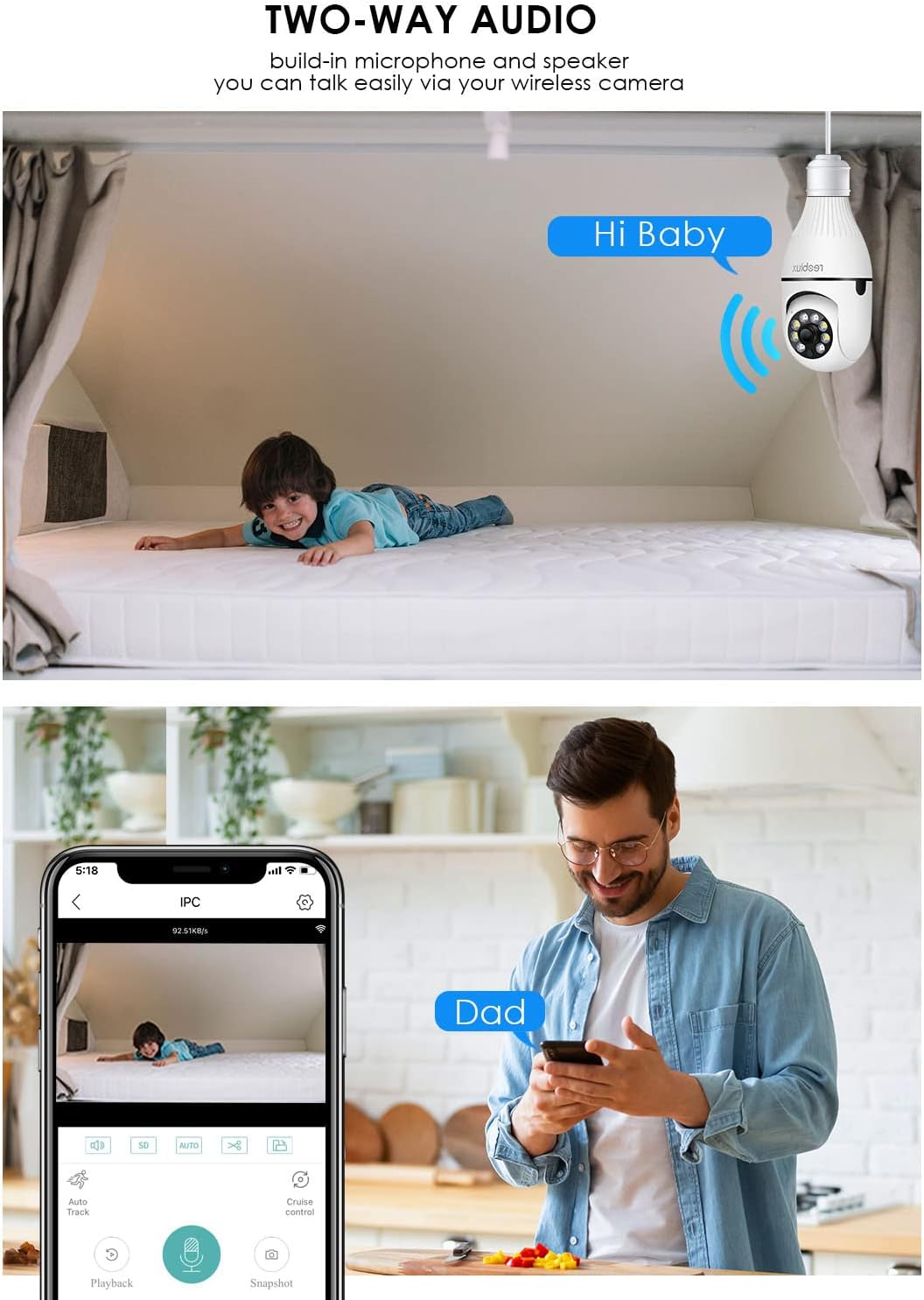
Image: Illustrates the two-way audio function, showing a child on a bed and a person on a phone, with speech bubbles indicating communication through the camera.
5.4. Motion Detection and Alerts
The camera can detect motion and send alerts to your smartphone.
- Enable/Disable: Access the camera settings in the ICSEE app to enable or disable motion detection.
- Sensitivity: Adjust the motion detection sensitivity to minimize false alarms.
- Alerts: Configure notification settings to receive push alerts on your phone when motion is detected.
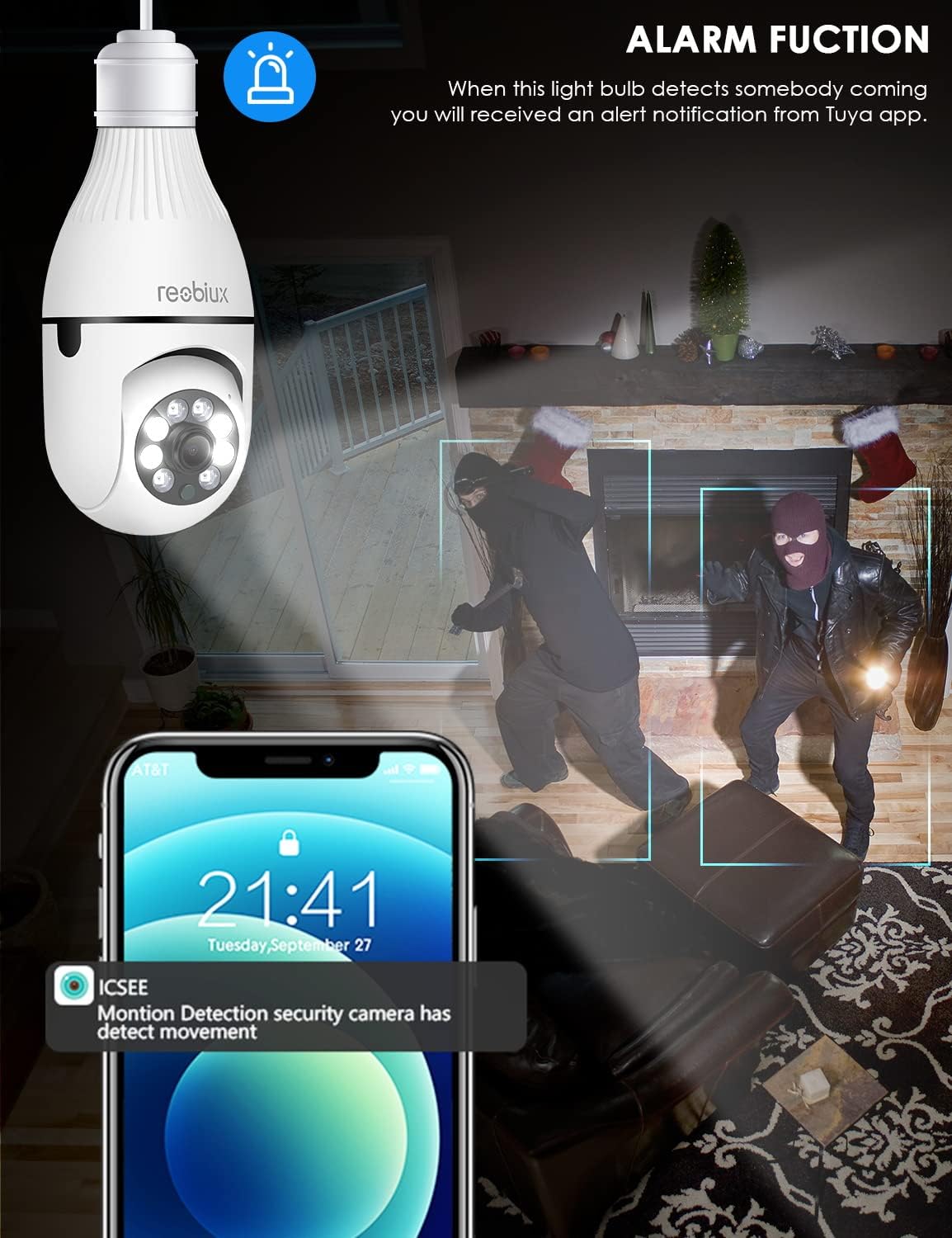
Image: Depicts the camera's alarm function, showing an alert notification on a smartphone screen when motion is detected by the light bulb camera.
5.5. Night Vision Modes
The camera offers enhanced night vision capabilities.
- IR Night Vision: Utilizes infrared LEDs for clear black-and-white video in complete darkness.
- Full Color Night Vision: Activates white supplement lights to provide color video even in low-light conditions.
- Mode Selection: Select your preferred night vision mode in the app settings.
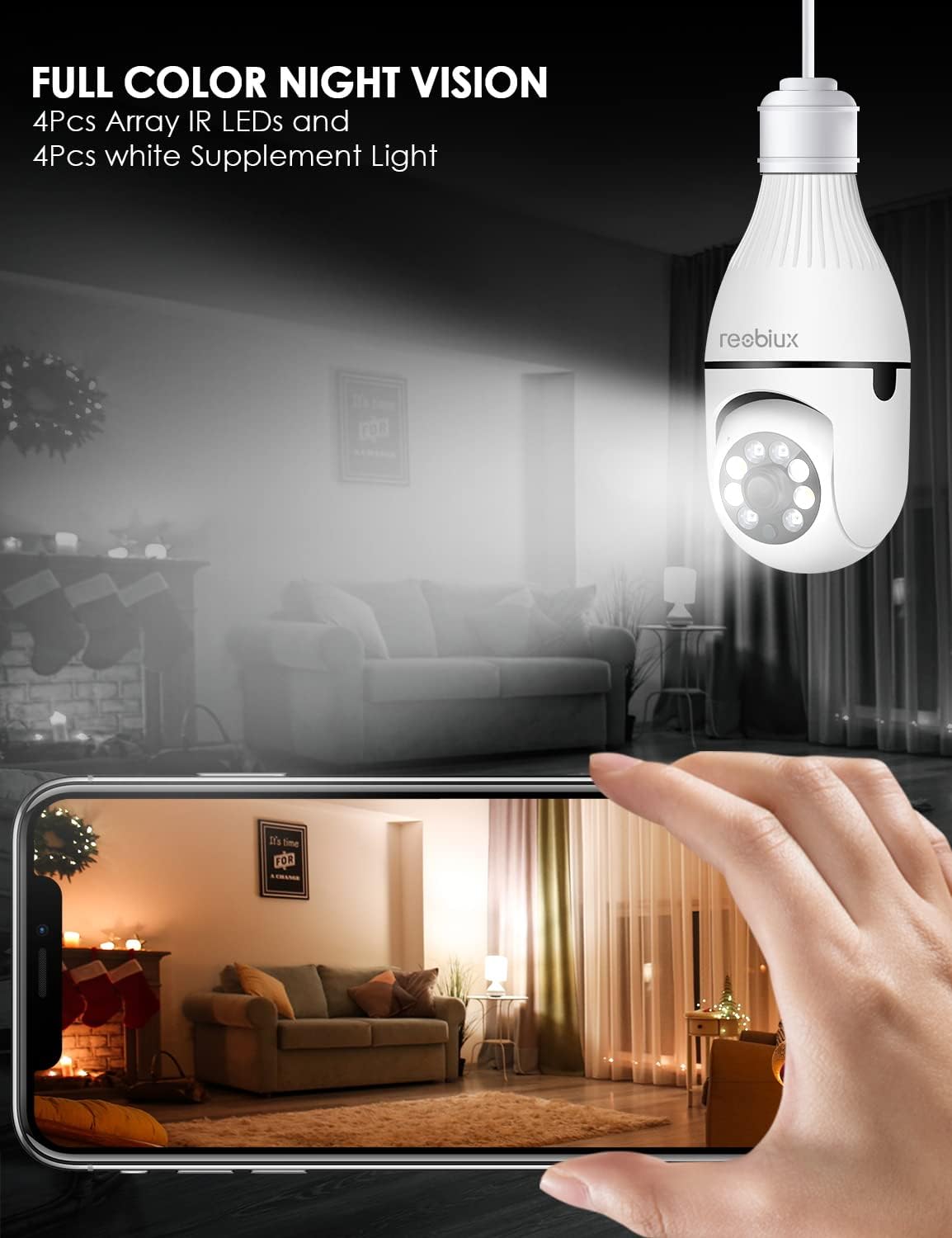
Image: Shows the camera's full-color night vision feature, with a smartphone displaying a clear, illuminated view of a room at night, enabled by the camera's IR LEDs and white supplement lights.
5.6. Storage Options
- Micro SD Card: Insert a Micro SD card (up to 128GB, Class 10 or higher recommended) into the designated slot for local video storage. The camera will automatically overwrite older footage when the card is full.
- Cloud Storage: The ICSEE app may offer optional cloud storage services for a subscription fee. Refer to the app for details.
6. Maintenance
- Cleaning: Gently wipe the camera lens and body with a soft, dry cloth. Do not use liquid cleaners or abrasive materials.
- Firmware Updates: Periodically check the ICSEE app for available firmware updates. Keeping the firmware updated ensures optimal performance and security.
- Resetting the Camera: If you encounter persistent issues or need to reconfigure the camera, locate the reset button (refer to Product Overview image) and press and hold it for approximately 5-10 seconds until you hear a reset confirmation.
7. Troubleshooting
| Problem | Possible Cause | Solution |
|---|---|---|
| Camera fails to connect to WiFi. | Incorrect WiFi password, 5GHz WiFi network, camera too far from router, weak signal. |
|
| No live video feed. | No internet connection, camera offline, app issue. |
|
| Motion detection alerts not received. | Motion detection disabled, app notifications off, incorrect sensitivity. |
|
| Poor video quality. | Weak WiFi signal, dirty lens, low light conditions. |
|
8. Specifications
| Model | B09P8H6BMY |
| Video Capture Resolution | 1080p |
| Wireless Communication Technology | Wi-Fi (2.4GHz only) |
| Mounting Type | Ceiling Mount (E27 Socket) |
| Controller Type | Android, iOS (via ICSEE app) |
| Power Source | AC/DC (via E27 socket) |
| Voltage | 240 Volts |
| Wattage | 3 watts |
| Low Light Technology | Night Color, Infrared |
| Alert Type | Motion Only |
| Material | Plastic |
| International Protection Rating | IP67 (Note: The lightbulb connection itself is not typically rated for outdoor exposure without additional protection.) |
| Item Weight | 10.5 ounces |
| Package Dimensions | 6.46 x 4.13 x 3.62 inches |
9. Warranty Information
Reobiux products are typically covered by a limited warranty against defects in materials and workmanship. For specific warranty terms and conditions, please refer to the documentation included with your purchase or contact Reobiux customer support. Keep your proof of purchase for warranty claims.
10. Customer Support
If you have any questions, encounter issues, or require technical assistance with your Reobiux Light Bulb Security Camera, please contact our customer support team. Refer to the product packaging or the official Reobiux website for the most current contact information.
- Online Support: Visit the official Reobiux website for FAQs, troubleshooting guides, and contact forms.
- Email Support: (Specific email address not provided in data, so general statement)
- Phone Support: (Specific phone number not provided in data, so general statement)
