
1. Product Overview
The UGREEN AC650 USB WiFi Adapter provides wireless internet connectivity for desktop PCs and laptops. It features a 6dBi high-gain antenna and supports dual-band 2.4GHz and 5GHz frequencies, offering enhanced signal strength and coverage. This adapter is designed for easy installation and broad compatibility with various Windows operating systems.

Image: UGREEN AC650 USB WiFi Adapter connected to a laptop, highlighting its 6dBi high-gain antenna for stronger signal, penetration, and wider range.
2. Key Features
- 6dBi High-Gain Antenna: Equipped with a 6dBi external antenna, this adapter offers improved signal penetration and wider coverage, ensuring stable connections even across multiple walls and floors.
- 5G/2.4G Dual Band Support: The adapter supports both 2.4GHz (up to 200Mbps) and 5GHz (up to 433Mbps) bands, automatically switching for optimal speed and stability.
- 90° & 180° Rotatable Antenna: The antenna can be adjusted to multiple angles (90° and 180° rotation) to optimize signal reception and performance in various environments.
- Plug and Play for Windows: Features a built-in driver for Windows 11, 10, 8.1, 8, 7, and XP, allowing for easy installation on most compatible computers and laptops.
- Wi-Fi Hotspot Capability: Supports both Station Mode and Soft AP mode, enabling you to convert your wired computer into a Wi-Fi hotspot for other devices.
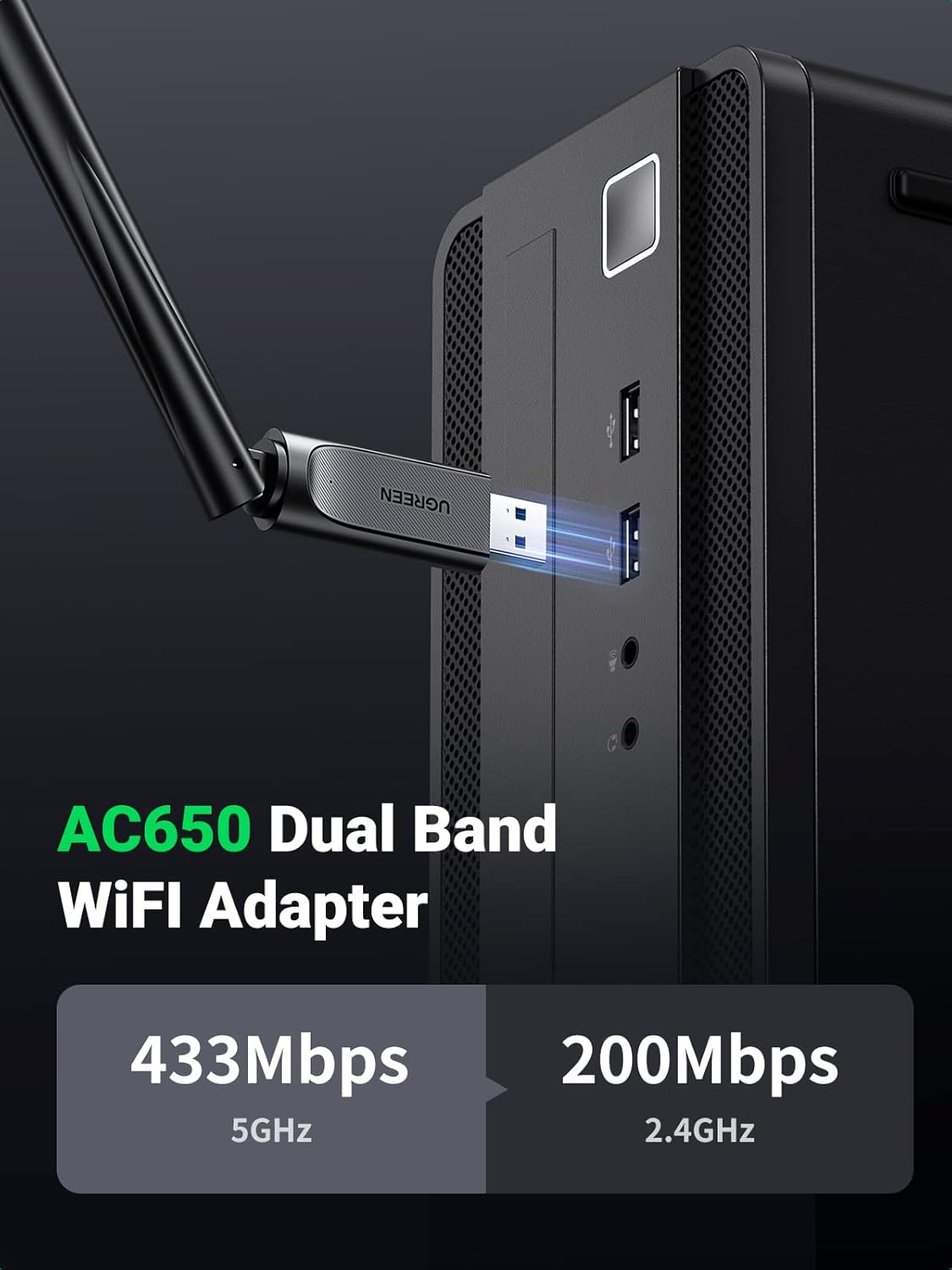
Image: UGREEN AC650 Dual Band WiFi Adapter illustrating its support for 5GHz (433Mbps) and 2.4GHz (200Mbps) frequencies.

Image: Diagram demonstrating the 180-degree and 90-degree rotation capabilities of the adapter's antenna for optimal signal adjustment.
3. Setup and Installation (Windows)
Follow these steps to install the UGREEN AC650 USB WiFi Adapter on a Windows operating system:
- Insert the Adapter: Plug the UGREEN AC650 USB WiFi Adapter into an available USB port on your PC or laptop.
- Run Setup.exe: For Windows 11/10/8.1/8/7/XP, the adapter has a built-in driver. A prompt to run "Setup.exe" may appear in the bottom right corner of your screen. Double-click it to start the installation. If no prompt appears, navigate to "This PC" or "My Computer," locate the "CD Drive (X:) Wireless" (where X is the drive letter), and double-click "Setup.exe" to begin.
- Complete Installation: Follow the on-screen instructions to complete the driver installation. A system restart may be required.
- Connect to Wi-Fi: After installation, click the Wi-Fi icon in your system tray, select your desired Wi-Fi network, and enter the password to connect.
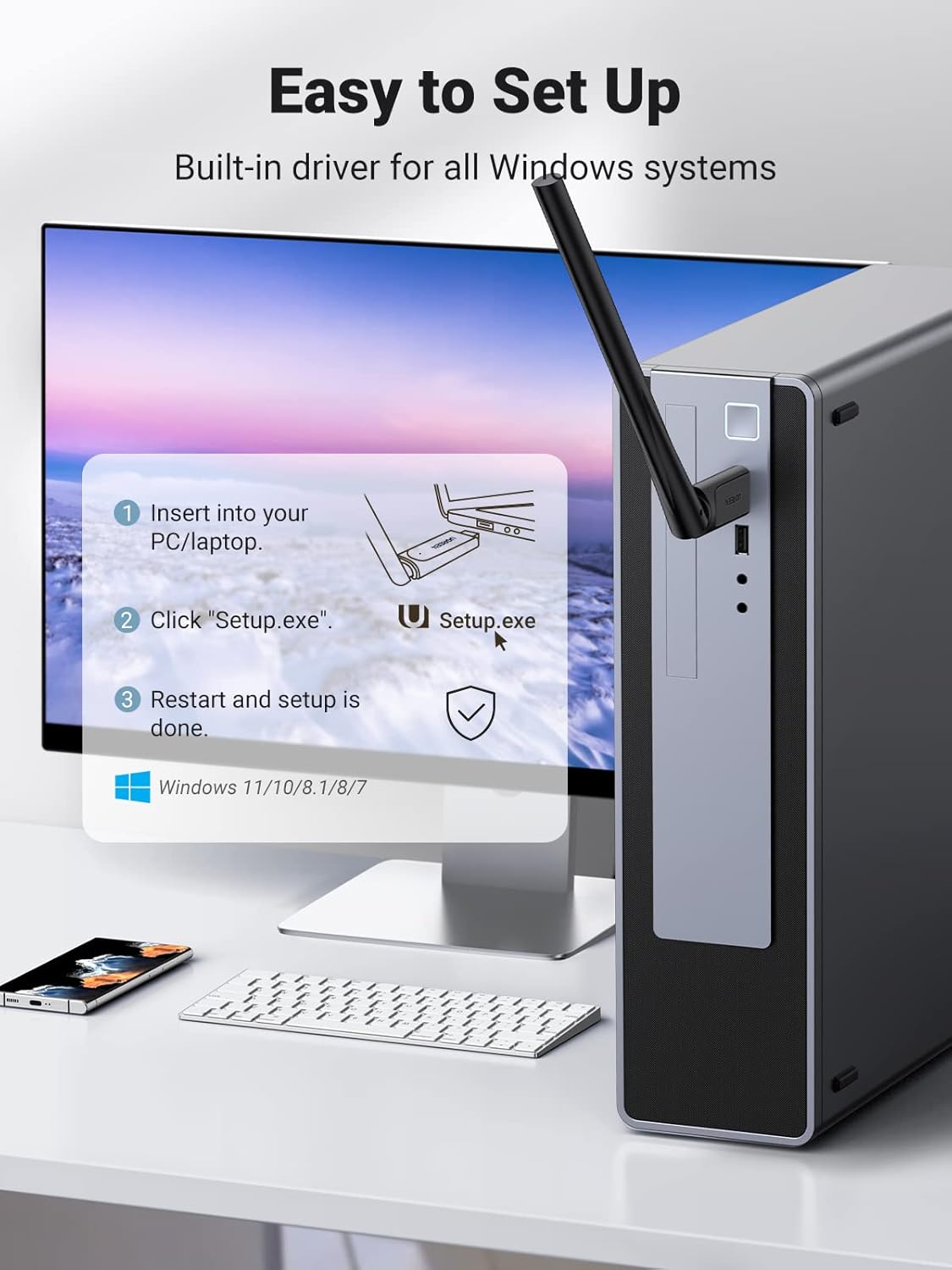
Image: Visual guide for Windows installation, showing the adapter being inserted, the "Setup.exe" prompt, and the final connection step.

Image: Step-by-step visual instructions for installing the UGREEN WiFi adapter on a Windows PC, from insertion to connecting to a network.
Video: UGREEN AC650 USB WiFi Adapter Installation Guide (Windows & Linux)
Video: This video provides a comprehensive guide on how to install and set up the UGREEN AC650 USB WiFi Adapter on both Windows and Linux operating systems, demonstrating the driver installation process and network connection steps.
4. Setup and Installation (Linux)
For Linux operating systems, driver installation typically requires manual steps. Refer to the official UGREEN website for the latest Linux drivers and detailed instructions specific to your Linux distribution.
- Insert the Adapter: Plug the UGREEN AC650 USB WiFi Adapter into an available USB port on your Linux PC or laptop.
- Download Drivers: Visit the official UGREEN support website and locate the Linux drivers for model 90339 (AC650 USB WiFi Adapter). Download the appropriate driver package for your Linux kernel version.
- Install Drivers: Follow the instructions provided with the downloaded driver package. This usually involves compiling the driver from source code using commands like
makeandmake installin the terminal. You may need to install build tools and kernel headers if not already present. - Load Module: After successful compilation and installation, load the kernel module (e.g.,
sudo modprobe 8821cu). - Connect to Wi-Fi: Once the driver is loaded, your system should recognize the Wi-Fi adapter. Use your distribution's network manager to scan for available Wi-Fi networks and connect.
Note: Specific commands and steps may vary depending on your Linux distribution and kernel version. Always refer to the official UGREEN support resources or community forums for the most accurate and up-to-date guidance.
Video: UGREEN AC650 USB WiFi Adapter Installation Guide (Windows & Linux)
Video: This video demonstrates the process of installing the UGREEN AC650 USB WiFi Adapter on a Linux system, including downloading drivers, compiling, and connecting to a Wi-Fi network.
5. Operating Instructions (Hotspot Mode)
The UGREEN AC650 USB WiFi Adapter supports Soft AP mode, allowing your computer to function as a Wi-Fi hotspot. This feature requires additional software.
- Install Hotspot Software: Download and install a compatible Wi-Fi hotspot application for your operating system. Many third-party applications are available, or you can use built-in Windows features (e.g., Mobile Hotspot in Windows 10/11).
- Configure Hotspot: Open the hotspot software or settings. Configure the network name (SSID), password, and security type (WPA2 recommended).
- Activate Hotspot: Enable the hotspot feature. Your computer will now broadcast a Wi-Fi network that other devices can connect to.
- Connect Devices: On your other devices (smartphones, tablets, etc.), search for the Wi-Fi network you just created and connect using the configured password.

Image: A desktop PC with the UGREEN WiFi adapter converting its wired connection into a Wi-Fi hotspot for a smartphone.
6. Troubleshooting
- No Wi-Fi Networks Detected:
- Ensure the adapter is securely plugged into a USB port.
- Verify that the drivers are correctly installed. Reinstall if necessary.
- Check if Wi-Fi is enabled in your operating system settings.
- Try adjusting the antenna's angle for better signal reception.
- Slow Connection Speed:
- Ensure you are connected to the appropriate band (5GHz for faster speeds, 2.4GHz for wider range).
- Reduce interference by moving the adapter away from other electronic devices.
- Check your router's position and signal strength.
- Update the adapter's drivers to the latest version from the UGREEN website.
- Frequent Disconnections:
- Ensure the adapter is not overheating.
- Check for updated drivers.
- Verify that your router firmware is up to date.
- Test the adapter on a different USB port or computer to rule out port issues.
- Driver Installation Issues (Windows):
- If the "Setup.exe" does not auto-run, manually navigate to "This PC" and open the virtual CD drive for the adapter to run the installer.
- Temporarily disable antivirus software during installation if it interferes.
- Driver Installation Issues (Linux):
- Ensure you have the correct kernel headers and build tools installed for your specific Linux distribution.
- Double-check the driver download source and installation instructions from the UGREEN support page.
7. Specifications
| Feature | Detail |
|---|---|
| Model Number | 90339 |
| Brand | UGREEN |
| Hardware Interface | USB |
| Data Link Protocol | USB |
| Data Transfer Rate | Up to 433 Mbps (5GHz), Up to 200 Mbps (2.4GHz) |
| Antenna Type | 6dBi High-Gain External Antenna (Rotatable) |
| Compatible Devices | Desktop, Laptop |
| Compatible Operating Systems | Windows 11/10/8.1/8/7/XP, Linux (driver download required) |
| Color | Black |
| Item Weight | 500 Grams (approximate) |
8. Warranty and Support
For warranty information, technical support, and the latest driver downloads, please visit the official UGREEN website or contact UGREEN customer service. Keep your purchase receipt for warranty claims.
UGREEN Official Website: www.ugreen.com