Introduction
This manual provides instructions for the Lazmin112 300Mbps USB WiFi Extender. This device is designed to expand your existing WiFi network coverage, allowing more devices to connect wirelessly. It supports a wireless rate of up to 300Mbps and features dual external antennas for enhanced signal stability and coverage.
The extender is powered via a USB interface, offering flexible power options from a charger, mobile power bank, or computer USB port. It complies with IEEE802.11 b/g/n standards and supports various encryption types for secure network access.
Product Overview

Figure 1: Front view of the Lazmin112 300Mbps USB WiFi Extender. This image shows the main unit with its two adjustable antennas and the USB connector.

Figure 2: The WiFi extender connected to a laptop, illustrating its compact size and how it integrates with a computer for power and network extension. The text overlay indicates "300M wireless speed with dual antenna, faster speed, wider coverage."

Figure 3: A detailed view of the WiFi extender highlighting its 300M wireless speed and dual antenna design. Icons represent MT7628K Chipset, 360Mbps speed, WiFi Extending, and Multiple Devices Sharing.
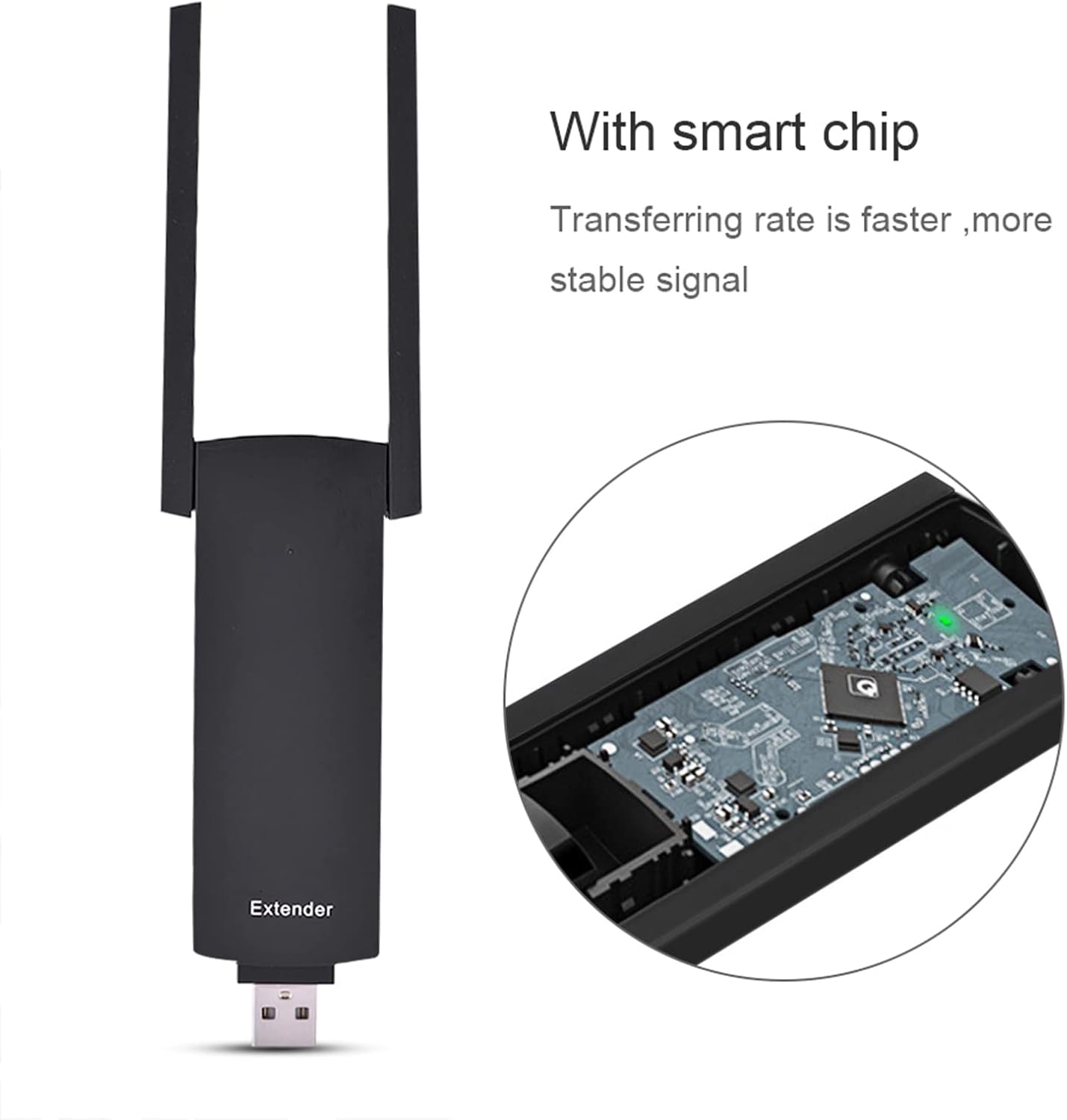
Figure 4: An illustration showing the internal smart chip of the WiFi extender, emphasizing its role in faster data transfer rates and stable signal performance.

Figure 5: Dimensions of the WiFi extender, showing its length (11cm), width (4.7cm), thickness (1.2cm), and antenna length (9cm).

Figure 6: Rear view of the WiFi extender, showing the product label with regulatory information and model details.

Figure 7: Comparison image showing two variations of the WiFi extender, labeled "New Type" and "Old Type," indicating that models may vary in appearance.
Package Contents
- 1 x Lazmin112 300Mbps USB WiFi Extender
- 1 x English User Manual (this document)
Setup
1. Powering the Device
The WiFi extender is powered via its USB interface. Insert the USB connector into any compatible USB power source. This can be:
- A USB wall charger (5V/0.5A recommended)
- A mobile power bank
- A USB port on a computer or laptop
Once powered, the device will typically show an indicator light (if present) to confirm it is active.
2. Configuration Modes
The extender supports two main operating modes: Bridge Repeater Mode and Router Repeater Mode.
Detailed configuration steps for each mode are typically accessed via a web browser interface. Please refer to the specific instructions provided with the device for accessing its web interface and configuring the desired mode. This usually involves connecting to the extender's default WiFi network (e.g., "WiFi-Repeater" or similar) and navigating to a specific IP address (e.g., 192.168.10.1) in your browser.
3. WPS (Wi-Fi Protected Setup)
The device supports WPS for quick and easy setup with compatible routers. If your router has a WPS button:
- Plug in the WiFi extender near your router.
- Press the WPS button on your router.
- Within two minutes, press the WPS button (or activate WPS via the web interface) on the WiFi extender.
- The indicator lights on both devices should show a successful connection after a short period.
If WPS setup fails, proceed with manual configuration via the web interface.
Operating
Extending Your WiFi Network
Once configured, the WiFi extender will broadcast an extended WiFi signal. You can connect your wireless devices (laptops, smartphones, tablets) to this extended network. The network name (SSID) of the extended network may be the same as your original network (in bridge mode) or a new one (in router mode), depending on your configuration.
For optimal performance, place the extender in a location that receives a strong signal from your main router and is also centrally located to the areas where you need extended coverage.
Security
The device supports WEP, WPA, WPA2, and WPA & WPA2 mixed encryption protocols. Ensure your extended network is secured with a strong password using WPA2 encryption for the best protection.
Maintenance
Firmware Updates
Periodically check the manufacturer's website for firmware updates. Firmware updates can improve performance, add new features, and enhance security. Follow the instructions provided with the firmware update carefully to avoid damaging the device.
Cleaning
Clean the device with a soft, dry cloth. Do not use liquid cleaners or aerosols. Ensure the device is unplugged before cleaning.
Resetting the Device
If you encounter persistent issues or wish to reconfigure the device from scratch, you can perform a factory reset. The device has a reset button. Typically, you will need to press and hold this button for 5-10 seconds while the device is powered on. Refer to the specific instructions for your device model for the exact reset procedure.
Troubleshooting
- No Power Indicator Light: Ensure the USB connector is fully inserted into a working USB port or power adapter. Try a different USB power source.
- Cannot Connect to Extender's WiFi: Verify the extender is powered on. If you've changed the extender's WiFi name (SSID) or password, ensure you are using the correct credentials. Try resetting the device to factory defaults and reconfiguring.
- Weak or Unstable Extended Signal: Relocate the extender to a position between your main router and the desired coverage area where it can receive a strong signal from the router. Avoid placing it near large metal objects, microwaves, or other sources of interference.
- Slow Internet Speed: Ensure your main internet connection is stable and fast. The extender's speed is limited by the main router's speed. Check for interference. If using bridge mode, ensure the extender is receiving a strong signal from the main router.
- Configuration Issues: If you cannot access the web interface, ensure your device is connected to the extender's network and you are using the correct IP address. Clear your browser's cache or try a different browser. A factory reset may resolve configuration conflicts.
Specifications
| Feature | Detail |
|---|---|
| Brand | Lazmin112 |
| Model Number | Lazmin112nuxiw0kqvp6061 |
| WiFi Standard | IEEE802.11 b/g/n |
| Transmission Speed | Up to 300Mbps |
| Antennas | Dual External Active Antennas |
| Interface | 1 * USB, 1 * Reset Button |
| CPU | MTK |
| Power Consumption | 5V / 0.5A |
| Encryption Support | WEP, WPA, WPA2, WPA & WPA2 mixed |
| Operating Temperature | 0 ~ 40℃ (32 ~ 104℉) |
| Storage Temperature | -10 ~ 70℃ (14 ~ 158℉) |
| Working Humidity | 0% to 95% (non-condensing) |
| Storage Humidity | 0% to 95% (non-condensing) |
| Dimensions (including USB connector) | 11 x 4.7 x 1.2 cm (4.33 x 1.85 x 0.47 inches) |
| Active Antenna Length | 9 cm (3.54 inches) |
| Item Weight | Approximately 66g (2.33 oz) |
Warranty and Support
For warranty information and technical support, please refer to the documentation included with your purchase or contact Lazmin112 customer service. Contact details are typically available on the product packaging or the official brand website.
Please retain your proof of purchase for warranty claims.