Introduction
The Xiaomi Robot Vacuum-Mop 2 Ultra is an advanced robotic vacuum cleaner and mop designed to provide efficient and thorough cleaning for your home. Featuring a powerful 4000 Pa suction, a 5200 mAh high-capacity battery, and intelligent LDS laser navigation, this device ensures comprehensive coverage and effective dirt removal. Its 3D obstacle avoidance technology helps it navigate around household items with ease, preventing collisions and tangles. Control your cleaning experience effortlessly through the Mi Home App, and integrate it with smart home systems like Alexa and Google Assistant.

Image: Xiaomi Robot Vacuum-Mop 2 Ultra highlighting its key features.
Safety Information
Please read all safety instructions carefully before using the device. Keep this manual for future reference.
- Do not allow children or pets to play with the robot vacuum.
- Ensure the charging dock is placed on a level surface against a wall, with clear space around it.
- Do not use the device in wet environments or near water sources.
- Regularly clean the brushes and sensors to maintain optimal performance and prevent damage.
- Avoid exposing the device to direct sunlight or extreme temperatures.
- Unplug the charging dock during lightning storms or when not in use for extended periods.
- Do not attempt to repair or modify the device yourself. Contact authorized service personnel.
Package Contents
Verify that all items are present in the package:
- 1 x Main Unit (Robot Vacuum-Mop)
- 1 x User Manual
- 1 x Dust Compartment
- 1 x Main Brush
- 1 x Main Brush Cover
- 1 x Side Brush
- 1 x Water Tank (with Mop Pad installed)
- 1 x Mop Pad (replacement)
- 1 x Charging Dock
- 1 x Power Cable
- 1 x Side Brush (replacement)
- 1 x Cleaning Tool
Product Overview
Familiarize yourself with the components of your Xiaomi Robot Vacuum-Mop 2 Ultra.

Image: Top view of the robot vacuum, showing the LDS laser navigation turret and control buttons.
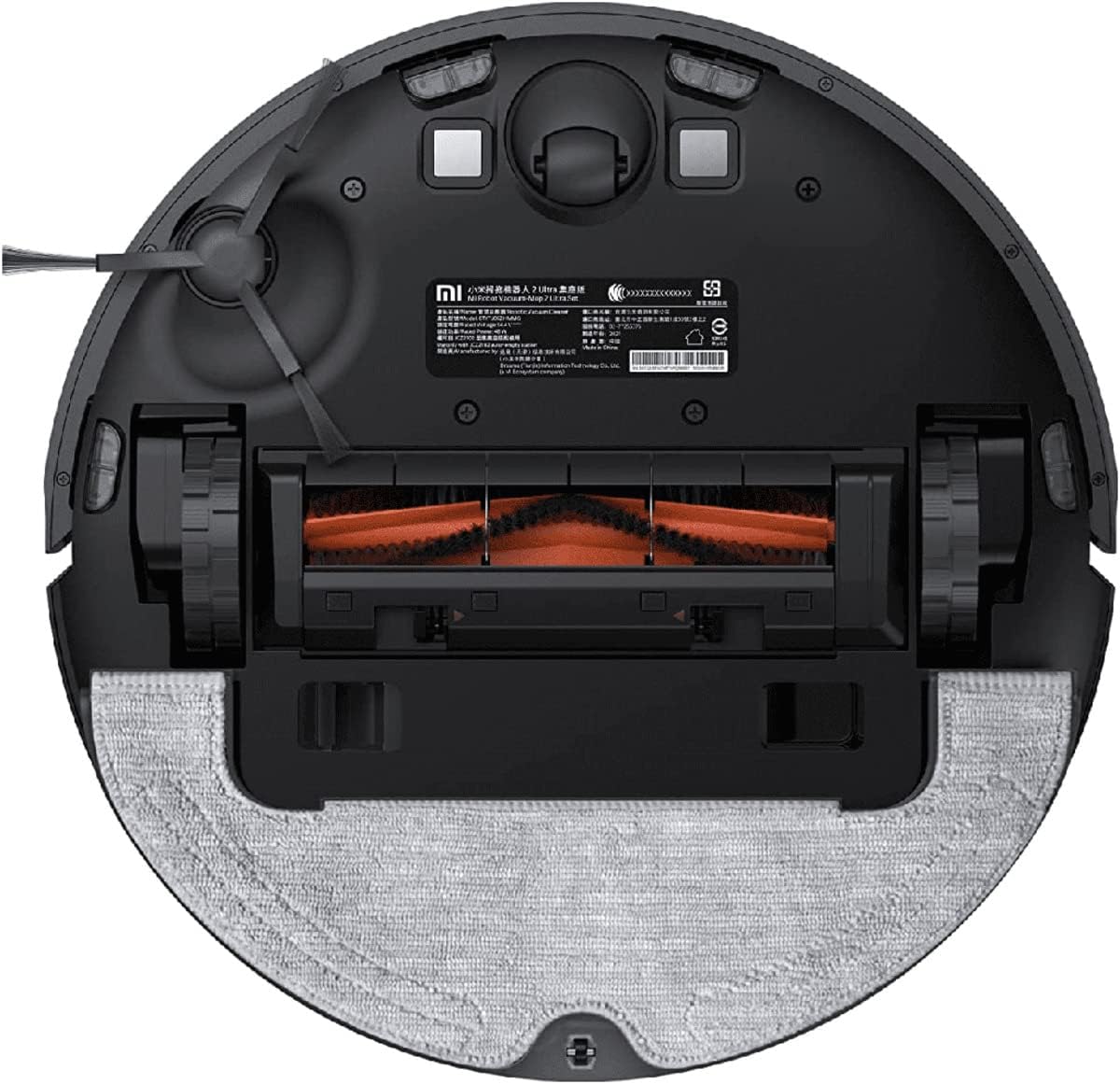
Image: Bottom view of the robot vacuum, displaying the main brush, side brush, and mop pad attachment.
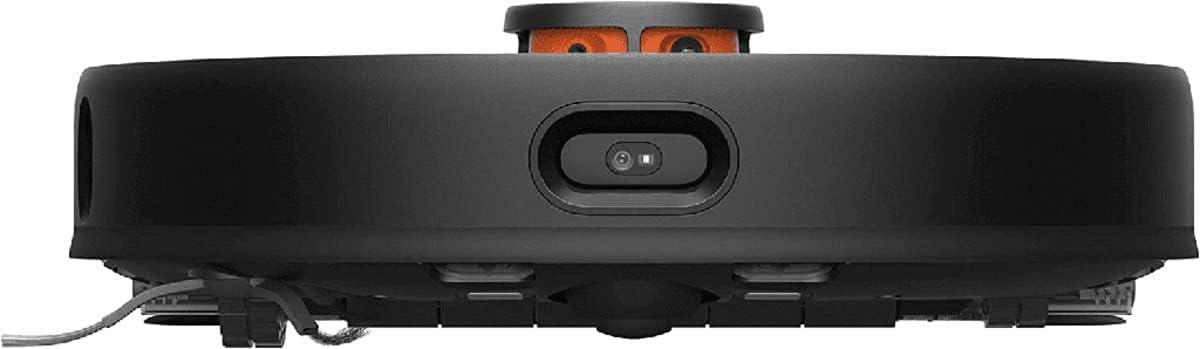
Image: Front view of the robot vacuum, highlighting the 3D obstacle avoidance sensors.
Setup Guide
1. Charging Dock Placement
Place the charging dock on a hard, level surface against a wall. Ensure there is at least 0.5 meters of clear space on both sides and 1.5 meters in front of the dock for the robot to easily return and dock.

Image: The robot vacuum approaching its charging dock, which may also feature an auto-empty function.
2. Initial Charging
Connect the power cable to the charging dock and plug it into a power outlet. Place the robot vacuum onto the charging dock. The robot will automatically turn on and begin charging. For first-time use, ensure the robot is fully charged before starting a cleaning cycle.
3. App Installation and Connection
Download the Mi Home/Xiaomi Home app from your device's app store. Follow the in-app instructions to add your Xiaomi Robot Vacuum-Mop 2 Ultra. This will allow you to control the robot, view maps, set cleaning schedules, and access advanced features.
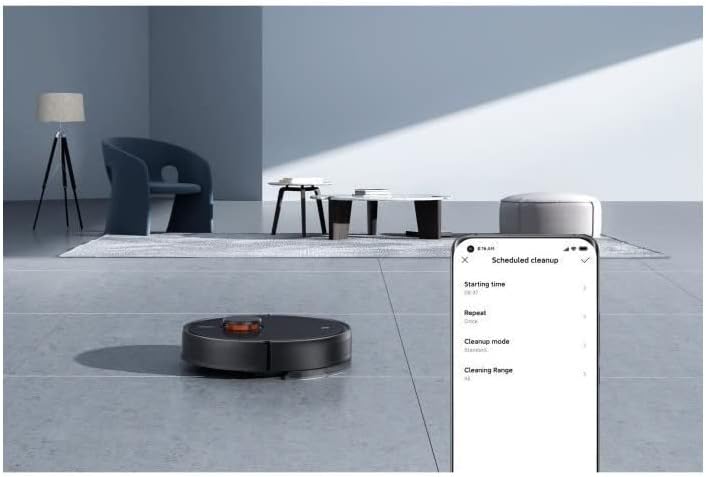
Image: A smartphone screen displaying the Mi Home app interface for setting up a scheduled cleanup.
Operating Instructions
Cleaning Modes
The robot vacuum offers various cleaning modes to suit your needs:
- Vacuuming Mode: For dry debris and dust. The powerful 4000 Pa suction ensures effective cleaning.
- Mopping Mode: For wet cleaning of hard floors. The electronic control water tank provides three levels of water flow for different cleaning requirements.
- Vacuum & Mop Mode: Simultaneous vacuuming and mopping for comprehensive cleaning.
- Spot Cleaning: Directs the robot to clean a specific small area intensively.
- Zone Cleaning: Allows you to define specific areas on the map for the robot to clean.

Image: An internal diagram illustrating the powerful suction and brush mechanism of the robot vacuum.
Scheduling Cleaning
Use the Mi Home app to set up daily or weekly cleaning schedules. You can customize the cleaning mode and target areas for each scheduled task.

Image: The Mi Home app displaying options for scheduling cleaning tasks, including time and frequency.
Navigation and Obstacle Avoidance
The robot utilizes new-generation LDS laser navigation to accurately scan your home environment and create precise maps. Its 3D obstacle avoidance technology detects objects like toys and cables, slowing down and diverting to prevent collisions.

Image: The robot vacuum using its laser navigation system to map the room, shown with blue lines indicating its scanning path.

Image: The robot vacuum detecting and avoiding common household obstacles such as toys and power cables, indicated by blue light beams.
Map Management
The Mi Home app allows you to view and manage the maps created by your robot. You can set virtual walls, no-go zones, and designate specific rooms for cleaning.

Image: A smartphone screen showing the Mi Home app with a detailed floor plan map generated by the robot vacuum.
Maintenance
Regular maintenance ensures the longevity and optimal performance of your robot vacuum.
- Dust Compartment: Empty the dust compartment after each cleaning cycle. Wash it with water if necessary and allow it to air dry completely before reinserting.
- Main Brush: Remove the main brush and clean any tangled hair or debris using the provided cleaning tool. It is recommended to clean it weekly.
- Side Brush: Check the side brush for tangled hair or damage. Clean or replace as needed.
- Mop Pad: Remove and wash the mop pad after each mopping session. Replace it regularly for best mopping results.
- Sensors: Wipe the cliff sensors, wall sensors, and charging contacts with a soft, dry cloth to remove dust and debris.
- Battery: To prolong battery life, ensure the robot is charged when not in use. Avoid leaving it completely discharged for extended periods.

Image: Top view of the robot vacuum with its top cover open, revealing the dustbin compartment for easy access and cleaning.
Troubleshooting
If you encounter any issues with your robot vacuum, refer to the following common problems and solutions:
| Problem | Possible Cause | Solution |
|---|---|---|
| Robot does not turn on. | Low battery or not properly docked. | Place the robot on the charging dock and ensure it is charging. |
| Robot gets stuck frequently. | Too many obstacles (cables, small objects) or dirty sensors. | Clear the cleaning area of obstacles. Clean the cliff and wall sensors. |
| Poor cleaning performance. | Full dustbin, tangled main brush, or dirty filter. | Empty the dustbin. Clean the main brush and filter. |
| Robot cannot return to charging dock. | Charging dock is blocked or moved. | Ensure the charging dock is in an accessible location and not moved during cleaning. |
| App connection issues. | Wi-Fi signal weak or incorrect network settings. | Ensure your Wi-Fi is 2.4GHz. Restart your router and the robot. Re-pair the device in the app. |
Specifications
| Feature | Detail |
|---|---|
| Brand | Xiaomi |
| Model Name | Mi Robot Vacuum-Mop 2 Ultra |
| Model Number | XM200063 |
| Suction Power | 4000 Pa |
| Battery Capacity | 5200 mAh |
| Battery Life | Up to 150 minutes (240 m² in standard mode) |
| Navigation System | LDS Laser Navigation |
| Obstacle Avoidance | 3D Technology |
| Water Tank Control | Electronic, 3 levels of water flow |
| Dustbin Volume | 550ml (internal) |
| Dust Collection Capacity (with Auto-Empty Station) | 4 Liters |
| Noise Level | 44 dB |
| Compatible Devices | Smartphones, Amazon Echo, Google Home |
| Dimensions | 35.3 x 35.3 x 9.9 cm |
| Weight | 3.6 kg |
Warranty and Support
Your Xiaomi Robot Vacuum-Mop 2 Ultra comes with a standard manufacturer's warranty. For detailed warranty terms and conditions, please refer to the warranty card included in your package or visit the official Xiaomi support website. For technical support, troubleshooting assistance, or spare parts, please contact Xiaomi customer service or your local authorized dealer.
You can find more information and support resources on the official Xiaomi website: www.mi.com/global/service/support/


