Introduction
The GamaKay K66 is a compact 66-key mechanical gaming keyboard designed for performance and customization. It features a wired USB Type-C connection, hot-swappable Gateron switches, and customizable RGB backlighting. This manual provides instructions for setting up, operating, maintaining, and troubleshooting your K66 keyboard.
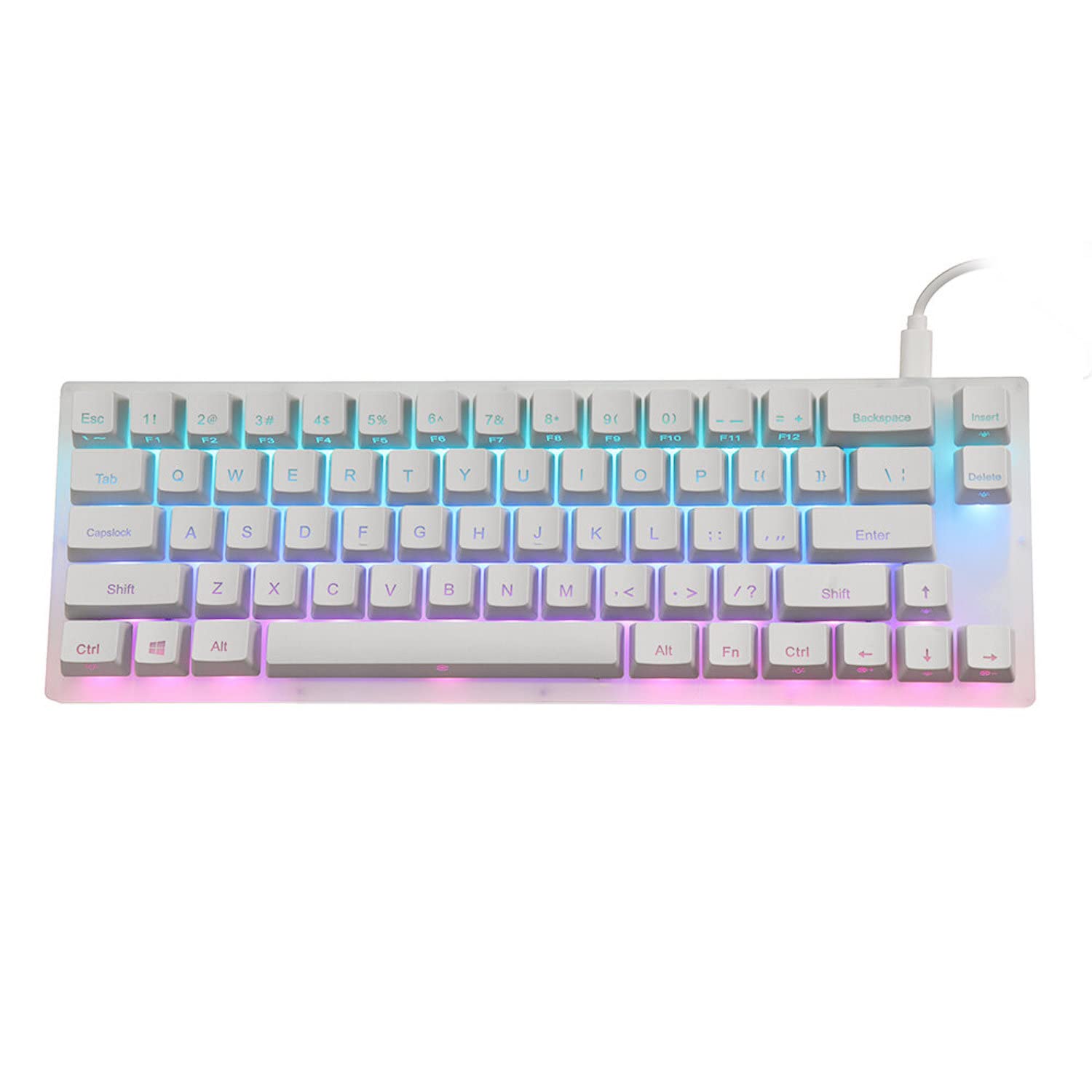
Image: The GamaKay K66 mechanical keyboard, showcasing its compact layout and RGB backlighting.
Package Contents
- 1 x GamaKay K66 Mechanical Keyboard
- 1 x USB Type-C Cable

Image: The included USB Type-C to USB-A cable for connecting the keyboard.
Setup Instructions
- Connect the Cable: Insert the USB Type-C end of the provided cable into the port on the keyboard.
- Connect to Computer: Plug the USB Type-A end of the cable into an available USB port on your computer.
- Automatic Recognition: The keyboard is plug-and-play and should be automatically recognized by your operating system without requiring additional drivers.
- Initial Test: Open a text editor or any application to verify that the keyboard is functioning correctly by typing.
Operating Instructions
Basic Key Functions
The GamaKay K66 features a 66-key layout. Standard alphanumeric keys, modifiers, and dedicated arrow keys are present.
Function (FN) Key Combinations
The FN key allows access to secondary functions printed on certain keycaps.
- FN + F1-F12: Access multimedia controls and system functions (e.g., volume, play/pause). Specific functions are indicated by icons on the keycaps.
- FN + Right Shift: Adjust keyboard backlight effects.
- FN + Right Ctrl: Adjust keyboard backlight colors.
- FN + Arrow Keys: Control backlight brightness and speed.
- FN + Other Keys: Refer to the keycap legends for additional functions, such as base lighting control.

Image: A top-down view of the GamaKay K66 keyboard, showing the key layout and FN key.
Maintenance
Cleaning
- Disconnect the keyboard from your computer before cleaning.
- Use a soft, dry cloth to wipe the surface of the keyboard.
- For dust and debris between keycaps, use compressed air.
- For stubborn stains, lightly dampen a cloth with water or a mild cleaning solution (avoid harsh chemicals).
Switch Replacement (Hot-Swappable)
The GamaKay K66 features hot-swappable Gateron switches, allowing you to change switches without soldering.
- Gently pull the keycap off using a keycap puller (not included).
- Use a switch puller (not included) to carefully remove the switch from the PCB.
- Align the pins of the new switch with the holes on the PCB and press firmly until it clicks into place.
- Replace the keycap.

Image: A close-up view of a keycap removed, illustrating the hot-swappable mechanical switch underneath.
Troubleshooting
- Keyboard Not Responding:
- Ensure the USB cable is securely connected to both the keyboard and the computer.
- Try plugging the keyboard into a different USB port on your computer.
- Restart your computer.
- Test the keyboard on another computer to rule out system-specific issues.
- RGB Lighting Not Working/Incorrect:
- Check FN key combinations for lighting control (FN + Right Shift, FN + Right Ctrl, FN + Arrow Keys).
- Ensure no software is overriding the keyboard's built-in lighting settings.
- Keys Not Registering:
- If a specific key is not working, carefully remove the keycap and check for any obstructions or debris around the switch.
- If you have replacement switches, try swapping the faulty switch with a known working one (refer to "Switch Replacement" section).
Specifications
| Brand | GK GAMAKAY |
| Model | K66 |
| Number of Keys | 66 Keys |
| Switch Type | Gateron Mechanical (Red Switch variant) |
| Connectivity | Wired, USB Type-C |
| Polling Rate | 1000Hz |
| Backlighting | Double zone RGB / Lower lamplight layout |
| Material | PMMA Acrylic Casting Body |
| Dimensions | 320 mm x 110 mm x 30 mm (32 x 11 x 3 cm) |
| Compatible Devices | PC, Gaming Console |
Warranty and Support
For warranty information and technical support, please refer to the official GK GAMAKAY website or contact your retailer. Keep your purchase receipt for warranty claims.


