
ZEBRONICS ZEB-BLITZ (BLACK)
Zebronics Zeb-Blitz USB Gaming Headphone User Manual
Model: ZEB-BLITZ (BLACK)
1. Introduction
Thank you for purchasing the Zebronics Zeb-Blitz USB Gaming Headphone. This manual provides detailed instructions for setting up, operating, and maintaining your new gaming headset. Please read this manual carefully before use to ensure optimal performance and longevity of the product.
The Zeb-Blitz headphone is designed for an immersive gaming experience, featuring Dolby Atmos support, simulated 7.1 surround sound, RGB LED lighting, and a flexible microphone.
2. Package Contents
- Zebronics Zeb-Blitz USB Gaming Headphone - 1 unit
- User Manual (this document)
3. Product Overview
Familiarize yourself with the key components of your Zebronics Zeb-Blitz gaming headphone.
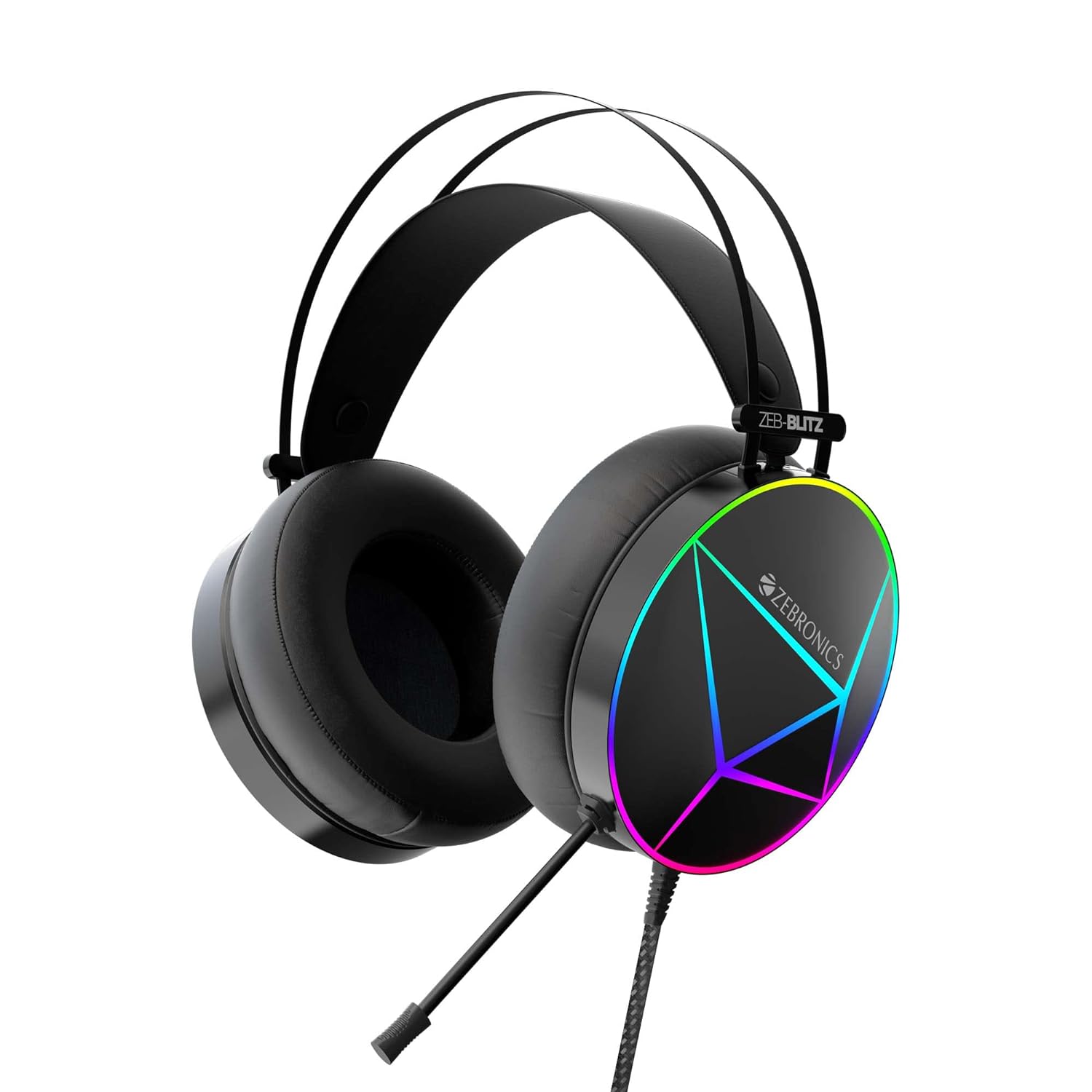
Figure 3.1: Front view of the Zebronics Zeb-Blitz USB Gaming Headphone, showcasing its black finish and customizable RGB LED lighting on the earcups.

Figure 3.2: Side view of the headphone, highlighting the flexible microphone and the braided USB cable connection.

Figure 3.3: Close-up of the in-line control pod, showing buttons for microphone ON/OFF, RGB light switch, and a volume control wheel.
4. Setup
- Connect the Headphone: Plug the USB connector of the Zeb-Blitz headphone into an available USB port on your Windows PC or laptop. The 2.4-meter braided cable provides ample length for flexible positioning.
- Driver Installation: The headphone is plug-and-play. Windows will automatically detect and install the necessary drivers.
- Dolby Atmos Setup (Windows 10 or higher):
- Ensure your PC is running Windows 10 or higher.
- Open the Microsoft Store and search for "Dolby Access".
- Install the Dolby Access application. You do not need to purchase a license; the headphone is compatible with the free version for its features.
- Once installed, right-click the speaker icon in your Windows taskbar and select "Sound settings" or "Open Sound settings".
- Under "Output", select "ZEB-BLITZ" as your output device.
- Below the output device selection, you should see an option for "Spatial sound". Select "Dolby Atmos for Headphones" from the dropdown menu.
5. Operating Instructions
5.1 Audio Controls
- Volume Control: Use the scroll wheel on the in-line control pod to adjust the audio volume up or down.
- Microphone ON/OFF: Press the microphone button on the in-line control pod to toggle the microphone on or off.
- RGB LED Modes: Press the RGB light switch button on the in-line control pod to cycle through 5 different RGB LED lighting modes or turn the lighting off.
5.2 Simulated 7.1 Surround Sound
The Zeb-Blitz headphone features simulated 7.1 surround sound, enhancing directional audio for an immersive gaming experience. This feature is managed through the advanced Windows software.

Figure 5.1: Visual representation of Dolby Atmos and simulated 7.1 surround sound technology, indicating enhanced audio immersion.
5.3 Audio Quality
Equipped with 50mm Neodymium magnet drivers, the headphone delivers powerful bass and clear treble, crucial for both gaming and multimedia consumption.

Figure 5.2: Illustration emphasizing the powerful bass output from the 50mm Neodymium magnet drivers within the earcups.
6. Software Installation & Usage
The Zebronics Zeb-Blitz headphone utilizes advanced Windows software for enhanced features and customization. This software provides control over simulated 7.1 surround sound, audio effects, microphone settings, and equalizer adjustments.
- Software Download: Visit the official Zebronics website (refer to the product page for your model) to download the dedicated Windows software for the Zeb-Blitz headphone.
- Installation: Run the downloaded installer and follow the on-screen instructions to complete the software installation.
- Software Features: Once installed, the software allows you to:
- Configure simulated 7.1 surround sound.
- Apply preset audio effects.
- Monitor microphone input and adjust sensitivity.
- Utilize voice changer functions.
- Customize equalizer settings.
- Save custom profiles for different applications or games.
7. Maintenance
- Cleaning: Use a soft, dry cloth to wipe down the headphone. For ear cushions, a slightly damp cloth can be used, but ensure they are completely dry before use. Avoid harsh chemicals or abrasive cleaners.
- Storage: Store the headphone in a cool, dry place away from direct sunlight and extreme temperatures.
- Cable Care: Avoid sharp bends or excessive pulling on the braided USB cable to prevent internal damage.
- Ear Cushions: The ear cushions are designed for comfort and can be gently cleaned. If replacement is needed, contact Zebronics support.
8. Troubleshooting
| Problem | Possible Cause | Solution |
|---|---|---|
| No sound from headphone | Headphone not selected as default audio device; Volume too low; Loose USB connection. | Check Windows sound settings to ensure "ZEB-BLITZ" is selected as the output device. Increase volume using the in-line control or system volume. Re-plug the USB cable firmly. |
| Microphone not working | Microphone muted; Incorrect input device selected; Software settings. | Ensure microphone is not muted via the in-line control. Check Windows sound settings for input device. Verify microphone settings in the Zebronics software or application being used. |
| RGB LEDs not lighting up | RGB light switch off; USB power issue. | Press the RGB light switch button on the in-line control pod. Try connecting to a different USB port. |
| Dolby Atmos not working | Dolby Access not installed; Spatial sound not enabled. | Ensure Dolby Access app is installed from Microsoft Store. Verify "Dolby Atmos for Headphones" is selected under Spatial sound settings in Windows. |
9. Specifications
- Model Name: ZEB-BLITZ (BLACK)
- Connectivity: Wired USB (Gold Plated)
- Cable Length: 2.4 meters (Braided)
- Driver Size: 50mm Neodymium Magnet
- Frequency Response: 20 Hz - 20,000 Hz
- Impedance: 24 Ohm
- Noise Control: Sound Isolation
- Microphone: Flexible, High Sensitivity
- Lighting: RGB LED (5 modes)
- Controls: In-line pod with Mic ON/OFF, RGB Light Switch, Volume Control
- Compatibility: Windows PC (Windows 10 minimum for Dolby Atmos Access)
- Material: Plastic
- Item Weight: 370 Grams
- Product Dimensions: 11.4 x 20.2 x 24.1 cm
10. Warranty and Support
For warranty information and technical support, please refer to the warranty card included with your product or visit the official Zebronics website. Keep your purchase receipt as proof of purchase for warranty claims.
Manufacturer: Zebronics India Private Limited
Country of Origin: China
For further assistance, you may contact Zebronics customer service through their official channels.
Related documentsZEB-BLITZ (BLACK)

Ask a question about this manual
Ask about setup, troubleshooting, compatibility, parts, safety, or missing instructions. Manuals+ will review the question and use this page’s manual context to help answer it.