
OBSBOT OBS-200002
OBSBOT Tiny 2 Remote Control User Manual
Model: OBS-200002
Introduction
The OBSBOT Tiny 2 Remote Control is designed to enhance your experience with OBSBOT Tiny series webcams, including Tiny 2 Lite, Tiny 2, Tiny 4K, Tiny 1080P, Tiny SE, and the OBSBOT UVC to HDMI Adapter 2nd Gen. This smart remote provides intuitive control over various camera functions and AI features, offering a more convenient and pleasant usage experience.
It combines the functionality of a remote control with a presentation clicker, allowing for seamless control during video calls, live streaming, and presentations.
Package Contents
- OBSBOT Tiny 2 Remote Control
- USB Receiver Dongle (stored inside the remote's battery compartment)
- User Guide/Instructions
Video: Unboxing and initial setup of the OBSBOT Tiny Remote Control, including battery installation and USB dongle location.
Setup
1. Battery Installation
- Open the battery compartment cover on the back of the remote control.
- Insert two AAA batteries, ensuring correct polarity (+/-).
- Close the battery compartment cover.
2. USB Receiver Connection
- Locate the USB receiver dongle inside the remote's battery compartment.
- Plug the USB receiver dongle into an available USB 2.0 or higher port on your computer.
3. Software Setup (OBSBOT TinyCam)
- Ensure your OBSBOT Tiny series webcam is connected to your computer and the OBSBOT TinyCam software is running.
- Navigate to the settings within the OBSBOT TinyCam software.
- Scroll down to find the "Remote Control" option and enable it.
- The remote control should now be paired and ready for use.
Operating Instructions
Remote Control Layout and Functions
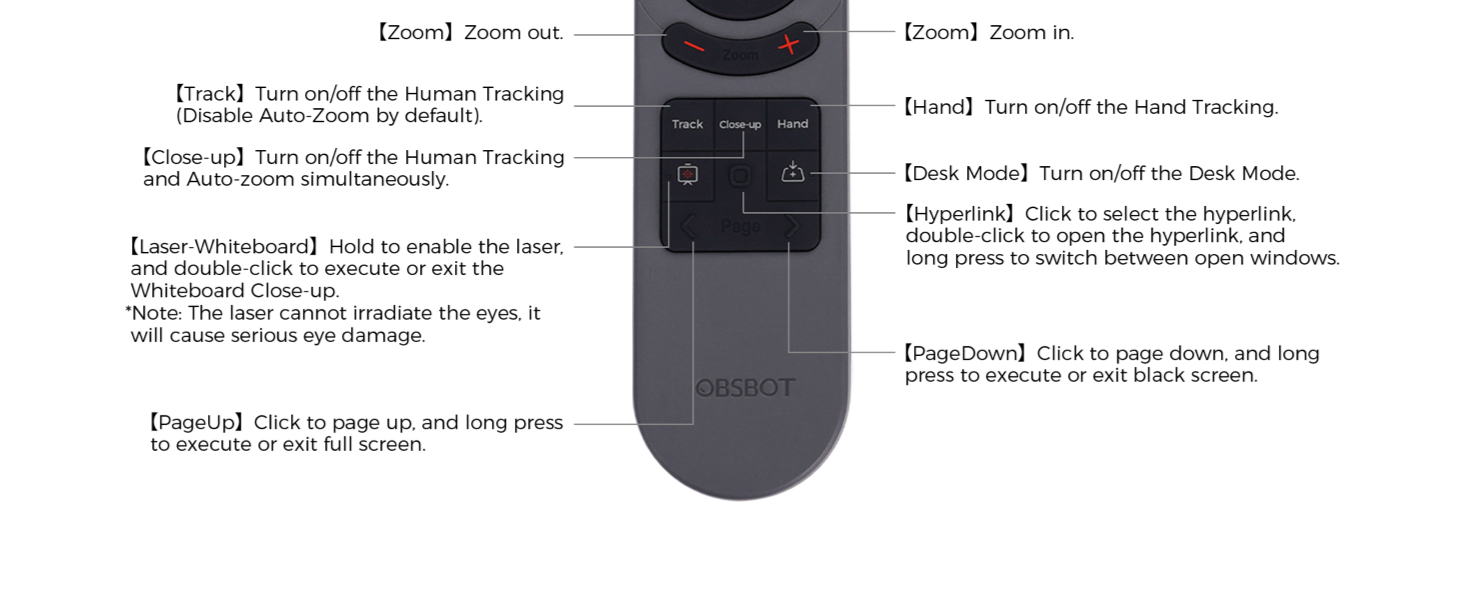
Image: Detailed diagram illustrating the buttons and their corresponding functions on the OBSBOT Tiny 2 Remote Control.
- Power Button: Turns the connected OBSBOT Tiny series webcam on or off.
- Directional Buttons: Control the pan and tilt of the webcam.
- Reset Button: Resets the camera's position to its default (square zero).
- Device Selection Buttons (Left/Right Arrows): Allows switching control between multiple connected OBSBOT devices (if connected to the same computer).
- Zoom In/Out Buttons: Adjust the camera's zoom level.
- P1, P2, P3 Buttons: Preset buttons to save and recall specific camera positions and zoom levels.
- Track Button: Toggles Human Tracking on/off. Disables Auto Zoom by default.
- Close-up Button: Activates Close-up mode, turning on Human Tracking and Auto Zoom simultaneously.
- Hand Button: Toggles Hand Tracking on/off.
- Desk Mode Button: Toggles Desk Mode on/off.
- Laser-Whiteboard Button: Hold to enable the laser pointer. Double-click to execute or exit Whiteboard Close-up. Note: The laser cannot irradiate the eyes; it will cause serious eye damage.
- Hyperlink Button: Click to select a hyperlink. Double-click to open the hyperlink. Long press to switch between open windows.
- PageDown Button: Click to page down. Long press to execute or exit a black screen.
- PageUp Button: Click to page up. Long press to execute or exit full screen.
Important Note: Some keys on the remote controller will not work with OBSBOT Tiny 4K and OBSBOT Tiny, as the features controlled by those keys (e.g., Close-up, Hand, Laser-Whiteboard, Desk Mode) are not integrated into those specific models.
Voice Control
The OBSBOT Tiny 2 webcam supports voice control for various functions, including waking up the device, initiating tracking, and adjusting zoom. Refer to the OBSBOT TinyCam software settings for a full list of voice commands and to enable/disable this feature.
Video: Demonstration of the OBSBOT Meet Remote Control features and functions.
Applications

Video Meetings: Control your camera's focus and framing during online conferences.

Remote Classes: Utilize presentation clicker features and camera control for engaging online teaching.

Live Streaming: Adjust camera angles and zoom on the fly for dynamic broadcasts.
Maintenance
- Keep the remote control clean and dry. Use a soft, dry cloth for cleaning.
- Avoid exposing the remote to extreme temperatures or direct sunlight.
- If the remote will not be used for an extended period, remove the batteries to prevent leakage.
- Store the USB receiver dongle securely within the remote's battery compartment to prevent loss.
Troubleshooting
- Remote not responding:
- Check if the batteries are correctly installed and have sufficient charge. Replace if necessary.
- Ensure the USB receiver dongle is securely plugged into your computer.
- Verify that the "Remote Control" option is enabled in the OBSBOT TinyCam software settings.
- Restart the OBSBOT TinyCam software and/or your computer.
- Specific features not working:
- Confirm that your OBSBOT webcam model supports the specific feature (e.g., Close-up, Desk Mode). Refer to your webcam's manual for compatibility.
- Ensure your OBSBOT TinyCam software and webcam firmware are up to date.
- Interference:
- Avoid using the remote near strong electromagnetic interference sources.
Specifications
| Product Dimensions | 10 x 2 x 0.01 inches |
| Item Weight | 1.76 ounces |
| Item Model Number | OBS-200002 |
| Batteries | 2 AAA batteries (not included) |
| Brand | OBSBOT |
| Special Feature | Ergonomic |
| Color | Black |
| Max Number of Supported Devices | 4 |
| Compatible Devices | OBSBOT Tiny series webcams, OBSBOT UVC to HDMI Adapter 2nd Gen, Personal Computer |
Warranty and Support
For warranty information, technical support, or further assistance, please visit the official OBSBOT website or contact their customer service directly. Keep your purchase receipt for warranty claims.
Related documentsOBS-200002


Ask a question about this manual
Ask about setup, troubleshooting, compatibility, parts, safety, or missing instructions. Manuals+ will review the question and use this page’s manual context to help answer it.