
TECLAST K10
TECLAST K10 Bluetooth Keyboard User Manual
Model: K10 (USSK-F15)
Brand: TECLAST
Introduction
This manual provides detailed instructions for the setup, operation, and maintenance of your TECLAST K10 Bluetooth Keyboard. Designed for high compatibility and portability, this slim keyboard offers a comfortable typing experience across various devices.
Product Overview

Figure 1: Top view of the TECLAST K10 Bluetooth Keyboard, showcasing its compact layout and function keys.

Figure 2: Close-up view illustrating the good resilience and comfortable feel of the keyboard keys.

Figure 3: The slim profile of the K10 keyboard, highlighting its less than 6mm thickness and compact 25x15cm size.
Setup and Connection
1. Charging the Keyboard
The TECLAST K10 keyboard is equipped with a large capacity battery. Before first use, or when the battery is low, charge the keyboard using the provided Micro-USB cable.
- Connect the Micro-USB end of the cable to the charging port on the keyboard.
- Connect the USB-A end to a power source (e.g., computer USB port, USB wall adapter).
- The Charge indicator light will illuminate during charging and turn off when fully charged.

Figure 4: Location of the Micro-USB charging port on the keyboard.
2. Bluetooth Pairing
Follow these steps to pair your TECLAST K10 keyboard with your device:
- Ensure the keyboard is charged.
- Slide the ON/OFF switch on the keyboard to the "ON" position.
- Press the Fn + C keys simultaneously to enter Bluetooth pairing mode. The Bluetooth indicator light will flash slowly.
- On your device (tablet, smartphone, laptop), navigate to its Bluetooth settings.
- Search for available Bluetooth devices. You should see "TECLAST K10" or a similar name appear in the list.
- Select "TECLAST K10" to initiate the connection.
- Once successfully paired, the Bluetooth indicator light on the keyboard will turn off.

Figure 5: Illustration of pressing Fn+C to activate Bluetooth pairing mode.
Operating Instructions
1. System Compatibility and Switching Modes
The TECLAST K10 keyboard is compatible with Windows, Android, and iOS operating systems. To optimize key functions for your specific device, switch to the appropriate mode:
- Fn + Q: Switch to Android Mode.
- Fn + W: Switch to Windows Mode.
- Fn + E: Switch to iOS Mode.
After switching modes, the Bluetooth indicator will flash 3 times to confirm the change.
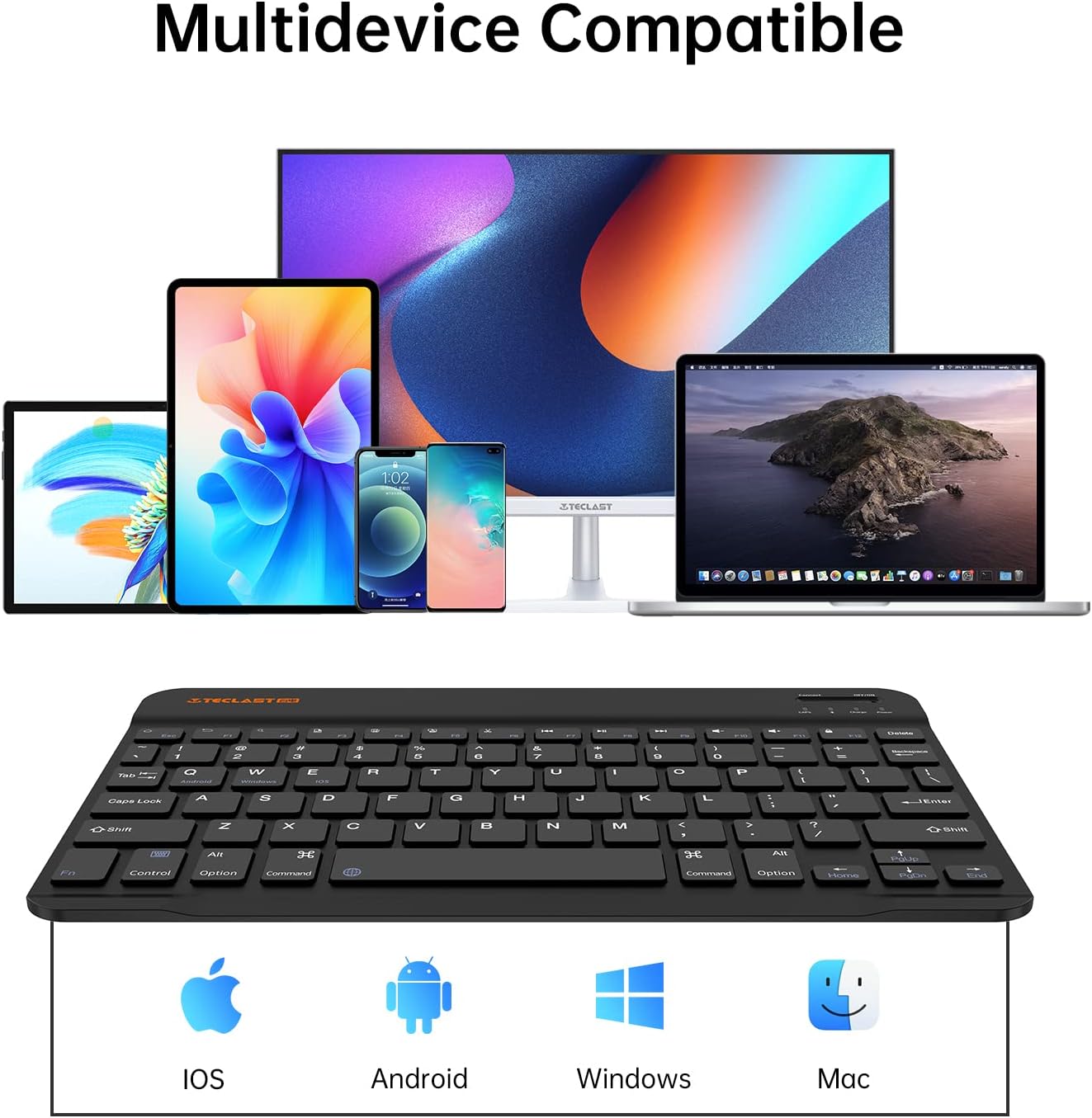
Figure 6: The keyboard's compatibility with iOS, Android, Windows, and Mac devices, and the corresponding function keys for mode switching.

Figure 7: Visual guide for using Fn+Q, Fn+W, and Fn+E to switch between Android, Windows, and iOS modes.
2. Typing Experience
The K10 keyboard is designed for comfortable and quiet typing. Its compact layout ensures all necessary keys are accessible while maintaining a familiar feel.

Figure 8: A user demonstrating effortless, whisper-quiet typing on the TECLAST K10 keyboard connected to a tablet.
3. Portability
With its slim design and light weight, the K10 keyboard is highly portable, making it ideal for use on the go, whether for work, study, or travel.

Figure 9: The minimal and portable design of the K10 keyboard, easily fitting into a carrying case.

Figure 10: The ultra-portable nature of the K10 keyboard, emphasizing its thinness and light weight.
Maintenance
1. Battery Management
To ensure optimal battery life, charge the keyboard regularly using the Micro-USB port. Avoid fully depleting the battery frequently.
2. Cleaning
To clean your keyboard, gently wipe the surface with a soft, dry, lint-free cloth. For stubborn dirt, slightly dampen the cloth with water or a mild, non-abrasive cleaner. Do not spray liquids directly onto the keyboard.
Troubleshooting
- Keyboard not connecting via Bluetooth:
Ensure the keyboard is charged and turned on. Verify that Bluetooth is enabled on your device. Press Fn + C to re-enter pairing mode. If the issue persists, try forgetting the device on your host device's Bluetooth settings and re-pairing.
- Keys not responding:
Check the battery level and charge the keyboard if necessary. Ensure the keyboard is in the correct operating system mode (Fn+Q/W/E). If a specific key is not working, contact customer support for assistance.
- Incorrect characters typed:
Verify that the keyboard is set to the correct operating system mode for your device (Android, Windows, or iOS) using Fn+Q, Fn+W, or Fn+E.
Specifications
| Model | K10 (USSK-F15) |
| Product Dimensions | 9.8 x 5.9 x 0.09 inches (24.9 x 15.0 x 0.23 cm) |
| Item Weight | 8.4 ounces (238 grams) |
| Connectivity Technology | Bluetooth |
| Number of Keys | 78 |
| Keyboard Description | Wireless |
| Special Feature | Lightweight |
| Manufacturer | TECLAST |

Figure 11: Detailed dimensions of the K10 keyboard: 246mm width, 149mm length, 6mm height, and 175g weight.
What's in the Box
- TECLAST K10 Bluetooth Keyboard
- USB Cable (for charging)
Official Product Video
Video 1: An official product video showcasing the TECLAST K10 Bluetooth Keyboard's features, including its slim design, long battery life, and wide compatibility. This video provides a visual demonstration of the keyboard in various usage scenarios.
Warranty and Support
TECLAST products undergo strict quality testing. If you encounter any issues with your product, please do not hesitate to contact TECLAST customer support. Most questions are answered within 24 hours to ensure a positive experience.
For support, please refer to the contact information provided with your product packaging or visit the official TECLAST website.
Related documentsK10


Ask a question about this manual
Ask about setup, troubleshooting, compatibility, parts, safety, or missing instructions. Manuals+ will review the question and use this page’s manual context to help answer it.