
Introduction
This manual provides comprehensive instructions for the setup, operation, maintenance, and troubleshooting of your YOTON Y7 Mini Projector. Please read this manual thoroughly before using the product to ensure proper operation and to maximize your viewing experience.

Figure 1: YOTON Y7 Mini Projector and Included Accessories
The YOTON Y7 Mini Projector is a portable full HD 1080P projector featuring WiFi and Bluetooth connectivity, designed for home theater entertainment. It supports various devices including PCs, tablets, Fire Sticks, iOS, and Android phones.
Setup Guide
1. Unboxing and Package Contents
Carefully unpack all components and verify that all items are present. The package should contain:
- YOTON Y7 Mini Projector
- Carry Bag
- HDMI Cable
- AV Cable
- Wi-Fi Dongle
- Power Adapter
- Remote Control
- User Manual (this document)
2. Physical Placement
For optimal projection results, consider the following:
- Projection Distance: The ideal projection distance for the Y7 projector ranges from 1.3 to 4 meters. For best results, place the projector at a distance of 2 to 3 meters from the screen or wall.
- Surface Alignment: Ensure the projector is placed on a flat, level surface. The projector body should be perpendicular to the projection surface (wall/screen) to achieve a parallel alignment between the lens and the projected image.
- Mounting Options: The Y7 projector supports various mounting options including table-top, tripod, and ceiling mounting. A screw hole is provided at the bottom for tripod or ceiling mount installation.

Figure 2: Flexible Placement Options for the Y7 Projector
The Y7 projector can be placed on a table, mounted on a tripod, or installed on the ceiling, offering versatility for different viewing environments.
3. Power Connection
Connect the provided power adapter to the projector's power input port and then plug it into a standard electrical outlet.
Operating Instructions
1. Basic Controls and Adjustments
The projector can be operated using the buttons on the device or the included remote control.
- Focus Adjustment: Use the focus wheel located on the projector to sharpen the image until it is clear.
- Keystone Correction: Adjust the ±15° keystone correction wheel slowly to obtain a standard rectangular image, correcting any trapezoidal distortion.
- Zoom Function: The projector allows you to reduce the image size by up to 50% without physically moving the projector. Navigate to Settings > Picture > Zoom to adjust.
- Picture Settings: Customize contrast, brightness, color temperature, and aspect ratio via Settings > Picture.
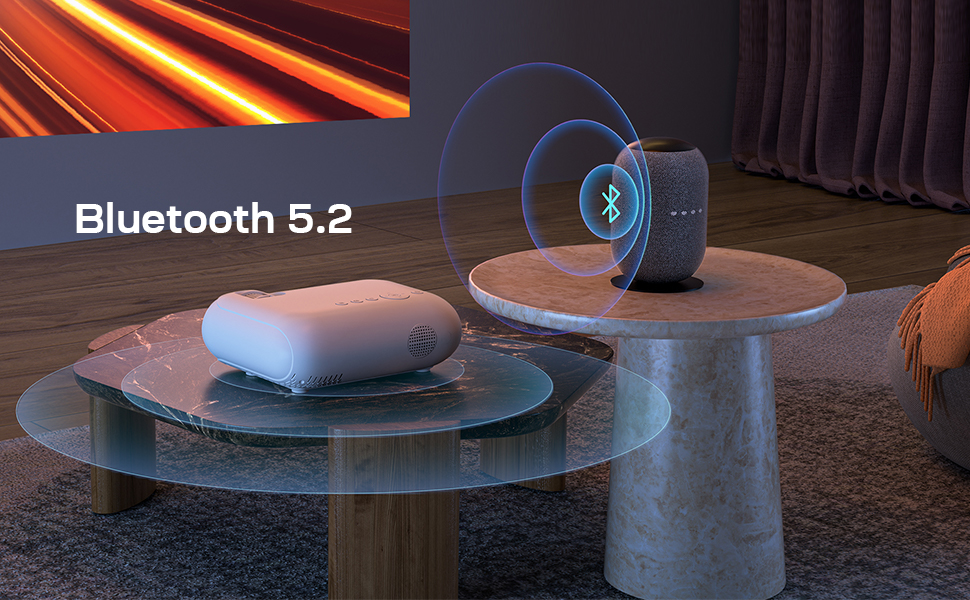
Figure 3: 50% Zoom Functionality
The projector's zoom function allows for flexible image sizing without repositioning the device.
2. Connectivity Options
2.1. Wireless Connection (Screen Mirroring)
The Y7 projector supports 5G/2.4G dual-band WiFi for fast and convenient screen mirroring.
- For iOS Devices (iPhone/iPad):
- Select [Screen Mirroring] > [iOS] > [Quick Wireless Connection for iOS] on the projector.
- Connect your iOS device to WiFi and open Control Center.
- Select [Screen Mirroring] > [Y7-XXXXXXXX] on your phone.
- For Android Devices:
- Select [Screen Mirroring] > [Android] on the projector (ensure your device has the Screen Mirroring function).
- Connect your Android device to Wi-Fi (do not connect the Y7 projector to your phone's Wi-Fi).
- Turn on [Screen Mirroring] in your phone settings and select [Y7-XXXXX] from the search results.
- For Windows 10 Devices:
- Select [Screen Mirroring] > [Android] > [Wireless connection for Android] on the projector.
- Press [Win+K] on your Windows 10 device and select [Y7-XXXXXXXX] for connection.
- For Macbook Devices:
- Select [Screen Mirroring] > [Wi-Fi router connection for iOS] on the projector.
- Go to System Preferences on your Macbook and select [Y7-XXXXXXXX] under Airplay Display for connection.

Figure 4: High-Speed 5G WiFi Screen Mirroring
The projector supports fast wireless screen mirroring from various devices via 5G WiFi.
2.2. Bluetooth 5.2 Audio Connection
Connect your Bluetooth-enabled audio devices (speakers, headphones) for an enhanced audio experience.
- Turn on your Y7 projector and go to [Settings].
- Using the remote control, navigate to the [Audio] settings.
- Select [Bluetooth Settings] and press [<] or [>] to turn Bluetooth on.
- Once Bluetooth is turned on, search for your Bluetooth device and connect.
Note: Bluetooth functionality is only for audio transmission to audio devices and does not support screen mirroring with smartphones or computers. Only one device can be connected via Bluetooth at a time.

Figure 5: Bluetooth 5.2 Audio Connectivity
Connect external Bluetooth speakers or headphones for an immersive audio experience.
2.3. Wired Connections
The projector offers multiple wired input ports for various devices.
- HDMI Port: Connect devices such as laptops, PCs, TV Boxes, TV Sticks (e.g., Fire TV Stick), gaming consoles (e.g., PS5), or DVD players using an HDMI cable. The projector supports 4K video input via HDMI, which will be displayed in its native 1080P resolution.
- USB Port: Connect USB flash drives for media playback or use an original USB-Lightning charging cable to connect iPhone/iPad devices for wired screen mirroring.
- AV Port: Connect older devices using the provided AV cable.

Figure 6: Wide Compatibility with Various Devices
The Y7 projector offers HDMI, USB, and AV inputs for connecting a broad range of entertainment and computing devices.
3. Usage Scenarios
The YOTON Y7 projector is versatile for various entertainment needs:
- Movie Night: Enjoy movies with family and friends on a large screen.
- Gaming: Connect your gaming console for an immersive gaming experience.
- Outdoor Entertainment: Perfect for yard parties or outdoor movie nights.
- Presentations: Suitable for casual presentations, though not recommended for professional business or teaching environments.

Figure 7: Versatile Usage Scenarios
The Y7 projector enhances various entertainment activities, from indoor movie nights to outdoor gatherings.
Maintenance
- Cleaning: Keep the projector clean. If black spots appear on the lens due to dust, you can remove the sticker on the bottom center of the projector, open the black cover, and clean it with a cotton swab.
- Environment: Avoid using the projector in damp or excessively dusty environments.
- Ventilation: Ensure proper ventilation for the projector to prevent overheating. Do not block the air vents during use. The fan noise level is around 52 dB, which is normal for heat dissipation.
- Eye Safety: Be careful not to look directly into the light source of the projector.
Troubleshooting
| Issue | Possible Cause / Solution |
|---|---|
| No sound from the projector. |
|
| Cannot wirelessly screen mirror Netflix, Hulu, Amazon Prime Video, etc. | Due to copyright protections, these apps do not support wireless screen mirroring. To watch content from these services, connect a streaming stick (like Fire TV Stick or Roku Stick) to the projector via the HDMI port, or connect your PC/laptop via HDMI. |
| Smartphone cannot connect to the projector's Wi-Fi for screen mirroring. | First, check if your smartphone has a Screen Mirroring function. Some models (e.g., Samsung A series, Google smartphones) may not be equipped with this function. Ensure you follow the correct connection steps for your device type (iOS/Android). |
| Black spots on the lens. | Dust may enter the lens through vents. Remove the sticker on the bottom center of the projector, open the black cover, and clean the lens with a cotton swab. |
| Projector does not turn on. | Ensure the power adapter is securely connected to both the projector and a working electrical outlet. Check if the power indicator light is on. |
| Image is blurry. | Adjust the focus wheel until the image is sharp. Ensure the projector is perpendicular to the screen and use keystone correction if the image is trapezoidal. |
Specifications
| Feature | Detail |
|---|---|
| Brand | YOTON |
| Model Number | Y7 |
| Display Resolution | Native 1920 x 1080 (Full HD), 4K Supported via HDMI |
| Connectivity Technology | Wi-Fi (5G & 2.4G Dual-Band), Bluetooth 5.2, HDMI, USB, AV |
| Special Features | Built-In Wi-Fi, Bluetooth, Screen Mirroring, Zoom Function (up to 50%), Keystone Correction (±15°) |
| Recommended Uses | Home Theater, Smartphone Connectivity |
| Item Weight | 1.98 pounds |
| Product Dimensions | 7.87 x 6.69 x 3.26 inches |
| Color | White |
Warranty and Support
All YOTON projectors come with a 2-year warranty and lifetime technical support.
For technical assistance, warranty claims, or any inquiries, please contact YOTON customer support:
- Email: support@yoton.co
- Support Hours: 24-Hour Official Support
Additionally, a 30-day return and refund policy is available.


