
TOPDON AL400
TOPDON AL400 OBD2 Scanner User Manual
Brand: TOPDON | Model: AL400
Comprehensive guide for operating and maintaining your TOPDON AL400 OBD2 Scanner.
1. Introduction
The TOPDON AL400 is an advanced OBD2 scanner designed for comprehensive vehicle diagnostics. It provides full OBDII functions, including reading and clearing Diagnostic Trouble Codes (DTCs), I/M readiness status, live data streaming, freeze frame data, O2 sensor tests, EVAP system tests, and on-board monitoring. This tool is suitable for DIY enthusiasts and professionals seeking efficient and accurate vehicle health assessments.
What's in the Box
- 1 x ArtiLink400 OBD2 Scanner
- 1 x User Manual

Figure 1.1: The TOPDON AL400 OBD2 Scanner and its included cable.
2. Key Features
- Full OBDII Functions: Supports all 10 OBDII test modes, including Read Codes, Erase Codes, I/M Readiness, Data Stream, Freeze Frame, O2 Sensor Test, On-Board Monitor Test, EVAP System Test, Vehicle Information, and DTC Lookup.
- Wide Vehicle Coverage: Compatible with most 1996 and newer vehicles supporting KWP2000, ISO9141, J1850 VPW, J1850 PWM, and CAN protocols.
- DTC Lookup Library: Provides definitions for Diagnostic Trouble Codes directly on the device.
- One-Click I/M Readiness: Quickly checks emission readiness status.
- 2.4-inch Color Screen: Clear display for easy navigation and data viewing.
- Lifetime Free Updates: Software updates available via computer to ensure compatibility with new vehicles and features.
- Multi-Language Support: Menu and DTC definitions available in English, French, German, Spanish, Portuguese, Japanese, and Italian.

Figure 2.1: Overview of the full OBD2 diagnostic functions available on the AL400.

Figure 2.2: The AL400 is a fully functional OBD2 code reader capable of reading, locating, fixing, and clearing DTCs.
3. Setup and Initial Use
The TOPDON AL400 is designed for plug-and-play operation. Follow these steps for initial setup:
- Locate the OBDII Port: The 16-pin OBDII Data Link Connector (DLC) is usually located under the dashboard on the driver's side. Refer to your vehicle's service manual for the exact location if needed.
- Connect the Scanner: With the vehicle's ignition off, firmly plug the AL400's OBDII connector into the vehicle's DLC.
- Turn Ignition On: Turn the vehicle's ignition to the "ON" position (engine off). The scanner will automatically power on and initiate communication with the vehicle's ECU.
- Select Language (if necessary): If this is your first time using the device, or if you wish to change the language, navigate to the "Setup" menu and select your preferred language.

Figure 3.1: Connecting the AL400 to the vehicle's OBDII port for plug-and-play operation.
4. Operating the AL400
The AL400 features a user-friendly interface with a 5-button design for easy navigation.
4.1 Reading and Clearing DTCs
- From the main menu, select "OBDII/EOBD" or "Read Codes".
- The scanner will display any detected Diagnostic Trouble Codes.
- To clear codes, select "Erase Codes" from the diagnostic menu. Confirm the action when prompted. This will turn off the Check Engine Light (MIL).
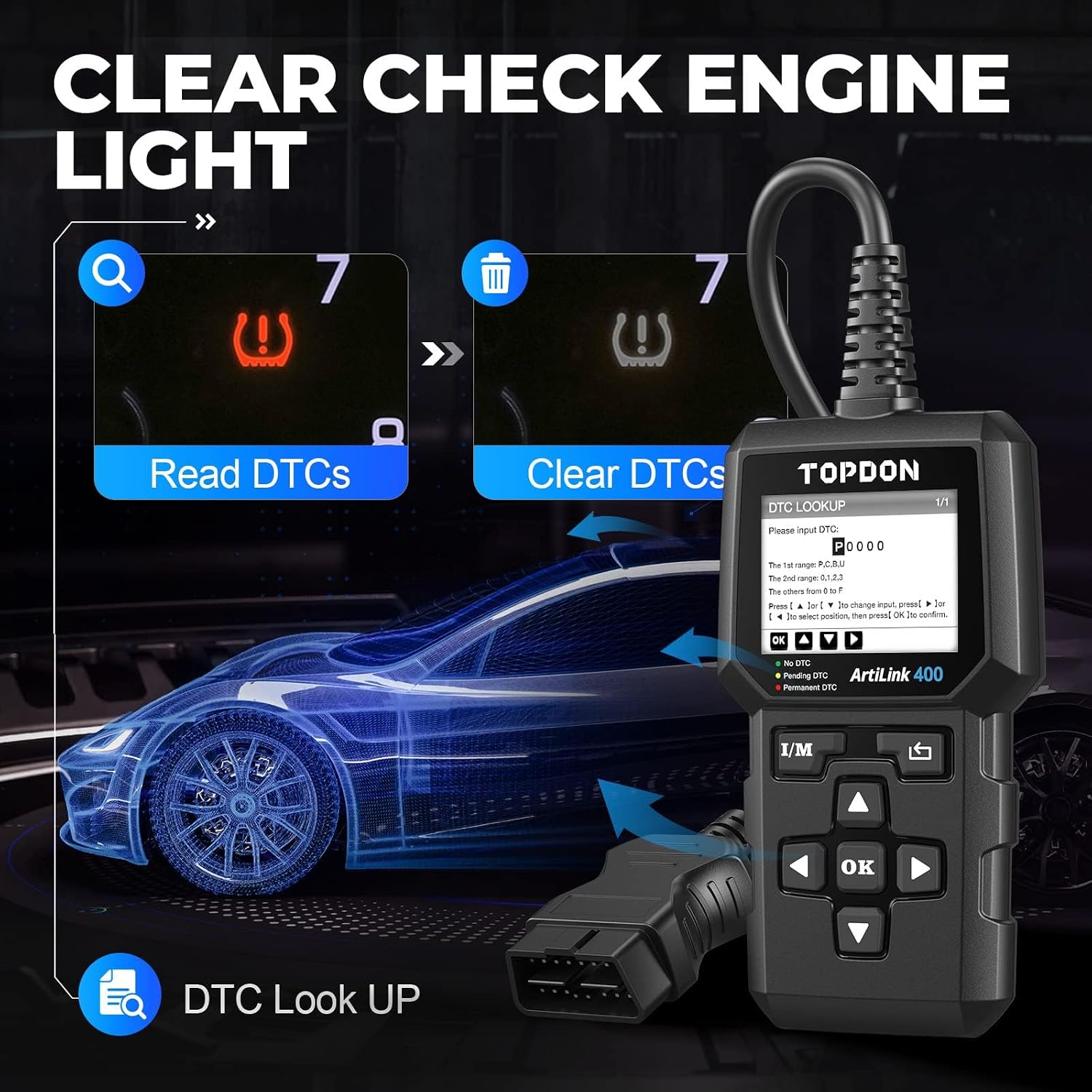
Figure 4.1: The process of reading and clearing DTCs to turn off the Check Engine Light.
Video 4.1: An overview of the TOPDON ArtiLink 400 OBD2 Scanner's functions, including reading and clearing codes.
4.2 I/M Readiness (Smog Check)
The I/M Readiness function checks the status of the emission-related monitoring systems on the vehicle. This is crucial for passing smog tests.
- Press the dedicated "I/M" button for a quick check.
- Alternatively, select "I/M Readiness" from the diagnostic menu.
- The screen will display the status of various monitors (e.g., MIS, FUEL, CCM, CAT, O2S, EVAP). A "OK" status indicates the monitor has completed its self-test.

Figure 4.2: Utilizing the one-click I/M readiness function for quick emission checks.

Figure 4.3: The AL400 simplifies emission pre-testing with its one-click I/M readiness feature.
4.3 Live Data Stream and Freeze Frame
View real-time engine data and a snapshot of sensor values at the moment a fault code was set.
- Select "Data Stream" to view live sensor data, often displayed graphically for easier analysis.
- Select "Freeze Frame" to view a snapshot of operating conditions at the time an emission-related fault occurred.

Figure 4.4: Visualizing live data streams and analyzing freeze frame data for diagnostic purposes.
4.4 O2 Sensor Test and EVAP System Test
These tests help monitor specific components related to emissions.
- Select "O2 Sensor Test" to retrieve O2 sensor monitor test results for the most recently completed tests from the vehicle's on-board computer.
- Select "EVAP System Test" to initiate a test of the vehicle's evaporative emission system.

Figure 4.5: The AL400 provides dedicated tests for emission-related components like O2 sensors and the EVAP system.
Video 4.2: Demonstration of Smog Check, O2 Sensor Test, and EVAP Test functions on the TOPDON ArtiLink400.
4.5 Vehicle Information and DTC Lookup
- Select "Vehicle Info" to retrieve the Vehicle Identification Number (VIN), Calibration ID (CID), and Calibration Verification Number (CVN).
- Select "DTC Lookup" to manually enter a DTC and view its detailed definition directly on the scanner's screen.

Figure 4.6: Accessing vehicle information and tracking car details with the AL400.

Figure 4.7: The built-in DTC Lookup Library allows users to quickly find detailed definitions of trouble codes.
5. Maintenance and Updates
The TOPDON AL400 offers free lifetime software updates to ensure optimal performance and compatibility with the latest vehicle models and diagnostic protocols.
- Download Update Tool: Visit the official TOPDON website to download the update tool software for your computer.
- Connect Scanner to PC: Use a USB cable to connect the AL400 to your computer.
- Run Update Tool: Follow the on-screen instructions in the update tool to download and install the latest software version onto your scanner. Ensure a stable internet connection during the update process.

Figure 5.1: The AL400 can be updated via a computer to receive the latest software and features.

Figure 5.2: The AL400 benefits from free lifetime updates, ensuring long-term utility.
6. Troubleshooting
If you encounter issues with your TOPDON AL400, consider the following common troubleshooting steps:
- No Power: Ensure the scanner is correctly plugged into the vehicle's OBDII port and the ignition is in the "ON" position. Check the vehicle's fuse for the OBDII port if the issue persists.
- Communication Error: Verify that the vehicle supports OBDII protocols (most vehicles from 1996 onwards do). Ensure the connection is secure. Try the scanner on a different OBDII-compliant vehicle to rule out a vehicle-specific issue.
- Screen Freezes/Unresponsive: Disconnect the scanner from the vehicle and reconnect it. If the issue persists, perform a software update as described in Section 5.
- Incorrect Readings: Ensure the vehicle's ignition is on and the engine is off for most diagnostic functions. For live data, the engine should be running.
For more complex issues or if troubleshooting steps do not resolve the problem, please contact TOPDON customer support.
7. Specifications
| Feature | Specification |
|---|---|
| Brand | TOPDON |
| Model | AL400 |
| Product Dimensions | 2.95"L x 0.96"W x 5.67"H |
| Item Weight | 7.8 ounces |
| Operating System | ARM |
| Display Resolution | 240*320 |
| Language | English (supports 7 languages) |
| Batteries | 1 Lithium Ion battery required (included) |
| UPC | 632111342085 |
8. Warranty and Customer Support
The TOPDON AL400 comes with a 12-month extended quality backup. TOPDON is committed to providing excellent customer service.
- Email Support: support@topdon.com
- US Phone Service: 833-956-8335 (Monday-Friday, 9:00 AM - 6:00 PM Eastern Time)

Figure 8.1: TOPDON provides dedicated customer support for product assistance.
Related documentsAL400


Ask a question about this manual
Ask about setup, troubleshooting, compatibility, parts, safety, or missing instructions. Manuals+ will review the question and use this page’s manual context to help answer it.