Introduction
Welcome to the user manual for your new ViewSonic VX2418C 24-inch 1080p 1ms 180Hz Curved Gaming Monitor. This monitor is designed to provide an incredible viewing experience for both work and play, featuring an immersive 1500R curved screen and Full HD 1080p resolution. With a high 180Hz refresh rate, 1ms (MPRT) response time, and AMD FreeSync Premium technology, it ensures fluid, tear-free gameplay. The VX2418C also includes ViewSonic's exclusive ViewMode™ presets for optimized screen performance across various applications, and offers flexible connectivity with two HDMI (v2.0) inputs and one DisplayPort (v1.2) input.
What's in the Box
- VX2418C Monitor
- 3-pin Plug
- DisplayPort Cable
- AC/DC Adapter
- Quick Start Guide

Setup
Monitor Assembly
Carefully remove the monitor and stand components from the packaging. Attach the stand base to the stand neck, securing it with the provided screw. Then, align the assembled stand with the mounting points on the back of the monitor and secure it firmly. Ensure all connections are tight before proceeding.

Connecting the Monitor
- Connect the AC/DC adapter to the monitor's power input and then plug it into a power outlet.
- For video input, connect one end of the DisplayPort cable (included) or an HDMI cable (not included) to the corresponding port on your computer's graphics card.
- Connect the other end of the video cable to either the DisplayPort (v1.2) or one of the two HDMI (v2.0) inputs on the monitor.
- If desired, connect external speakers or headphones to the Audio Out port on the monitor.

Operating
Power On/Off
Press the power button located on the monitor to turn it on or off. The power indicator light will illuminate when the monitor is active.
On-Screen Display (OSD) Menu Navigation
Use the navigation buttons, typically located on the back or bottom of the monitor, to access and navigate the On-Screen Display (OSD) menu. This menu allows you to adjust various settings such as brightness, contrast, color temperature, input source, and more.
ViewMode Presets
The monitor features ViewSonic's exclusive ViewMode™ presets, which offer optimized screen performance for different applications. These modes include settings for gaming (FPS, RTS, MOBA), movie watching, web browsing, and text editing. Select the appropriate ViewMode to enhance your visual experience.
High Refresh Rate and Fast Response Time
Experience ultra-smooth visuals with the monitor's 180Hz refresh rate and 1ms MPRT (Moving Picture Response Time). These features significantly reduce motion blur and ghosting, providing a competitive edge in fast-paced games.

AMD FreeSync Premium Technology
AMD FreeSync Premium technology synchronizes the monitor's refresh rate with your graphics card's frame rate, virtually eliminating screen tearing and stuttering for a fluid and seamless gaming experience.
Eye Care Technology
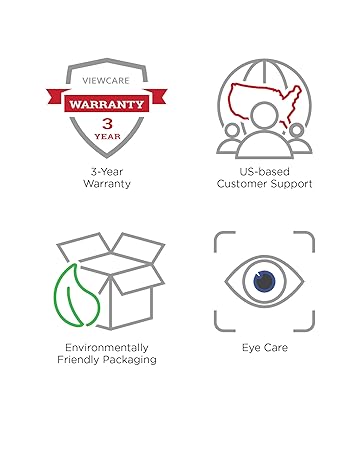
The VX2418C incorporates Flicker-Free technology and a Blue Light Filter to help reduce eye strain and fatigue during extended viewing sessions, promoting greater viewing comfort.

Product Overview Video
Maintenance
Cleaning the Monitor
To clean the monitor screen, gently wipe it with a soft, lint-free cloth. For stubborn marks, dampen the cloth with a small amount of non-ammonia, non-alcohol based glass cleaner. Avoid spraying cleaner directly onto the screen. For the monitor casing, use a soft, dry cloth.
Storage
When storing the monitor for an extended period, ensure it is powered off and disconnected from all cables. Store it in a cool, dry place, preferably in its original packaging, to protect it from dust and physical damage.
Troubleshooting
Common Issues and Solutions
| Problem | Possible Cause | Solution |
|---|---|---|
| No Power | Power cable not connected or power outlet not working. | Ensure the power cable is securely connected to the monitor and a working power outlet. Check the power adapter. |
| No Signal | Video cable not connected or incorrect input source selected. | Verify the video cable (DisplayPort/HDMI) is securely connected to both the monitor and the computer. Use the OSD menu to select the correct input source. |
| Image is blurry or distorted | Incorrect resolution or refresh rate settings. | Adjust the display resolution and refresh rate in your computer's display settings to match the monitor's native resolution (1920x1080) and desired refresh rate (up to 180Hz). |
| Screen Tearing/Stuttering | AMD FreeSync Premium not enabled or graphics driver issues. | Ensure AMD FreeSync Premium is enabled in both the monitor's OSD menu and your graphics card's control panel. Update graphics drivers to the latest version. |
| No Sound from Monitor Speakers | Volume too low, audio output not selected, or external speakers connected. | Increase monitor volume via OSD. Ensure the monitor is selected as the audio output device in your computer's sound settings. If using external speakers, ensure they are properly connected and powered. |
Specifications
| Feature | Specification |
|---|---|
| Model Number | VX2418C |
| Screen Size | 24 Inches |
| Panel Type | Curved |
| Resolution | 1920x1080 (Full HD) |
| Refresh Rate | 180Hz |
| Response Time | 1ms (MPRT) |
| Curvature | 1500R |
| Adaptive Sync Technology | AMD FreeSync Premium |
| Connectivity | 2 x HDMI (v2.0), 1 x DisplayPort (v1.2), 1 x Audio Out |
| VESA Mount Compatible | 100x100 mm |
| Dimensions (LxWxH) | 8.2 x 21.3 x 16.3 inches |
| Weight | 9.7 pounds |
Warranty and Support
ViewSonic provides comprehensive support for its products. The VX2418C monitor comes with a 3-Year Warranty, ensuring peace of mind regarding your investment. Additionally, US-based customer support is available to assist with any inquiries or technical issues you may encounter.
For detailed information and further assistance, please refer to the official User Guide PDF:
Download Official User Guide (PDF)