
EXLENE B09NVVQ8GL
EXLENE Gamecube Controller Switch User Manual
Model: B09NVVQ8GL
Brand: EXLENE
Introduction
This user manual provides comprehensive instructions for the EXLENE Gamecube Controller Switch. This versatile wireless controller is designed for seamless compatibility with Nintendo Switch, Switch Lite, PC, Android, iOS, and Steam. It offers a classic GameCube feel with modern features to enhance your gaming experience. Please read this manual thoroughly before using the product.
What's in the Box
- EXLENE Gamecube Controller Switch
- USB-C Cable
- User Manual (this document)
Product Overview

Front view of the EXLENE Gamecube Controller Switch, showcasing its classic layout with modern button additions.
Key Features:
- Full Button Layout & High Compatibility: This Bluetooth Gamecube Controller is designed to recall the look and feel of a GameCube controller, but also lets players have fun with Super Smash Bros and other Switch games (Mario Kart 8 Deluxe, Splatoon, Super Mario Odyssey, The Legend of Zelda, Breath of the Wild, etc.). It features a full button layout similar to a modern Switch Pro controller and supports play on Switch, Switch Lite, PC, iOS, Android, and Steam.
- One-Button Wake-up & Easy PC Connection: This Gamecube Switch controller supports clicking the Home button to wake up the Switch system when the game console is in sleep mode. Pairing is easy. This Switch controller also syncs up very quickly on PC via a Bluetooth dongle (not included, please purchase individually). Just plug in, press and hold the sync buttons, and your PC/laptop will register the Wireless Gamecube Controller.

The controller's Home button can wake up a sleeping Nintendo Switch console.
- Turbo, Auto Turbo & Adjustable Rumble: Its turbo function is available by holding the "T" button and pressing any button (A/B/X/Y/L/R/ZL/ZR) to activate Turbo mode. Do it again to make the chosen button Auto Turbo. Three levels (20s/s, 12s/s, 5s/s) are available to meet different needs for various action shooters. This Wireless Switch Controller has built-in dual motors for vibration features; press the "T" button and "+" or "-" to adjust the rumble intensity. Five levels are available for your choice.
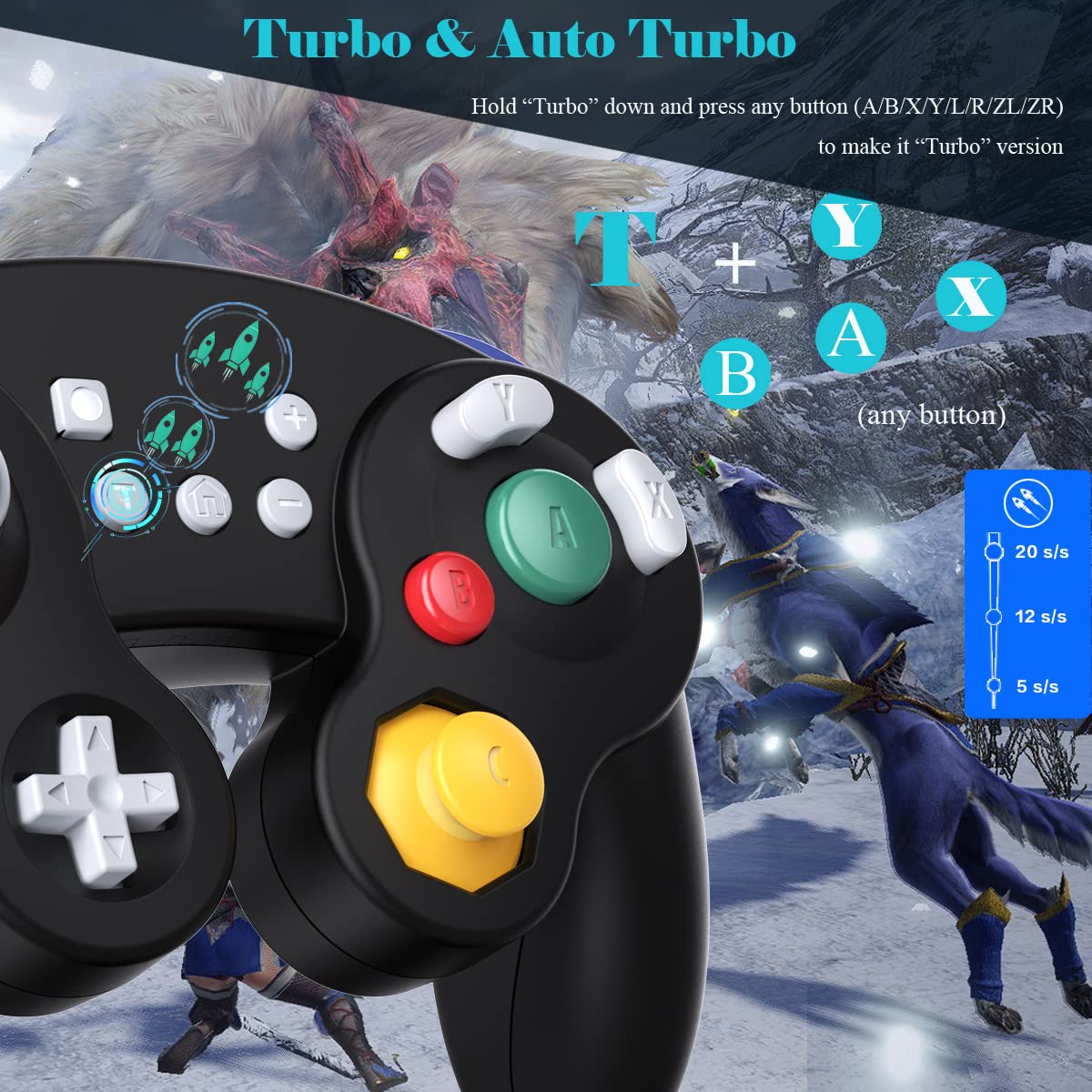
Illustration of Turbo and Auto Turbo functionality with button combinations and speed levels.

Visual representation of the adjustable dual motor vibration with intensity levels.
- Gyro Functionality & High Precision Joysticks: With the six-axis gyro sensor, this pro controller switch ensures precise direction control with sensitive and immersive experience on all motion-sensing games. 360° no-dead zone joysticks and zero-delay keys improve the user's gaming configuration and feel. The whole controller fits naturally to your palm with a comfortable ergonomic design.

Diagram showing the sensitive 6-Axis Motion Sensor for immersive gameplay.
- A,B,X,Y Button Swapping & Screenshot Functionality: You don't have to endure button chaos when playing PC games using this wireless Switch controller. Just hold down A, X, B, Y together to swap the buttons' bindings with the replacement typical of Xbox controllers. This Gamecube Nintendo Switch Controller also has a screenshot button, allowing you to capture and save screenshots of many screens, including scenes during gameplay.

Visual guide for swapping A, B, X, Y button functions to match Xbox controller layouts.
Setup and Connection
Pairing with Nintendo Switch / Switch Lite:
- Ensure your Nintendo Switch or Switch Lite console is powered on.
- From the HOME Menu, select "Controllers" > "Change Grip/Order".
- On the EXLENE Gamecube Controller, press and hold the Home button for 3-5 seconds until the LED indicators start flashing rapidly.
- Once the controller is detected and paired, the player LED(s) on the controller will light up solid.
- To wake up the console from sleep mode, simply press the Home button on the controller.
Official video demonstrating the pairing process with a Nintendo Switch Lite, including wake-up function and turbo settings.
Connecting to PC (Windows):
- Ensure your PC has Bluetooth capability. A Bluetooth dongle (not included) may be required for desktop PCs.
- On your PC, navigate to Bluetooth settings (e.g., Settings > Devices > Bluetooth & other devices).
- Select "Add Bluetooth or other device" and choose "Bluetooth".
- On the EXLENE Gamecube Controller, press and hold the Home button for 3-5 seconds until the LED indicators start flashing rapidly.
- Your PC should detect the controller. Select it to pair. The controller may appear as an "Xbox 360 Controller" or "Pro Controller" depending on the pairing mode.
Operating Instructions
Turbo and Auto Turbo Function:
- To activate Turbo mode for a button: Hold down the "T" button and press any action button (A/B/X/Y/L/R/ZL/ZR). The button will now rapidly repeat its input when held down.
- To activate Auto Turbo mode: While in Turbo mode, hold down the "T" button and press the same action button again. The button will now continuously repeat its input without needing to be held down.
- To deactivate Turbo/Auto Turbo: Hold down the "T" button and press the action button a third time.
- To adjust Turbo speed: While in Turbo/Auto Turbo mode, hold down the "T" button and press the "+" or "-" button to cycle through 3 speed levels (20s/s, 12s/s, 5s/s).
Adjusting Rumble Intensity:
- The controller has 5 levels of vibration intensity.
- To adjust: Hold down the "T" button and press the "+" button to increase rumble intensity, or the "-" button to decrease it.
A,B,X,Y Button Swapping:
- To swap the A, B, X, Y button bindings to match typical Xbox controllers: Hold down the A, X, B, and Y buttons simultaneously for a few seconds. The controller will vibrate to confirm the swap.
- Repeat the process to revert to the original Nintendo layout.
Screenshot Function:
- Press the Screenshot button (located near the Home button) to capture and save screenshots during gameplay on compatible systems.
Maintenance
Charging the Controller:
The EXLENE Gamecube Controller Switch has a built-in 480mAh rechargeable Lithium Ion battery.
- Connect the included USB-C cable to the controller's charging port and the other end to a USB power source (e.g., Nintendo Switch dock, PC USB port, USB wall adapter).
- The LED indicators will show charging status. Refer to the controller's specific LED behavior for full charge indication.
- A full charge typically takes 2-3 hours and provides over 20 hours of playtime.

The controller features a USB-C port for convenient charging, ensuring long playtime.
Cleaning:
Wipe the controller with a soft, dry cloth. Do not use harsh chemicals or abrasive materials.
Troubleshooting
- Controller not pairing:
- Ensure the controller is charged.
- Make sure the console/PC's Bluetooth is enabled.
- Try restarting the console/PC and the controller.
- Ensure no other Bluetooth devices are interfering.
- For PC, ensure you are in the correct pairing mode (Android mode often works best for PC).
- Input lag or disconnection:
- Move closer to the console/PC.
- Ensure there are no physical obstructions between the controller and the receiver.
- Check for strong Wi-Fi signals or other wireless interference.
- Buttons not responding:
- Ensure the controller is fully charged.
- Try resetting the controller (if a reset button is available, usually a small pinhole on the back).
- If specific buttons are not working, contact customer support.
Specifications
| Model Number | B09NVVQ8GL |
| Brand | EXLENE |
| Connectivity | Wireless (Bluetooth) |
| Compatibility | Nintendo Switch, Switch Lite, PC, Android, iOS, Steam |
| Battery Type | Lithium Ion (Included) |
| Battery Capacity | 480mAh |
| Charging Time | 2-3 Hours |
| Playtime | 20+ Hours |
| Dimensions | 5.31 x 4.06 x 2.36 inches |
| Item Weight | 6.5 ounces |
Warranty and Support
EXLENE products come with a standard manufacturer's warranty. For detailed warranty information, product support, or technical assistance, please refer to the contact information provided on the product packaging or visit the official EXLENE website.
For any issues not covered in this manual, please contact EXLENE customer support.
Related documentsB09NVVQ8GL

Ask a question about this manual
Ask about setup, troubleshooting, compatibility, parts, safety, or missing instructions. Manuals+ will review the question and use this page’s manual context to help answer it.