
1. Introduction
This manual provides instructions for the ZEXMTE 5.4 USB Bluetooth Adapter. This device enables Bluetooth connectivity for your PC, allowing you to connect various Bluetooth-enabled peripherals such as headphones, mice, keyboards, and more. It features Bluetooth 5.4 technology for stable and efficient wireless communication.
2. Product Features
- Bluetooth 5.4 Technology: Utilizes BLE + BR/EDR dual-mode for enhanced stability, clear audio, and efficient power consumption.
- Extended Range: Class 1 radio with a high-gain antenna provides a connection range of up to 492 feet (150 meters).
- Multi-Device Connectivity: Supports simultaneous connection of up to 7 Bluetooth devices.
- Plug & Play: Driver-free installation for Windows 10 and Windows 11.
- Low Latency: Designed for minimal delay in audio and video synchronization.
- Automatic Reconnection: Remembers previously paired devices for quick re-establishment of connection.
- File Transfer Support: Facilitates convenient file transfers between Bluetooth devices.
3. Package Contents
- ZEXMTE 5.4 USB Bluetooth Adapter
- High Gain Antenna
4. Setup Guide
4.1 Hardware Installation
- Ensure your computer is powered off or in a safe state before installation.
- Attach the high-gain antenna to the ZEXMTE USB Bluetooth Adapter.
- Insert the ZEXMTE USB Bluetooth Adapter into an available USB port on your PC. For optimal performance, use a USB 3.0 port if available.

Image: The ZEXMTE 5.4 USB Bluetooth Adapter with its high-gain antenna attached, ready for insertion into a USB port.
4.2 Driver Installation
- For Windows 10/11: The adapter is typically Plug & Play. The system should automatically detect and install the necessary drivers. No manual driver installation is usually required.
- For Windows 7/8.1: Driver installation may be required. Please visit the official ZEXMTE website for the latest drivers and installation instructions.

Image: The ZEXMTE 5.4 USB Bluetooth Adapter connected to a laptop, highlighting its Plug & Play feature for compatible Windows versions.
4.3 Disabling Existing Bluetooth (If Applicable)
If your PC has a built-in Bluetooth adapter, it is recommended to disable it to prevent conflicts and ensure the ZEXMTE adapter functions correctly. This can usually be done through Device Manager or your PC's Bluetooth settings.
5. Operating Instructions
5.1 Pairing Bluetooth Devices
- Ensure the ZEXMTE Bluetooth adapter is correctly installed and recognized by your system.
- Turn on the Bluetooth device you wish to pair and set it to pairing mode. Refer to your device's manual for specific instructions on how to enter pairing mode.
- On your Windows PC, navigate to Settings > Devices > Bluetooth & other devices.
- Click on "Add Bluetooth or other device" and select "Bluetooth".
- Your PC will scan for available Bluetooth devices. Select your device from the list and follow any on-screen prompts to complete the pairing process.
5.2 Connecting Multiple Devices
The ZEXMTE 5.4 USB Bluetooth Adapter supports connecting up to 7 devices simultaneously. Follow the pairing instructions for each device. Once paired, the adapter will manage connections to all active devices.

Image: The ZEXMTE 5.4 USB Bluetooth Adapter enabling simultaneous connections to multiple devices, including a mouse, keyboard, headphones, speaker, smartphone, tablet, and printer.
5.3 Low Latency Performance
The adapter's advanced chipset minimizes latency, ensuring audio and video content are synchronized for a smooth experience, especially during gaming or media consumption.

Image: A user enjoying seamless audio with headphones connected via the Bluetooth adapter, demonstrating low latency performance.
5.4 Wireless File Transfer
You can transfer files between your PC and other Bluetooth-enabled devices. Use your operating system's built-in Bluetooth file transfer utility to send or receive files.
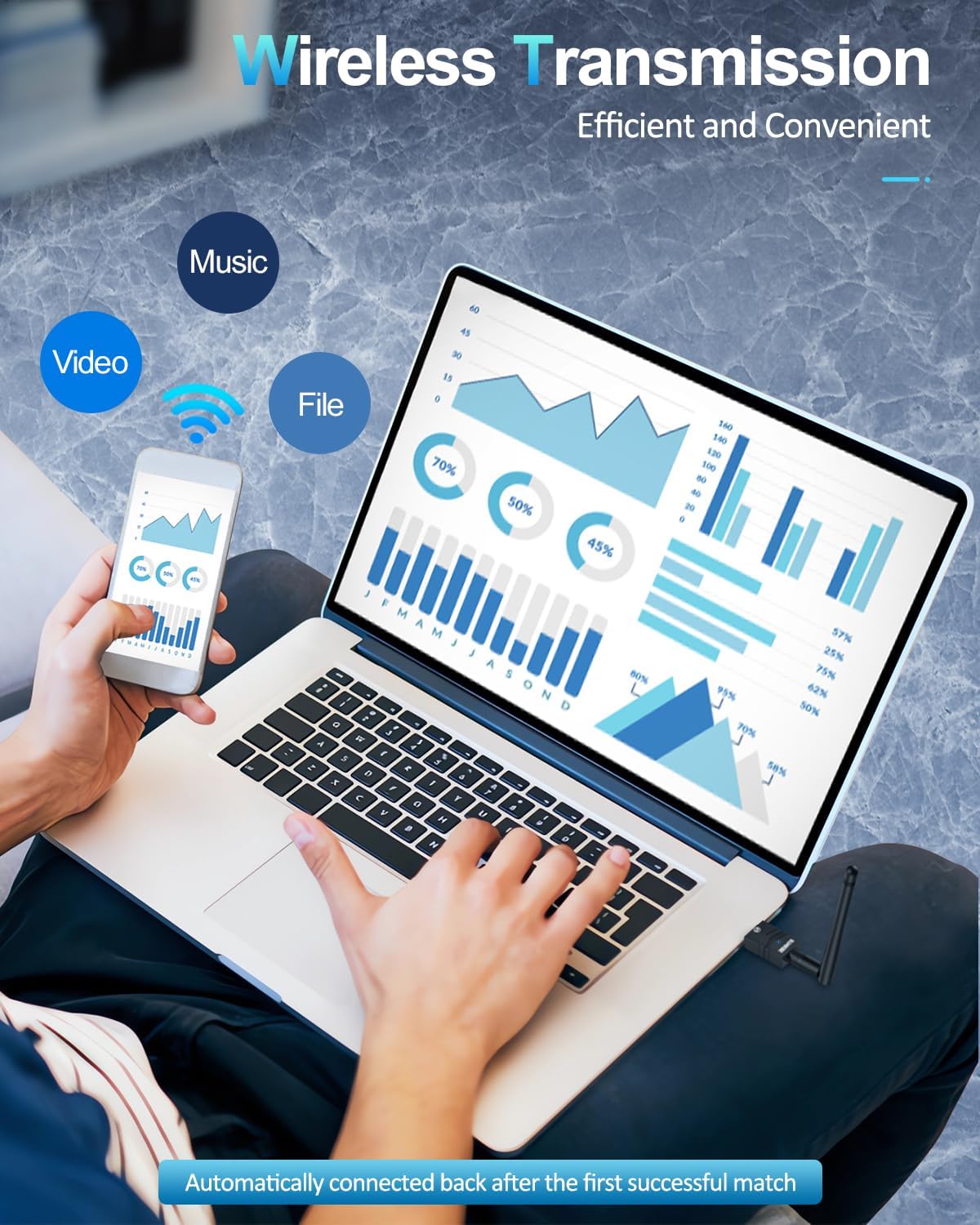
Image: A user transferring files wirelessly between a laptop and a smartphone, enabled by the Bluetooth adapter's transmission capabilities.
6. Maintenance
- Keep the adapter clean and free from dust.
- Avoid exposing the adapter to extreme temperatures or humidity.
- Do not attempt to disassemble or repair the adapter yourself.
7. Troubleshooting
7.1 Device Not Recognized / No Bluetooth Option
- Check USB Port: Try plugging the adapter into a different USB port.
- Driver Installation: For Windows 7/8.1, ensure drivers are correctly installed. For Windows 10/11, check Device Manager for any driver conflicts or unknown devices.
- Disable Internal Bluetooth: If your PC has built-in Bluetooth, ensure it is disabled to avoid conflicts.
7.2 Connection Issues / Frequent Disconnections
- Range: Ensure your Bluetooth device is within the adapter's operating range (up to 492ft/150m). Walls and obstacles can reduce range.
- Interference: Other wireless devices (Wi-Fi routers, cordless phones) can cause interference. Try moving the adapter or device away from such sources.
- Re-pair Device: Remove the device from your PC's Bluetooth settings and re-pair it.
- Adapter Position: Adjust the antenna's position for better signal reception.
7.3 Audio Lag / Poor Quality
- Device Selection: Ensure your Bluetooth audio device is selected as the default playback device in your sound settings.
- Distance/Obstacles: Reduce the distance between the adapter and the audio device, and minimize obstacles.
- Interference: Check for potential interference sources.
8. Specifications
| Brand | ZEXMTE |
| Hardware Interface | Bluetooth 5, USB |
| Color | Black Gold |
| Compatible Devices | Desktop, Keyboard, Laptop, Mouse, Printer |
| Data Link Protocol | Bluetooth, USB |
| Data Transfer Rate | 2 Megabits Per Second |
| Item Weight | 0.03 Kilograms |
| Compatible Operating System Family | Windows |
| Minimum Required Operating System Version | Windows 10 |
9. Warranty and Support
For warranty information, technical support, and frequently asked questions, please visit the official ZEXMTE website or contact their customer service directly. Keep your purchase receipt for warranty claims.


