
1. Introduction
Thank you for choosing the Huawei AX3000 Whole Home Mesh System. This system is designed to provide seamless, high-speed Wi-Fi 6 coverage throughout your entire home, eliminating dead zones and ensuring a stable connection for all your devices. This manual will guide you through the setup, operation, and maintenance of your new mesh system.
Key Features:
- Full Home AX3000 Coverage
- Compatible with Mesh+ Operating System
- One-Touch Connection (NFC)
- High-speed Wi-Fi 6 (802.11ax)
- Tri-band Frequency Support
2. Package Contents
Before you begin, please ensure all items are present in your package:
- Huawei AX3000 Mesh Units (3 packs)
- Power Adapters
- Ethernet Cable
- Quick Start Guide

Figure 2.1: Three Huawei AX3000 WiFi Mesh units, showcasing the complete system. This image displays three Huawei AX3000 WiFi Mesh units, highlighting the comprehensive coverage solution for your home.
3. Setup Guide
3.1 Connecting the Main Unit
- Placement: Choose a central location for your main mesh unit, away from obstructions and other electronic devices that may cause interference.
- Connect to Modem: Connect one end of the provided Ethernet cable to the LAN port of your existing modem/router and the other end to any Ethernet port (1, 2, or 3) on the back of the main Huawei AX3000 unit.
- Power On: Connect the power adapter to the main unit's power port and plug it into a power outlet. The indicator light will turn blue when the unit is ready.

Figure 3.1: The rear panel of the Huawei AX3000 WiFi Mesh unit, illustrating the three Ethernet ports (labeled 1, 2, 3), the recessed reset button, and the power input.
3.2 Adding Satellite Units
For optimal coverage, place the additional mesh units strategically around your home. They will automatically connect to the main unit to form a seamless mesh network.
- Power On: Plug in the satellite units to power outlets in areas needing extended Wi-Fi coverage.
- Automatic Pairing: The satellite units will automatically detect and pair with the main unit. The indicator light will turn blue once connected.
3.3 App Configuration (Huawei AI Life App)
For advanced settings and network management, download the Huawei AI Life app on your smartphone.
- Download App: Search for "Huawei AI Life" in your app store (Google Play Store or Apple App Store).
- Connect to Wi-Fi: Connect your smartphone to the default Wi-Fi network broadcast by your mesh system (SSID and password are on the bottom of the unit).
- Follow On-Screen Instructions: Open the app and follow the prompts to set up your network name (SSID) and password, and manage other settings.
3.4 One-Touch Connection (NFC)
For NFC-enabled Android devices, you can connect to the Wi-Fi network with a single tap:
- Enable NFC: Ensure NFC is enabled on your Android smartphone.
- Tap to Connect: Gently tap your smartphone to the NFC icon located on the top of any Huawei AX3000 mesh unit. Your device will automatically connect to the Wi-Fi network without needing to enter a password.

Figure 3.2: The top surface of the Huawei AX3000 WiFi Mesh unit, clearly showing the NFC touch area for quick device pairing and the 'Wi-Fi 6 Plus' branding.
4. Operating Your Mesh System
4.1 LED Indicator Status
The LED indicator on the front of each unit provides important status information:
- Solid Blue: Connected to the internet and operating normally.
- Solid Red: No internet connection or network error.
- Flashing Blue: Pairing mode or connecting.
- Flashing Red: System error or weak signal (for satellite units).
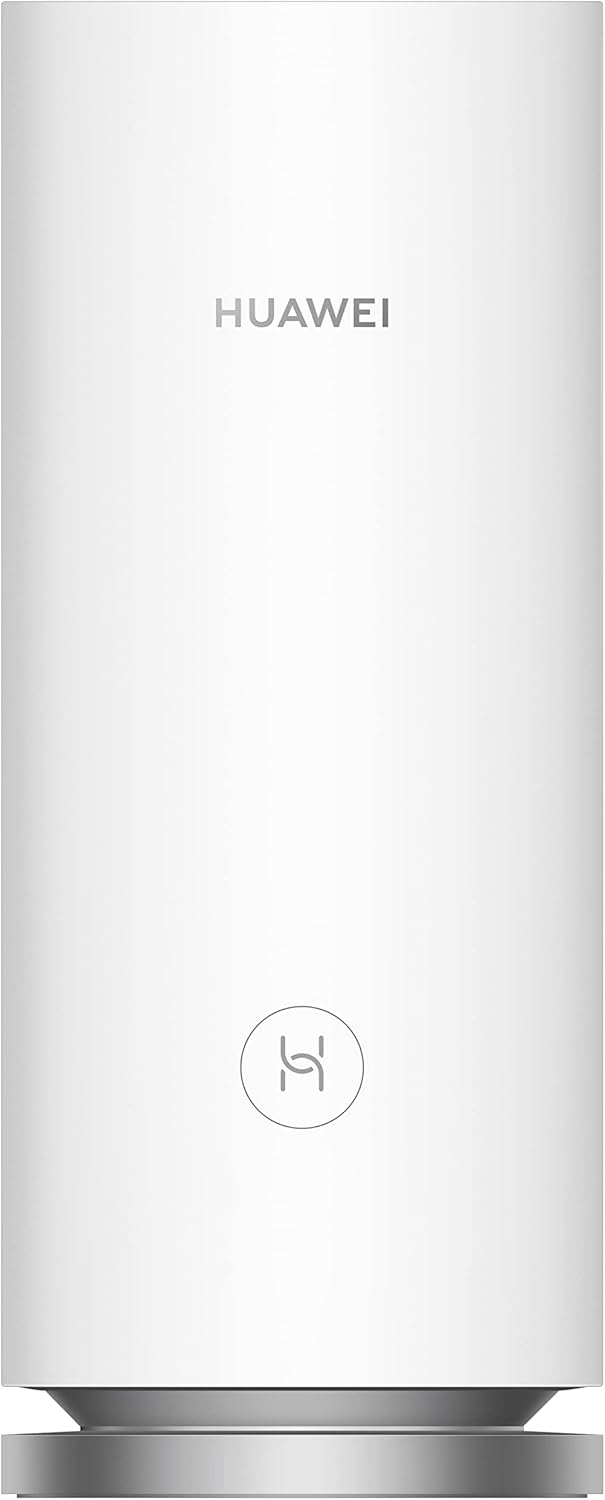
Figure 4.1: A close-up of the front of one Huawei AX3000 WiFi Mesh unit, featuring the prominent Huawei branding and the subtle status indicator light.
4.2 Network Management (via Huawei AI Life App)
The Huawei AI Life app allows you to manage various aspects of your network:
- Guest Wi-Fi: Create a separate network for guests.
- Parental Controls: Manage internet access times and content for specific devices.
- Device Management: View connected devices, set bandwidth limits, and block unwanted devices.
- Network Optimization: Run diagnostics and optimize network performance.
5. Maintenance
5.1 Firmware Updates
Regularly check for and install firmware updates via the Huawei AI Life app to ensure optimal performance, security, and access to new features.
5.2 Cleaning
Wipe the units with a soft, dry cloth. Do not use liquid cleaners or abrasive materials.
5.3 Optimal Placement
Ensure units are placed in open areas, away from large metal objects, concrete walls, and other sources of interference (e.g., microwaves, cordless phones) to maximize Wi-Fi signal strength and coverage.
6. Troubleshooting
6.1 No Internet Connection
- Check the LED indicator: If it's red, ensure your modem is working correctly and the Ethernet cable is securely connected to the main mesh unit.
- Restart your modem and the main mesh unit.
- Verify your internet service provider (ISP) connection.
6.2 Weak Wi-Fi Signal or Dead Zones
- Relocate satellite units closer to the main unit or to a more central location.
- Ensure there are no major obstructions between the units.
- Check for interference from other electronic devices.
6.3 Connection Drops Frequently
- Update firmware to the latest version.
- Reduce the number of connected devices or bandwidth-intensive activities.
- Consider a factory reset if issues persist (see 6.4).
6.4 Factory Reset
To perform a factory reset, use a pin or paperclip to press and hold the recessed RESET button on the back of the unit for approximately 10 seconds until the indicator light flashes rapidly. The unit will restart with factory default settings.
7. Specifications
| Feature | Detail |
|---|---|
| Brand | Huawei |
| Model Name | WS8100-23 |
| Connectivity Technology | Wi-Fi |
| Wireless Communication Standard | 802.11ax (Wi-Fi 6) |
| Frequency Band Class | Tri-band |
| Special Feature | Access Point Mode |
| Compatible Devices | Smartphone |
| Recommended Uses For Product | Home |
| Included Components | 3 Packs |
| Color | White |
| Item Weight | 2.42 Kilograms |
| Operating System | RouterOS |
| Package Dimensions | 35.5 x 19.7 x 11.7 cm |
8. Warranty and Support
Huawei products typically come with a standard manufacturer's warranty. Please refer to the warranty card included in your package or visit the official Huawei support website for detailed warranty terms and conditions specific to your region.
For technical support, troubleshooting assistance, or to download the latest drivers and firmware, please visit the official Huawei support portal or contact their customer service. Keep your product model number (WS8100-23) and serial number handy when seeking support.
Online Support: consumer.huawei.com/en/support/


