
Logitech 910-006272
Logitech Signature M650 for Business Wireless Mouse User Manual
Model: M650 (910-006272)
1. Introduction
The Logitech Signature M650 for Business is a versatile wireless mouse designed to enhance productivity and comfort. It offers dual connectivity options, a SmartWheel for adaptive scrolling, and SilentTouch technology for quiet operation. Available in two sizes, it caters to various hand sizes for optimal ergonomic support.
Key Features:
- Dual Connectivity: Connect via Logi Bolt USB receiver for secure connections or directly via Bluetooth Low Energy.
- SmartWheel Scrolling: Automatically switches between line-by-line precision and free-spin mode.
- SilentTouch Technology: Reduces click noise by 90% for a quieter work environment.
- Ergonomic Design: Contoured shape and soft thumb area for comfort, available in two sizes (M650 and M650 L).
- Customizable Buttons: Side buttons can be customized for various functions.
- Long Battery Life: Up to 24 months on a single AA battery.
- Multi-Platform Compatibility: Works seamlessly with Windows, macOS, Linux, Chrome OS, iPadOS, and Android.

Image: Logitech Signature M650 for Business Wireless Mouse and its packaging, showcasing the product and its box.
2. Setup
2.1. What's in the Box
Before you begin, ensure all components are present:
- Logitech Signature M650 Wireless Mouse
- Logi Bolt USB Receiver
- 1 AA Battery (pre-installed)

Image: The Logitech M650 mouse, a Logi Bolt USB receiver, and a 1-meter USB cable, representing the items included in the product packaging.
2.2. Battery Installation
The mouse comes with one AA battery pre-installed. If you need to replace it:
- Open the battery compartment cover on the underside of the mouse.
- Insert a new AA battery, ensuring correct polarity (+/-).
- Close the battery compartment cover securely.
2.3. Connecting Your Mouse
The Signature M650 offers two connection methods: Logi Bolt USB Receiver or Bluetooth Low Energy.
Option 1: Logi Bolt USB Receiver (Recommended for Secure Connections)
- Locate the Logi Bolt USB receiver, typically found inside the mouse's battery compartment or packaged separately.
- Plug the Logi Bolt USB receiver into an available USB port on your computer.
- Turn on the mouse using the power switch on its underside. The mouse should automatically connect.

Image: The Logi Bolt USB receiver securely plugged into a laptop's USB port, demonstrating its compact size and integration.
Option 2: Bluetooth Low Energy
- Turn on the mouse using the power switch on its underside.
- Press and hold the connect button on the underside of the mouse until the LED indicator starts blinking rapidly, indicating pairing mode.
- On your computer or device, open Bluetooth settings.
- Select "Logitech M650" from the list of available devices and follow the on-screen prompts to complete pairing.

Image: The Logitech M650 mouse positioned on a mousepad, with visual cues for both Bluetooth and Logi Bolt connectivity options.
3. Operating Your Mouse
3.1. SmartWheel Scrolling
The SmartWheel automatically adapts to your scrolling needs:
- Precision Mode: For detailed, line-by-line scrolling, gently scroll the wheel.
- Free-Spin Mode: For rapid, long document or web page navigation, give the wheel a quick flick. It will spin freely.
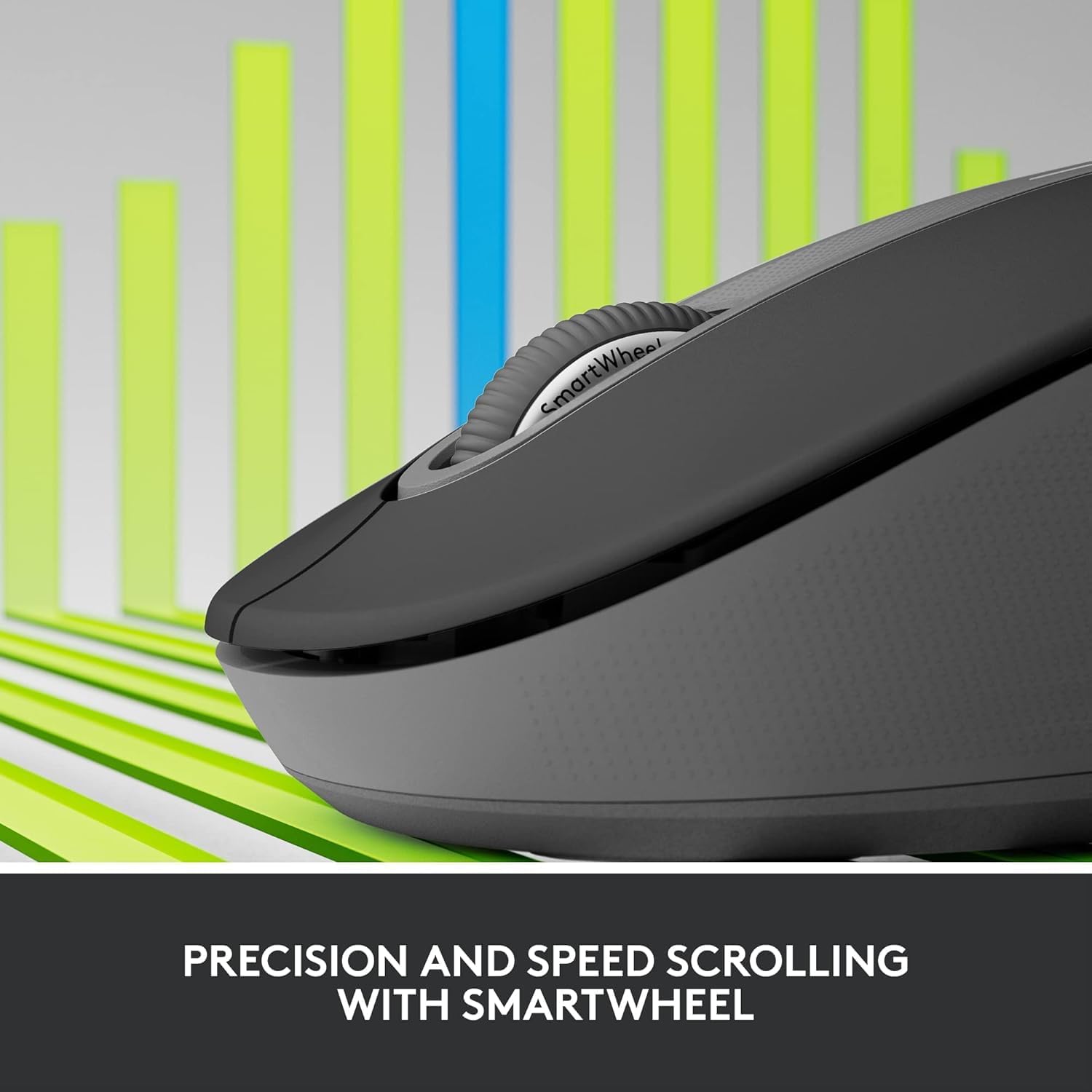
Image: A detailed close-up of the Logitech M650 mouse's SmartWheel, emphasizing its design for both precision and speed scrolling.
3.2. Customizable Side Buttons
The Signature M650 features two customizable side buttons. By default, these buttons may perform forward/back navigation in web browsers. To customize their functions, download and install the Logitech Options+ software from the official Logitech website.
3.3. SilentTouch Technology
Experience a quieter workspace with SilentTouch technology, which significantly reduces the sound of clicks without compromising the tactile feel.
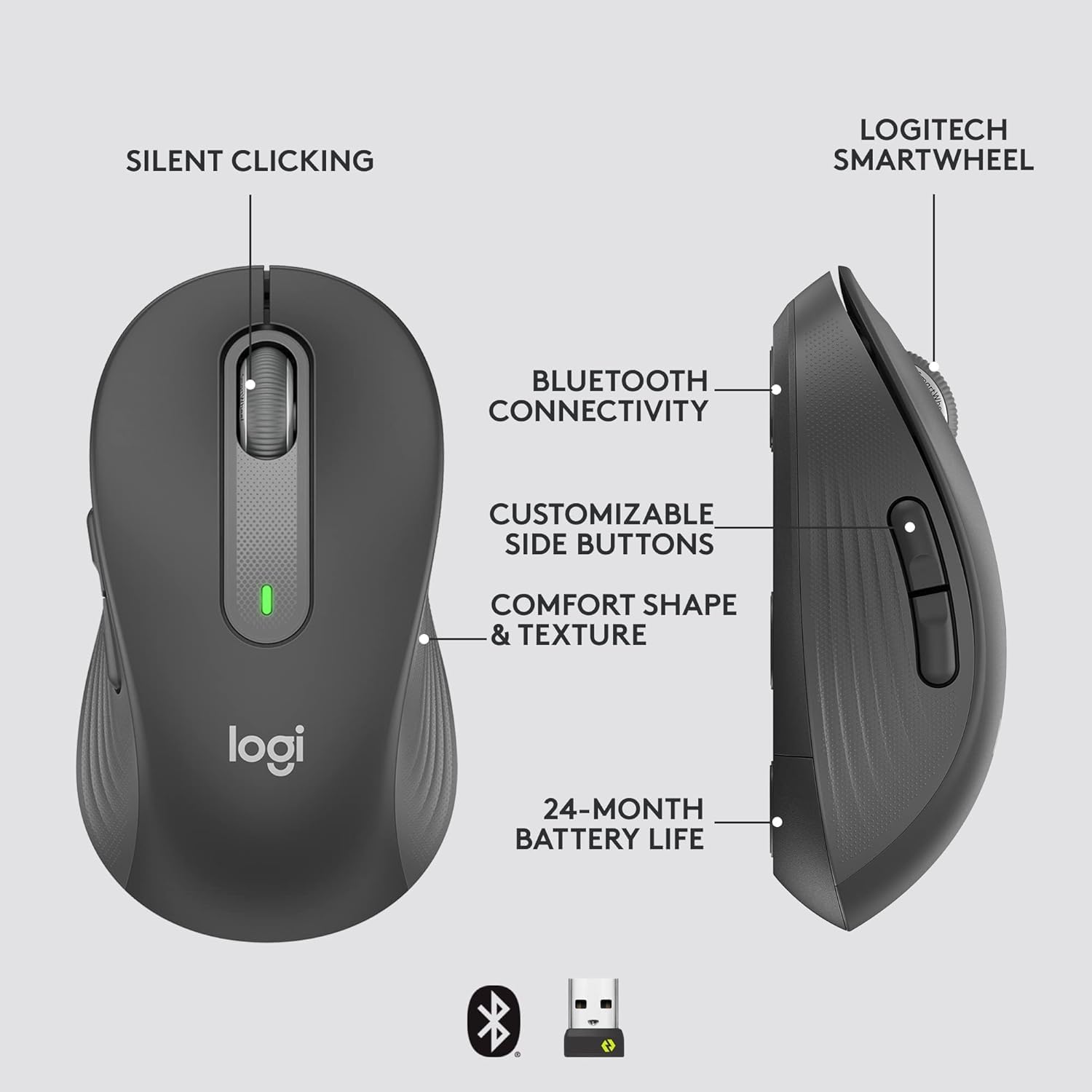
Image: An annotated diagram of the Logitech M650 mouse, highlighting key features such as Silent Clicking, Bluetooth Connectivity, Customizable Side Buttons, Comfort Shape & Texture, 24-Month Battery Life, and the Logitech SmartWheel.
4. Maintenance
4.1. Battery Replacement
The mouse uses one AA battery. When the battery is low, the LED indicator on the mouse may flash. Replace the battery as described in Section 2.2.
4.2. Cleaning
To clean your mouse, use a soft, lint-free cloth. For stubborn dirt, slightly dampen the cloth with water. Avoid using harsh chemicals or abrasive materials.
5. Troubleshooting
5.1. Mouse Not Responding
- Check Battery: Ensure the battery is correctly installed and has sufficient charge. Replace if necessary.
- Power On: Verify the mouse is turned on using the power switch.
- Re-establish Connection:
- Logi Bolt: Try plugging the receiver into a different USB port. Ensure no obstructions are between the mouse and receiver.
- Bluetooth: Go to your device's Bluetooth settings, remove the mouse, and re-pair it.
- Interference: Move the mouse closer to the receiver or device. Avoid using the mouse near other wireless devices that might cause interference.
5.2. Erratic Cursor Movement
- Clean Sensor: Ensure the optical sensor on the underside of the mouse is clean and free of debris.
- Surface: Use the mouse on a clean, non-reflective, and uniform surface. A mouse pad is recommended.
6. Technical Specifications
| Feature | Specification |
|---|---|
| Model Number | 910-006272 |
| Connectivity | Logi Bolt USB Receiver, Bluetooth Low Energy |
| Sensor Technology | Optical |
| Battery Type | 1 x AA battery (included) |
| Battery Life | Up to 24 months |
| Dimensions (M650) | 4.22 x 2.43 x 1.49 inches (10.7 x 6.17 x 3.78 cm) |
| Weight | 3.57 ounces (101.2 g) |
| Color | Graphite |
| Operating System Compatibility | Windows, macOS, Linux, Chrome OS, iPadOS, Android |

Image: A visual comparison of the Logitech M650 and M650 L mouse sizes, indicating their respective lengths of 10.5cm and 11.5cm.
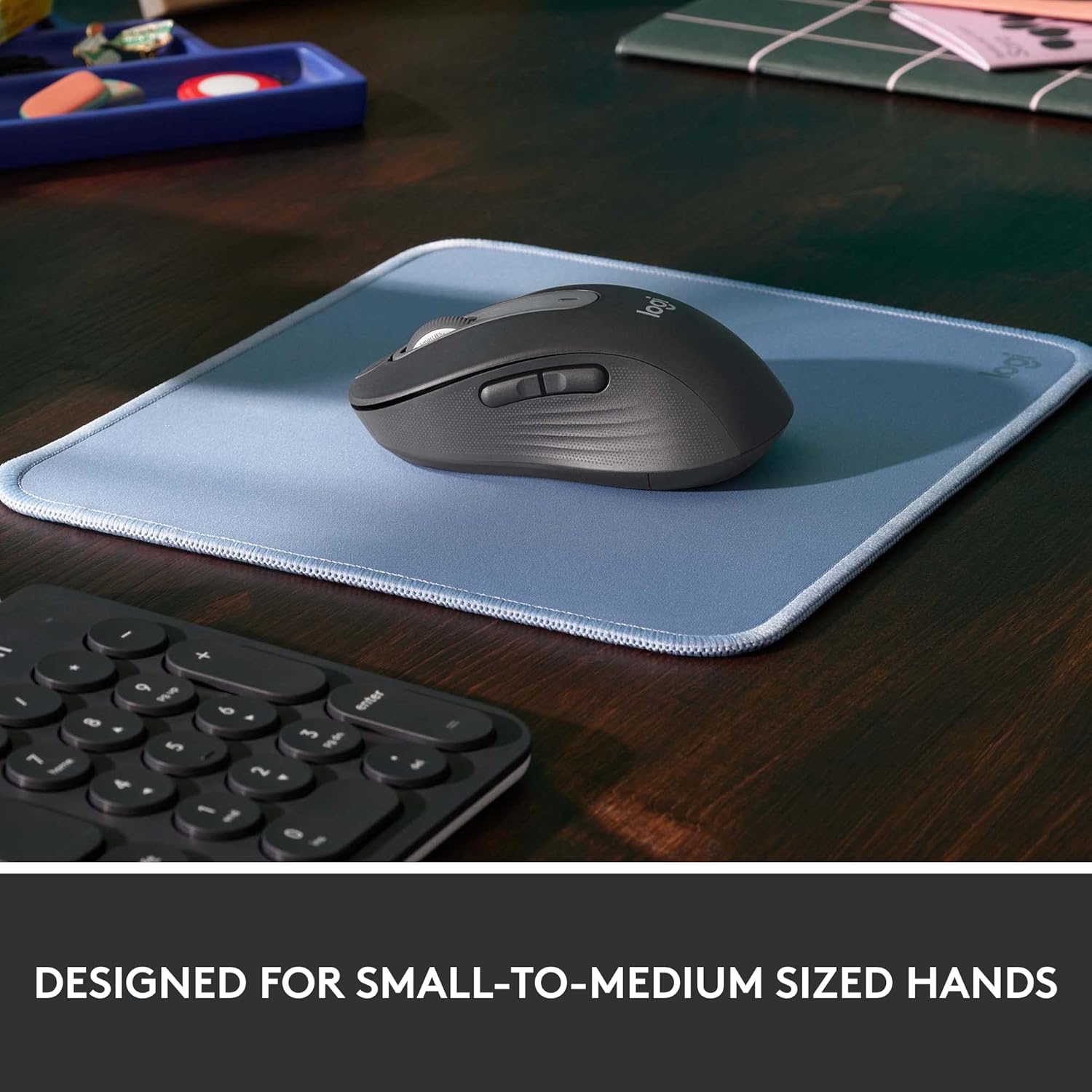
Image: The Logitech M650 mouse resting on a light blue mousepad, illustrating its ergonomic shape designed to fit comfortably in small to medium-sized hands.
7. Warranty and Support
Logitech products are manufactured to the highest quality standards. For detailed warranty information, please refer to the warranty card included with your product or visit the official Logitech support website.
For technical assistance, troubleshooting, or to download the latest software and drivers, please visit the Logitech Support page:
Related documents910-006272


Ask a question about this manual
Ask about setup, troubleshooting, compatibility, parts, safety, or missing instructions. Manuals+ will review the question and use this page’s manual context to help answer it.