
1. Introduction
Thank you for choosing the aigo AR12 120mm White ARGB Case Fan. This manual provides detailed instructions for the proper installation, operation, and maintenance of your new PC case fan. Please read this manual thoroughly before installation and keep it for future reference.

Figure 1: The aigo AR12 120mm White ARGB Case Fan, showcasing its white frame and translucent fan blades with vibrant ARGB lighting.
2. Safety Information
- Ensure your computer system is powered off and unplugged from the wall outlet before installation or maintenance.
- Handle components with care to avoid damage from static electricity. Consider using an anti-static wrist strap.
- Do not attempt to modify the fan or its cables. Unauthorized modifications may void your warranty and pose safety risks.
- Keep the fan away from liquids and excessive moisture.
- Ensure proper cable management to prevent interference with moving parts or other components.
3. Package Contents
Verify that all components are present in your package:
- aigo AR12 120mm White ARGB Case Fan(s)
- Mounting Screws
- (Optional, if purchased with a kit) aigo Micro 6-pin Controller
- (Optional, if purchased with a kit) Remote Control
4. Product Overview
The aigo AR12 fan features a 120mm design with addressable RGB lighting, allowing for customizable illumination. It connects via a micro 6-pin connector and requires an aigo micro 6-pin controller for operation. The fan blades are designed to optimize airflow while minimizing noise. Anti-shock pads are integrated on both sides of the fan frame to reduce vibration and noise.

Figure 2: Diagram illustrating the 5V ARGB 3-pin synchronization with a compatible motherboard. Note the correct 5V 3-pin header (ADD GEN2) versus the incompatible 12V 4-pin RGB header.
Key Features:
- 5V ARGB Addressable RGB: Synchronizes with compatible motherboards for unified lighting effects.
- Optimized Fan Blade Design: Engineered for effective airflow and reduced noise levels.
- Anti-Shock Design: Integrated pads on the fan frame minimize resonance and operational noise.
- TPU Light Guidance Ring: Ensures comfortable and uniform lighting distribution.
- Micro 6-pin Power Connector: Requires an aigo micro 6-pin controller for power and ARGB control.
5. Setup and Installation
Follow these steps to install your aigo AR12 case fan:
- Prepare Your System: Power off your computer and unplug it from the power outlet. Open your PC case.
- Identify Mounting Location: Determine the desired location for the fan within your PC case (e.g., front, top, rear, bottom). Ensure there is sufficient clearance.
- Mount the Fan: Align the fan with the screw holes in your PC case. Use the provided mounting screws to secure the fan firmly. Do not overtighten.
- Connect to Controller: Connect the micro 6-pin cable from the AR12 fan to an available fan port on your aigo micro 6-pin controller. The controller typically has ports labeled FAN1, FAN2, etc.
- Power the Controller: Connect the SATA power cable from the aigo controller to an available SATA power connector from your power supply unit (PSU).
- ARGB Motherboard Sync (Optional): If your motherboard supports 5V ARGB (3-pin header), connect the ARGB sync cable from the aigo controller to the 5V ARGB header on your motherboard. Do not connect to a 12V RGB (4-pin) header, as this will damage the LEDs.
- Cable Management: Route all cables neatly to ensure proper airflow and a clean build.
- Close Case and Power On: Close your PC case, plug in the power cable, and power on your system.

Figure 3: Comprehensive connection diagram showing multiple aigo fans, an LED strip, and a remote control connected to the aigo controller, which is powered by a SATA cable from the power supply. It also illustrates motherboard ARGB sync options.

Figure 4: Front view of a PC case with multiple aigo AR12 fans installed, showcasing their vibrant ARGB illumination and contribution to the overall system aesthetics.
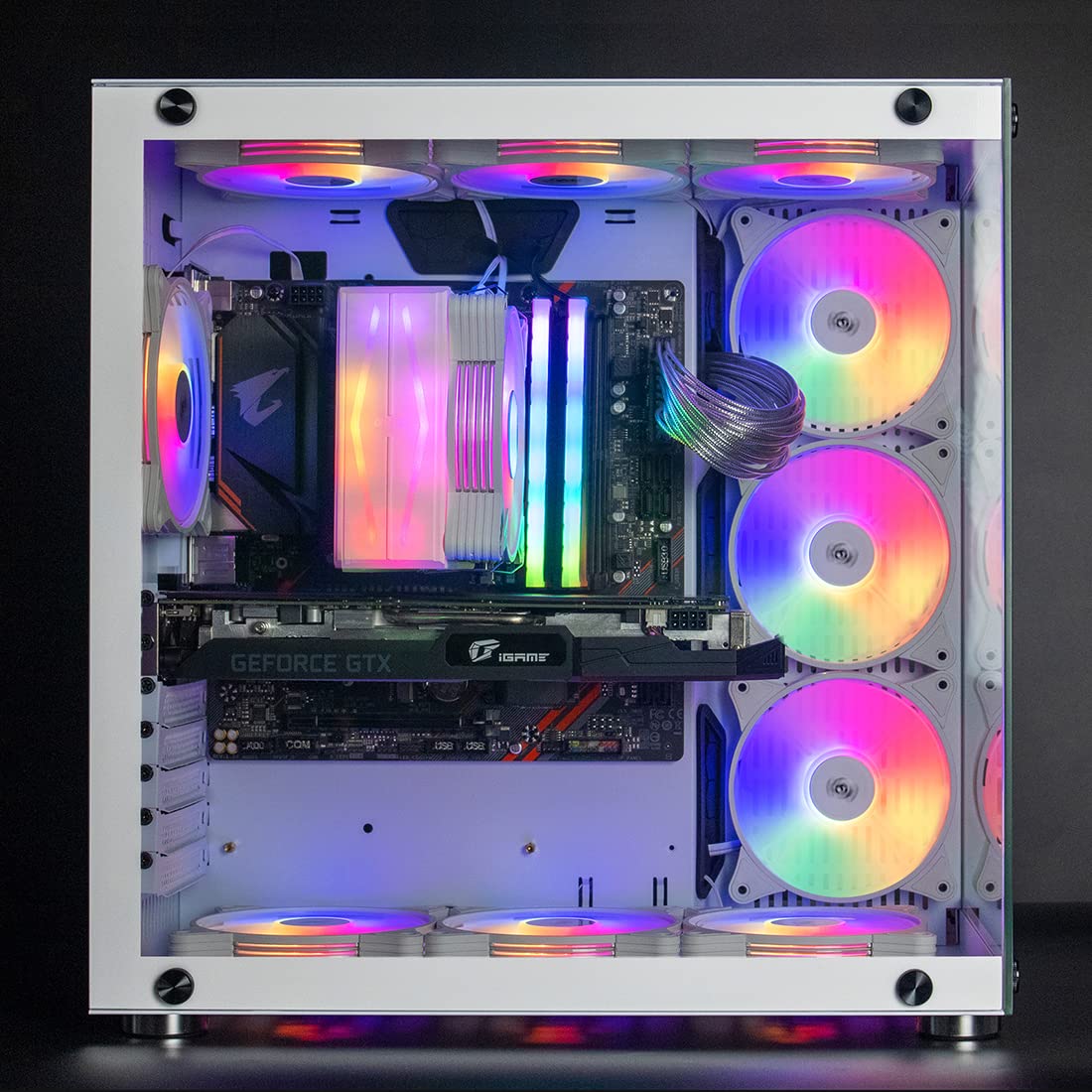
Figure 5: Side view of a PC case with aigo AR12 fans installed, providing a clear perspective of the fan placement and the integrated lighting effects within the system.
6. Operating Instructions
Once installed, the aigo AR12 fans will operate when your computer is powered on. The ARGB lighting can be controlled in two primary ways:
- Via Remote Control (if applicable): If your aigo controller came with a remote control, you can use it to cycle through various lighting modes, adjust brightness, and change colors. Refer to your controller's specific instructions for remote functions.
- Via Motherboard ARGB Software: If you connected the controller to a 5V ARGB header on your motherboard, you can control the fan lighting using your motherboard's proprietary RGB software (e.g., ASUS Aura Sync, MSI Mystic Light Sync, GIGABYTE RGB Fusion, ASRock Polychrome Sync). This allows for synchronized lighting effects across all compatible components.
The fan speed is typically controlled by the motherboard's fan headers or a dedicated fan controller, depending on your system configuration. The aigo AR12 fans are designed for optimal airflow and quiet operation.
7. Maintenance
Regular maintenance helps ensure optimal performance and longevity of your aigo AR12 fans:
- Dust Removal: Periodically clean dust from the fan blades and frame using compressed air or a soft, dry cloth. Ensure the system is powered off and unplugged before cleaning.
- Inspection: Check cables for any signs of wear or damage. Ensure all connections remain secure.
- Avoid Liquids: Do not use liquid cleaners directly on the fan or controller.
8. Troubleshooting
| Problem | Possible Cause | Solution |
|---|---|---|
| Fan not spinning. |
|
|
| ARGB lighting not working or incorrect. |
|
|
| Excessive noise. |
|
|
9. Specifications
| Feature | Detail |
|---|---|
| Model | AR12 |
| Fan Size | 120mm x 120mm x 25mm |
| Color | White |
| Lighting | Addressable RGB (ARGB) |
| Power Connector | Micro 6-pin (requires aigo controller) |
| Rated Voltage | 5V (for ARGB) |
| Cooling Method | Air |
| Maximum Rotational Speed | 2000 RPM |
| Compatible Devices | Desktop PCs |
| Material | TPU (Light Guidance Ring) |
10. Warranty and Support
aigo products are manufactured to high quality standards. For information regarding warranty coverage, technical support, or replacement parts, please refer to the warranty card included with your product or visit the official aigo website. Please retain your proof of purchase for warranty claims.
For further assistance, you may contact aigo customer support through their official channels.


