
1. Important Safety Information
Please read all safety and operating instructions before using your new VIZIO TV. Keep these instructions for future reference. Always follow basic safety precautions to reduce the risk of fire, electric shock, and injury to persons.
- Do not block ventilation openings.
- Do not install near any heat sources.
- Protect the power cord from being walked on or pinched.
- Only use attachments/accessories specified by the manufacturer.
- Unplug this apparatus during lightning storms or when unused for long periods.
- Refer all servicing to qualified service personnel.
2. What's Included
Verify that all components are present in the packaging:
- VIZIO D-Series 32-inch 1080p Smart TV
- Remote Control (XRT140)
- TV Stand
- Attached Power Cable
- User Manual (this document)

Image: This diagram illustrates the TV's dimensions, the included XRT140 remote control, attached power cable, and user manual. It also highlights the built-in Apple AirPlay and Chromecast features.
3. Setup Guide
3.1 Unpacking and Placement
Carefully remove the TV from its packaging. Place the TV on a stable, flat surface or prepare for wall mounting. Ensure adequate ventilation around the TV.
3.2 Attaching the Stand
If using the included stand, align the stand with the designated slots on the bottom of the TV. Secure the stand using the provided screws. Refer to the diagram in the 'What's Included' section for visual guidance.
3.3 Wall Mounting
This TV supports VESA mount standard 100 x 100 mm. Use a compatible wall mount kit (sold separately) and follow the instructions provided with the wall mount. Ensure the wall can support the TV's weight (approximately 8.99 pounds) and the mount.
3.4 Connecting Peripherals
Connect your external devices to the TV's ports:
- HDMI: Use the 2 HDMI ports for devices like cable boxes, gaming consoles, or Blu-ray players.
- USB: Use the 1 USB port for media playback or connecting compatible accessories.
- Audio Output: Digital audio output is available for connecting soundbars or home theater systems.
3.5 Initial Power On and Network Connection
Plug the attached power cable into a power outlet. The TV will guide you through the initial setup process, including language selection and connecting to your Wi-Fi network. A stable Wi-Fi connection is essential for Smart TV features and streaming.
4. Operating Your TV
4.1 Remote Control Functions
The included remote control (XRT140) allows you to navigate the TV's interface. Basic functions include power on/off, volume control, channel selection, input switching, and accessing the SmartCast home screen.
4.2 SmartCast Overview
VIZIO SmartCast provides instant access to a wide selection of streaming apps and content. The lightning-fast interface and intuitive navigation allow you to quickly find and enjoy your favorite entertainment.

Image: The VIZIO SmartCast home screen, featuring HBO Max content and various streaming app icons below.
4.3 Streaming Services
Access popular streaming services directly from your TV. Available applications include Netflix, Disney+, YouTube, Prime Video, Hulu, HBO Max, Peacock, Apple TV, Vudu, Paramount+, and many more.

Image: A comprehensive display of various streaming service logos, indicating the wide range of applications available on VIZIO SmartCast.
4.4 WatchFree+
WatchFree+ offers hundreds of free live TV channels and on-demand content, including news, sports, movies, and TV shows. No subscriptions or fees are required.

Image: The WatchFree+ interface shown across multiple VIZIO TVs, highlighting the variety of free streaming content available.

Image: A VIZIO Smart TV showcasing Latino novellas, news, and movies available for free on SmartCast, with channel logos like EstrellaTV and Cine Sureño.
4.5 Screen Mirroring
The TV supports Apple AirPlay and Chromecast built-in, allowing you to mirror content from compatible smartphones, tablets, and laptops directly to your TV screen.
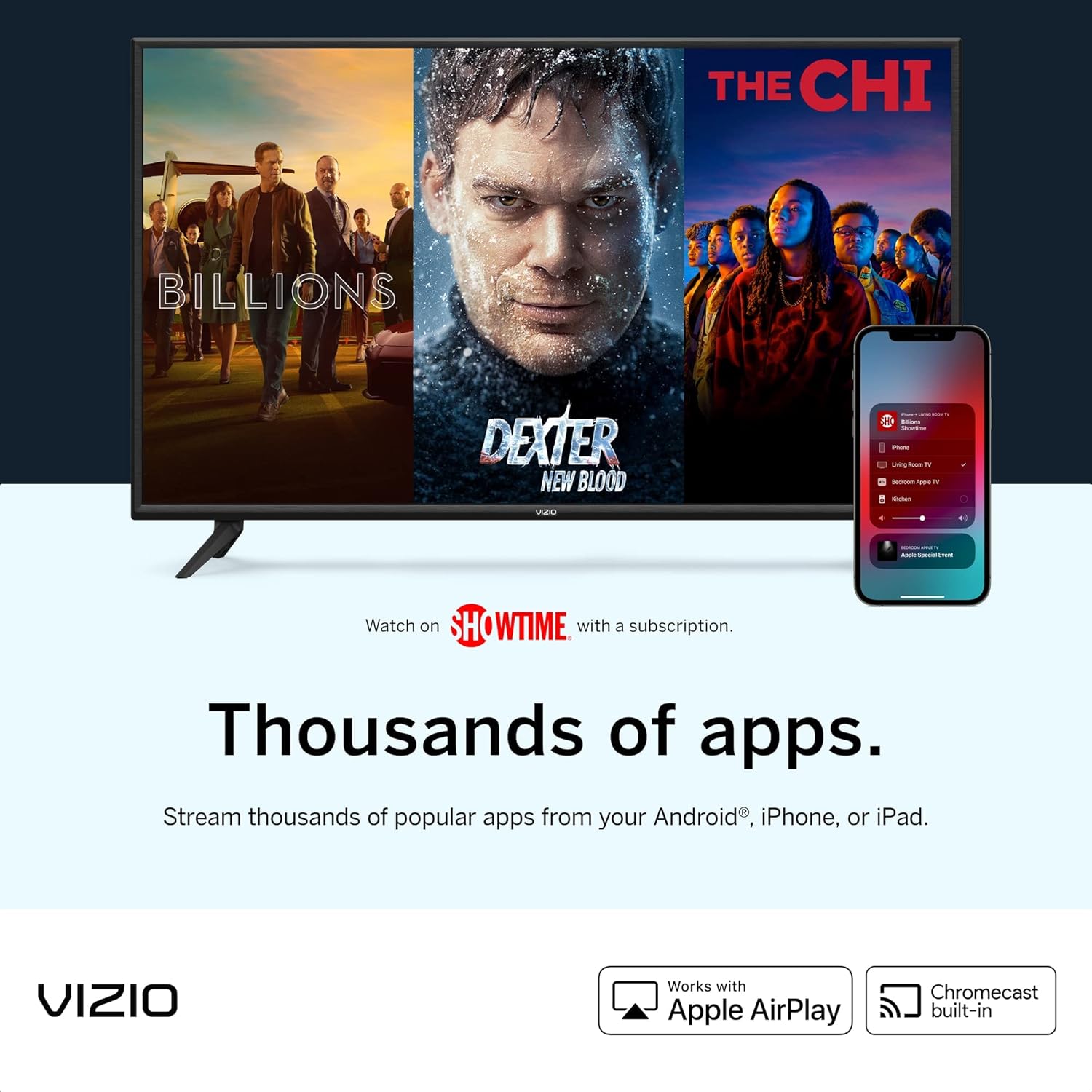
Image: A VIZIO Smart TV showing various apps, with an iPhone screen mirrored on the right, demonstrating AirPlay functionality.
4.6 Voice Control
This VIZIO Smart TV is compatible with voice assistants such as Alexa, Apple HomeKit, and Hey Google, allowing for convenient voice control of your connected devices and TV functions.

Image: A VIZIO Smart TV with smart speakers representing Alexa, Apple HomeKit, and Hey Google, illustrating the TV's compatibility with these voice control platforms.
4.7 Gaming Features
The V-Gaming Engine automatically optimizes gameplay for responsiveness with auto game mode and low input lag. It also features AMD FreeSync for smoother visuals during gaming.
5. Maintenance and Care
5.1 Cleaning the TV
To clean the screen, gently wipe with a soft, dry, lint-free cloth. For stubborn marks, lightly dampen the cloth with water. Avoid using harsh chemicals or abrasive cleaners. For the TV body, use a soft, dry cloth.
5.2 Software Updates
Your VIZIO Smart TV may receive automatic software updates to improve performance and add new features. Ensure your TV is connected to the internet to receive these updates.
6. Troubleshooting
If you encounter issues with your TV, refer to the following common solutions:
- No Power: Ensure the power cable is securely plugged into both the TV and a working electrical outlet. Try a different outlet.
- No Picture/Sound: Check that the correct input source is selected. Verify all HDMI and audio cables are securely connected. Restart connected devices.
- Network Connectivity Issues: Ensure your Wi-Fi router is on and functioning. Try restarting your router and the TV. Check network settings on the TV.
- App Issues/Lagging: Close and reopen the application. Ensure your TV's software is up to date. A factory reset may resolve persistent issues (note: this will erase personal settings).
- HDMI Port Malfunction: If an HDMI port is cutting in and out, try a different HDMI cable or port. Ensure the cable is not damaged.
For further assistance, please contact VIZIO Customer Support.
7. Specifications
| Feature | Specification |
|---|---|
| Screen Size | 32 Inches |
| Display Technology | LED |
| Resolution | 1080p Full HD |
| Refresh Rate | 60 Hz |
| Model Name | D32F-J04 |
| Product Dimensions (D x W x H) | 7.1"D x 28.09"W x 18.87"H |
| Item Weight | 8.99 Pounds |
| Connectivity Technology | HDMI, USB, Wi-Fi |
| Total Number of HDMI Ports | 2 |
| Total USB Ports | 1 |
| Screen Mirroring Technology | AirPlay, Chromecast |
| VESA Mount Standard | 100 x 100 mm |
| Special Features | DTS Virtual: X, WatchFree+, Variable Refresh Rate, IQ Picture Processor, V-Gaming Engine |
| Operating System | Android (for SmartCast functionality) |
8. Warranty and Support
8.1 Warranty Information
This VIZIO D-Series TV comes with a 90-day limited warranty. Please retain your proof of purchase for warranty claims.
8.2 Customer Support
For technical support, troubleshooting, or warranty inquiries, please visit the official VIZIO support website or contact their customer service. Manufacturer: VIZIO, Inc.