Introduction
This manual provides essential information for setting up, operating, maintaining, and troubleshooting your HP Pavilion 15 Laptop. Please read this guide thoroughly to ensure optimal performance and longevity of your device.

Image: The HP Pavilion 15 Laptop displaying the Windows 10 operating system desktop, showcasing its micro-edge display and full-size keyboard.
1. Setup
1.1 Unboxing and Initial Inspection
Carefully remove all components from the packaging. Verify that the following items are present:
- HP Pavilion 15 Laptop
- 45 W Smart AC power adapter
- Setup poster/Quick Start Guide
- Microfiber Cloth (if bundled)
Inspect the laptop and accessories for any signs of damage. If any items are missing or damaged, contact HP support.

Image: An illustration of the HP Pavilion 15 Laptop, highlighting its physical dimensions (14.11" W x 9.53" D x 0.71" H) and labeling its various ports: Multi-format SD media card reader, Headphone/microphone combo, SuperSpeed USB Type-C, HDMI 1.4b, AC smart pin, and SuperSpeed USB Type-A.
1.2 Connecting to Power
- Connect the AC power adapter to the power connector on your laptop.
- Plug the power cord into an electrical outlet.
- Allow the battery to charge for a sufficient period before initial use, or use the laptop while connected to power.
1.3 Initial Boot and Windows Setup
- Open the laptop lid and press the power button.
- Follow the on-screen instructions to complete the Windows 10 Home setup. This includes selecting your region, language, connecting to a Wi-Fi network, and creating a user account.
- Your laptop is eligible for a free upgrade to Windows 11. You can initiate this upgrade through Windows Update after the initial setup is complete and your system is fully updated.
2. Operating Your Laptop
2.1 Keyboard and Touchpad
The HP Pavilion 15 features a full-size keyboard with an integrated numeric keypad for efficient data entry. The touchpad supports multi-touch gestures for navigation.
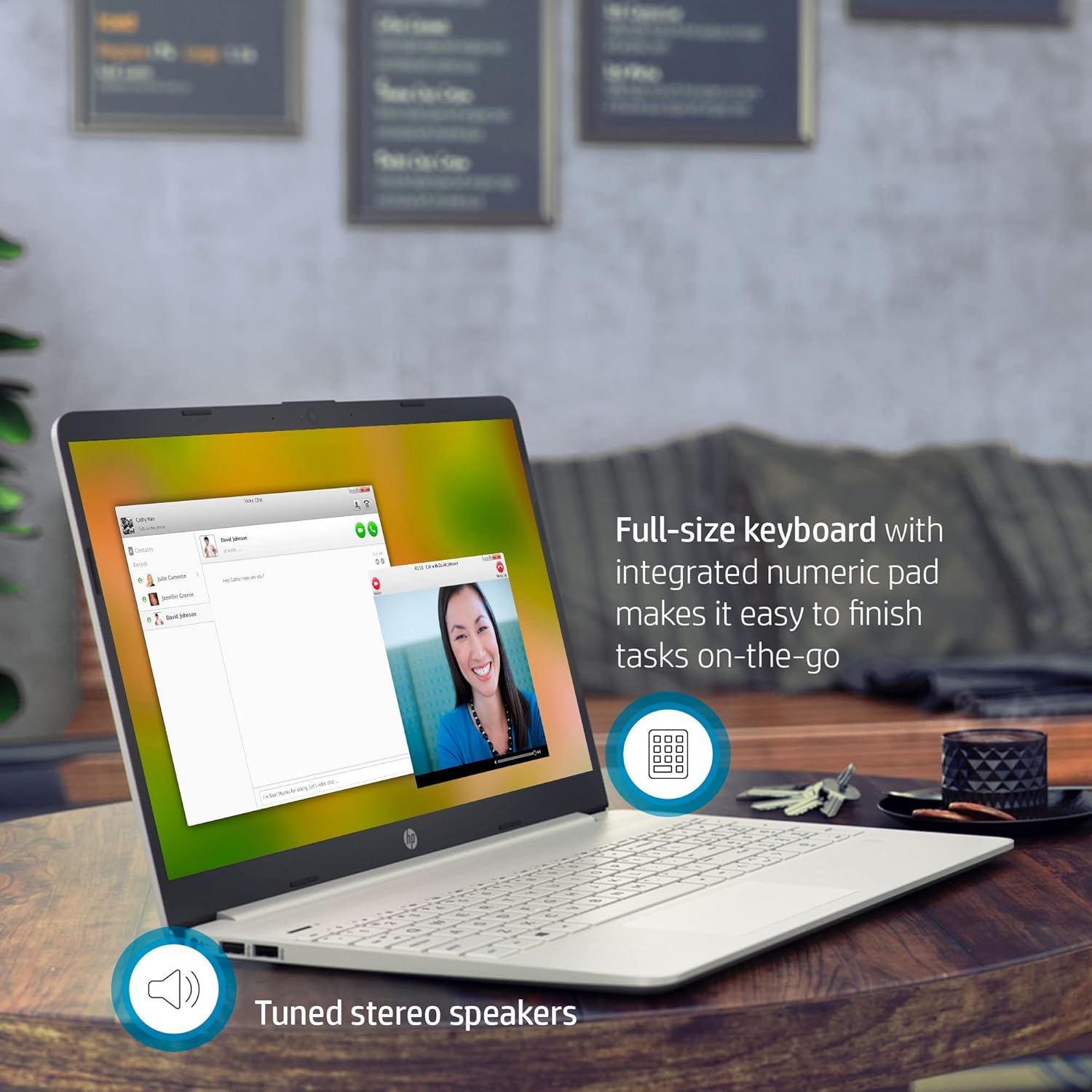
Image: The HP Pavilion 15 Laptop from an angled view, highlighting its full-size keyboard with numeric pad and indicating the presence of tuned stereo speakers.
2.2 Connecting Peripherals
Your laptop is equipped with various ports for connecting external devices:
- USB Ports: 1 SuperSpeed USB Type-C (5Gbps signaling rate) and 2 SuperSpeed USB Type-A (5Gbps signaling rate) for connecting USB devices like external drives, mice, or keyboards.
- HDMI: 1 HDMI 1.4b port for connecting to external displays or projectors.
- Headphone/Microphone Combo: A single port for connecting headphones, external microphones, or headsets.
- SD Card Reader: A multi-format SD media card reader for accessing data from memory cards.
2.3 Wireless Connectivity
- Wi-Fi: Connect to wireless networks using the integrated Intel Wireless Wi-Fi. Access Wi-Fi settings through the Windows taskbar network icon.
- Bluetooth: Pair Bluetooth-enabled devices such as headphones, speakers, or mice. Bluetooth settings are accessible via Windows Settings > Devices > Bluetooth & other devices.
2.4 Audio and Webcam
The laptop features High Definition Audio and tuned stereo speakers for clear sound. For video conferencing and communication, it includes a built-in HD webcam and dual array digital microphones.

Image: The HP Pavilion 15 Laptop screen showing a video conference call, emphasizing the HP True Vision Camera with dual array digital microphone and the edge-to-edge HD display.
3. Maintenance
3.1 Battery Care
- To maximize battery life, avoid extreme temperatures.
- Periodically allow the battery to discharge partially before recharging.
- If storing the laptop for an extended period, ensure the battery is charged to approximately 50%.
- The average battery life is up to 11 hours, depending on usage.
3.2 Cleaning Instructions
- Screen: Use a soft, lint-free cloth (like the bundled microfiber cloth) slightly dampened with water or a screen cleaner. Do not spray liquid directly onto the screen.
- Keyboard and Chassis: Use a soft, dry cloth. For stubborn dirt, a slightly dampened cloth with mild soap solution can be used, ensuring no liquid enters openings.
- Always power off and unplug the laptop before cleaning.
3.3 Software Updates
Regularly check for and install Windows updates and HP driver updates to ensure optimal performance, security, and compatibility. Access Windows updates via Settings > Update & Security > Windows Update.
4. Troubleshooting
This section addresses common issues you might encounter with your HP Pavilion 15 Laptop.
| Problem | Possible Solution |
|---|---|
| Laptop does not power on. |
|
| Screen is blank or black. |
|
| Wi-Fi connection issues. |
|
| Slow performance. |
|
5. Specifications
Key technical specifications for the HP Pavilion 15 Laptop (Model: HP Pavilion 15 Series):
| Feature | Detail |
|---|---|
| Processor | 11th Generation Intel Core i3-1115G4 (up to 4.1 GHz) |
| Graphics | Intel UHD Graphics (Integrated) |
| Display | 15.6-inch HD (1366 x 768) Micro-Edge, Anti-Glare |
| RAM | Up to 32 GB DDR4 SDRAM |
| Storage | Up to 1 TB PCIe NVMe M.2 Solid State Drive |
| Operating System | Windows 10 Home (64-bit, English) - Free upgrade to Windows 11 available |
| Wireless Connectivity | Intel Wireless Wi-Fi, Bluetooth |
| Ports | 1 SuperSpeed USB Type-C (5Gbps), 2 SuperSpeed USB Type-A (5Gbps), 1 HDMI 1.4b, 1 AC smart pin, 1 Headphone/microphone combo, Multi-format SD Media Card Reader |
| Webcam | Built-in HD Webcam with dual array digital microphone |
| Battery Life | Up to 11 hours (average) |
| Dimensions (L x W x H) | 14.11 x 9.53 x 0.71 inches |
| Weight | Starting 3.72 lbs (1.69 kg) |
| Color | Natural Silver |
6. Warranty and Support
Your HP Pavilion 15 Laptop comes with a standard manufacturer's warranty. For detailed warranty information, please refer to the warranty card included with your product or visit the official HP support website.
For technical assistance, driver downloads, or further support, please visit the official HP Support website:
When contacting support, please have your laptop's serial number and model information ready.