
1. Introduction
Thank you for choosing the CACKBIRD CA282A Wireless RGB Gaming Mouse. This manual provides detailed instructions for setting up, operating, and maintaining your new gaming mouse. Please read this manual thoroughly before use to ensure optimal performance and longevity of the product.
2. Package Contents
- CACKBIRD CA282A Wireless RGB Gaming Mouse
- USB Receiver (2.4GHz)
- USB Type-C Charging Cable
- User Manual (this document)
- Software CD (for Windows only)

Image: The CACKBIRD CA282A Wireless RGB Gaming Mouse shown alongside its compact USB receiver.
3. Product Overview
The CACKBIRD CA282A features an ergonomic design with multiple programmable buttons and customizable RGB lighting for an enhanced gaming experience.
Key Features:
- Immersive RGB Backlight: Three lighting zones (logo, light strap, scroll wheel) with 9 effects and 16.8 million color combinations.
- 10 Programmable Buttons: Customize functions and macros via dedicated software (Windows only).
- Fire Button: Provides a rapid triple-click function with a single press.
- High-Precision Sensor: PMW3325 sensor with adjustable DPI up to 10000.
- Dual Usage Mode: Operates wirelessly via 2.4GHz USB receiver or wired via Type-C cable.
- Rechargeable Battery: Built-in 1000mA lithium battery for extended use.

Image: An illustration of the mouse highlighting the Fire Button and DPI Lock button for quick access during gameplay.
4. Setup
4.1 Charging the Mouse
Before initial use, it is recommended to fully charge the mouse. Connect the provided USB Type-C cable to the mouse's charging port and the other end to a USB power source (e.g., computer USB port, USB wall adapter). A full charge takes approximately 2 hours.
- Battery life (lights off): Up to 60 hours
- Battery life (lights on): Up to 36 hours
The mouse can be used while charging in wired mode.

Image: The CACKBIRD CA282A mouse connected via its Type-C cable for charging, illustrating its 'play longer' capability.
4.2 Connecting the Mouse
The mouse supports both wireless and wired connections.
Wireless Mode (2.4GHz):
- Locate the USB receiver in the mouse's storage compartment or within the packaging.
- Plug the USB receiver into an available USB port on your computer.
- Turn on the mouse using the power switch located on the underside.
- The mouse should automatically connect to your computer.
Wired Mode:
- Connect the USB Type-C cable to the mouse and the other end to a USB port on your computer.
- The mouse will function as a wired mouse and charge simultaneously.

Image: The CACKBIRD CA282A mouse emphasizing its 1000Hz polling rate and 10-meter wireless range for unrestricted gameplay.
5. Operating Instructions
5.1 DPI Adjustment
The mouse features a high-precision PMW3325 sensor with adjustable DPI settings up to 10000. Use the dedicated DPI button (usually located behind the scroll wheel) to cycle through preset DPI levels. The current DPI level may be indicated by LED color changes or through the software.
5.2 RGB Lighting Control
The mouse offers customizable RGB backlighting across three zones. You can cycle through 9 different RGB lighting effects and 16.8 million color combinations. Specific buttons or the software can be used to change lighting modes and colors.
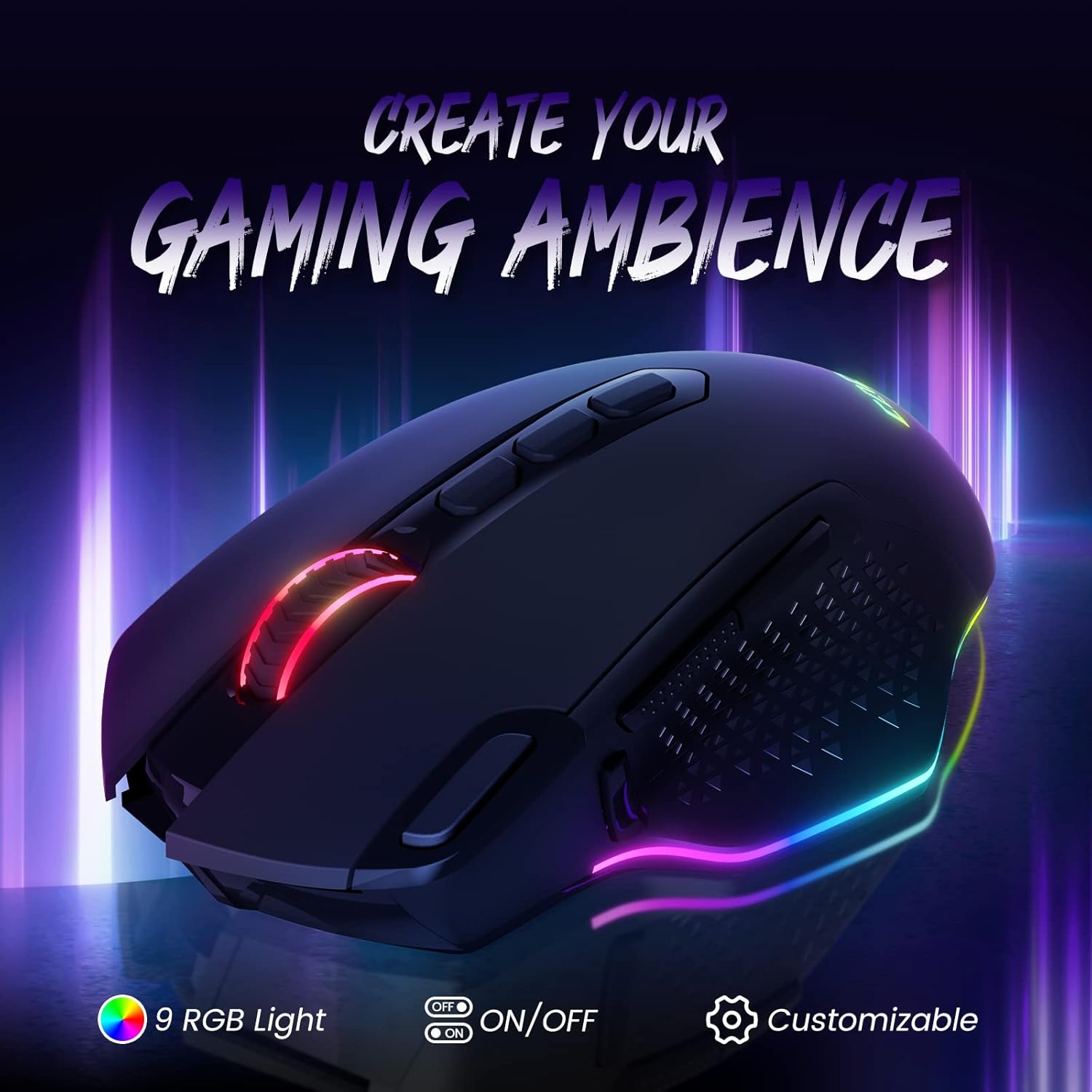
Image: The CACKBIRD CA282A mouse illuminated with vibrant RGB lighting, showcasing its customizable ambiance features.
5.3 Programmable Buttons and Software
The mouse is equipped with 10 programmable buttons. To customize these buttons and create macros, install the programming software from the included CD. Note: The programming software is only compatible with Windows operating systems.
- Insert the software CD into your computer's optical drive.
- Follow the on-screen instructions to install the software.
- Launch the software to access customization options for lighting, DPI, and button assignments.

Image: A screenshot of the CACKBIRD CA282A mouse's customization software interface, showing options for lighting, DPI, and macro programming.
5.4 Fire Button Function
The dedicated Fire Button provides a rapid triple-click action with a single press, which can be advantageous in certain gaming scenarios.
6. Maintenance
- Cleaning: Use a soft, dry cloth to clean the mouse. For stubborn dirt, slightly dampen the cloth with water. Avoid harsh chemicals or abrasive materials.
- Storage: Store the mouse in a cool, dry place away from direct sunlight and extreme temperatures.
- Battery Care: To prolong battery life, avoid fully discharging the mouse frequently. Charge it regularly.
7. Troubleshooting
Mouse not responding:
- Ensure the mouse is powered on.
- Check if the USB receiver is securely plugged into a working USB port.
- Try plugging the receiver into a different USB port.
- Ensure the mouse battery is charged. Connect the mouse via the Type-C cable to use it in wired mode and charge.
- If using wireless mode, ensure there are no significant obstructions or sources of interference between the mouse and the receiver.
RGB lighting not working or incorrect:
- Check the mouse's power level; low battery might affect lighting.
- Use the dedicated lighting control button on the mouse or the software to adjust settings.
Programmable buttons not working:
- Ensure the programming software is correctly installed and running (Windows only).
- Verify that the button assignments have been saved and applied within the software.
8. Specifications
| Feature | Specification |
|---|---|
| Brand | CACKBIRD |
| Model | CA282A |
| Connectivity | Wireless (2.4GHz), Wired (USB Type-C) |
| Movement Detection Technology | Optical (PMW3325 Sensor) |
| DPI Sensitivity | Up to 10000 DPI |
| Polling Rate | 1000Hz |
| Number of Buttons | 10 (Programmable) |
| RGB Lighting | 3 Zones, 9 Effects, 16.8 Million Colors |
| Battery Type | Built-in 1000mA Lithium Battery |
| Battery Life (Lights Off) | Approx. 60 hours |
| Battery Life (Lights On) | Approx. 36 hours |
| Charging Time | Approx. 2 hours |
| Hand Orientation | Right |
| Compatible OS | Windows XP, Linux (Programming software for Windows only) |
| Hardware Platform | Laptop, Personal Computer |
| Dimensions | 13.3 x 9.7 x 5.3 cm |
| Weight | 189 g |
9. Warranty and Support
For warranty information and technical support, please refer to the documentation provided with your purchase or contact CACKBIRD customer service. Details for customer service can typically be found on the product packaging or the official CACKBIRD website.
