
MOKiN 11-IN-1 (2 HDMI + VGA)
MOKiN 11-in-1 USB C Docking Station User Manual
Model: 11-IN-1 (2 HDMI + VGA)
Introduction
This manual provides detailed instructions for the setup, operation, and maintenance of your MOKiN 11-in-1 USB C Docking Station. This versatile docking station expands your laptop's connectivity, offering multiple ports for enhanced productivity and display options.

Figure 1: MOKiN 11-in-1 USB C Docking Station
Key Features
- Comprehensive Port Selection: Equipped with 2 x HDMI ports, 1 x VGA port, 1 x PD charging port, 1 x Gigabit RJ45 port, 3 x USB A 3.1 ports, 2 x USB A 2.0 ports, and 1 x audio/mic port.
- Triple Display Support: Supports extending to 3 monitors simultaneously via 2 x 4K HDMI and 1 x 1080P VGA. (Note: macOS systems will mirror external displays, and M1/M2 chip MacBooks support only one extended or mirrored monitor due to chip limitations.)
- High-Speed Data Transfer: Features 3x USB 3.1 ports (up to 10GB/s) for rapid data transfer with smartphones, tablets, and hard drives, plus 2 x USB 2.0 ports (up to 480MB/s) ideal for keyboard or mouse connections.
- Power Delivery & Network: Supports 100W pass-through fast charging (87W for laptop after 13W for hub operation), up to 1000Mbps network transmission, and a 3.5mm Mic & Audio Port. Plug-and-play functionality, no drivers required.
- Wide Compatibility: Compatible with laptops running Windows and Mac OS systems, including MacBook Pro/Air 2016-2021, Dell XPS, HP, Lenovo ThinkPad, Surface Go/Pro 7/Book 2, and more.
Setup Guide
Before connecting the docking station, ensure your laptop's USB-C port supports video output (DisplayPort Alt Mode) and Power Delivery for full functionality.
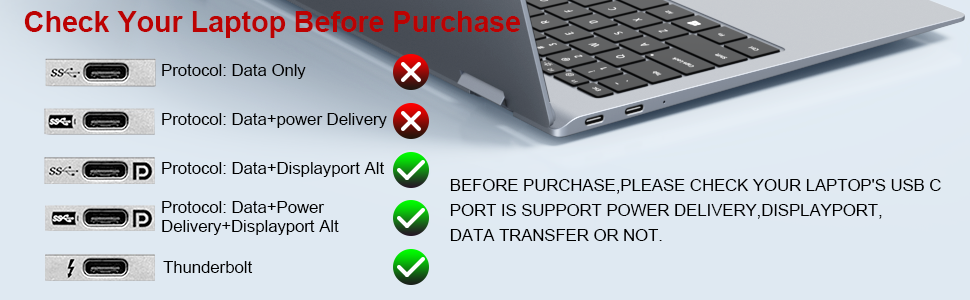
Figure 2: Check Your Laptop's USB-C Port Compatibility
- Connect the Docking Station: Plug the integrated USB-C cable from the MOKiN docking station into a compatible USB-C port on your laptop.
- Connect Power (Optional but Recommended): For stable operation, especially with multiple displays or power-hungry devices, connect your laptop's power adapter to the PD charging port (USB-C) on the docking station.
- Connect Displays: Use HDMI or VGA cables to connect your external monitors to the corresponding ports on the docking station.
- Connect Peripherals: Plug in your USB devices (keyboard, mouse, external drives), Ethernet cable, and audio devices as needed.
Visual Setup Guide
Video 1: Compatibility and Expanding Display Tutorial. This video demonstrates how to connect the docking station and configure display settings for optimal performance.
Operating Instructions
Port Overview

Figure 3: Detailed Port Layout of the MOKiN 11-in-1 USB C Hub
- HDMI Ports (2x): Connect up to two 4K monitors. HDMI 1 supports 4K@60Hz, HDMI 2 supports 4K@30Hz.
- VGA Port (1x): Connect one 1080P monitor (1080P@60Hz).
- USB 3.1 Ports (3x): For high-speed data transfer (up to 10Gbps) with external hard drives, SSDs, and other USB 3.1 compatible devices.
- USB 2.0 Ports (2x): Ideal for connecting peripherals like keyboards, mice, and printers (up to 480Mbps).
- PD Charging Port (USB-C): Connect your laptop's power adapter for up to 100W pass-through charging.
- Gigabit RJ45 Ethernet Port: Provides stable and fast wired internet connection (up to 1000Mbps).
- 3.5mm Audio & Mic Port: Connect headphones, speakers, or microphones.
Display Configuration
The docking station supports various display modes depending on your operating system and laptop's capabilities.

Figure 4: Windows and Mac OS Display Modes
- Windows OS: Supports mirror mode, extend mode (up to three distinct displays), and triple display configurations.
- Mac OS: Supports mirror mode and extend mode. Due to Apple M1/M2 chip limitations, only one external monitor can be extended or mirrored.
Data Transfer and Charging

Figure 5: High-Speed USB 3.1 Data Transfer

Figure 6: 100W Pass-Through Fast Charging

Figure 7: Ethernet and Audio Connectivity
Product Demonstration
Video 2: A user's perspective on the MOKiN 11-in-1 Docking Station, showcasing its features and ease of use.
Video 3: Official MOKiN demonstration of the docking station's various ports and functionalities.
Maintenance
- Keep the docking station clean and free from dust. Use a soft, dry cloth for cleaning.
- Avoid exposing the device to extreme temperatures, humidity, or direct sunlight.
- Do not attempt to disassemble or repair the device yourself. Refer to qualified service personnel.
Troubleshooting
- Q1. Why is there no video output?
- Please ensure your USB-C source device supports video output. If the built-in USB-C port of your laptop is not a Fully Functional port, then the HDMI, VGA, and 3.5mm Jack of the hub will not work for your laptop.
- Please check that the connection is secure.
- Please use a standard HDMI cable.
- Q2. Sometimes WiFi stopped working while hard disk connected to hub, how to do?
- 2.4G network is easily disturbed. You can switch to a 5G network. Alternatively, you can adjust the placement of the hard disk, moving it to a suitable location away from the hub.
- Q3. Win10 system, if one of display does not display, how to do?
- Right-click desktop > Graphics Settings > Select One or More Active Displays.
- Q4. If USB driver cannot be identified, how to do?
- Please confirm your laptop’s USB Type C port supports ‘DisplayPort Alt Mode’ and ‘Power Delivery’.
- Make sure you have downloaded/updated the DisplayLink driver to the latest version.
- Note: If you use a USB C female to USB A male adapter to connect the docking station to your laptop or if your laptop has a USB C 3.1 Gen 1 port, the HDMI 1 port will not work.
- Q5. If speed is too slow when connecting a hard disk, how to do?
- Plug and unplug the device multiple times.
- Restart the computer and reconnect the hard disk.
- Q6. If display stopped after connecting a high current hard disk, how to do?
- The docking station must be charged. Please supply power via a power adapter.
- Q7. Why can't I charge my Dell/HP Laptop with the USB C charging port of this USB C docking station?
- The USB C Power Charging function of our docking station does not work for laptops that use an AC charging adapter. These laptops (Dell/HP/ThinkPad...) do not allow 3rd party chargers to charge their laptop in other ways.
- Q8. Why is the screen sometimes black?
- The reason the screen is black is often due to the docking station's high power consumption. You need to charge the laptop through the charging port on the docking station to resolve the black screen issue.
- Q9. How many monitors can extend for Steam Deck?
- For Steam Deck, only one monitor can be extended.
Specifications
| Feature | Detail |
|---|---|
| Brand | MOKiN |
| Model | 11-IN-1 (2 HDMI + VGA) |
| Item Weight | 2.24 ounces (0.14 Pounds) |
| Product Dimensions | 5.71"L x 2.76"W x 0.39"H |
| Color | 11-IN-1 (2 HDMI + VGA) |
| Hardware Interface | MicroSD, VGA, USB 3.1 Type A, HDMI, 3.5mm Audio, SDXC, SDHC |
| Compatible Devices | Laptop, OTG Enabled Tablet, OTG Enabled Phone |
| Total USB Ports | 6 |
| Number of Ports | 11 |
| Total HDMI Ports | 2 |
| Wattage | 100 watts |
Warranty and Support
MOKiN is committed to providing high-quality products and professional after-sales service. For any inquiries, technical support, or warranty claims, please contact MOKiN customer service through the platform where you purchased the product. Our team is dedicated to assisting you with any issues you may encounter.
Related documents11-IN-1 (2 HDMI + VGA)


Ask a question about this manual
Ask about setup, troubleshooting, compatibility, parts, safety, or missing instructions. Manuals+ will review the question and use this page’s manual context to help answer it.